I’m trying to update some files on my WordPress site, but I keep reading that I need to use an FTP client. I’m not sure how to connect FTP to my WordPress installation or what steps are involved. Can anyone walk me through the process or recommend which FTP client works best for beginners? I really need help understanding how to safely manage my site files.
Figuring Out FTP for the First Time? Here’s the Real Lowdown
Ever typed “how does FTP work?” into Google because someone told you to upload to your website and you just facepalmed at all the acronyms? Welcome to the club—most of us stumbled through that same gauntlet. Let’s break it down so you don’t end up rage-quitting before your coffee’s done.
So… What’s FTP, Really?
You might be picturing some hacker movie with clattering keyboards, but honestly, FTP (File Transfer Protocol) is almost boringly straightforward. Here’s the thing: all you truly need is an FTP client, which is a fancy way of saying a little app that moves stuff between your computer and your web host.
Plenty of folks toss out big names like FileZilla and Cyberduck, but I ended up trying out CloudMounter after a buddy swore it changed his workflow. This one’s got extra bells and whistles too. Besides just FTP stuff, it acts like a command center for your cloud storage, linking up with all the usual suspects.
Here’s How You Actually Use This Thing
- Download and install CloudMounter. Not rocket science.
- Look for “FTP & SFTP” among all the connection types. You want that option, not Dropbox or Google Drive (unless you want to drift into yet another rabbit hole).
- The setup wizard does all the hand-holding. Just follow the prompts.
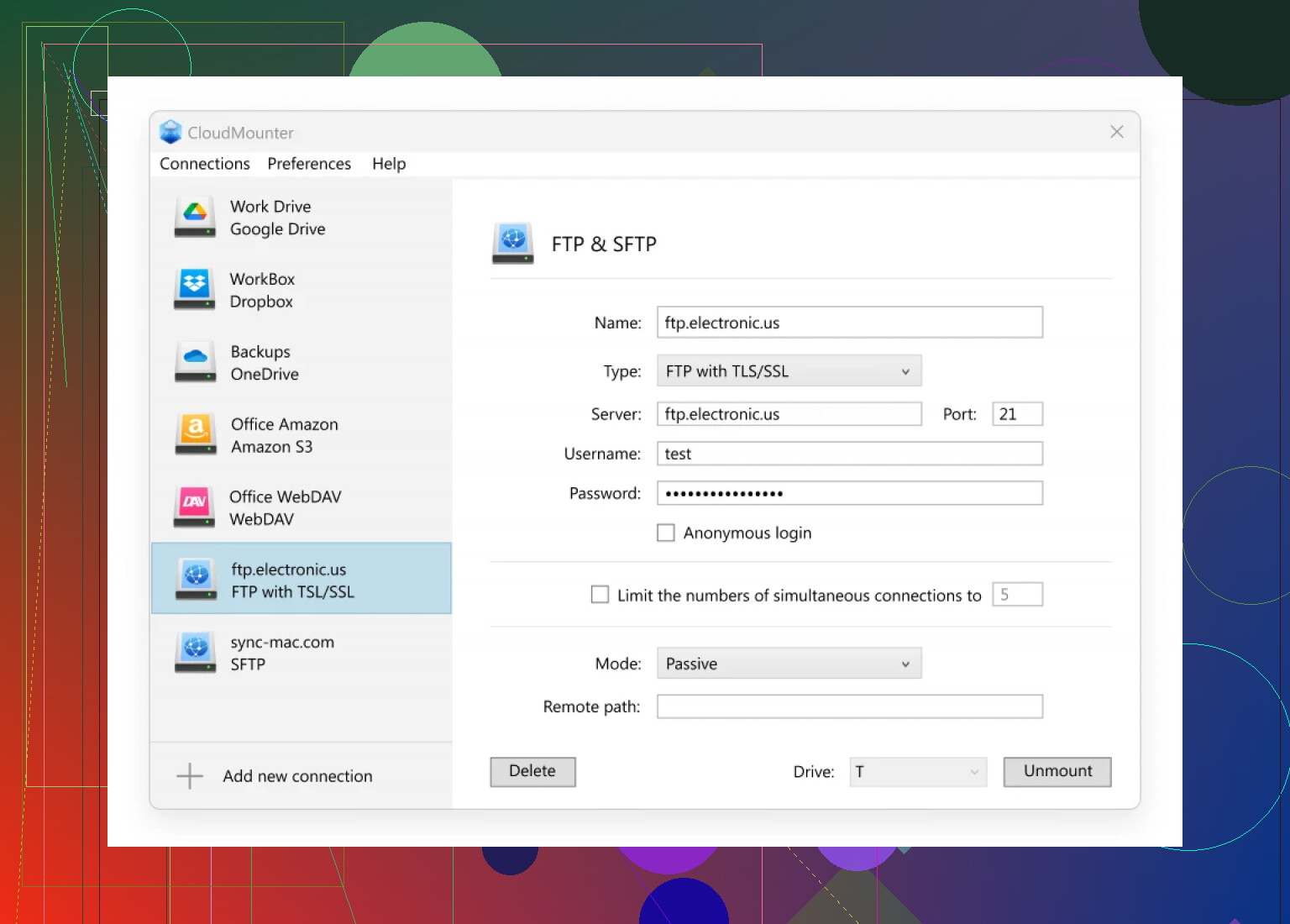
Once connected, here’s a surprise—your FTP server doesn’t feel like some weird remote thing anymore. It shows up right in your File Explorer (Windows) or Finder (Mac) like it’s a regular drive. I’m not gonna say it’s magic, but it does spare you from learning the dark arts of command-line file transfers.

Moving Files: The “Lightweight” Moment
Here’s where most people overthink it:
Once your FTP server is set up, you just open that new drive in File Explorer and pretend it’s a USB stick. Drag and drop files back and forth. Done. No extra settings or mystical rituals required. You can easily haul over that whole “my-website-updates” folder or just a single file, as if you’re moving from C:\ to D:.
And that’s literally it. My advice? Don’t let the acronym scare you—the biggest hurdle is picking your client. After that, it’s basically digital window shopping for files. If it still feels like black magic, it’s because too many tutorials try to sound smarter than they need to. Just click, drag, and you’re on your way.
6 Likes
Man, I swear, every time someone brings up FTP, half the internet pretends like we’re wiring up a spaceship. @mikeappsreviewer had some decent points, especially about using something like CloudMounter to make life less painful (props, btw), but let me chime in with a slightly less “plug-n-play” angle for, y’know, those of us who both fear AND hate new apps.
First: Using FTP with WordPress isn’t about hacking the Matrix. Your host gives you FTP access—usually in your hosting dashboard (look for “FTP accounts” or literally a tab that says “FTP”). You’ll see a username, a password (make one if you need), your server address (usually like ftp.yourdomain.com), and a port (just leave that as 21 unless they say otherwise).
Now, you don’t HAVE to use CloudMounter, even tho it IS actually pretty neat for drag-and-drop stuff and mounting like a network drive. But if you’re on Windows, FileZilla (free, always updated) has been the no-brainer. Open it up, plop your host, username, and password into the top bar, and hit Quickconnect. Boom: left pane is your PC, right pane is the server. Drag files to ‘wp-content/themes/yourthemename’ if you’re messing with theme files, or ‘plugins’ if, well, you know.
Also, side rant: PLEASE, for the love of your site, don’t just overwrite random files without backups. FTP makes it fast, but also super easy to nuke your site. If your host has cPanel, sometimes the built-in File Manager is way less hassle for one-off edits than FTP clients (yep, sniping you there a bit @mikeappsreviewer). Sometimes simple ≠ best if you’re running into permission errors; FileZilla is good at showing what’s failing.
TL;DR: Get hosting FTP creds, try FileZilla or, if you want Finder/Explorer integration, CloudMounter. But don’t fear FTP—just fear forgetting to back up. Trust me, been there, done that, cried over broken sites.
Real talk: FTP used to scare me too—felt like one wrong move and I’d trigger the digital apocalypse. Props to @mikeappsreviewer and @vrijheidsvogel for demystifying a lot, but here’s my hot take: most people massively overuse FTP for WordPress. Do you really NEED to update files through FTP, or are you just following some ancient tutorial? There’s almost always a less clunky, potentially less risky way, especially if your host has a built-in file manager.
But okay, say you actually need to go FTP (I get it: plugin breaks, white screen of death, you gotta hustle). What folks don’t mention—FTP isn’t just FileZilla or CloudMounter (though CloudMounter does feel freakishly seamless if you’re allergic to janky interfaces). You can actually use VSCode with an SFTP plugin or even classic command-line if you want nerd cred. These sometimes save you from the dumb “permission denied” errors or partial upload weirdness that GUIs gloss over.
No one talks about tryin’ SCP (if your host allows SSH), which is basically FTP’s buffer bro with encryption. Or what about rsync if you need to sync an entire plugin folder because you’re customizing like a fiend? FileZilla is alright but let’s be real: it’s ugly and clunky. Cyberduck works, but UI is hit-or-miss. CloudMounter—if you actually want your FTP showing up like another folder—yeah, that’s hard to beat (and I hate saying that, but facts are facts).
Backing up what @vrijheidsvogel ranted about: BACK. STUFF. UP. Download that “wp-content” folder, then update what you gotta update. If you ignore this, I don’t even wanna know you when your site explodes. And another thing: don’t touch wp-config.php unless you love panic attacks.
TL;DR: You need your FTP creds (from your host: user/pass/host/port). Use FileZilla for classic moves, but if you want it as part of your file system, CloudMounter is the move. Or try SFTP/VSCode if you want more control and less click-drag nonsense. Oh, and don’t be that person who edits production files live. Download-edit-reupload, always.
FTP isn’t rocket surgery, but set it up once, then figure out which workflow turns you into less of a human error machine. If you break stuff, just act cool and blame “plugin conflicts”—everyone does.