The (Almost) No-Nonsense Guide: Accessing FTP Servers from Windows & Mac
Let’s get real for a second—messing with FTP straight through File Explorer kinda feels like unlocking a secret cheat code from the early 2000s. Most folks don’t even realize Windows has this baked in. You don’t need to dig around for downloads or random third-party apps. Here’s how most of us quietly do it behind the scenes:
Windows: The Native Route
Got File Explorer open? (Of course you do.)
Here’s the quick rundown:
- Pop open File Explorer (Windows + E, boom).
- Slap this format into the address bar:
ftp://yourservername.com - Press Enter and—yup—if it’s locked down, a little window asks for your login info.
- Once you’re in, it all just appears like a dumbed-down folder. Drag, drop, copy, delete—same old moves.
Mac Users, Don’t Tune Out
Finder’s got your back in a similar way.
- Up top, go to Go > Connect to Server…
- Paste in:
ftp://yourservername.com - Click your way in. Credentials, if needed, same drill.
Reality Check: Not Always Smooth Sailing
Look, this all does work. But if you actually use FTP more than once in a blue moon, annoyances will pop up faster than Windows Updates.
- Sometimes File Explorer just kicks you out mid-transfer. (That “why did you disappear?” moment.)
- Your login? Gone by next session. Like your password fell into a black hole.
- Upload fails halfway through if your Wi-Fi sneezes.
- Zipping a boatload of files? Be prepared for sudden surrender.
Found a Better Way? Here’s What’s Smoother
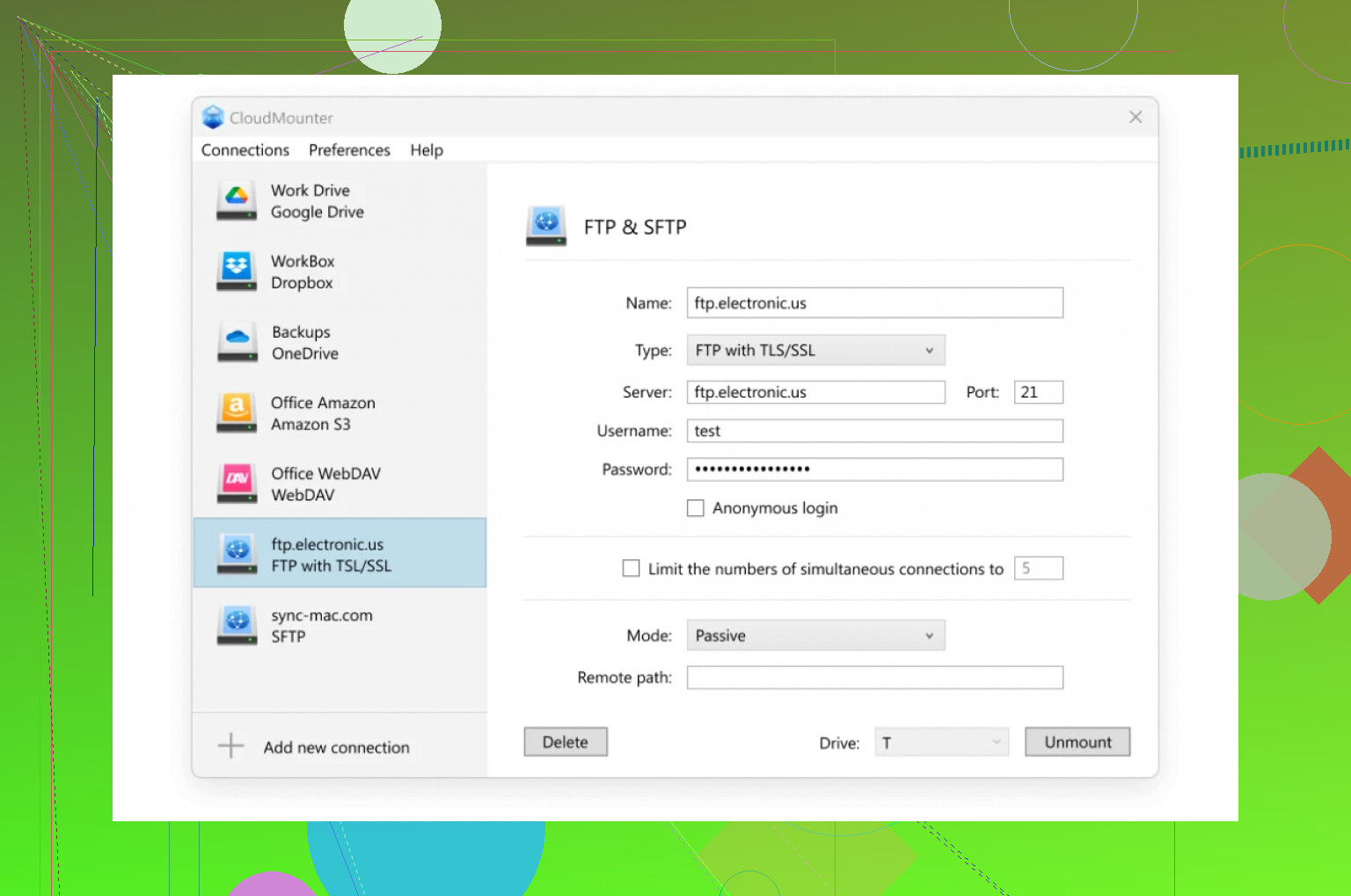
I can’t count the number of times I got so fed up I finally went looking for something better. If you’re juggling FTP on the regular, CloudMounter is worth checking out—think of it as a middleman that does its job and keeps its mouth shut.
- FTP server mounts next to your regular drives. (Seriously. Shows up like D: or E:)
- If you drop connection, it reconnects by itself.
- Credentials? Saved. No more CTRL-V, CTRL-V, CTRL-V.
- Fewer random failed transfers.
Pure bliss? Not quite. But a solid step up from “File Explorer forgot who I am again!”
Quick Tip You Won’t Regret
Shuffling a mountain of files over FTP? Divide and conquer.
Why? Because neither File Explorer nor even “superior” apps like CloudMounter always play nice with mega-uploads. Split things into smaller chunks and your data’s less likely to vanish in the void.
TL;DR
- File Explorer and Finder are okay if you’re a casual FTP tourist.
- Got serious file moving to do? Get something like CloudMounter—trust me, you’ll dodge a ton of petty headaches.
That’s the gist—FTP doesn’t have to be a rollercoaster. Unless, of course, you like drama.