I’m trying to access an FTP server using Windows File Explorer but I’m not sure what steps I need to follow. I’ve tried entering the FTP address in the address bar, but it doesn’t seem to work. I need this for work, so any step-by-step help or tips would be really appreciated.
The (Almost) No-Nonsense Guide: Accessing FTP Servers from Windows & Mac
Let’s get real for a second—messing with FTP straight through File Explorer kinda feels like unlocking a secret cheat code from the early 2000s. Most folks don’t even realize Windows has this baked in. You don’t need to dig around for downloads or random third-party apps. Here’s how most of us quietly do it behind the scenes:
Windows: The Native Route
Got File Explorer open? (Of course you do.)
Here’s the quick rundown:
- Pop open File Explorer (Windows + E, boom).
- Slap this format into the address bar:
ftp://yourservername.com - Press Enter and—yup—if it’s locked down, a little window asks for your login info.
- Once you’re in, it all just appears like a dumbed-down folder. Drag, drop, copy, delete—same old moves.
Mac Users, Don’t Tune Out
Finder’s got your back in a similar way.
- Up top, go to Go > Connect to Server…
- Paste in:
ftp://yourservername.com - Click your way in. Credentials, if needed, same drill.
Reality Check: Not Always Smooth Sailing
Look, this all does work. But if you actually use FTP more than once in a blue moon, annoyances will pop up faster than Windows Updates.
- Sometimes File Explorer just kicks you out mid-transfer. (That “why did you disappear?” moment.)
- Your login? Gone by next session. Like your password fell into a black hole.
- Upload fails halfway through if your Wi-Fi sneezes.
- Zipping a boatload of files? Be prepared for sudden surrender.
Found a Better Way? Here’s What’s Smoother
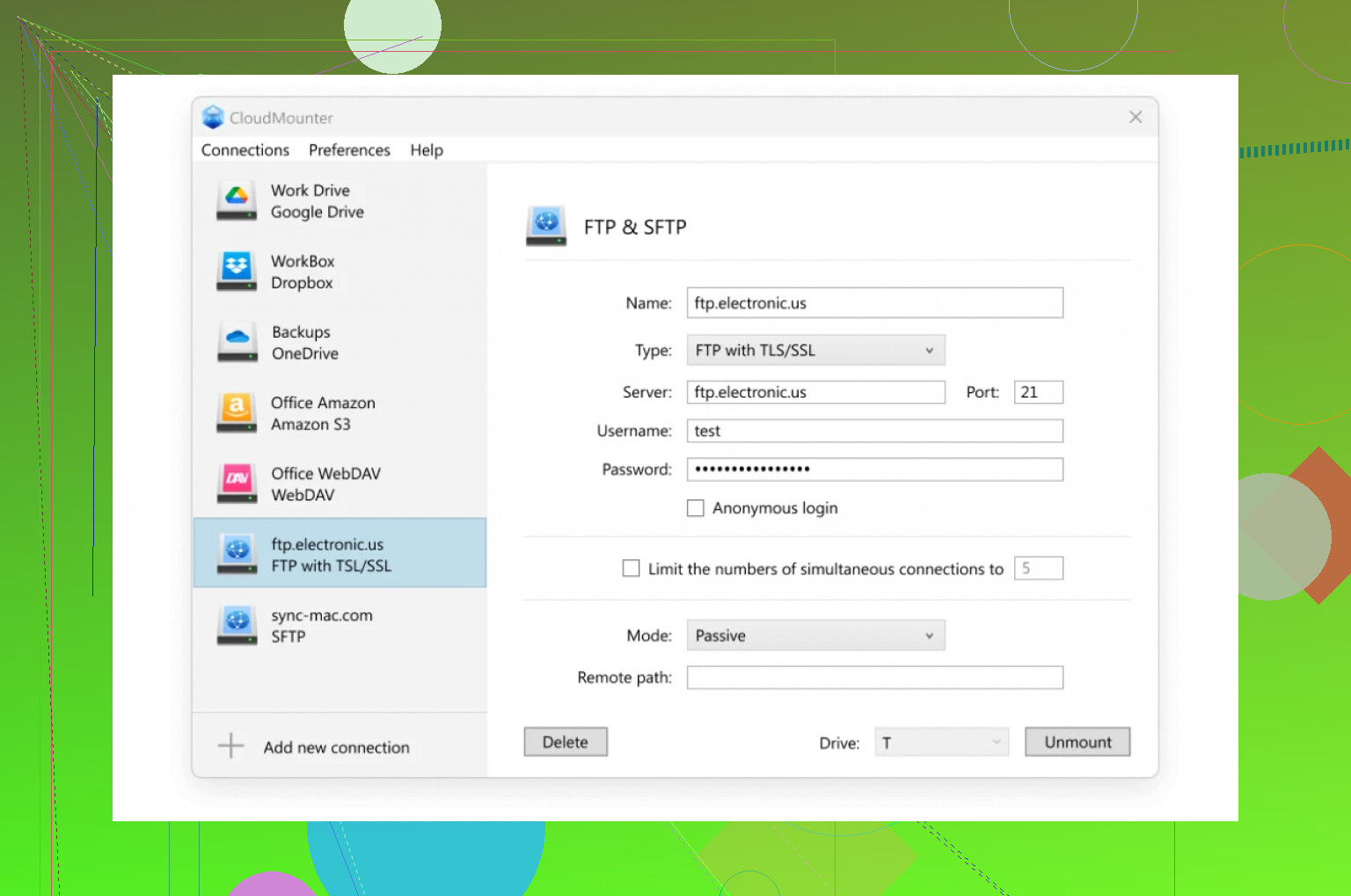
I can’t count the number of times I got so fed up I finally went looking for something better. If you’re juggling FTP on the regular, CloudMounter is worth checking out—think of it as a middleman that does its job and keeps its mouth shut.
- FTP server mounts next to your regular drives. (Seriously. Shows up like D: or E:)
- If you drop connection, it reconnects by itself.
- Credentials? Saved. No more CTRL-V, CTRL-V, CTRL-V.
- Fewer random failed transfers.
Pure bliss? Not quite. But a solid step up from “File Explorer forgot who I am again!”
Quick Tip You Won’t Regret
Shuffling a mountain of files over FTP? Divide and conquer.
Why? Because neither File Explorer nor even “superior” apps like CloudMounter always play nice with mega-uploads. Split things into smaller chunks and your data’s less likely to vanish in the void.
TL;DR
- File Explorer and Finder are okay if you’re a casual FTP tourist.
- Got serious file moving to do? Get something like CloudMounter—trust me, you’ll dodge a ton of petty headaches.
That’s the gist—FTP doesn’t have to be a rollercoaster. Unless, of course, you like drama.
15 Likes
If you’re banging your head against the desk because File Explorer just refuses to play nice with an FTP server, you’re not alone. I know @mikeappsreviewer’s trick works sometimes, but if you’re stuck after punching in ftp://server.com in the address bar and nothing happens, Windows might be blocking passive mode, your firewall’s a gatekeeper from hell, or the server plain hates anonymous logins.
Here’s the cold, honest take: File Explorer’s FTP tool is like that crusty coffee maker at work—technically it’s there, but expect a lot of sputtering and disappointment. Credentials get forgotten, random drop-offs, and big transfers are a dice roll. Sometimes, even if you do everything “right,” it just won’t connect because your company FTP demands explicit FTPS (secure FTP), which plain old File Explorer just does not handle. You get a vague error, zero help, and a broken dream.
Pretending that built-in Windows tricks always work is wishful thinking. If yours is failing and it’s for work, get yourself an actual FTP client—FileZilla is free, crazy reliable, and handles more FTP situations, including FTPS, than Explorer ever will. For power user perks (like treating your FTP server like just another drive letter), CloudMounter is legit, especially if you’re swapping between Mac and Windows or have to keep passwords around.
One weird trick if you must stay with File Explorer: try mapping the FTP location as a network drive (This PC > Add a network location). It’s buried, doesn’t always fix things, but worth a shot if the address bar trick didn’t pan out.
TL;DR: File Explorer’s built-in FTP is a gamble. If it’s not working, it’s probably not you—it’s Windows being Windows. Try mapping the FTP as a network location, but if you hit a wall, just use FileZilla or CloudMounter. Don’t lose sanity over stubborn legacy tools.
Alright, I’m just gonna say it: wrestling with FTP in File Explorer feels like trying to convince your grandma to use TikTok. Yeah, it’s kind of possible, but will it work the way you hope? Meh.
So, you typed ftp://something in the bar and nada—classic. Everyone hypes the address bar method (shoutout to @mikeappsreviewer and @sterrenkijker, you legends), but real talk: Windows sometimes acts like it’s never seen an FTP server before. Half the time, the server needs encryption (FTPS), and File Explorer just shrugs and gives you some cryptic error message. Or you get in, but transferring more than two files? Instant regret.
If you HAVE to live in File Explorer land, there’s that little-known trick: “Add a network location.” In “This PC,” right-click, choose “Add a network location,” and follow the wizard—sometimes that sticks better than the address bar hack. Doesn’t always fix the spaghetti, but worth a Hail Mary.
For sanity’s sake, though, why not just try CloudMounter? It blends your FTP server into Windows just like any other drive, and it remembers your creds. (Big deal if you’re tired of typing that nightmare password.) FileZilla works, but it feels like going back to 2008 and doesn’t blend into your workflow.
If Windows Explorer still ghosting you, maybe it’s a firewall policy, maybe it’s passive mode drama, maybe Microsoft just hates you personally. Don’t sweat it. You’re not alone. Stick with CloudMounter or a real FTP tool and stop giving your blood pressure a workout.
In the meantime, maybe ask IT if they secretly require FTPS—they probably “forgot to mention.”
Alright, let’s cut to the chase: FTP in Windows Explorer is like using a flip phone in 2024—possible, nostalgic, but not your smartest move. Props to the earlier replies for dropping the “Add a network location” trick and calling out those random Explorer meltdowns (been there, rage-quit that).
But here’s what folks keep missing: NOT ALL FTP servers play nice with barebones Explorer, especially if your IT squad has set it to demand FTPS or SFTP (Explorer won’t touch SFTP at all). And when you need secure transfers, File Explorer just stares into the void. If that’s you, trying to connect using the basic ftp:// address is a dead end—no login window, no error, nada.
Now, CloudMounter’s getting buzz—rightfully so. You get native integration (feels like another drive, not a clunky separate app), it stashes your login so you’re not retyping every time, and it doesn’t choke on big uploads as badly as Explorer. Downside? It’s not free. And if you mint passwords often or have to connect to oddball servers, sometimes it takes a beat to catch up on configs. I also found settings a little buried.
Let’s drop a quick pro/con list for perspective:
CloudMounter Pros:
- Mounts FTP as a drive, easy drag/drop from anywhere
- Remembers credentials (saves serious headaches)
- Reconnects automatically if your internet coughs
- Handles both FTP and SFTP (Explorer can’t even SFTP)
CloudMounter Cons:
- Paid software (no free lunch here)
- Support and speed can lag with really massive folder syncs
- Occasional quirks with advanced proxies/firewalls
If you’re in the “just once” FTP club, try File Explorer’s network location or see if @sterrenkijker’s steps do the trick. For the “FTP all day, every day” crew, join @viajeroceleste in recognizing when it’s time to bounce to something better—think CloudMounter or, if you love old-school, give FileZilla or WinSCP a spin (but prepare for clunky interfaces).
TL;DR: If Explorer’s flaking, don’t force it—life’s too short. Go CloudMounter or another solid FTP client. But hey, if you like suffering, keep trying that address bar. We’ll save you a seat in the IT therapy circle.