My SD card was working fine in my camera and computer, but now it suddenly says it needs to be formatted before I can use it. I have important photos and files on it that I don’t want to lose. What could have caused this, and is there any way to fix the SD card or recover the data without formatting it right away?
Been in almost this exact mess before, thought the card was dead, turned out it was less bad than it looked.
If Windows pops up and tells you the SD card needs to be formatted, hit cancel. Do not agree to format it. Your photos are likely still on there, the file system is just scrambled and Windows throws a fit when it sees that.
What I did step by step:
- Put the card back in the camera, not in a USB card reader.
- Plug the camera into the computer with a USB cable.
- Turn the camera on and wait a bit longer than feels normal.
For some reason the camera handled the card better than Windows did directly. In my case, the camera showed the photos and the computer was able to read some of them through the camera connection, even though the same card in a reader looked “corrupt” in Windows.
When that did not solve it for me, I went the software route.
I used Disk Drill on a PC and ran a deep scan on the SD card. Took a while, I let it run and walked away. It pulled back most of the photos. File names were a mess, some were out of order, but the images opened and I could sort them later.
This discussion helped a lot when I was figuring it out, it breaks the process down step by step and kept me from doing something dumb:
https://discussion.7datarecovery.com/forum/topic/how-can-i-recover-photos-from-a-formatted-sd-card/
Most important rule from my own screwup: do not write anything new to the SD card before you try recovery. No deleting, no taking “a few more shots”, no formatting, no copying new stuff onto it. Every write operation risks overwriting the old photo data you are trying to get back. I learned that the hard way and lost a chunk of pictures I might have saved.
After I recovered what I could, I stopped trusting that card. I pulled the photos off, checked them, then threw the card out. It had started to act flaky again in another device. I got about three months of photos back, which felt like a win compared to losing everything, but the card itself was done. Use it once for recovery, then retire it.
28 Likes
Few main things trigger that “you need to format this SD card” message:
-
File system corruption
Often from:- Pulling the card out while the camera or PC writes to it
- Power loss while saving photos
- Cheap or worn-out card readers
Windows then sees a broken file system and says “format”. Your data often still sits on the card, the index is damaged.
-
Bad or dying flash cells
SD cards have limited write cycles. When parts wear out, the controller starts to fail.
Symptoms: slow access, random errors, card works in one device and not in another, or suddenly asks for format.
Once it starts, it usually gets worse, not better. -
Incompatible or messed up partition / format
- Some cameras format as exFAT or custom layouts
- Older PCs or readers hate that
- A failed attempt to format or repartition from a PC can leave things half baked
-
Fake or low quality card
A lot of “high capacity” cards online report 128 GB, 256 GB, etc, but are hacked 16 GB cards.
Once you pass the real size, the mapping breaks and the file system explodes.
H2testw on Windows or F3 on Linux/macOS helps check that.
I partly agree with @mikeappsreviewer about avoiding format and not writing anything new. That is correct and important. I am less sold on spending a lot of time trying every device first. Each extra plug and unplug is a small risk if the card is on its last legs.
What I would do, step by step, without repeating the same details:
-
Stop all writes
- Do not format in Windows.
- Do not shoot new photos on that card.
- Do not delete files from it.
-
Try one last safe read method
- Use a known good USB reader, directly into the motherboard ports on the back of a desktop or a main port on a laptop.
- Try reading the card on a second computer or OS if you have one.
If both say it needs formatting, assume file system corruption or failing memory.
-
Make a full image of the card
This part helps if the card is dying.- On Windows, use a tool like Win32 Disk Imager or dd for Windows.
- On macOS or Linux, use dd.
Command example on Linux/macOS:
dd if=/dev/sdX of=sdcard_backup.img bs=4M status=progress
Replace /dev/sdX with your card device.
Work on the image file, not the physical card. That stops more wear.
-
Recover files with software
This is where Disk Drill helps. It scans the raw data, not only the file system.- Install Disk Drill on your PC.
- Point it to the SD card or the image file if you made one.
- Run a deep scan and let it finish.
- Save recovered files to a different drive, never back onto that SD card.
Disk Drill is helpful for photos, videos, and common document formats. You lose original folder structure sometimes, but you often get the files back.
-
If you need a step by step walk through
This guide gives clear recovery steps and explains options for an unformatted SD card:
how to recover data from an SD card that asks to be formatted
It is focused on data recovery, not quick formatting. -
Decide the fate of the card
- If the card caused one serious corruption and shows errors again, retire it.
- If tests show bad sectors or slow reads, retire it.
- Only keep it for noncritical stuff if you insist, but expect more issues.
Short version of why this happened to you:
- The card’s file system got corrupted or the hardware started failing.
- Your photos are likely still there in raw form.
- Recovery software like Disk Drill gives you the best shot, as long as you stop writing to the card.
Backups after this are key. Two copies on different drives for important photos, plus a cloud copy if possible. This kind of SD card failure hits people a lot, not because they are doing everything wrong, but because cards wear out quietly until the first big error shows up.
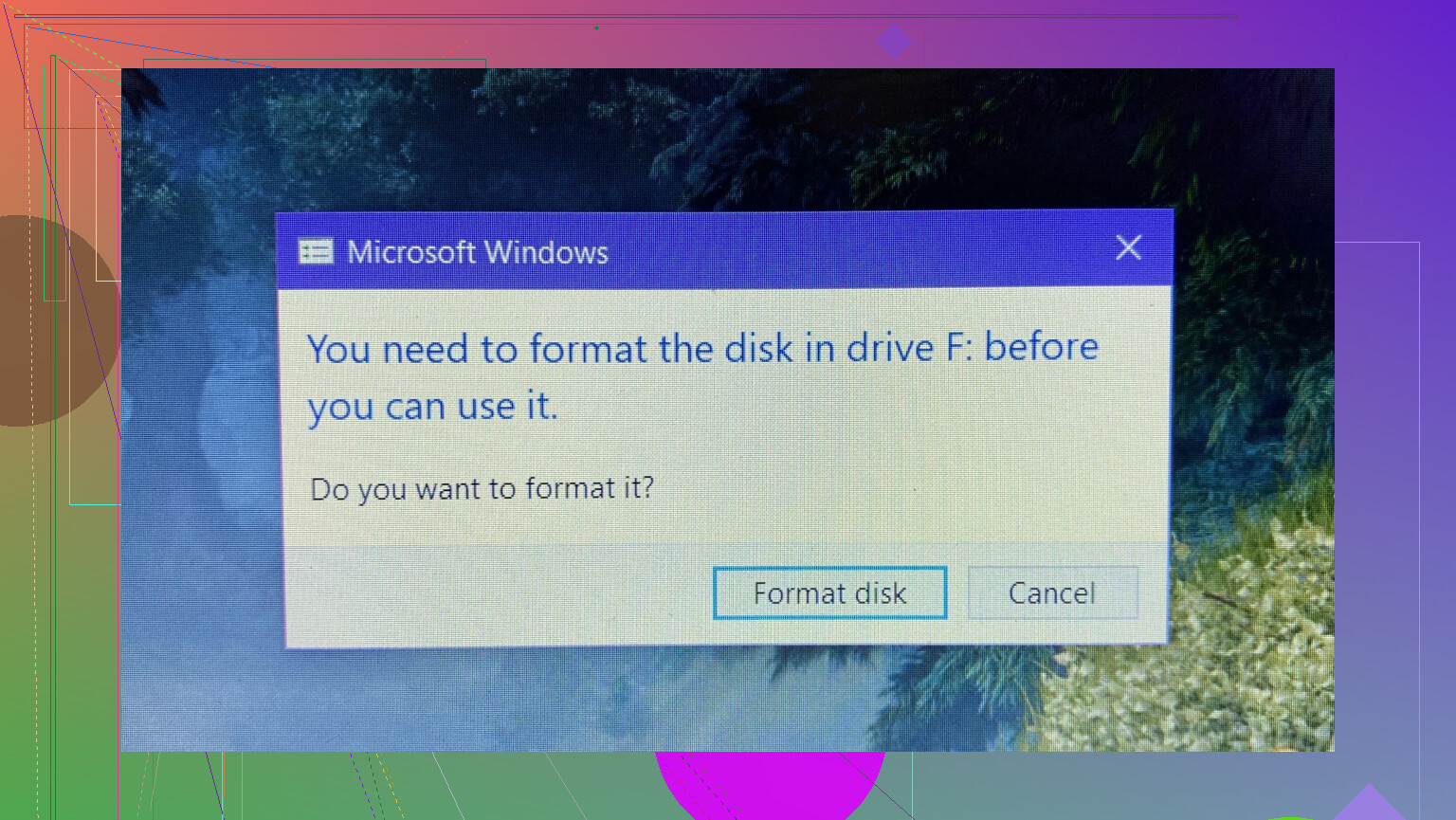
That “you need to format this SD card” popup is basically your OS saying “I can’t make sense of this file system anymore,” not “everything is gone forever.”
@mikeappsreviewer and @yozora already nailed the big practical steps and the “don’t format / don’t write anything” rule, so I won’t rehash all of that. I’ll just add a few angles they didn’t lean on as much, and push back on a couple of points.
What probably caused it (beyond the obvious)
Most common culprits:
-
Controller freak‑out, not just bad blocks
Everyone blames “bad sectors,” but a lot of these “format” messages are the SD card’s internal controller getting confused.- If the tiny controller chip glitches during a write, it can update the file system partially.
- Result: your photos are still in the memory cells, but the index is nonsense, so Windows/macOS just throws the “format” dialog.
-
Camera vs PC format mismatch getting worse over time
- Some cameras use slightly quirky partitioning or “allocate in big chunks” patterns.
- A PC or cheap USB reader might handle that poorly or choke when there is heavy fragmentation.
Over time, tiny inconsistencies pile up until one unlucky power loss or cable wiggle tips it over the edge.
-
Voltage / power stability issues
This gets ignored a lot:- Weak USB ports, generic hubs, or a laptop on low battery can cause tiny power dips while the card is being accessed.
- That is enough to corrupt a write operation and scramble the file system metadata.
So sometimes your SD card is “guilty” only because the port or hub is trash.
-
Silent wear‑out cycle you never saw coming
SD cards handle wear leveling internally. By the time you see the first big error, a lot of internal remapping has already happened.
First visible sign:- Slower transfers
- Random “this card must be formatted” on one device but not another
After that point the card is basically untrustworthy, even if you manage to rescue most data.
-
Hidden fake capacity issues
Agreeing with @yozora here. A “256 GB” card that cost suspiciously little often is a smaller chip hacked to report a fake size. Once you write past the real capacity, it overwrites existing data and blows up the file system. The “format?” popup is just the final symptom.
Where I slightly disagree with the others
-
I’m not a big fan of doing multiple “try it in this camera, now that reader, now another PC, now another OS” cycles if the card is already flaky.
Every time the system tries to mount and maybe “fix” it, there’s a chance of writes to the card (even if unintentional). That risk is usually small, but not zero. -
Instead of bouncing it between devices over and over, I’d focus on one clean, controlled read attempt and then go straight to imaging and recovery tools.
What I would do in your position (without duplicating their steps)
-
Stop interacting with it casually
- Cancel the “format” dialog, always.
- Don’t open it in apps that might try to be “helpful” and repair the card.
- Don’t “scan and fix” if Windows suggests it.
-
Use a single good reader and port
- Directly into a main USB port on your laptop or desktop, no hubs, no front-panel junk.
- Known good USB reader, not the cheapest off‑brand adapter you found in a drawer.
-
Create a full image and work on that
This is the part @yozora mentioned, but it is important enough to highlight:- Use
dd, Win32 Disk Imager, or another imaging tool to create a full byte‑for‑byte copy of the SD card. - All recovery attempts then happen against that image instead of the live card.
If the card is dying physically, this minimizes further damage and repeated reads.
- Use
-
Run data recovery software on the image or the card
Here is where Disk Drill really shines:- It does deep scans that ignore the broken file system and look directly at the raw data.
- Really good at pulling photos and videos out of “unformatted” or “corrupt” cards.
- You might lose folder names and timestamps, but the important bit is getting the images and files back.
Just make sure you save recovered files to a different drive, not back to the SD card.
-
After recovery, test but don’t trust
Slight twist from @mikeappsreviewer:- I don’t actually bother “testing” a card that already nuked once if it had anything important on it.
- Once it has lied to me, it’s demoted to “non critical junk only” or straight to recycle bin.
The cost of a new SD card is tiny compared to repeating this disaster later.
Why your files are likely still there
When the OS says “you need to format this disk to use it,” it is usually complaining about the file system metadata (the index), not the actual content blocks:
- The photos and files are typically stored as big chunks of data.
- The directory structure, filenames, and allocation tables live in small areas at the beginning and sometimes scattered through the card.
- Corrupt that index and the OS freaks out and acts like it is empty.
Recovery tools like Disk Drill scan through the entire card (or card image) looking for file signatures such as JPEG headers, video headers, etc. They do not rely on the damaged file system, which is why they can still find images even when the card “wants to be formatted.”
Extra: how an SD card actually works (short, SEO‑friendly explainer)
If you’re curious what’s going on under the hood and why these failures happen at all, this explains it in more depth:
how SD cards store your photos and data
SD cards use flash memory, which stores data in tiny cells charged to represent 1s and 0s. A built‑in controller chip handles:
- Wear leveling to spread writes across the card so no single area wears out too fast
- Error correction to fix small bit flips and maintain data integrity
- Mapping of logical addresses to physical cells so your camera or PC just sees a neat, linear block device
Over time, repeated writes and deletes cause cells to wear down. When enough cells start failing or the controller runs into uncorrectable errors, you see symptoms like slow transfers, random disconnects, or that “must format” warning. That’s why SD cards are fine for storage and transport but terrible as a single long‑term, only copy of important memories.
Bottom line:
- The card asking to be formatted is usually file system or controller trouble, not a guarantee your photos are gone.
- Do not format, do not write to it.
- Use one stable setup, image the card if possible, then run something like Disk Drill to recover.
- After you get what you can, retire that card from anything important and keep at least two independent backups going forward.
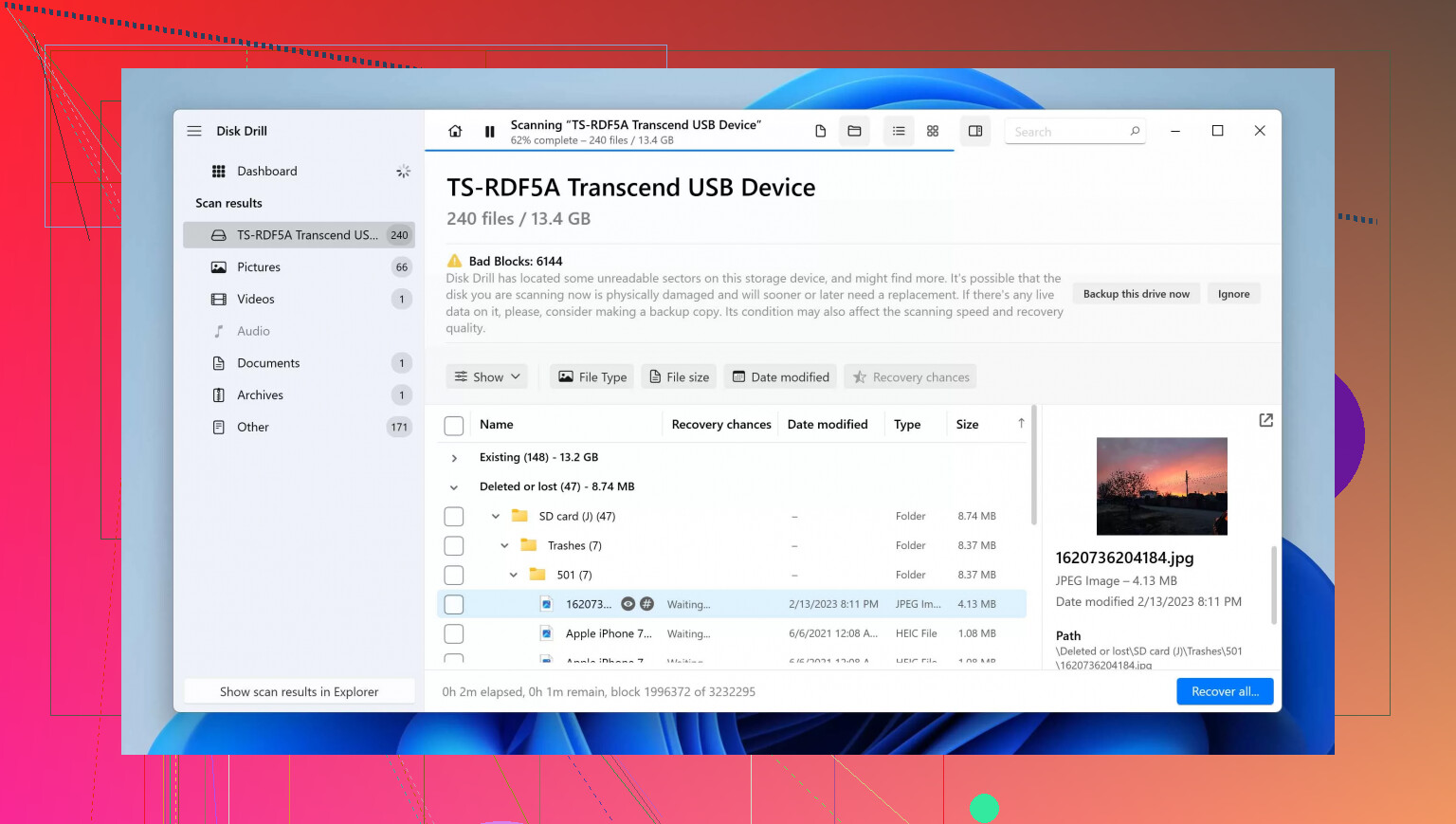
Short version: that “you need to format this” pop‑up almost always means the file system is messed up, not that your photos magically vanished. The card, the reader, or the power situation glitched and your OS gave up trying to interpret it.
I mostly agree with @yozora, @cacadordeestrelas and @mikeappsreviewer about not formatting and not writing anything new. Where I’d slightly diverge:
- I would not keep swapping the card between lots of cameras, readers and PCs trying to find a “lucky” combo. Every mount attempt is one more chance for the OS or device to try an automatic repair or cause more read stress on a failing card.
- I also would not trust a “it suddenly works again” situation. If it once demanded a format, it already proved it can fail at the worst time.
Instead of repeating their step lists, here are a few extra angles and a different way to think about it.
Why this happens in the first place
Beyond the usual “you yanked it out while writing” explanation, a few less obvious causes:
-
Controller logic glitches
The tiny controller on the SD card can crash or half‑write metadata. Your OS then sees:- Partition table with impossible values
- File system headers that do not match the expected format
Result: OS says “format?” even if 99 percent of the raw data area still contains valid photos.
-
Subtle reader or port problems
Cheap readers or flaky USB ports can cause:- Short power drops while the card is being accessed
- Bit errors that the controller fails to correct cleanly
This can corrupt the card in a way that only appears when you later plug into a more strict device, like a newer Windows build.
-
Camera firmware quirks
Some cameras write metadata or thumbnails aggressively. If power dies during those tiny updates, it can trash key file system structures even though your big video files are intact somewhere behind that broken index. -
Wear leveling hitting a wall
Internally, the controller keeps shuffling data around to spread wear. When enough blocks become marginal:- Error correction gets overwhelmed
- Some logical areas read as garbage
File system structures live in very specific spots, so they are often the first casualties.
About using Disk Drill in this scenario
Since the other posters already mentioned recovery software in general, here is a more specific, practical view of Disk Drill in this exact “card wants formatting” situation.
Pros:
- Good at scanning “unformatted” or RAW‑looking cards by ignoring the file system and searching for file signatures like JPEG, MOV, MP4.
- Decent preview so you can see thumbnails before you commit to recovery.
- Handles partial damage reasonably well. Even if the start of the card is corrupted, it can still carve out intact photos deeper in.
- Interface is straightforward for non‑specialists. You do not need to understand file systems to run a deep scan.
Cons:
- Folder structure and original filenames are often gone after a deep scan. You get lots of “file001.jpg” type results that you must sort later.
- It can be slow on larger cards, especially if you insist on a full‑depth scan. Expect to walk away for a while.
- Like any consumer recovery tool, it cannot fix severe physical damage or a totally dead controller. If the card disconnects under load, Disk Drill can only do so much.
- Paid features are required for large recoveries. Free tiers are often limited in how much you can actually save.
I do not think Disk Drill is a magic bullet, but for this kind of “OS wants to format, card is still readable at a low level” case, it matches the problem well.
Comparing the approaches in this thread (briefly)
- @yozora leans hard on imaging and working from a cloned image. That is the most technically sound approach when you suspect physical failure, and I agree with the principle.
- @cacadordeestrelas emphasizes putting the card back in the camera and letting the camera mediate access. That sometimes works because the camera firmware tolerates weirdness the PC rejects. I see it as a “one shot” trick, not something to keep trying repeatedly.
- @mikeappsreviewer breaks down typical causes and focuses on careful, staged recovery, which is solid for someone new to data recovery.
My personal ranking of options is usually:
- Try to read once in the camera itself via USB if it is a very important shoot and the card is only misbehaving in a reader. If that immediately works, pull everything off and retire the card.
- If that fails or is unstable, stop using the camera entirely, move to a good reader on a single stable machine, and run recovery software like Disk Drill. If you know how to do it, image the card first, as @yozora described, then run Disk Drill on the image.
- If the card repeatedly disconnects or makes the OS freeze, skip more home attempts and look at professional recovery. No software fixes a failing controller that cannot stay online long enough.
What to do with the card after this
Disagreement with some “maybe keep it for noncritical stuff” advice: once a card has:
- Demanded formatting
- Eaten a real set of photos
- Or needed heavy recovery work
I treat it as disposable. If you keep it at all, only for test files where you literally do not care. For actual memories or client work, a few new cards cost less than another round of recovery software, let alone the photos themselves.
So in practice:
- Use something like Disk Drill exactly once to squeeze out as much as possible.
- Verify the recovered photos on your computer and put an extra copy somewhere else.
- Physically label or destroy that card so it never finds its way back into a camera for anything important.
That format prompt is not a casual suggestion from the OS. It is a sign of either serious file system damage or a device that is starting to fail in ways you cannot see until it is too late.
Recap: File system corruption or failing flash triggered the format prompt. Avoid writes. Camera bridge might read. Imaging and Disk Drill help. Retire flaky media.
Simpler alternative:
Flip the SD lock switch to Lock. Go to a photo kiosk, CVS or Walmart style. Insert the locked card, choose copy to USB or DVD, not print. Kiosks read, they avoid repairs. Bring your own USB stick. This often pulls DCIM and MOV files fast. I have seen 70 to 90 percent recovery on cards Windows refused. Once home, verify files, then bin teh card.