I deleted nearly everything from my iPhone, including photos and apps, but Settings still says my storage is full. I’ve emptied Recently Deleted and restarted the phone, but the available space barely changed. What could be taking up the storage, and how can I fix iPhone storage not updating?
The first thing I’d check is the Recently Deleted album. A lot of people miss this part. Deleting photos from the main library doesn’t actually remove them right away. They sit in Recently Deleted for around 30 to 40 days, and during that time they still take up storage.
Open Photos, go to Albums, scroll down to Recently Deleted, then delete everything from there. Until you empty that folder, the storage number may not really change.
If you already did that and your iPhone still says storage is full, restart it. iOS can be weirdly slow about updating the storage screen. Sometimes the space is actually free, but Settings is still showing the old number because it hasn’t recalculated yet. A reboot can force it to refresh. Some people end up restarting more than once before it finally updates.
Also check whether you have Optimize iPhone Storage turned on for iCloud Photos. If you do, your phone may only be storing small preview versions of a lot of your photos, while the full-size originals are in iCloud. So deleting 1,000 photos might not clear as much space as you expect. You may think you’re freeing several GB, but the phone may only remove a bunch of small thumbnails.
Photos aren’t always the real problem either. Messages and app caches can eat a ridiculous amount of space without being obvious. Old group chats can have years of videos, GIFs, screenshots, and random memes sitting in them. Apps like TikTok, WhatsApp, and Instagram can also build up big caches over time. Deleting your camera roll won’t touch any of that.
When my phone got stuck in that “storage full” loop, it was bad enough that apps were crashing, typing lagged, and the whole thing felt almost unusable. Manually hunting through photos and videos was a mess because Apple’s built-in tools don’t make it easy to sort by file size or find near-duplicates.
I ended up using Clever Cleaner. I’m usually skeptical of cleaner apps because so many of them are just trial traps or ad machines, but this one is actually free, with no ads, subscriptions, or paywalls.
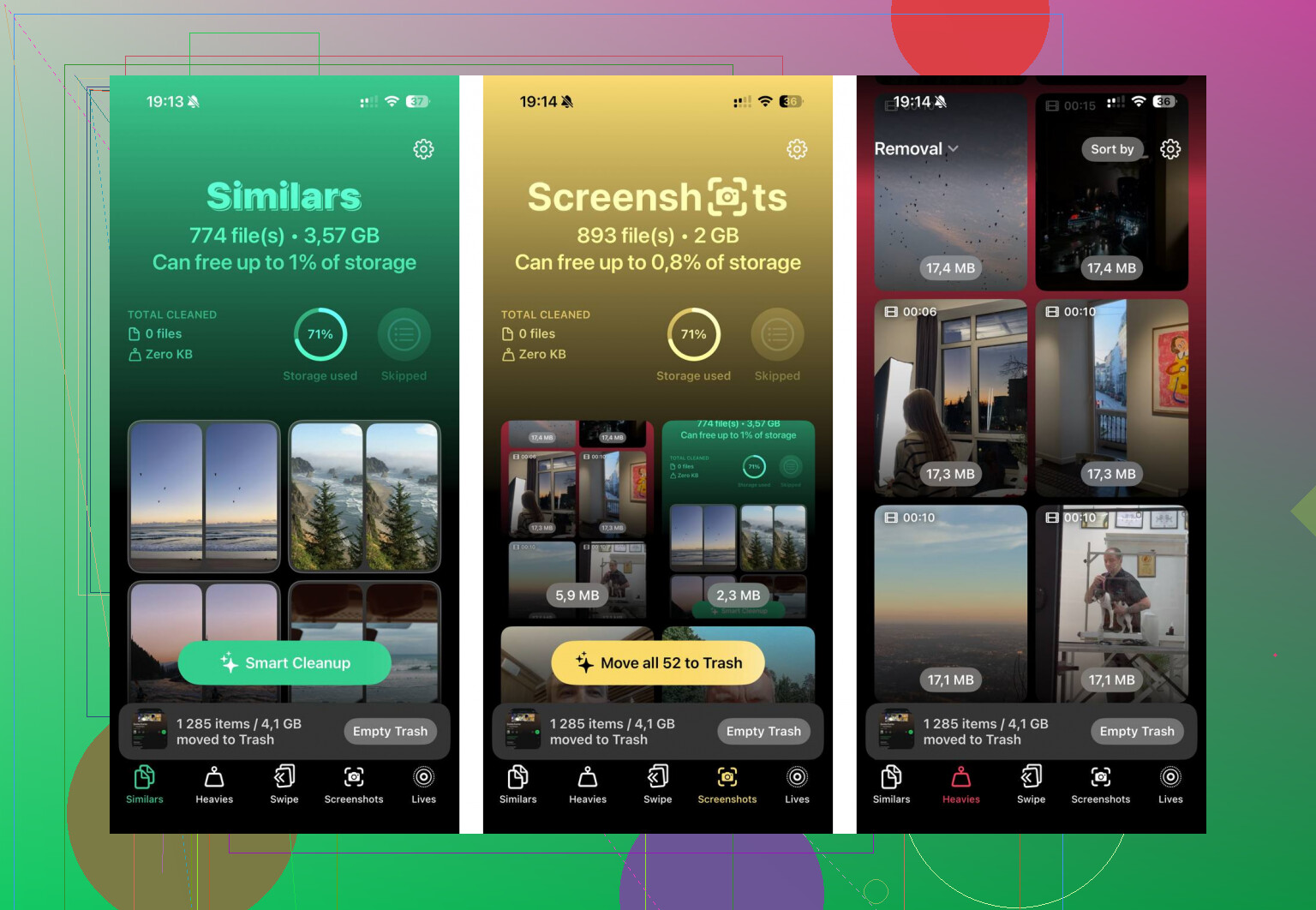
The useful part for me was the Heavies tab, which shows the biggest files in your library first. That makes it much easier to find huge 4K videos you forgot existed. It also has a Similars tab for finding nearly identical photos, like when you took a bunch of the same shot and only need one. It processes everything on the phone too, so your photos aren’t being uploaded somewhere else. I cleared around 40GB that way, and after that the lag disappeared.
If none of that works, there’s also a strange date trick some people use. Go to Date & Time, turn off Set Automatically, move the date back about two years, open Photos for a minute, then set the date back to normal. It can sometimes make iOS clear out stuck cache files or old “ghost” photo data.
Last resort would be a full backup and factory reset, especially if System Data or the old “Other” category is sitting above 20GB and refuses to shrink. That’s the nuclear option, but it can clear corrupted cache junk that normal cleanup won’t touch. Just make sure you have a complete iCloud or computer backup before doing it.
I’d start with Recently Deleted, restart the phone, then look at large videos, Messages, and app caches before going anywhere near a reset. Most of the time, that’s enough to get both the storage and the phone’s speed back.
Don’t keep deleting photos if iCloud Photos is on unless you’re sure you want them gone everywhere, because that deletion can sync to iCloud and your other devices.
If the storage screen is mostly “System Data,” the fastest low-risk thing is to connect to Wi-Fi, plug the phone in, leave it locked for a while, then check again later. iOS often won’t clean up logs, update leftovers, and cache files immediately just because you deleted photos.
If the phone has less than a few hundred MB free, deleting stuff can get weird because iOS still needs working space to finish indexing, removing thumbnails, and rebuilding the storage report. At that point I’d stop deleting random things and look for one big, boring item to remove first.
Check Settings > General > iPhone Storage and scroll all the way down the app list, not just the colored bar at the top. Things people forget are downloaded iOS updates, offline Netflix/YouTube/Spotify/Podcast episodes, files saved under “On My iPhone” in the Files app, GarageBand/iMovie projects, and old voice memos. A half-downloaded update can sit there taking several GB and not look like “photos” at all. If you see an iOS update listed, delete that update and redownload it later when the phone has breathing room.
I agree with @kakeru that System Data can settle down after the phone is plugged in and locked, but I’d be cautious with the date trick unless you’ve backed up first. Changing the date can make some apps, messages, and cloud sync act strange. A cleaner fix, if the storage number is obviously lying, is to back up to a computer, update iOS from Finder/iTunes if available, then leave the phone charging overnight. If it still says full after that and the missing space is mostly System Data, that’s when a backup and erase starts making more sense than chasing ghosts one app at a time.
Connect it to a Mac or PC and check the storage number in Finder/iTunes before wiping anything. If the computer shows the same “full” reading, look for apps with huge Documents & Data and delete the whole app, not just offload it, because offloading leaves that data behind.