I’ve been trying to speed up my iPhone and free up storage, but I can’t find any clear cache button like I’m used to on Android or desktop browsers. I’ve checked Settings and individual apps, but it’s still confusing what actually clears cached data and what just offloads apps or deletes documents. Can someone explain how cache really works on iOS and what the safest, most effective way is to clear it without losing important data?
Apple hides cache cleaning behind a bunch of small steps, so you never see a single “Clear cache” button like on Android. iOS manages a lot of it in the background, and developers handle the rest per app. That is why you do not see a global toggle.
Here is what you can do instead.
-
Clear Safari cache
• Go to Settings → Safari
• Tap Clear History and Website Data
• This clears cookies, history, and cached files for Safari
• It often frees a good chunk of storage if you browse a lot -
Offload apps that store junk over time
• Settings → General → iPhone Storage
• Wait for the list to load
• Tap any big app you do not use often
• Tap Offload App
• iOS removes the app but keeps your data
• Reinstall from the Home Screen icon when you need it again -
Delete data heavy apps and reinstall
Some apps hoard cache in “Documents & Data.” Social apps and streaming apps do this a lot.
• Settings → General → iPhone Storage
• Check apps with large Documents & Data
• If the number looks huge compared to the app size, delete the app
• Install it again from the App Store
This wipes most cached files for that app. -
Clear message and media clutter
• Messages → delete old chats with many photos or videos
• In Settings → Messages → Keep Messages, set to 1 Year or 30 Days
• For WhatsApp, Telegram, etc, clear media from each app’s storage settings -
Restart the phone
A simple restart sometimes frees temporary cache space.
• Power off, wait a few seconds, turn it back on -
Use a cleaner app if you want automation
iOS limits how deep third party tools go, but some help a lot with photos and videos.
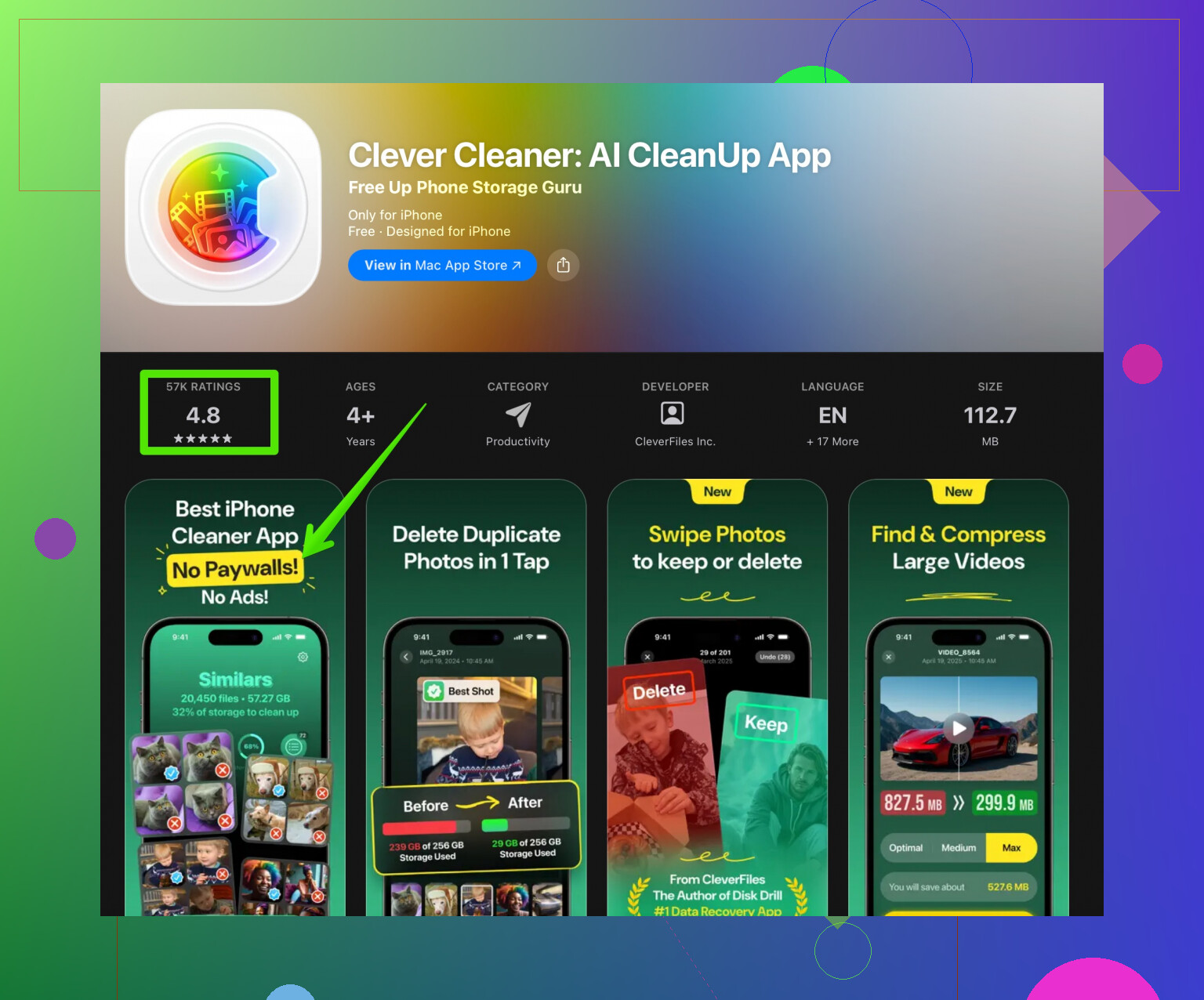
The Clever Cleaner App focuses on cleaning duplicate photos, similar shots, large videos, and contacts. That sort of stuff eats space faster than browser cache.
You can check it here:
free up iPhone space with Clever CleanerTypical things it helps with:
• Finding duplicate or similar photos that sit in your library
• Spotting large videos that fill storage
• Cleaning old contacts and merges duplicates -
What to expect in terms of speed
• iOS performance depends more on free storage and background processes than on “cache”
• Keeping at least 10 to 15 percent free space helps performance stay stable
• Large gains often come from deleting media and big apps, not from tiny web cache files
So yeah, no one-tap cache nuke button on iPhone. You get a bunch of smaller steps, plus tools like Clever Cleaner App to handle photos and media junk that chew through your storage fast.
You are not missing some secret setting. iOS simply does not believe in a big red “Clear cache” button, which is why you keep hunting for it and never find it.
Apple’s logic is:
• The system handles most temporary files by itself
• Each app is responsible for its own cache and data
• Normal users should not have to poke around in system guts
That’s why it feels so different if you are used to Android where there is a visible cache toggle.
I slightly disagree with @mike34 on one point: relying on iOS to “auto manage” cache is fine only until you are tight on storage. Once you are below roughly 5–10% free space, things do slow down and some apps misbehave. At that point, you want more than just clearing Safari or offloading apps.
Here are a few angles that do not just repeat the same steps:
-
Look at “System Data” specifically
• Go to Settings → General → iPhone Storage
• Scroll to “System Data”
If that is huge (tens of GB), cache is a big chunk of it. Sadly, there is no direct nuke button for this. What actually helps:
• Update to the latest iOS (it often purges a lot of temporary files)
• Do a full encrypted backup to a computer and then restore the iPhone
That combo usually shrinks bloated System Data much more than random app deletions. -
Target streaming and offline content, not just “cache”
A lot of what people call “cache” is actually downloaded media:
• Spotify / Apple Music offline playlists
• Netflix / YouTube / Prime Video downloads
• Maps stored offline
These are not treated like simple cache. You have to open each app and remove downloads or reduce how much offline content it keeps. This gives you way more space than clearing website data ever will. -
Let iOS suggest cleanups but do not follow all of them blindly
In Settings → General → iPhone Storage, iOS offers recommendations.
Some are great:
• Review Large Attachments in Messages
• Review Large Files
Some are annoying, like telling you to offload apps you actually use all the time. Use this page more as a “map” to see where storage really goes, not as a list of orders you must obey. -
Be careful with “Documents & Data” paranoia
People see “Documents & Data: 3 GB” under an app and instantly delete it. Sometimes that is just legit stuff you want: downloaded playlists, saved maps, project files. Before you kill the app:
• Open the app
• Check if it has its own “Downloads” or “Storage” setting
Many modern apps let you clear cache or remove older content from inside the app, which is safer than wiping the whole thing. -
Caches vs speed: what actually matters
On iPhone, speed is less about caching and more about:
• How full the storage is overall
• How many heavy background tasks are running
• How old the battery is
Clearing cache alone will rarely make the phone feel dramatically faster. Freeing up several GB, restarting, and having a healthy battery usually matter more than chasing a magical cache slider. -
When a cleaner app actually makes sense
Where a tool does help is with media clutter and duplicates, which iOS is weirdly clumsy at. Photos and videos silently eat your storage a lot faster than browser cache. If your Photos library is out of control, an app like Clever Cleaner App is actually worth a look. It is focused on:
• Detecting duplicate and very similar photos
• Finding massive videos that you forgot about
• Tidying contacts that you have in duplicateIf that is the main thing killing your space, using something like
cleaning and organizing iPhone storage intelligently
can do more than any imaginary “Clear cache” button ever would. -
To answer your actual question directly
Why can’t you find a clear cache button on your iPhone?
• Because Apple intentionally designed iOS without a system‑wide cache clear option
• Because cache is scattered across apps, System Data, media downloads, and messages
• Because they assume the OS and apps will manage it “well enough” in the background
So instead of looking for that one big button, you kind of have to change tactics: focus on total storage used (especially media, downloads, and bloated System Data) and accept that on iOS, “clear cache” is a bunch of targeted cleanups, not a single switch.
Why can’t I find a clear cache button on my iPhone and how do I really free up space?
If you are switching from Android or are used to desktop browsers, the lack of a visible “Clear cache” control on iPhone feels confusing. Apple hides cache management behind automatic system processes and individual app settings, so there is no universal toggle. Instead, real storage and speed improvements come from:
• Managing large apps and their Documents & Data
• Removing old downloads and streaming media
• Cleaning up photos, videos, and message attachments
• Keeping “System Data” under control with updates or a backup and restore
Using tools like Clever Cleaner App to remove duplicate photos, similar shots, and huge videos can help you reclaim significantly more space than you would by only clearing browser data, making your iPhone feel snappier and less cluttered.
Apple’s missing “Clear cache” button is basically a design choice: they prioritize auto‑management and per‑app control over a global nuke. I partly agree with @mike34 and the other reply, but a few extra angles are worth adding.
- Why Apple really avoids a global cache wipe
A one‑tap cache clear would also wipe a lot of data that actually makes your phone feel fast (app assets, thumbnails, local indexes). Apple prefers:
- Silent cleanup when storage is low
- Apps requesting extra space on demand
The downside: you never feel “in control” the way you do on Android.
- What you should not bother doing
- Constantly deleting and reinstalling big apps just to “refresh” them. iOS will rebuild the same caches, and you can lose logins / downloaded content.
- Forcing restarts every day. A restart can help after a big cleanup, but as a routine “speed trick” it is overrated.
- Where performance really dies
If your iPhone storage hovers above ~80–85% full, performance is usually fine. When it drops to just a few GB free, the system starts juggling background tasks and file writes, which feels like lag. So:
- Aim for a reasonable buffer, not a perfectly clean cache.
- Focus on deleting static junk (old videos, projects, message threads) instead of chasing tiny caches.
- A different strategy than just “clear space”
Instead of asking “How do I clear cache?”, ask “What can I delete that I will never miss?”
- Very old screenshots and burst photos
- One‑off videos (screen recordings, TikTok drafts you already posted)
- Gigantic message threads with years of photos and videos
This is where a tool can help more than Apple’s own views.
- About Clever Cleaner App in particular
This fits more into the “organize & purge media” category than a traditional cache cleaner, which matches how iOS actually works.
Pros:
- Finds duplicate and very similar photos so you can declutter quickly.
- Surfaces huge videos you forgot about, which often frees more space than any cache wipe.
- Helps tidy contacts, which indirectly reduces confusion in Messages and sharing menus.
- More visual and focused than the plain iPhone Storage list.
Cons:
- It will not touch opaque “System Data” or app‑internal caches, so expecting it to fix that issue is unrealistic.
- You still need to review suggestions so you do not delete photos or clips you care about.
- Like any cleaner, using it aggressively without thinking can remove context you actually wanted (for example, near‑duplicate shots from an event).
Compared with what @mike34 described, I would say: rely on iOS for low‑level cache handling, but accept that photos, videos, and message attachments are where the real bloat lives. A combination of manual pruning plus a focused media cleaner like Clever Cleaner App usually gets you farther than hunting for a mythical “Clear cache” toggle that Apple is simply not interested in giving you.
Try Offload Unused Apps. Go to Settings, App Store, then enable Offload Unused Apps. iOS removes apps you havent used while keeping their documents and settings. Your app icons stay visible, and tapping one restores it. This often frees several GB with almost no effort, while youre data remains intact.
If your iPhone is actually low on storage versus just feeling sluggish, those are two separate problems and half the advice here only fixes one of them. The backup-and-restore trick @stellacadente mentioned does shrink bloated System Data, but it eats an evening and you risk fiddly re-logins on banking and 2FA apps, so I’d treat it as a last resort, not a routine cleanup. The thing everyone glosses over is that iOS purges its own caches automatically the moment you get tight on space, so obsessively clearing them earns you nothing. Chase the big static stuff instead: screen recordings, old WhatsApp media, and the Photos library. Clever Cleaner is fine for the duplicate and giant video pass since that is genuinely where the space hides, just don’t expect it to touch System Data because it can’t.