My iPhone storage keeps filling up even after I delete apps, photos, and messages, so I’m trying to figure out where temporary files are actually stored on iPhone. I recently noticed system data and cached files seem to grow fast, and I need help understanding what’s safe to clear and how to free up space without causing problems.
I kept looking for a single junk folder on iPhone. There isn’t one. iOS spreads temporary stuff all over the place, so cleanup feels more like fixing leaks in different rooms than flipping one switch.
Does this speed the phone up?
From what I saw, yes. The slowdown usually showed up when free space got low. iOS needs open storage for background tasks, app swaps, updates, and random system work. Once storage got cramped, apps took longer to open, scrolling got choppy, and the phone felt off. After clearing cached junk and freeing space, the change hit right away, not days later.
Where the temporary files end up
They’re scattered. The usual spots are these:
- Safari and Chrome keep cached page data, images, and scripts so sites load faster the next time you visit.
- Apps like Instagram, TikTok, Reddit, and YouTube stash clips, thumbnails, and feed data for smoother loading.
- System Data in iPhone Storage grows with app cache, Siri files, logs, and leftover background data.
- Each app keeps its own pile of temp files, and iOS gives you no master button to wipe all of it.
Apple does clear some of this on its own when storage gets tight. In my expereince, it doesn’t always clean up neatly. If an app freezes, crashes, or borks an update, old temp data can hang around way longer than you’d expect.
What I did to clear temp files without deleting everything
-
Restart first. It sounds too simple, but it helped. A reboot clears some temporary system cache and resets memory use without touching your photos, apps, or settings. If your buttons are acting up, go through Settings, General, Shut Down. I started doing this once a week and the phone stayed smoother.
-
Clear the browser cache. For Safari, go to Settings, Apps, Safari, then tap Clear History and Website Data. This wipes cached website data and usually signs you out of sites, so expect a few annoying logins after. In Chrome, you do it inside the app under Privacy and Security.
-
Turn on Offload Unused Apps. Path is Settings, General, iPhone Storage. This removes the app binary but keeps your docs, saved data, and settings. The icon stays on the Home Screen with a cloud symbol. Tap it later and the app comes back. Out of all the built-in options, this one gave me the cleanest space savings without wrecking anything.
When temp files aren’t the main issue
On my phone, cached junk wasn’t the biggest storage hog. Photos and videos were. Duplicate screenshots, burst shots, edited copies, giant video clips, all of it piled up. Once storage was low, temporary files started hurting more because the system had less room to breathe.
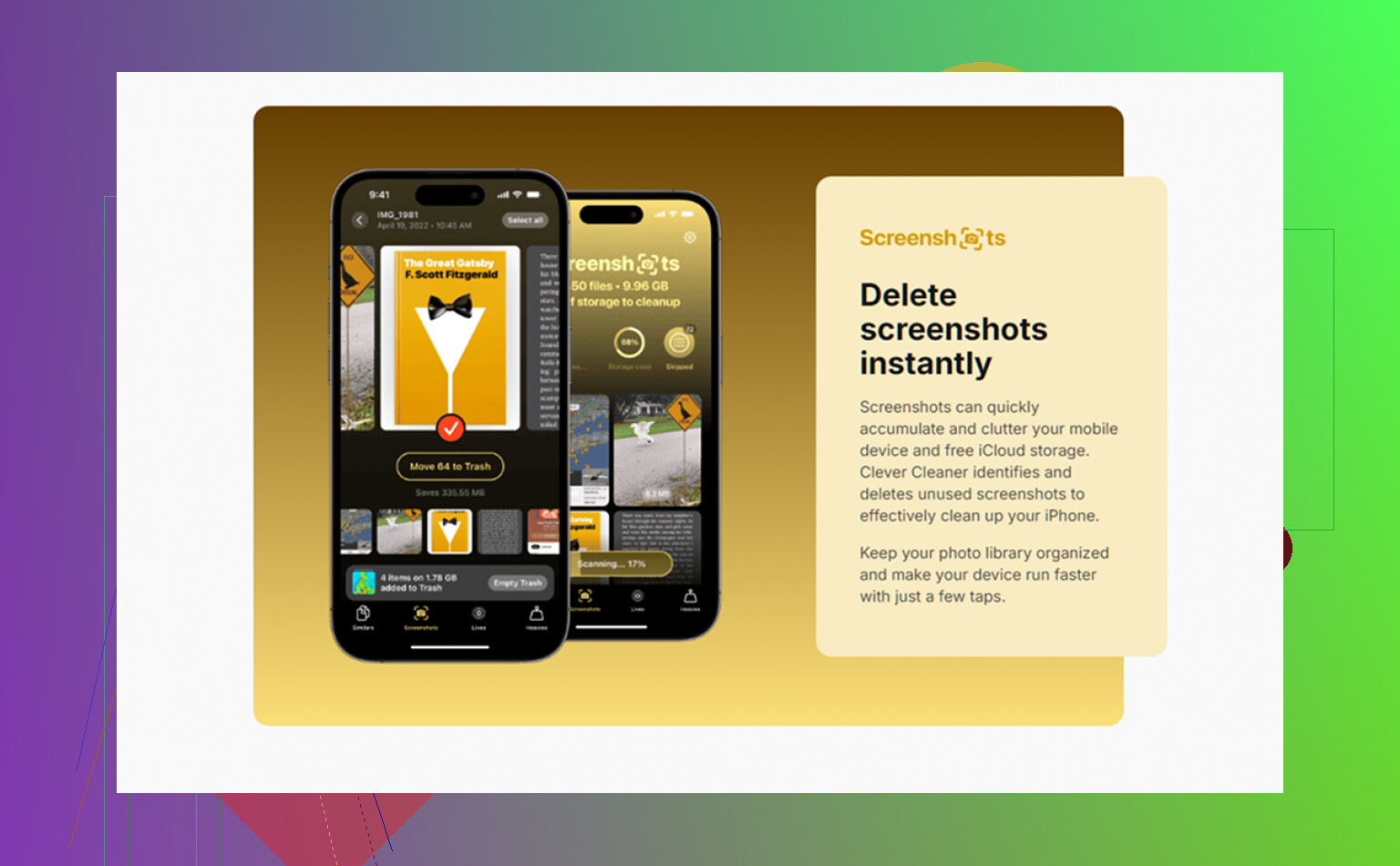
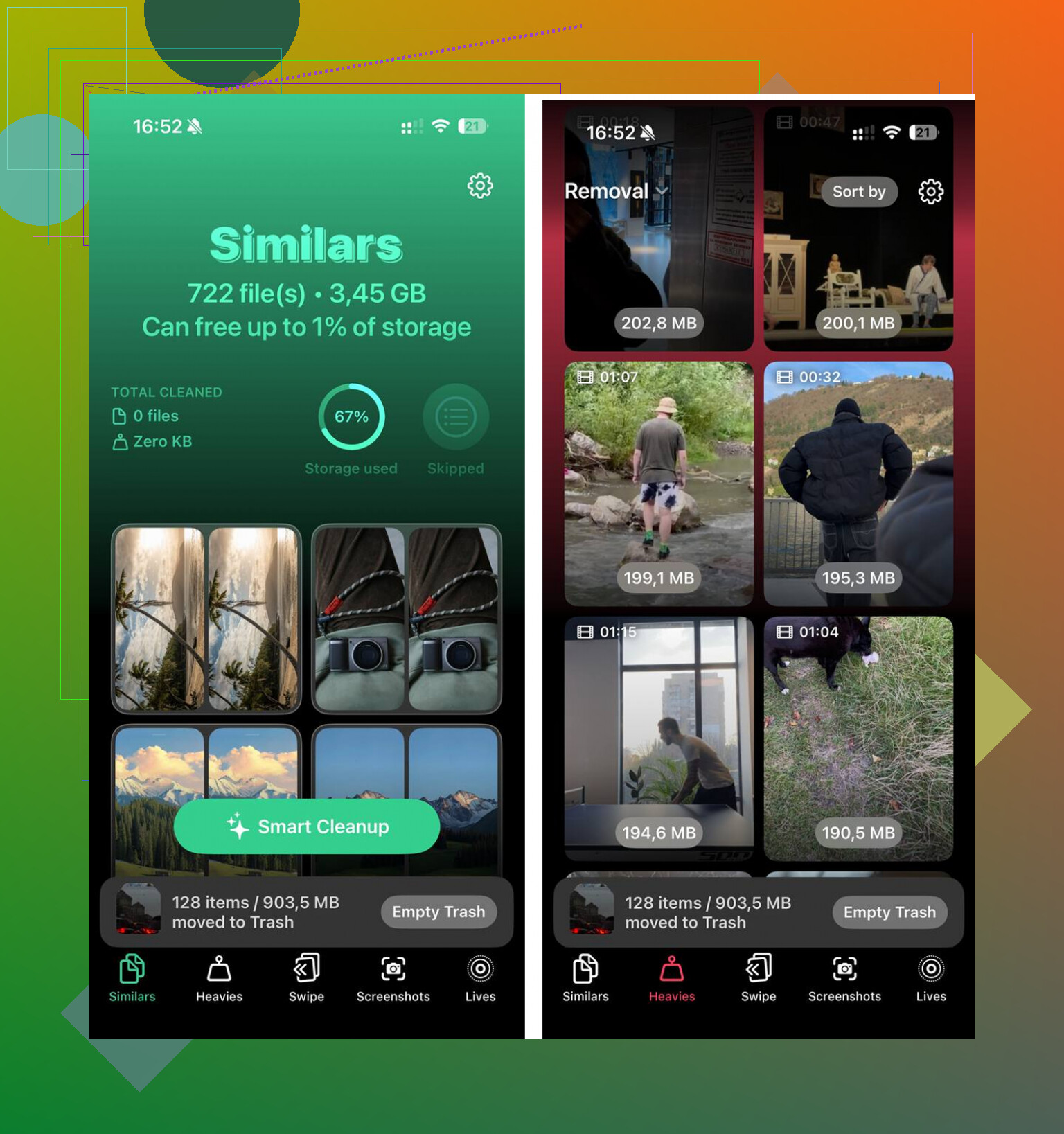
Sorting a huge library by hand is miserable. I used Clever Cleaner to deal with the media side faster. What stood out to me was the Heavies tab, which puts the largest files first, so you see the worst offenders without scrolling forever. The Similars tab grouped near-duplicate photos and picked a Best Shot in each set, which helped with burst sequences and those five almost-identical pics of the same thing. It shows file sizes before deletion, and the processing stays on the device.
After I cleared about 12GB between old videos, duplicate photos, and the cache steps above, the lag stopped. Stuff opened faster, scrolling felt normal again, and the storage problem stopped coming back so fast.
One last thing worth checking
After cleanup, open Settings, General, iPhone Storage and wait a minute. The storage bar takes a bit to recalculate. If System Data still looks bloated even after a restart, I’d look at the biggest apps first. Social apps are common offenders. Deleting and reinstalling those forces a fresh local cache instead of dragging along old corrupted junk from earlier installs.
You won’t find one temp-files folder on iPhone. iOS stores temp data inside each app’s sandbox, plus system-level caches in the part Apple labels System Data. So the junk is split across places like browser caches, streaming buffers, message attachment indexes, update files, crash logs, Spotlight indexes, and iCloud sync leftovers.
I agree with @mikeappsreviewer on the main point. It’s scattered. I disagree a bit on one part though. Reinstalling big social apps helps, but it’s not always the best first move if the app stores offline downloads or drafts. Check the app’s own storage menu first.
A few spots people miss:
- Files app, On My iPhone. Some apps dump temp exports there.
- Mail. Large attachments stay cached after you open them.
- Podcasts, Spotify, Netflix, YouTube. Offline media and buffered chunks eat space fast.
- Messages. Sticker packs, voice notes, video previews, GIF caches.
- iOS update residue. A failed or half-downloaded update sometimes sits in storage.
Best way to verify it:
Settings > General > iPhone Storage, wait 30 to 60 seconds. The list recalculates. Open the biggest apps one by one. If an app is 500MB but Documents & Data is 5GB, there’s your answer.
For photo clutter, Clever Cleaner is worth a look if your library is the real problem, not system cache. It’s faster than scrolling for an hr like a maniac.
If you want a visual walkthrough, this iPhone storage cleanup guide for cached files and system data covers the main checks pretty well.
There’s no single “temp files” folder on iPhone, and that’s the part Apple never says clearly. iOS stores temporary stuff in a few different layers:
- inside each app’s private sandbox
- in system cache space that gets lumped into System Data
- in temporary update/install space
- in local copies of cloud content
So yeah, @mikeappsreviewer and @sognonotturno are right that it’s scattered, but I’d push back a little on the idea that this is mostly “cache.” Sometimes the storage creep is actually database bloat. Messages, Mail, WhatsApp, Notes with attachments, and even Safari reading lists can keep indexes and local metadata that act like temp files but don’t clear like normal cache.
A few less obvious places to check:
-
Settings > Apple Account > iCloud > Manage Storage
Sometimes what looks like local clutter is sync churn between device and iCloud. -
Settings > General > VPN & Device Management
Work profiles or MDM configs can leave extra local data behind. -
Settings > Accessibility > Spoken Content / Siri voices / dictionaries
Downloaded voices and language files can get weirdly huge. -
Files app > Browse > On My iPhone
Exported videos, ZIPs, PDFs, editor scratch files, all that junk.
Also, deleted apps don’t always mean instant space recovery because iOS may hold snapshots/log fragments until it reindexes. Annoying, but normal-ish.
If photos are the real culprit, Clever Cleaner is probly more useful than chasing mystery cache by hand. This overview of Clever Cleaner for iPhone photo and storage cleanup explains it better than Apple does tbh.
My honest take: if System Data stays absurd after a restart and a day of normal use, it’s often one bad app, not “the iPhone” as a whole.
The missing piece is purgeable storage. iPhone keeps some temp data in a reclaimable state that does not live in one visible folder and does not always disappear the second you delete something. That is why storage can look “stuck” for hours.
I mostly agree with @sognonotturno, @hoshikuzu, and @mikeappsreviewer that temp files are scattered, but I disagree a bit on reinstalling apps as a go-to fix. For some apps, reinstalling can actually preserve server-side junk habits because the bloat comes right back after sync. Better test behavior first.
A few things not mentioned enough:
- Voice memos waveform data and transcriptions
- Downloaded Maps areas
- Safari Reading List offline pages
- Third-party keyboard dictionaries
- Photo edit rollback data from apps like Lightroom or Snapseed
One useful trick: connect the iPhone to a Mac or PC and watch storage after a sync or backup. Sometimes iOS recalculates categories more accurately there than on-device.
If photos are what keep pushing storage to the edge, Clever Cleaner is the more practical route than hunting cache ghosts. Pros: quick duplicate detection, big-file spotting, simpler than manual cleanup. Cons: mostly helpful for photo/video clutter, not true system cache, and any cleaner still needs your review so you do not delete something you wanted.
So temporary files are “stored everywhere,” but the real problem is usually one of three buckets: media libraries, sync leftovers, or one badly behaved app.
Try automatic message cleanup instead of chasing cache files. Open Settings, Apps, Messages, Keep Messages, then choose 30 Days. Old conversations and attachments get removed automatically. Set audio messages to expire after 2 minutes too.
Next, open Messages, tap Edit, Show Recently Deleted, and erase it. Deleted items often stay there for 30 days and still use storage.
This takes two minutes and prevents storage from filling again. On phones with years of videos, GIFs, and voice notes, it might free several gigs after storage reclaculates.
Most of what shows up under System Data isn’t a folder you can open, browse, or clear on demand, so a chunk of this thread is hunting something that doesn’t exist as a hunt-able thing. @reveurdenuit already nailed the real reason with purgeable storage. iOS holds temp data in a state where it counts against your total until the system decides it needs the room, then it dumps it quietly. That’s why the number looks stuck for hours and then drops on its own overnight.
Where I’d push back is on the reinstall-the-app advice that keeps coming up. For most social apps that’s effort spent for nothing, because the cache rebuilds within a day of normal use and you’ve just re-downloaded a few hundred MB for the privilege. The one case where a full delete and reinstall actually helps is when an app’s Documents and Data reads absurd compared to the app size and clearing its in-app cache does nothing. That’s a broken local database, not normal temp buildup, and reinstalling is the only reset you get.
If your System Data figure is genuinely huge and stays huge after a restart plus a day, the blunt fix nobody mentioned is a backup and restore. Back up to iCloud or a computer, erase, restore. iOS rebuilds its caches and indexes clean, and that inflated System Data usually comes back down to something sane. It’s a couple hours of your time and a mild hassle, so it’s a last resort, not a weekly habit.
On the photo side, I agree with the general take. Clever Cleaner makes sense for finding the giant videos and near-duplicates fast, but treat it as the media pass only. It won’t touch system cache or purgeable data, and no cleaner can, so don’t expect it to fix a System Data problem. Sort out photos with it, let purgeable clear itself, and only reach for a restore if the number stays crazy after that.