My iPhone photos are too large to email and are taking up a lot of storage space. What’s the easiest way to reduce photo file sizes without noticeably lowering image quality?
For a handful of photos, I wouldn’t change the originals at all. Send them through Mail, which gives you a choice of image sizes, or use Messages. A lot of messaging apps compress images automatically when you upload them.
If the goal is to permanently shrink a large number of photos on the iPhone, Clever Cleaner is convenient because it handles batches rather than making you process every photo separately.
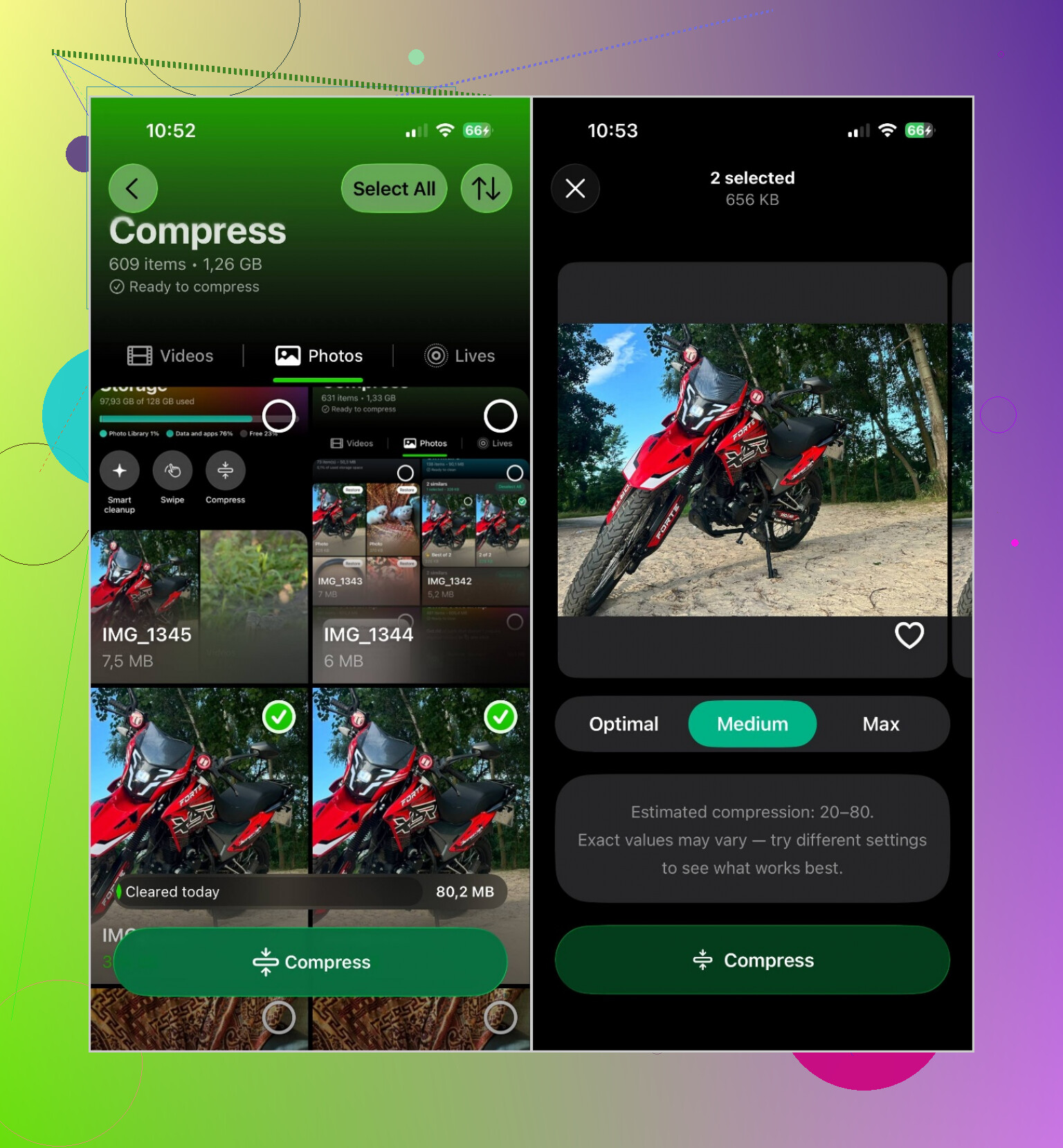
Open the app, tap Compress, then go to the Photos tab. Choose the pictures you want, or use Select All, and tap Compress. You’ll get three levels:
- Optimal keeps the best image quality.
- Medium gives you a reasonable mix of quality and storage savings.
- Max is for reducing the files as much as possible.
After choosing a level, tap Compress again and let it finish. Medium is usually a sensible choice for normal photos. They should still look good, but the files take up noticeably less room.
Compression isn’t always the best fix, though. You may be able to recover more storage in other ways:
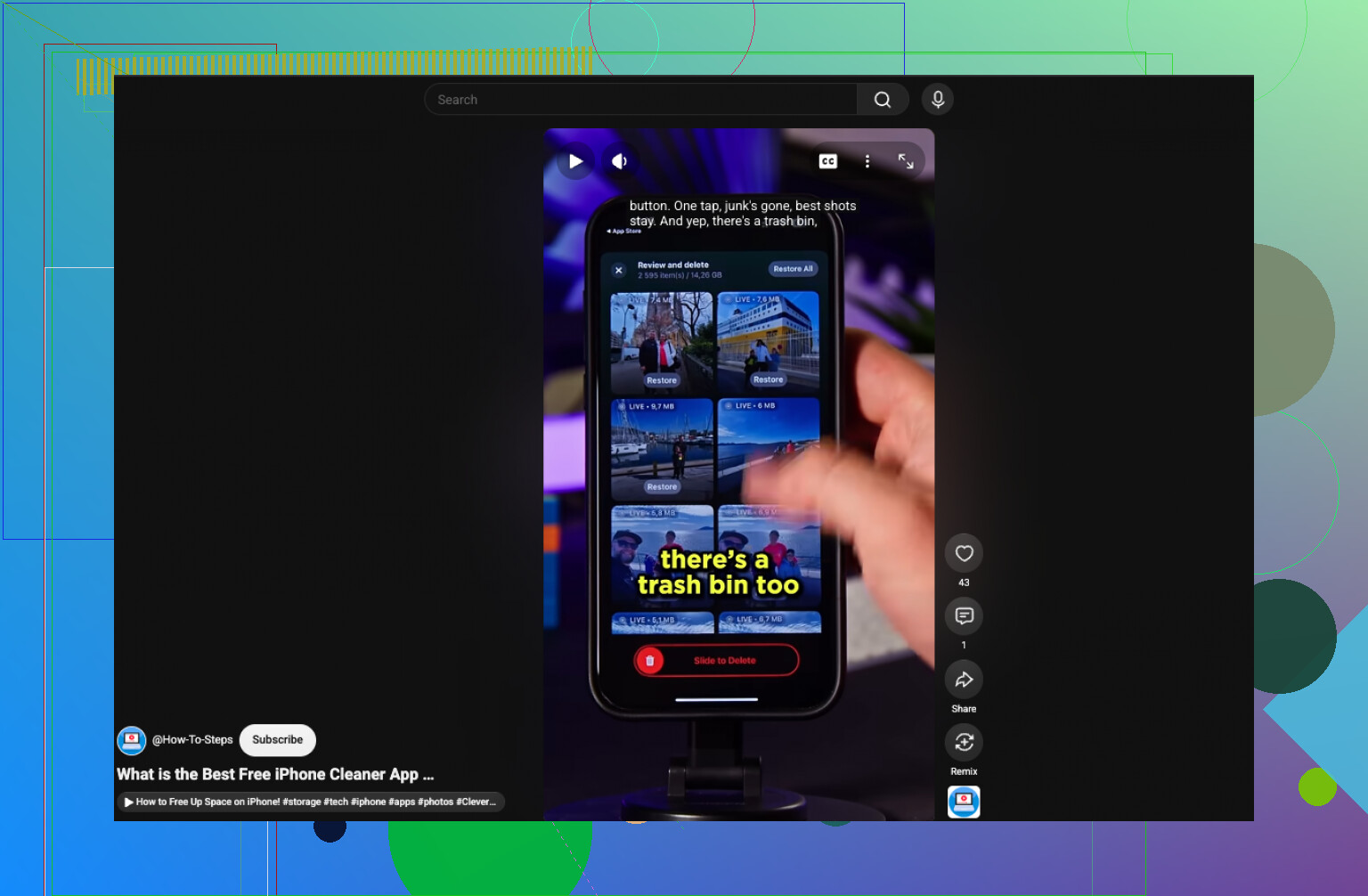
- Delete duplicate and similar photos. This saves space without lowering the quality of anything you keep. Clever Cleaner has a Similars tool that can make sorting through them faster.
- Turn Live Photos into regular still images. Live Photos include a short video clip, so they use more storage. If you don’t care about the movement, keeping only the still image can help.
- Enable Optimize iPhone Storage. If you use iCloud Photos, open Settings > Apps > Photos and turn on Optimize iPhone Storage. The full-resolution files remain in iCloud, while smaller copies are stored on the phone.
- Reduce the image dimensions. For websites with upload limits, resizing a photo from something like 48 MP to a lower resolution may cut the file size more than compression by itself. Most photo-editing apps can do this.
Also check the Recently Deleted album after removing or replacing photos. Until you empty it, that storage may not be available again right away.
Email limits and iPhone storage are two separate problems. For sending photos, use Photos > Share > Copy iCloud Link instead of attaching files, which keeps the original quality and avoids attachment limits. For local storage, Optimize iPhone Storage is safer than recompressing everything. Use Clever Cleaner only if you want permanently smaller copies, and confirm the compressed photos look right before deleting the originals.
Don’t switch the camera to Most Compatible. That setting creates JPEG files for compatibility, and they generally use more space. Leave Settings > Camera > Formats on High Efficiency for future shots. HEIF/HEIC is designed to keep file sizes lower without a noticeable quality hit. Changing this setting won’t shrink photos already in your library.
For existing pictures, the cheapest option is a simple Shortcut instead of another app. Build one that selects photos, resizes them, and saves the results to a separate album. A long edge around 2,000 to 2,500 pixels is plenty for emailing and viewing on a phone or laptop. Only convert to JPEG if the recipient or website requires it. Shortcuts supports image conversion and saving the output back to Photos.
The separate album matters. Compressed copies may look identical at first glance, but they can give you less room for later cropping or editing. Live Photo motion and some other photo features may not carry over to a basic resized copy either. Compare a few images at full-screen size before deleting anything, then empty Recently Deleted if you actually need the storage immediately.
Clever Cleaner makes more sense if you have hundreds of photos and don’t want to build a Shortcut. I’d still avoid selecting the entire library on the first run. Test 10 or 20 ordinary pictures, check the resulting sizes, and zoom into faces, text, and low-light areas. Those are usually where aggressive compression becomes obvious first.
For the email problem, resizing copies is practical. For the storage problem, keeping High Efficiency enabled, removing duplicates, and using iCloud optimization is usually safer than recompressing every original. The iPhone is already storing normal photos fairly efficiently, so permanent batch compression may save less space than expected while creating a lot of replacement-file cleanup.
Compressing photos usually frees up less space than people hope, and that trips a lot of folks up. Since your library is almost certainly already in HEIC, the files are efficient to begin with, so running them through another compression pass often shaves off modest amounts while leaving you with a pile of replacement copies to babysit. @rapidcache9107net is right about that. Before you batch anything, check Settings > General > iPhone Storage and see whether photos are even your biggest hog. Nine times out of ten it’s video eating the storage, not stills, and no photo compressor touches those.
The email side is genuinely simple and you’re overthinking it if you’re trying to shrink files first. When you attach photos in Mail, it asks for a size on send. Pick Small or Medium and you’re done, originals untouched. @xhiddenvectorx mentioned the iCloud Link route, which is even cleaner for big batches, though keep in mind the recipient needs to click through instead of getting an actual attachment. Some people find that annoying, some prefer it. Depends who you’re mailing.
For the storage problem specifically, I’d separate two things. Optimize iPhone Storage helps a ton if you’re on iCloud Photos and haven’t turned it on. Clearing duplicates and old junk helps without touching quality. Clever Cleaner earns its place for the duplicate and similar-photo sweep more than for the compression, honestly. That’s the part where you get real space back for free. Compressing your keepers is the last thing I’d reach for, not the first.
One thing nobody flagged: if you do compress and delete originals, and you’re on iCloud Photos, deleting on the phone deletes from iCloud too. So the full-resolution backup you thought you were preserving is gone everywhere. Make sure the smaller copy is what you actually want across all devices before you clear Recently Deleted.
For a few photos, take a screenshot instead. Open each image full screen, hide the controls, take a screenshot, then crop it. The screenshot usually has fewer pixels and a smaller file size, so it emails faster while still looking fine on phones and laptops. Save screenshots in a temporary album, send them, then delete them after. Keep the originals if you need printing or editing later. This works best for casual sharing, not large batches. It’s alot quicker than building a Shortcut or installing another app.