How To Move Stuff From Google Drive To An External Hard Drive (Without Losing Your Mind)
Okay, so you’ve got a mountain of files chilling on your Google Drive and your trusty external hard drive is begging for some action. Been there, done that, ended up with a digital mess once—so let me save you a headache.
The Plain Old Way People Usually Do It
Ever get that sinking feeling while staring at a zillion photos, wondering how you’ll ever wrangle them off the cloud? Here’s the “classic” approach, which is basically babysitting file transfers:
- Go snag the actual Google Drive app for your computer. Here’s the official Google site for that—don’t go clicking random links from weird corners of the internet.
- Once installed, fire it up and sign in with your Google credentials.
- Google Drive can mirror your whole “My Drive” or just certain folders right on your machine—it’ll ask you what you want the first time.
- Now, plug in your external hard drive. Open up both windows (Google Drive and your drive), and start dragging what you want over.
Super basic. But you know what? It can be kind of slow and if you’re low on space, your computer might start tantruming.
Pro-Tip: Skip the Middle Man With CloudMounter
Alright, so I ended up taking a detour and now I do it differently: with CloudMounter. I originally grabbed it to juggle all sorts of cloud stuff (Dropbox, OneDrive, you name it), but it turned out to be a secret weapon for moving mountains of Google Drive files—especially the bigger ones.
Here’s why it’s way less frustrating:
- You can attach both Google Drive and your external hard drive to your computer as if they’re just regular network drives. No fuss, no waiting for syncs to finish, no C: drive drama.
- That means in Finder (Mac) or Explorer (Windows), both show up—no guessing what’s synced or not.
- Just highlight what you want, drag it from Google Drive’s virtual folder straight into the external drive’s folder, and off you go.
If visual aids are your thing:
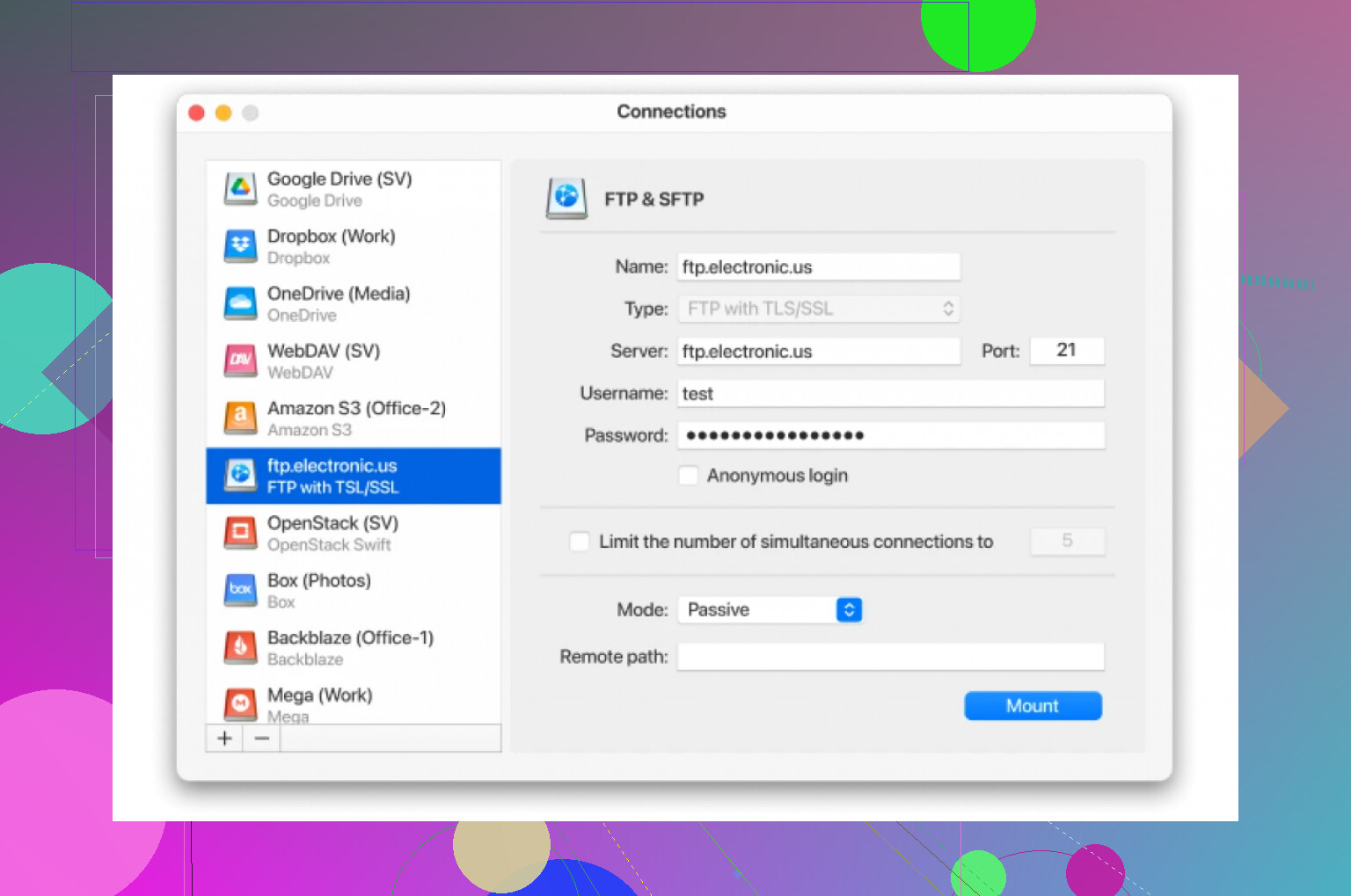
You don’t even have to worry about files eating up your actual system drive! CloudMounter grabs the stuff on-demand, so your Mac or PC isn’t suddenly crawling because you “synced” 500GB of old vacation videos you won’t watch again.
Oh, and About Big Files…
Ever try moving gigabytes in Google’s app and get the ol’ “out of space” error because your main SSD has the capacity of a potato? With CloudMounter, the files go straight across—you’re not squeezed by whatever’s left on your laptop’s storage.
Wrap Up
- Old school: Use Google Drive’s own sync app, but you might run into storage or speed issues if you’re shifting a lot.
- Modern hack: CloudMounter turns everything into a simple drag & drop job, and skips the annoying parts.