I’m trying to choose between OneDrive and Google Drive for storing personal files and some work documents. I already use a Microsoft 365 subscription for Office, but most of my collaborators are on Gmail and Google Drive. I’m confused about differences in storage limits, sharing, collaboration, and integration with other apps. Which service is better for reliability, syncing across devices, and long‑term use, and what are the pros and cons you’ve experienced with each?
Microsoft OneDrive and Google Drive do basically the same job: they store your files online so you can access them anywhere and share them with people. The real difference is the ecosystem. OneDrive comes from the Microsoft world (Windows, Office, Teams), while Google Drive lives inside the Google ecosystem (Gmail, Docs, Chrome). Most people end up preferring the one that matches the tools they already use.
OneDrive – what’s good about it
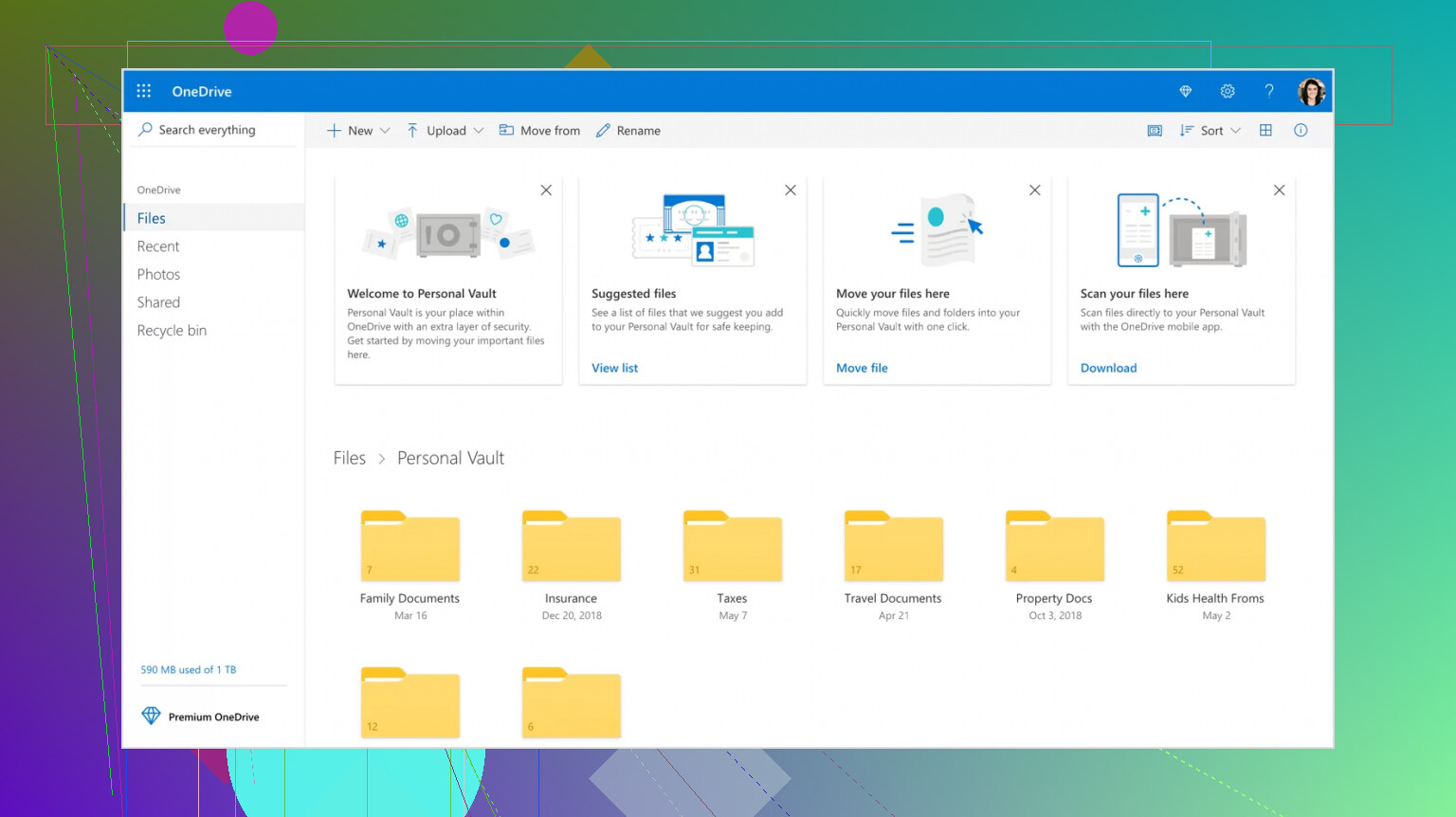
If you use Windows, OneDrive is already sitting there waiting. You sign in and it just becomes part of your file system. For companies paying for Microsoft 365, it’s often already included, which makes it an easy default choice.
It also does a good job syncing desktops and documents across devices, which is huge if you move between machines. And if your work revolves around Outlook, Teams, Word, and Excel, everything connects pretty naturally.
One user described it like this:
“OneDrive is included with our M365 licensing so cost for onedrive specifically is $0, it is very straight forward for our staff, especially our multi-user device users as it copies their desktops across to any computer they login to and it adds that extra needed storage for our staff”
OneDrive – the frustrations
In practice though, syncing can be OneDrive’s biggest headache. Especially when SharePoint gets involved, things can get messy fast. Permissions are another area where people get confused pretty quickly.
Some real-world feedback reflects that:
“OneDrive does suffer some functionality issues, such as crashing, issues with syncing to/from shared locations and struggles when handling the sync of larger SharePoint sites”
“I regularly work on documents, project plans, and client deliverables, and being able to open files directly from Teams or from an email, edit them in real time, and have everything auto-saved significantly reduces version control issues. Search sometimes fails to pick up recently added files, which makes it harder to find what I need right away. On top of that, permissions are difficult to track and manage, so it’s not always clear who has access to what”
Google Drive – what’s good about it
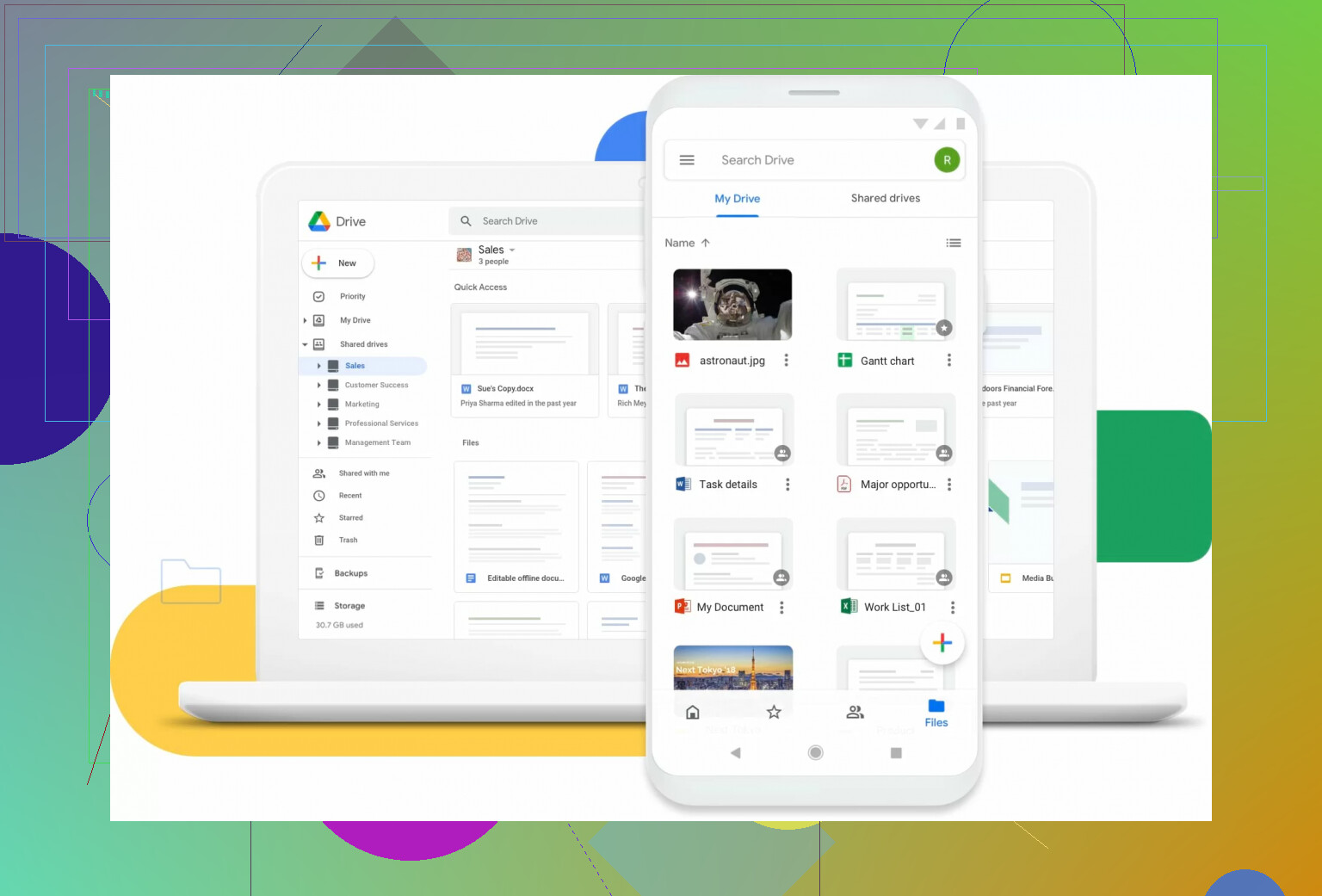
Google Drive’s biggest advantage is how easy it is to just start using it. You get 15GB free, which is more generous than most free tiers, and everything works right in the browser.
Docs, Sheets, and Slides are built in, and collaboration is honestly one of Google’s strongest areas. Sharing is simple and works even if the other person doesn’t really use Google much. And search is very good (not surprising given who built it).
Some users put it this way:
“Google Drive’s most liked features include its seamless integration with other Google Workspace apps, which enables effortless, real-time collaboration on documents”
“I like the free storage of 15GB and the data security provided by the company, and easy access to my files from web, mobile, and desktop”
Google Drive – the frustrations
The reality is things get annoying if you work between Google and Microsoft environments. Formatting issues when moving between Docs and Word are still a thing, especially with complex documents.
Also, that 15GB fills up faster than expected because Gmail and Google Photos share the same pool. And if your company runs on Microsoft, you may spend a lot of time converting files.
One user summed that up pretty well:
“My only complaint would be how incompatible Microsoft and Google files can be. While I love Drive, my employer is Microsoft based and switching between file types often changes fonts, spacing, transitions, etc.”
Quick side-by-side
If you’re deep in Windows or Microsoft 365, OneDrive usually makes the most sense because it’s already part of your workflow. If you mostly work in a browser or use Google Workspace, Google Drive usually feels faster and simpler.
If you’re somewhere in the middle (which honestly is a lot of people), you may end up using both whether you planned to or not.
The “why choose?” option – CloudMounter
That’s where something like CloudMounter can actually make life simpler. Instead of juggling separate apps or browser tabs, it lets you mount both OneDrive and Google Drive as drives directly inside File Explorer (Windows) or Finder (macOS).
So they just show up like normal folders on your computer. You can manage files the same way you already do – drag, drop, rename, move stuff around – without bouncing between different cloud apps.

It also supports other services like Dropbox, S3, FTP, SFTP, and WebDAV. There’s built-in encryption before files even leave your computer, and it stays pretty lightweight without constant notifications. Honestly a nice option if you’re tired of having cloud storage scattered across five different interfaces.
You are already halfway decided without noticing.
You pay for Microsoft 365. Your coworkers live in Gmail and Google Drive. So you have two different needs.
Quick take for your use case:
• Personal files, Windows PCs, Office docs
→ Put the default on OneDrive.
• Shared work with Gmail people
→ Use Google Drive for the content you actively co-edit.
Where I slightly disagree with @mikeappsreviewer is on “most people do not pick by features”. In mixed environments, features matter a lot because you waste time on conversion and sync issues.
Here is how I would split it in practice.
- Use OneDrive for your “source of truth” Office files
You already pay for 1 TB or more with Microsoft 365. Use it.
What to store there:
• Your core work docs in Word, Excel, PowerPoint
• Stuff you want to sync with your Desktop / Documents folders
• Things that must stay in Office format for your job
Pros for you:
• Tight integration with Word, Excel, PowerPoint on desktop
• Automatic version history in Office
• Good for offline work on Windows
• No extra subscription
Annoyances:
• Sync client on Windows sometimes hangs or misreports status
• Permissions in the OneDrive + SharePoint world confuse many users
• Search feels slower than Google when you add new files
Workaround:
Keep your folder structure simple. Avoid syncing giant shared libraries. Keep “My OneDrive” for your own stuff and small shared folders.
- Use Google Drive where collaboration matters more than formatting
Your collaborators are on Gmail. Do not fight that.
Use Google Drive when:
• You co-write docs with other people
• You want comments and suggestions in real time
• You share a lot through Gmail links
Pros:
• Real time editing in Docs and Sheets is hard to beat
• Search is strong, including file content
• Browser based, so it works on any device, no install needed
Cons for you:
• Office to Google format conversion breaks formatting in complex files
• 15 GB free is shared with Gmail and Photos, fills faster than you expect
• If your company wants final files in .docx or .pptx, you clean up layouts often
Practical flow that works in mixed setups
This is how I see many people keep their sanity:
• Draft and collaborate with external people in Google Docs / Sheets in Google Drive.
• When the document is stable or “final”, export to Word or Excel.
• Store the final Office file in OneDrive as your archive and “official” copy.
• If edits restart with external people, go back to Google Docs again.
Yes, there is some conversion overhead. You cut it down by:
• Keeping heavily formatted work (complex PowerPoints, detailed Excel models) in Microsoft tools from day one.
• Using Google Docs for lighter text docs and simple tables.
Handling “I use both and it is a mess”
If you touch both every day, the constant app and browser switching gets old.
This is where something like CloudMounter helps. It mounts OneDrive and Google Drive as normal drives in File Explorer or Finder. You work with them as folders on your machine. No need to keep both sync clients in your tray or jump across five browser tabs. It also does client side encryption for sensitive stuff, useful if you keep personal and work clouds on the same devices.
Simple setup suggestion for you
On Windows PC:
• Sign in to OneDrive with your Microsoft 365 account.
- Let it sync Desktop, Documents, Pictures.
- Create clear folders: “Work_Official”, “Personal”, etc.
• Use Google Drive mainly through the browser.
- Create a “Shared_with_others” folder per project or client.
- Keep everything in native Google formats there for smooth collaboration.
Optional:
Install CloudMounter and connect both accounts. Work in Explorer or Finder and stop thinking about which cloud is which.
If you try this split for a month, you will see which side you open more. At that point, you can lean harder into that one, but starting hybrid fits your situation best.
Short version: in your situation, you probably shouldn’t “pick” one. You should anchor on OneDrive and collaborate in Google Drive, and keep your sanity with a tool like CloudMounter if you get tired of juggling both.
@mikeappsreviewer and @viajeroceleste already nailed how each one feels day to day, so I’ll skip rehashing that and focus on your exact mix.
Where each one should live in your life
Use OneDrive as your “home base” because:
- You already pay for Microsoft 365, which usually means 1 TB+ of OneDrive.
- Office desktop apps + OneDrive are still better for:
- Heavy Word reports
- Big Excel files
- Polished PowerPoint decks
- Sync of Desktop / Documents actually works decently if you keep things simple.
- If your employer is even mildly Microsoft oriented, OneDrive is what IT will actually help you with.
I slightly disagree with the “search is a dealbreaker” criticism: yeah, OneDrive search lags and isn’t Google-level, but for a normal personal/workload it’s annoying, not fatal. For tens of thousands of files, then it hurts.
Use Google Drive as your “meeting space” because your collaborators live there:
- When someone sends you a Google Docs link, don’t immediately convert it to Word unless formatting really matters.
- For teamwork with Gmail people:
- Keep stuff as Google Docs / Sheets / Slides while it’s in flux.
- Use suggestions, comments, all that.
- Only export to Office when:
- You need to send a “final” version to a Microsoft-only audience.
- Complex formatting really matters (board decks, formal proposals, etc).
Where folks get into pain (and this is where I agree with both other answers) is trying to keep one single “master” copy in both places. That’s how you end up with v7_final_FINAL_really.docx and lose track of what’s current.
A simple workflow that actually holds up
Try this pattern:
-
Draft & collaborate with external folks in Google Drive
- Use Google Docs / Sheets.
- Keep all collaborative stuff in a top-level folder like
Collab_GDrive.
-
When it’s final, export to Office and store in OneDrive
- Save as
.docx,.xlsx,.pptx. - Drop that into a clear OneDrive folder like
Work\Final_Docs.
- Save as
-
For stuff that starts in Office and stays in Office
- Don’t touch Google Drive at all.
- Open from OneDrive, share directly from there if people are ok receiving Office files.
If you stick to that rule of thumb:
- Google Drive = working drafts with others
- OneDrive = your archive and “official” copies
you avoid 80% of the format-conversion drama.
When both ecosystems start to feel like a part-time job
The thing almost nobody mentions until they are crying into their keyboard is the mental cost of context switching:
- OneDrive sync client in the tray
- Google Drive web tab 17 of 84
- Random “where did I save that” moments
This is where CloudMounter is actually useful, not just a shiny toy:
- It lets you mount both OneDrive and Google Drive as regular drives/folders in File Explorer or Finder.
- You can browse them side by side:
X:\OneDrive\WorkY:\GoogleDrive\Collab
- Drag and drop directly between clouds without downloading and re-uploading manually.
- It has client side encryption, so if you keep personal data in the same machine as work stuff, you can lock down specific folders before they even hit the cloud.
I’ve seen people’s whole workflow calm down once they treat everything as “just folders” via CloudMounter instead of separate silos with different apps and websites.
Concrete setup I’d do in your shoes
On your main PC:
-
Turn on OneDrive fully for your account
- Let it handle Desktop / Documents if you’re comfortable with that.
- Make folders:
\Work_Official\Personal\Archive
-
Use Google Drive for active collabs only
- No need to sync everything locally.
- Have one folder per collaborator / group:
\ClientA_Shared\TeamProject_Shared
-
Install CloudMounter if the back-and-forth starts to hurt
- Mount both accounts.
- From then on, do file moves from Explorer / Finder.
- Ignore most of the cloud-specific UIs unless you need advanced sharing options.
After a month of this, you’ll see which one you actually open more. But realistically, with your mix of Microsoft 365 + Gmail collaborators, the right answer isn’t “OneDrive vs Google Drive”; it’s “OneDrive for structure, Google Drive for people, and CloudMounter so I don’t lose my mind.”
Skip the hybrid filing system.
Keep every file you own in OneDrive. Leave shared Google documents in the project owner’s Drive. Add browser bookmarks to those projects instead of copying or exporting files.
Use one rule:
Your file, OneDrive.
Their shared file, Google Drive.
Create a OneDrive folder named “External Project Links” and save shortcuts there. This avoids duplicate versions, conversion errors, extra software, and seperate archives. You always know where the master copy lives, even if the project gets busy.
The risk nobody flagged: if you rely on bookmarks to files that live in someone else’s Drive, you don’t own anything. @hacknerd7’s “their file stays in their Drive” rule is clean and I like it for avoiding duplicate versions, but it quietly assumes the other person never leaves, never reorganizes, and never deletes the folder. People change jobs. Companies deprovision Google accounts. When that happens, every file owned by that account can vanish or get locked, and your tidy bookmark now points at nothing.
So I’d soften that advice a little. Bookmarks are fine for active projects, but the moment a shared doc actually matters to you, pull a copy into your own space. Not a live sync, just a snapshot. File, Download, save the .docx or .xlsx into OneDrive. Do it whenever something hits a milestone. It feels redundant right up until the day it saves you.
The workflow the others described (draft in Google, archive final in OneDrive) is basically right, and I won’t rehash it. My one real disagreement is with treating “final” as a single moment. In mixed teams there’s rarely a clean final. Docs get reopened weeks later. So instead of one export at the end, I’d export at each stable point and keep dated copies in OneDrive. Storage is cheap on a 365 plan, regret is not.
On CloudMounter, it makes sense for the “stop juggling apps” part and the encryption is a nice touch if you keep personal stuff on a work machine. Just be clear about what it does. Mounting both drives as folders fixes the interface mess, it does not give you ownership or a backup of files you don’t control. A mounted drive is still a window into the cloud, not a copy of it. Same trap as the bookmarks, just prettier.
One more practical thing that bites people: Google Docs opened through a mounted drive or shortcut usually still kicks you to the browser to edit, since they aren’t real files, they’re pointers. So don’t expect true offline editing of native Google formats no matter which tool you use. If offline matters, that content needs to be in Office format sitting in OneDrive, full stop.
Short version of my take: anchor on OneDrive like everyone said, collaborate in Drive, but never let your only copy of anything important live in an account you don’t own.