My old iPad has gotten really slow lately with apps taking forever to open, laggy typing, and frequent freezes. I’ve already cleared some storage and updated iOS, but it still feels sluggish for basic use. I need help figuring out which settings can improve old iPad performance without buying a new one.
My old iPad got to the point where opening Notes felt delayed and Safari would sit there for a second too long. Annoying, yeah, but I fixed most of it without replacing the thing. These are the steps I’d try first.
Restart it before you touch anything else
This sounds dumb. I know. I still did it first, and it helped. If your iPad stays on for days or weeks, background stuff stacks up, memory gets messy, and performance starts feeling off in small ways. Power it all the way down, turn it back on, then see where you stand.
Three changes I noticed right away
Turn off Background App Refresh
Go to Settings > General > Background App Refresh and disable it. A lot of apps keep checking for new data while you are doing something else or while the iPad is sitting idle. On older hardware, that adds drag. Notifications still come through. You’re mainly stopping busywork.
Turn on Reduce Motion
Go to Settings > Accessibility > Motion and switch on Reduce Motion. The big zoom animations when opening and closing apps get replaced with simpler transitions. On an older iPad, this made the whole interface feel less heavy. Small change, bigger effect than I expected.
Clear Safari’s cache
Go to Settings > Safari > Clear History and Website Data. If browsing is what feels slow, this is one of the first things I’d do. Old cookies, cached files, and site junk build up over time. Mine had years of it. Cleaning that out helped Safari more than anything else.
Check for iPadOS updates
Open Settings > General > Software Update. Sometimes slowdown shows up after an update, then Apple patches it a bit later. If your iPad supports a newer version, install it so you aren’t wasting time chasing a problem already fixed upstream.
Storage is usually the real problem
From what I saw, low free storage is where a lot of older iPads start falling apart. iPadOS needs breathing room for temporary files, app data, and routine system tasks. Once storage gets tight, the slowdown creeps in. It does not hit all at once. It gets worse little by little, which makes it feel like the iPad is aging in slow motion.
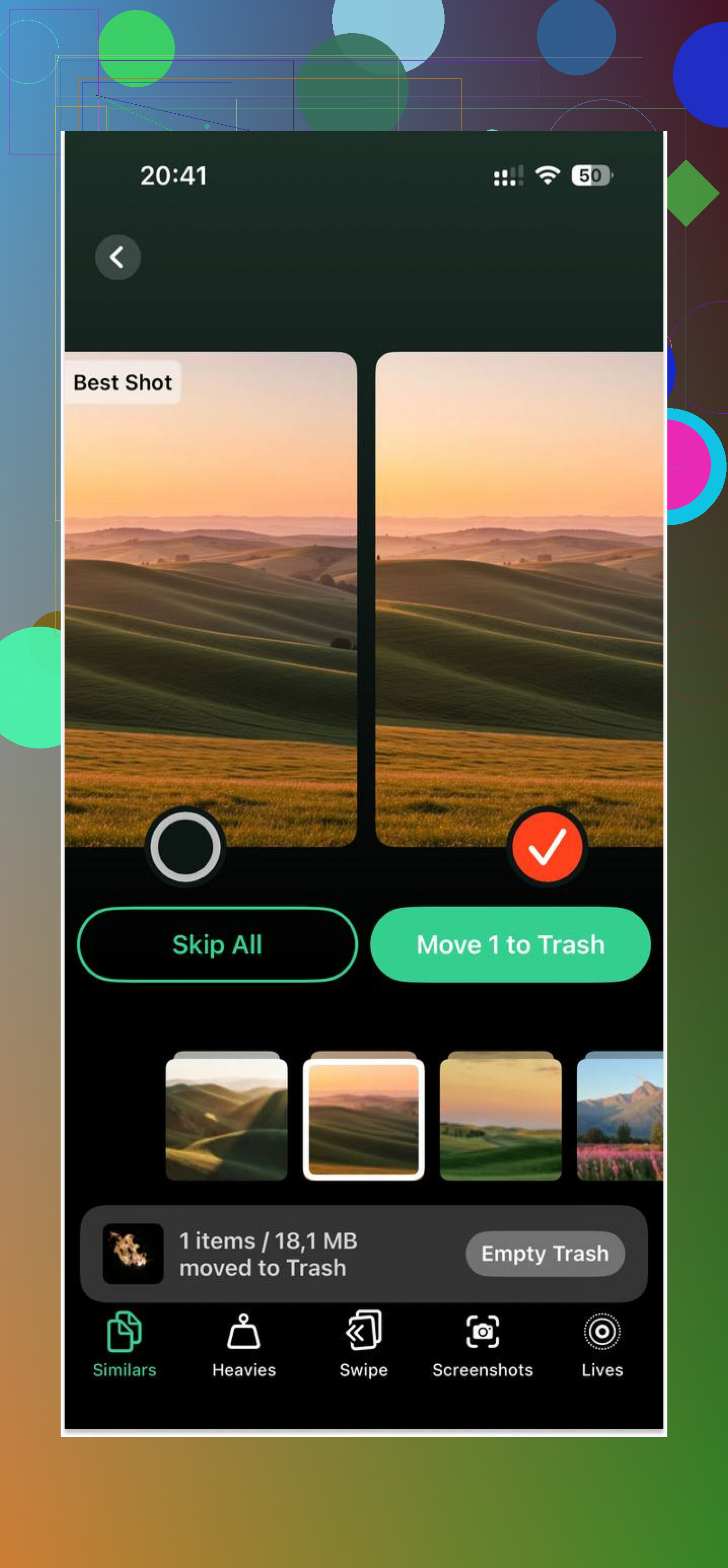
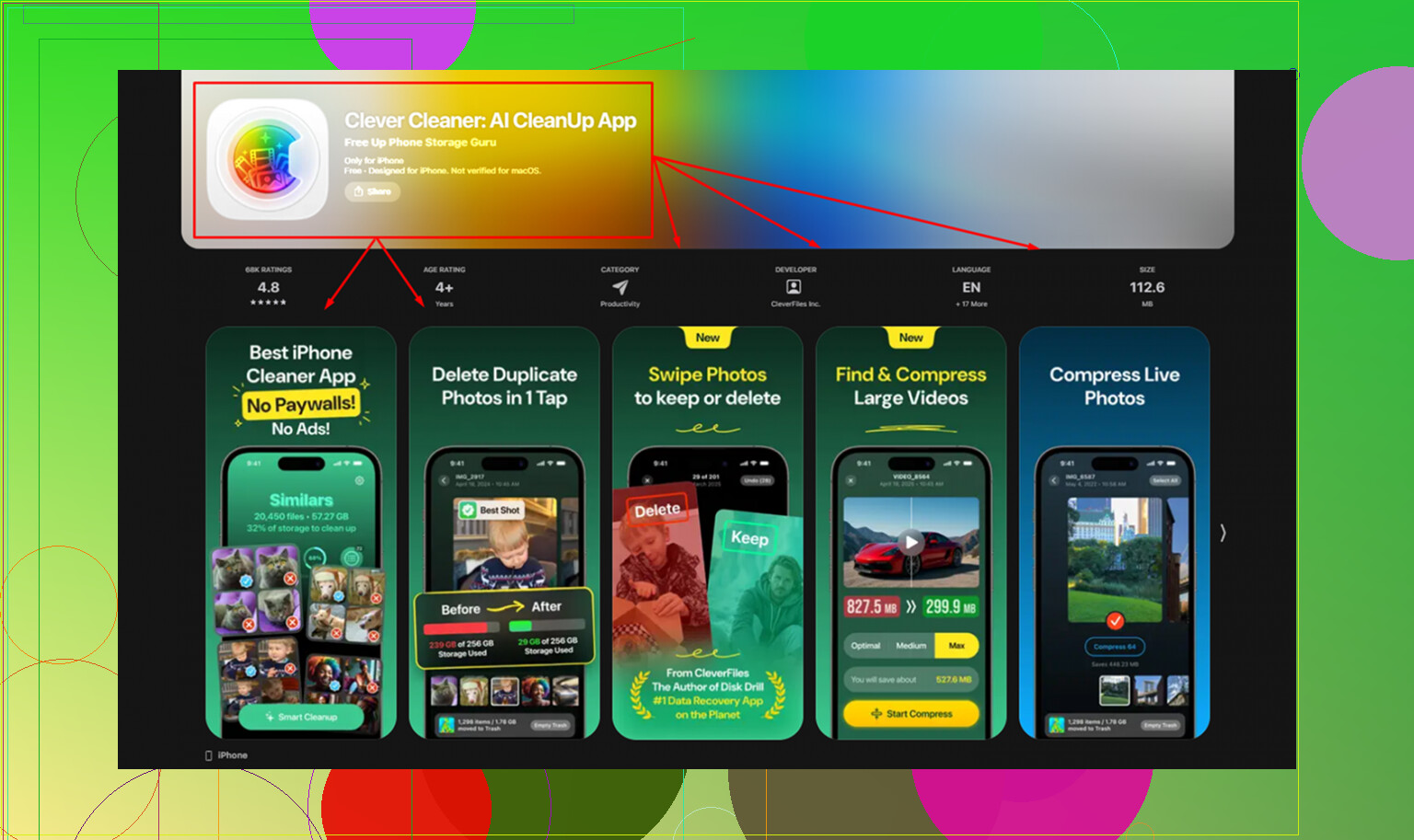
You can clean this up by hand, and I did some of it that way at first. Screenshots, duplicate photos, random old videos, giant downloads you forgot were there. It works, but it takes forever if your library is a mess. I ended up using Clever Cleaner because it sorted the biggest files faster than I could. The Heavies tab lays everything out from largest to smallest with file sizes shown, so the 2GB video buried in your camera roll pops up fast. The Similars tab groups near-duplicate photos and marks a Best Shot, which helped me wipe out old burst-photo clutter without sorting every set myself. It runs on-device, so nothing gets uploaded somewhere else. After I cleared about 5GB, the iPad felt snappier. Not new, but less irritating.
Try these before giving up on it
I would not replace the iPad before doing the free stuff above. Those settings take a few minutes. Clearing storage fixes the issue I hit most often on older devices. If it is still dragging after all of that, the last step is a full reset.
Go to Settings > General > Transfer or Reset iPad > Erase All Content and Settings.
Back it up to iCloud first. Setup afterward is annoying, no point pretending otherwise, but a factory reset has brought old iPads close to their original speed for me. If you are on the fence about replacing it, do this once before spending money.
If storage and updates are already done, I’d look at a few settings people skip.
Turn off Siri suggestions.
Settings, Siri & Search.
Disable Suggestions in Search, Suggestions in Look Up, Suggestions on Home Screen.
Old iPads spend too much time indexing stuff. Search gets slower, keyboard lag gets worse.
Turn off Keyboard features you do not need.
Settings, General, Keyboard.
Disable Predictive, Auto-Correction, and Dictation if you never use them.
Typing lag on old iPads is often tied to the keyboard trying to do too much at once. This helped mine more than Reduce Motion did, so I part ways with @mikeappsreviewer there a bit.
Disable Location Services for junk apps.
Settings, Privacy & Security, Location Services.
Keep it on for Maps and weather if needed. Set most other apps to Never.
Too many apps polling location will drag older chips and hit battery too.
Turn off Analytics and tracking.
Settings, Privacy & Security, Analytics & Improvements.
Disable Share iPad Analytics and the other reporting toggles.
Small change, but worth doing.
Mail matters.
If you use Apple Mail, go to Settings, Mail, Accounts, Fetch New Data.
Set Fetch to Hourly or Manual.
Push email keeps old hardware busy.
Also check your widget stack and home screen clutter.
Widgets refresh in the background. Remove the ones you never read.
One thing I disagree on a little, Safari cache is fine to clear, but freezes across the whole iPad usually point to RAM pressure or background services, not browser junk.
If photos and videos are eating space again, Clever Cleaner is still worth a look. It finds large files and dupes fast. This writeup is decent too, see how Clever Cleaner speeds up iPhone and iPad storage cleanup.
Last blunt truth, if your iPad has 2GB RAM or less, modern iPadOS will feel slow no matter what you tweak. Settings help. They do not perform mircales.
I’d actually check one setting combo nobody talks about enough: disable app offloading.
Settings > App Store > Offload Unused Apps = Off
On older iPads, this can backfire. It saves storage, sure, but then apps have to reload chunks and re-verify stuff when you open them again. That “why is this basic app taking forever to launch” feeling can come from that. If you already freed space manually, I’d keep offloading disabled.
A few other things I’d try that are different from what @mikeappsreviewer and @himmelsjager mentioned:
-
Limit Spotlight indexing
Go to Settings > Siri & Search, scroll app by app, and turn off Show App in Search for junk apps you never search for. I agree with @himmelsjager on Siri stuff in general, but I’d do it selectively instead of nuking every suggestion. -
Disable handoff/AirPlay extras
Settings > General > AirPlay & Continuity
Turn off Handoff if you don’t use it. Older devices get weirdly laggy with extra continuity features running. -
Reduce transparency
Settings > Accessibility > Display & Text Size > Reduce Transparency
This sometimes helps more than Reduce Motion, honestly. Blur effects can be surprsingly heavy on old hardware. -
Turn off automatic downloads
Settings > App Store
Disable automatic app updates/downloads. Let the iPad do less in the background. -
Close Safari tabs for real
Not cache, tabs. If you have 80 tabs open, old iPads just kinda suffer lol.
Also, if freezes happen across multiple apps, check battery health if your model supports it, or at least notice if it gets hot. Heat makes old iPads crawl.
And yeah, if photo/video clutter keeps coming back, Clever Cleaner is one of the easier ways to cut down duplicate pics and big files without digging forever. If you want a solid community thread on it, this is worth a look:
real Reddit reviews of Clever Cleaner for iPhone and iPad cleanup
My mildly unpopular take: if it’s an ancient iPad, some settings help, but once the RAM ceiling is the problem, you’re basicly tuning a toaster.
I’d add one thing the others barely touched: Low Power Mode.
Settings > Battery > Low Power Mode = On
On old iPads, I sometimes leave it on permanently. Apple markets it like a battery saver, but it also cuts background behavior and can reduce random stutters. Slight downside: some syncing and background tasks happen less aggressively.
A second one: Accessibility > Touch > Touch Accommodations should stay off unless you knowingly enabled it. I’ve seen weird input lag that turned out to be accessibility touch filtering, not “the iPad being old.”
I also disagree a bit with the “just close apps” habit people suggest in threads like this. Force-closing everything constantly can make app relaunches feel slower on weak hardware. Only kill the apps that are actually frozen.
For freezes, check Battery usage by app:
Settings > Battery
If one app is eating absurd background activity, delete and reinstall that app. Sometimes one bad actor tanks the whole device.
On Clever Cleaner:
Pros: fast way to spot huge videos, duplicates, and photo clutter.
Cons: cleanup apps help storage pressure, but they do nothing for weak RAM or an aging chip, so expectations need to stay realistic.
Also worth noting, @himmelsjager, @cacadordeestrelas, and @mikeappsreviewer covered good settings, but if your iPad is still freezing after all that, a clean reinstall without restoring every old setting/app immediately often works better than endless tweaking. That’s the point where settings stop mattering.
Try deleting and reinstalling the slowest apps.
Open Settings, General, iPad Storage. Find apps with large Documents & Data totals. Delete them, restart your iPad, then reinstall only what you still use. This removes bloated caches and damaged local files without wiping the device.
Start with one app, such as Facebook, YouTube, or Notes. Test speed before removing another. Save any local files first.
Also use Safari versions of heavy apps when possible. They often need less storage and fewer background tasks. Its simpler than changing dozens of settings.