I accidentally formatted a USB flash drive that had important work files and personal photos on it. I need reliable, free USB data recovery software that’s safe to install, can scan a corrupted or formatted drive, and ideally recover as many files as possible without watermarks or strict limits. What tools do you recommend, and are there any risks I should know about when trying to restore data from a damaged or formatted USB stick?
My Kingston DataTraveler blew up on me yesterday. Windows popped up that “you need to format this disk” message and then showed 0 bytes used, 0 bytes free. Classic.
On it, I had about 6 years of scanned family papers, tax stuff, some work invoices, and a folder of photos of my grandmother after she passed. So yeah, not something I want to lose. I stopped touching the drive the second it happened. No new files, no “check disk,” no “quick format.” Last time I did that on a different USB, I buried half my chances before I even tried to fix it.
Here is more or less what I learned from going through this mess a few times.
First half hour is everything
The tools matter, sure, but what you do first matters more.
Things I try hard not to do:
- No writing anything at all to the USB
- No “repair” tools inside Windows Explorer or right-click → Properties → Tools
- No quick format “to see if it helps”
- No antivirus “cleanup” on the drive
Once flash memory starts failing, every write is a roll of the dice. Reads hurt it way less than writes. So I treat it as read only from that point.
Raw filesystem / 0 bytes situations
If Windows shows:
- 0 bytes used and 0 bytes free
- “RAW” as the filesystem
- Or asks to format every time you plug it in
I skip quick scans. Every single time quick scans wasted time for me on broken USB sticks.
What worked better:
- Go straight to a deep sector scan
- Use tools that rebuild a file tree from raw data instead of trusting the existing partition table or file system structures
On heavily corrupted flash drives, the file system info at the start of the drive is often trashed, while the actual file data is scattered around and still intact. Deep scanners that read block by block and guess file types tend to find a lot more.
Free vs paid recovery tools
There are free tools around, but the pattern is almost always:
- Scanning is free
- Actual recovery/export of files is limited or paid
Weirdly, that is not the worst deal. You get to:
- Run a full scan
- See exactly which of your files show up
- Preview photos, PDFs, docs and confirm they open
Then decide if you want to pay.
I learned this the dumb way once. I bought a random tool upfront, ran the scan, and it “recovered” a ton of files that were all zero bytes or corrupted thumbnails. Looked good in the list, totally useless when opened.
My rule now:
Never pay before you:
- See your own filenames or at least your own content
- Open a preview of at least a few key files
If a tool does not allow previews before purchase, I skip it.
Stuff I read that helped
Someone in another thread dropped this link:
https://discussion.7datarecovery.com/forum/topic/trying-to-choose-usb-data-recovery-software-for-a-64gb-flash-drive/
It is a discussion specifically about choosing USB recovery software for a 64 GB flash drive, not some top 10 “best recovery tool” list written for clicks.
What I pulled from it:
- People compared results from multiple tools on the same broken stick
- They posted which tools found what, not how “nice” the interface looked
- There was talk about raw recovery vs file system recovery, which lines up with what I saw in my case
It is worth a short read before you throw money at anything.
Step by step, what I would do again
Here is the order I follow now whenever a USB goes weird on me:
-
Create a full image of the drive
- Use something that copies the device sector by sector into an image file, not a file copy of the contents
- Do this once, as safely as possible
- After that, put the physical USB away and only work with the image
Reason: if the flash fails more during scanning, you lose sectors. If you grab one full snapshot at the start, you freeze the damage where it is.
-
Run deep scan on the image, not the USB
- Point your recovery tool at the image file
- Use deep/raw/sector scan mode
- Expect this to take hours on a 64 GB stick, sometimes more
-
Let the tool build a virtual file tree
- Some tools show “reconstructed” folders by type: JPEG, PNG, DOC, PDF, etc
- Others try to rebuild original folders and filenames from leftover file system info
- For old scanned documents and photos, file content usually survives better than folder names, so I focus more on what opens, less on what the name is
-
Preview a sample of your most important stuff
- Photos of my grandmother: I opened random ones throughout the list, not only at the start
- PDFs of scans: I checked if text was readable, not scrambled or half-blank
- Invoices: at least a couple from different years
If previews load fine, there is hope.
-
Only then pay, if it looks worth it
- If you see nothing useful in scan results, paying will not fix that
- If you see hundreds of good previews, paying usually makes sense
File system detail that matters more than people think
On USB sticks, it is almost always:
- FAT32
- exFAT
Why I ask which one it was:
- FAT32 has strict limits on file size and old file naming conventions. Recovery tools have been working with it forever, so they often handle it well.
- exFAT is newer and used on larger drives and cameras. Some older or cheap tools handle exFAT poorly and show fewer recoverable items.
For scanned documents and photos:
- On FAT32, I saw better folder reconstruction but some long filenames mangled
- On exFAT, I saw more raw files found by type, fewer original folder structures
So if your stick was exFAT, I would lean harder on tools praised for raw recovery. If it was FAT32, file system based recovery has a better shot.
Practical tips from my last scare
From the last time I dealt with this:
- Do not plug the USB into 5 different PCs. One trusted machine, good power, no hubs.
- Avoid running two different recovery tools at the same time on the same drive or image. Queue them.
- Keep notes of which tools you ran, on what image, and what they found. Once you have three scans, it starts to blur.
- If the USB starts making weird disconnect sounds or drops out during imaging, stop, let it cool, try again with slower read settings.
If I were in your spot right now
I would:
- Stop doing anything on the live USB
- Create a full image of the USB to a local HDD or SSD
- Run a deep raw scan on that image with at least one tool that:
- Lets you preview images and PDFs before paying
- Works well with your file system type (FAT32 or exFAT)
- Compare your results to what people in that 7datarecovery discussion say about their own scans:
Trying to choose USB data recovery software for a 64GB flash drive - Forum | 7 Data Recovery Experts - Decide if paying for export is worth it after you see your own files in the preview
And if you remember whether your stick was formatted FAT32 or exFAT before it died, that detail can nudge which tool you try first, especially for photos and scanned docs.
Short version. There is no single “best” free USB recovery tool, but a few stand out and are safe if you get them from the official sites.
Here is what I would use, in this order, for a formatted or corrupted USB with photos and work files.
- Disk Drill (Windows / macOS)
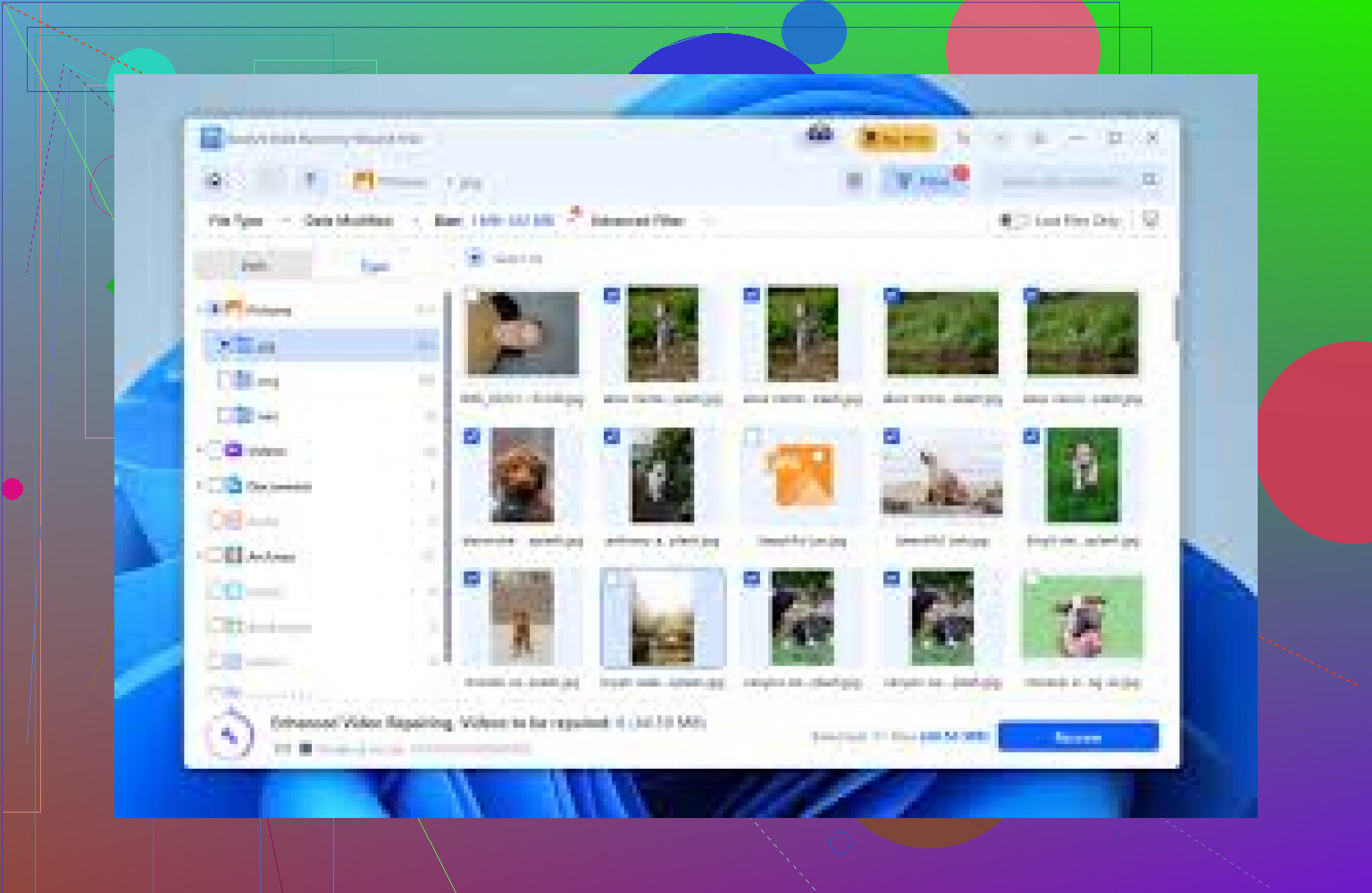
Disk Drill is not fully free, but it works well and is safe. It is strong with formatted USB drives and photo recovery.
Free part:
- Scans for free.
- Shows you which files it finds.
- Lets you preview photos and many documents.
If it lists and previews your important stuff, you decide if it is worth paying to recover. For your situation, it is useful because deep scan rebuilds files from raw data, not only from the damaged file system.
- PhotoRec (with TestDisk)
- Free and open source.
- Not pretty, but effective.
- Great for photos, videos, office docs on formatted USBs.
What you get:
- Deep raw scan by file type.
- Ignores the broken file system and reads sectors directly.
Downside. It often loses original filenames and folders. You end up with a lot of files like f123456.jpg. For precious photos, this is still better than nothing.
- Recuva (Windows)
- From CCleaner’s developer.
- Free version is enough for one USB incident.
Best use case:
- Quick accidental delete.
- Recent quick format where the drive is still healthy.
On heavily corrupted or RAW USBs, it usually finds less than Disk Drill or PhotoRec.
- MiniTool Power Data Recovery free edition
- Free tier recovers up to a small data cap.
- Friendly UI.
- Better than Recuva on some exFAT sticks in my experience.
You use it similar to Disk Drill. Scan first, check previews, then decide if paying makes sense once you see your own files.
Where I slightly disagree with @mikeappsreviewer
They skip quick scans every time. For a simple quick format on a healthy stick, a fast scan sometimes restores the full folder tree with names intact. I run a quick scan first. If results look weak or the drive shows RAW or 0 bytes, then I move to deep scan.
You also asked how to recover files from a USB in a simple, practical way. Think of it in three steps:
- Stop using the USB
- Do not copy new files to it.
- Avoid Windows “repair” prompts. Click Cancel.
- Scan with a trusted tool
- Install Disk Drill or another tool on your internal drive, not on the USB.
- Start with quick scan if the drive still shows a normal file system.
- Go straight to deep scan if the drive shows RAW, 0 bytes, or keeps asking to format.
- Save recovered files to a different drive
- Never recover back onto the same USB.
- Use an internal SSD or HDD.
If you like watching instead of reading, this step by step guide for recovering data from USB is helpful:
easy USB data recovery tutorial on YouTube
For your formatted flash drive, I would:
- Try Disk Drill first for its deep scan and previews.
- If you do not want to pay, then run PhotoRec as a second pass for free raw recovery.
- Use Recuva or MiniTool only if those two do not give what you need.
If you specifically want “free and trustworthy,” I’d split it into two buckets: what’s actually 100% free, and what’s “free to scan, pay to save,” which is where the better results usually are.
@vrijheidsvogel and @mikeappsreviewer already nailed the process side (stop writing to the USB, imaging first, deep scans, etc.), so I won’t rehash that whole checklist. I’ll focus on which tools I’ve seen work and where I think they’re slightly off.
1. If you want completely free & legit
PhotoRec (with TestDisk)
They both mentioned it, but I’d push it higher than they do if money is a hard no.
- Free, open source, no nonsense installers or bundled junk.
- Killer on formatted and RAW USB drives.
- Ignores the broken file system and hunts files by signatures.
- Great for photos, PDFs, docs, ZIPs, etc.
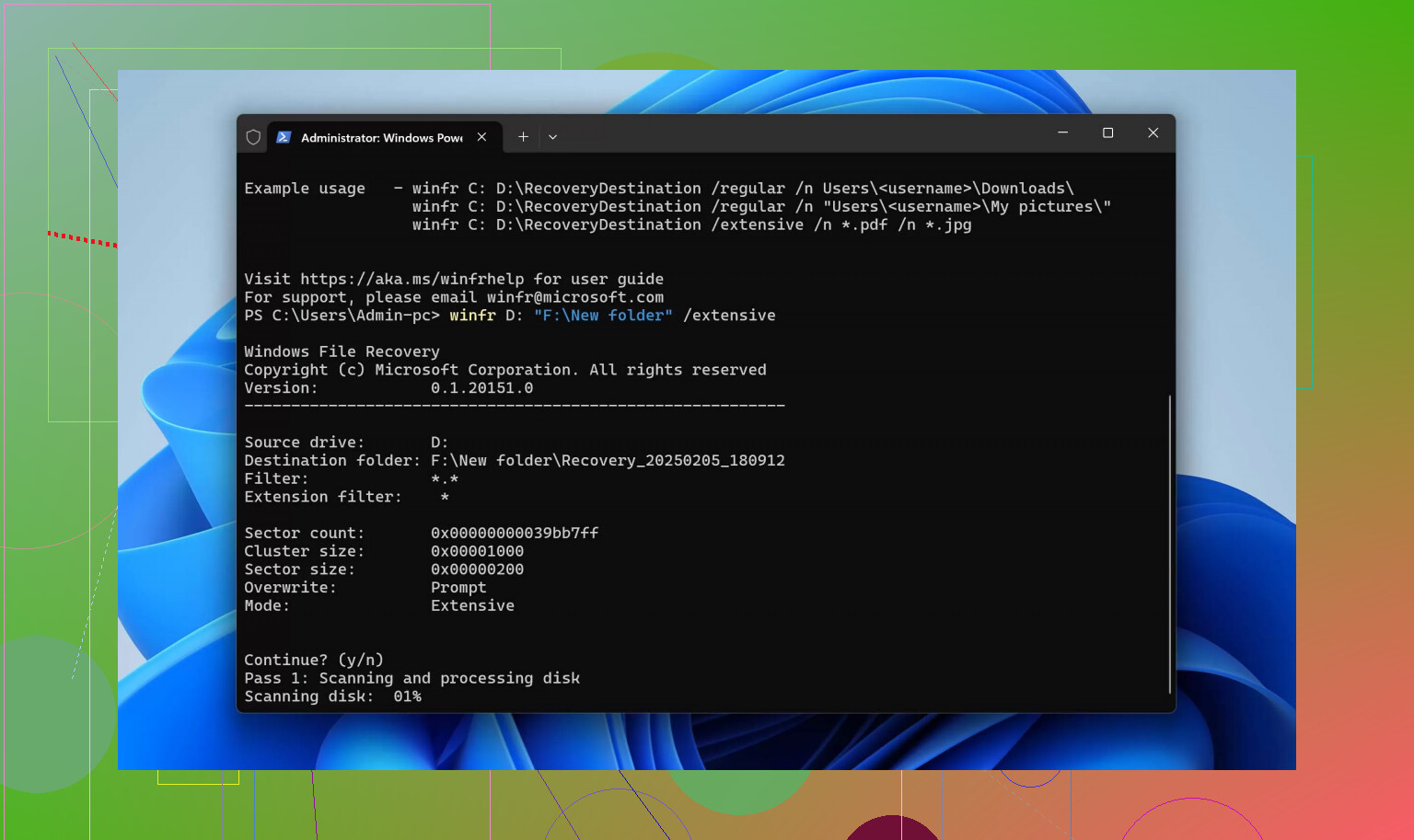
Real downside: filenames and folder structure are usually toast. You get a mountain of f1234567.jpg and recup_dir style folders. It is annoying, but on a formatted stick it can still pull out a scary amount of data.
Where I sort of disagree with them:
They treat the “lost filenames” as a huge pain point. If it is family photos and scans, I’d rather have 2,000 messily named working images than 50 nicely named ones. Sorting is annoying, permanent data loss is worse.
Recuva (free version)
I only use this when:
- It was a quick format or simple delete.
- Drive still mounts as FAT32/exFAT/NTFS, not RAW.
- No weird disconnects or 0-byte situations.
Recuva is nice for quick wins, but I would not trust it as my main weapon on a seriously corrupted USB. It simply finds less than PhotoRec in hard cases.
2. “Free to scan, pay to actually recover”
This is where Disk Drill comes in and, honestly, this is what I’d start with for your combination of work files + personal photos.
Disk Drill for USB recovery
- Safe if you download from the official site.
- Deep scan works very well on formatted USB flash drives.
- Shows exactly what it can recover before you pay.
- You can preview photos, PDFs, Office docs, etc.
My typical flow with Disk Drill on a formatted USB:
- Install it on your internal drive, not on the USB.
- Choose the USB, run a deep scan directly (formatted drive = skip quick scan half the time).
- Let it finish; don’t multitask on the PC while it hammers the stick.
- Preview several of your key files: some photos, some work docs, maybe a PDF.
- If previews look clean, then decide if the license is worth it.
Where I disagree a bit with @mikeappsreviewer: they run quick scans more often than I like. On a properly formatted USB, I go straight to deep scan in Disk Drill most of the time. Quick scan can be fine on a healthy disk with a simple delete, but after a format, the good stuff is usually only visible via deep sector read.
If you get nothing or only garbage previews in Disk Drill, don’t pay. Just switch to PhotoRec and do a raw-pass instead.
3. Don’t sleep on tool diversity
One thing @vrijheidsvogel hinted at but didn’t fully lean into: different tools see different stuff. I’ve had:
- Disk Drill find nicely structured folders and original filenames that PhotoRec missed.
- PhotoRec dig out strange old file types or partial images Disk Drill ignored.
- Recuva grab a few very recent docs that weren’t picked up elsewhere.
So for your formatted flash drive, a realistic “stack”:
- Disk Drill for scanning and previewing. If it clearly shows your lost photos and work files, it’s usually the most time-efficient path.
- If you don’t want to pay, run PhotoRec on the same drive or, even better, on an image of it.
- Optionally try Recuva for quick, filename-preserving recoveries if the stick still looks healthy.
All three are safe to install if you grab them from the real sites.
4. Extra reading if you want to compare tools
If you’re trying to figure out not just USB recovery but the overall best tools to restore lost data, there is a solid roundup here:
top-rated data recovery tools for damaged or formatted drives
That breakdown is helpful if you end up needing recovery for more than just this one USB (external drives, SD cards, etc.).
TL;DR for your specific case:
- If you’re ok potentially paying after you see your files, start with Disk Drill deep scan on the formatted USB.
- If you need strictly free, jump straight to PhotoRec, accept the ugly filenames, and rescue as much as you can.
- Recuva is only my plan C for “format by accident, drive still healthy” situations.
Short version: you are not going to find a single “perfect” free USB recovery app, but there is a pattern that works well: combine one structured, commercial-grade scanner with one brute‑force, 100% free tool, and do not rely on quick scans for a formatted stick.
Since others already covered the basic workflow, I will stick to how the tools differ and where I would use each.
Disk Drill: where it actually fits
You already saw Disk Drill mentioned, but here is a cleaner pros / cons view specific to formatted or RAW USB flash drives:
Pros of Disk Drill
- Very strong deep scan on FAT32 and exFAT USBs
- Good at rebuilding folder trees and keeping filenames when possible
- File previews are excellent for photos, PDFs, and Office docs
- Interface is clear enough that you are less likely to click something destructive
- Can scan for free, so you see in advance if your photos and work files are actually there
Cons of Disk Drill
- Fully free only for scanning; export of larger sets of files usually needs a license
- On very badly corrupted sticks, it sometimes “overpromises” with lots of listed items that open as partial or broken files
- Heavier install than tiny utilities, which matters if your system drive is cramped
- Not the fastest in deep scan on older machines
Where I disagree a bit with what @vrijheidsvogel and @kakeru implied: they treat Disk Drill almost purely as a “see if it finds anything, then decide to pay” tool. It is more useful than that. Even if you choose not to buy it, the structure it shows you can guide how you use your free tools. For example, if Disk Drill shows that only the last 10 GB of the stick still has good data, you know where to aim a finer PhotoRec run.
How it compares to what the others suggested
-
@mikeappsreviewer leans hard into quick scans first. For a fully formatted USB or “0 bytes / RAW” situation, I still think that is wasted time. Quick scans are great when the filesystem is mostly intact. Once Windows says RAW, you are dealing with low‑level failure and should treat deep sector scan as the default, not the exception.
-
@kakeru puts a lot of weight on file system based recovery vs raw recovery. I think for USB sticks specifically, raw recovery is underappreciated. Flash drives fail in weird, blocky patterns. The MFT or FAT can be trash while the photo data itself is fine. So I would always include at least one raw‑first tool in addition to Disk Drill.
-
@vrijheidsvogel is absolutely right about creating an image first, but in practice many people are not going to bother with dd or imaging tools for a single flash drive. If you skip imaging, at least commit to using only one main tool at a time and avoid repeated scans that pound the stick with reads.
So what should you actually do tool‑wise?
Since everyone already gave you step‑by‑step instructions, here is a sharper tool pairing:
-
Disk Drill on the physical USB or, better, on an image of it
- Go straight to deep scan for anything that was formatted or shows RAW.
- Use it to answer one question: “Are my most important files actually present and opening in preview?”
- If yes and the amount of data is serious, it is usually worth paying.
- If previews are mostly blanks, broken images, or random junk, save your money.
-
PhotoRec as the free, aggressive second pass
- Run it after Disk Drill, ideally on the same image file.
- Accept that filenames and folders will be a mess.
- Use it to salvage every last photo or document that still exists as raw data.
Recuva, which others mentioned, I only keep as a lightweight third option for the very specific case where the USB is still readable as a normal volume and the problem was just “oops, deleted” or “oops, quick formatted yesterday.” On a drive that is already presenting as RAW or 0 bytes used/0 bytes free, it almost always finds less than Disk Drill or PhotoRec.
Where this leaves you on “best free USB recovery”
- Strictly free and trustworthy: PhotoRec is still the go‑to, despite its ugly output.
- “Free to scan, maybe pay later”: Disk Drill is a solid primary tool for USB flash drives, with preview acting as your safety net.
- Light, free helper: Recuva is fine, but only for simple cases.
If it were my formatted stick with mixed work docs and irreplaceable photos, I would not burn hours across five random “top 10” tools. I would:
- Run Disk Drill deep scan and judge the situation from the previews, then
- Follow up with PhotoRec regardless, to scoop up anything Disk Drill skipped.
A simpler option is a professional recovery lab.
Unplug the USB and dont scan it again. Choose a local lab offering free diagnosis and “no data, no fee” service. Give them a list of your five most important folders or filenames. Ask for a recoverable-file report and fixed quote before approval.
This works best when the drive shows 0 bytes, disconnects, overheats, or isn’t detected. Software scans won’t fix damaged memory chips or controllers. You recieve the recovered files on a new drive.
Set your expectations by the kind of format first, because that changes everything and nobody here really spelled it out. A quick format just wipes the file table and leaves your actual data sitting there, so your odds are genuinely good. A full format on newer Windows can zero the drive, and if that happened, no software in this thread is bringing anything back. So before you spend hours scanning, try to remember which one you clicked. If it was the fast one that finished in two seconds, relax a little.
The PhotoRec advice from @kakeru is the part I’d trust most for a strictly free route. It’s ugly, the filenames come out as garbage, but it does the job on a formatted stick. And honestly the ‘mountain of f1234567.jpg’ complaint is overblown for photos, since most viewers let you sort by date taken from the EXIF data, so your grandmother’s photos will still cluster together by when they were shot even without the original names. Scanned PDFs and invoices are the annoying ones to re-sort, not the pictures.
Where I’d gently push back on the imaging talk: for a single cheap USB stick that still reads fine, making a full sector image first is good practice but a lot of people won’t do it and won’t need it. The imaging step really matters when the drive is flaky, dropping out, or getting hot. A stick that just says ‘please format’ but otherwise mounts cleanly is usually stable enough to scan directly once or twice. If it’s disconnecting on its own, then yeah, image it or stop entirely.
On Disk Drill, it earned its spot in this thread as a first-pass scanner because the preview lets you confirm files actually open before you pay anything. That’s the honest use for it. The caveat I’d add is don’t get seduced by a long results list. I’ve seen plenty of reports where tools show thousands of ‘recoverable’ items that turn out to be partial or dead when exported. The preview is your only real signal. If the previews are blank or scrambled, the paid license won’t magically fix them, so bail and run PhotoRec instead.
The lab idea from @0xserver6 is legit but people should know what it usually costs. ‘No data no fee’ means the diagnosis is free, not the recovery. If they actually pull your files, you’re often looking at a few hundred dollars minimum, sometimes a lot more depending on the damage. That’s completely worth it for a dead controller or a physically broken stick, but it’s overkill for a plain accidental format that software handles fine. Save the lab for the case where the drive isn’t even detected.
So my practical read for you: figure out quick vs full format, scan directly with a preview-capable tool to see if your stuff is there, then do a free PhotoRec pass to catch whatever got missed, and only talk to a lab if the drive won’t show up at all. Recover to a different drive, never back onto the USB.