My iPhone storage is almost full because I have thousands of old photos and screenshots. Deleting them one by one in the Photos app is taking forever. Is there a faster, safe way to bulk delete iPhone photos without removing anything I still need from iCloud?
If you’re staring at something like 20,000 photos, don’t try to clean it up one tap at a time. That gets old fast, especially when half the mess is screenshots, repeats, blurry shots, and five copies of the same thing.
The safer way is to knock out the obvious junk first, then deal with duplicates and similar photos separately.
Start inside the Photos app
If you want to stay in Apple Photos, don’t work from the All Photos view the whole time. Pinch inward on the screen so you can zoom out into Months or Years. It makes the library feel a lot less impossible because you can delete in bigger chunks instead of scrolling day by day forever.
In Months view, tap Select, then drag your finger across groups of photos. That’s much quicker than tapping each one. It also makes it easier to target a certain trip, old event, or random stretch of time without messing with newer stuff you still care about.
Delete the easy stuff first
Screenshots are usually the best place to start. Go to the Collections tab, scroll down to Media Types, and open Screenshots. Apple also separates things like Bursts and Screen Recordings there, which helps a lot.
Inside the Screenshots album, tap Select, then Select All. That’s one of the few spots in the Photos app where Select All is actually available, so it’s a quick way to clear out a lot of low-value clutter.
Use Clever Cleaner for duplicates and near-duplicates
For duplicate photos or a bunch of almost-identical shots, doing it manually is still a pain. The best option I’ve found for that is Clever Cleaner. I’m usually pretty suspicious of cleaner apps because a lot of them are packed with ads or subscriptions, but this one is free and actually useful.
The feature worth using is Similars. It groups photos that look nearly the same, like when you took several versions of a group photo to get one where everyone looks decent. It picks a Best Shot and marks the others so you can review them before deleting. You’re not just blindly wiping things out, which is the important part.
For really huge cleanups, use a computer
If you’re deleting thousands of photos, a desktop is usually easier than doing everything from your phone.
If your photos are in iCloud, open iCloud.com in a desktop browser. From there, you can use the Shift key to select big ranges of photos much faster and more accurately than dragging around on a phone screen. Delete them there, and the changes should sync back to your iPhone.
Empty Recently Deleted if you need space now
One thing people miss all the time: deleting photos doesn’t immediately free the space. On iPhone, deleted photos go into Recently Deleted first. You’ll find it near the bottom of the Collections tab under Utilities.
They stay there for 30 days unless you remove them yourself. So if you’re trying to free storage right away, open Recently Deleted, tap Select, then Delete All. That’s when the storage actually gets released.
Also check the Files app. Photos aren’t the only place images can hide. Safari downloads, email attachments, and saved files may be sitting in On My iPhone or iCloud Drive without showing up in your main Photos library.
I’d start with Screenshots, then use Clever Cleaner for duplicates and similar shots. That usually gets the biggest mess under control pretty quickly, without having to manually review every single photo.
Make a backup before you start selecting big ranges, especially if iCloud Photos is turned on. A lot of people think they’re only clearing the phone, but deleting from the iPhone deletes from iCloud and other synced devices too. For bulk cleanup, I’d first export anything important to a computer or external drive, then delete by album/date. Tools like Clever Cleaner can be useful for spotting duplicates, but I’d still treat the final delete button as manual review, not automatic cleanup. The fastest mistake here is freeing space by deleting the only copy.

You probably won’t clear thousands of photos safely in one sitting from the phone screen. The fastest method is usually to split the job: first reduce phone storage pressure, then delete the library junk when you’re not rushed.
If you use iCloud Photos, check Settings > Photos and make sure Optimize iPhone Storage is on. That won’t delete anything, but it can shrink the local copies on the iPhone so you’re not forced into panic-deleting memories just to install an update. If your goal is permanent cleanup, then yes, delete from Photos or iCloud.com, but remember that those deletes sync everywhere.
For actual bulk deletion, I’d use a computer if possible. On a Mac, Image Capture can import photos from the iPhone and lets you select large batches much more comfortably than tapping on glass. On Windows, importing through the Photos app or File Explorer can work too, though it’s less elegant. After you have a copy somewhere else, then delete batches from the phone and empty Recently Deleted.
Clever Cleaner is useful for duplicates and “why did I take 12 of the same picture” situations, but I wouldn’t use any cleaner app as the main bulldozer for an entire library. Use it for the messy middle, then use Apple Photos or a computer for the big obvious chunks.
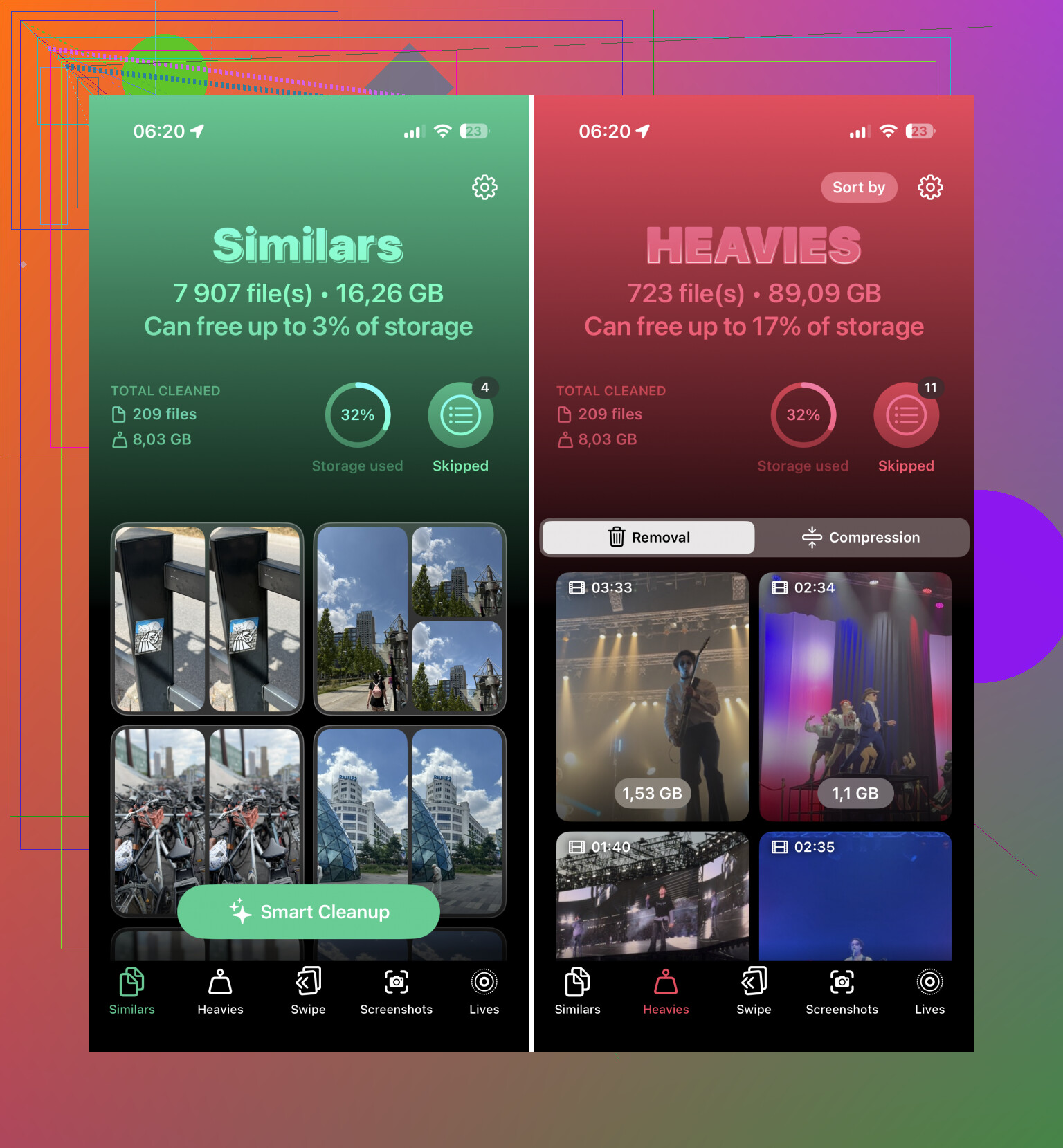
Deleting 3,000 tiny screenshots is a different problem than deleting 40 old 4K videos. If the goal is to free storage fast, I’d look for the big files before spending an hour trimming random photos.
Go to Photos and check Albums or Collections for Videos, Screen Recordings, Bursts, Live Photos, and maybe RAW/ProRAW if your phone has those. Old screen recordings, concert clips, failed slow-motion videos, and accidental Live Photos can eat way more space than normal pictures. Deleting a few of those may clear more room than wiping hundreds of images.
I agree with the computer advice for a serious cleanup, but I’d do a quick “large media” pass first on the phone. If you go to Settings > General > iPhone Storage > Photos, iOS may show recommendations like reviewing personal videos. That is worth checking because it points you toward the stuff that actually matters for storage, not just the stuff that is annoying to look at.
Clever Cleaner makes more sense after that, in my opinion. It’s useful for similar shots and duplicate-looking photos, but it won’t magically know that a random 8-minute video of your pocket is the biggest waste of space. Cleaner apps are better for clutter. Videos are usually where the real storage win is.
And don’t forget that deleting from albums is not always the same as deleting from the library. If you remove something from a custom album, it may still be in Recents/Library. Use Delete Photo, then clear Recently Deleted when you’re sure. That last step is boring, but it’s the difference between “I deleted stuff” and “my phone storage actually went down.”