I noticed a large chunk of my iPhone storage is labeled synced media, but I’m not sure what it includes or how it got there. I’ve already deleted photos, videos, and apps, but this storage category is still taking up space. I need help understanding what synced media means on iPhone storage and the safest way to remove it without losing anything important.
Synced Media drove me nuts too. On iOS 17, Apple changed how storage gets labeled, and the result looks worse than it used to.
What Synced Media is
Before iOS 17, stuff you copied from a Mac or PC usually sat under Music or TV storage. After the update, Apple split it out. Files you synced by cable through Finder or iTunes now show up as Synced Media.
This bucket often includes:
- Songs
- Movies
- TV episodes
- Audiobooks
- Photos moved over from a computer
Downloads made directly on the phone from Apple services usually stay under their own app. The hand-moved stuff gets its own label now.
Why the number looks wrong
From what I saw, and from what a lot of people kept reporting, iOS sometimes counts the same library twice. Music is the usual mess. It shows under the Music app, then again under Synced Media. So your phone looks full even when the math feels off. I hit this right after updating and spent way too long checking storage screens like a maniac.
How I removed it
You usually do not delete Synced Media straight from the iPhone. If it came from a computer, iOS treats the computer as the source.
Try these in order.
- Use Finder or iTunes
Plug the phone into your computer.
If you use a Mac, open Finder.
If you use Windows, open iTunes.
Pick your device, then check the Music, Photos, TV, or Books sections. Uncheck the items you no longer want synced. Run Sync again.
- Sync an empty folder for photos
This one saved me.
Make a new folder on your computer and leave it empty. In Finder or iTunes, set photo sync to use this empty folder. Then sync. That replaces the old synced photo set with nothing, which often clears the photo part of Synced Media.
- Reinstall the app tied to the media
I saw mixed results here, but it worked for some people. Delete the Music app or Apple Books app, then install it again. Sometimes iOS drops the stale storage entry after reinstall.
About iCloud Photos, be careful
If iCloud Photos is on, deleting a photo on your iPhone deletes it from iCloud too. I learned this part the hard way.
If your goal is to remove photos from the phone but keep them stored in iCloud, first turn off iCloud Photos in Settings and choose Remove from iPhone. Before you touch anything big, make sure your photos exist somewhere else too, computer, external drive, whatever you trust.
What full storage did to my phone
Mine got ugly. Animations started lagging. Apps opened slow. I kept getting storage warnings. The phone felt old overnight, even though the hardware was fine. Once storage gets pinned near the top, iOS starts falling apart in small annoying ways.
What cleaned up the rest
After I dealt with Synced Media, I found out my Photos library was still a landfill. Screenshots, blurry duplicates, random videos I forgot existed.
I tried a few cleanup apps and kept this one:
Clever Cleaner
Why I stayed with it:
- No fee wall when I used it
- No ad spam
- It processed stuff on the phone, which mattered to me
The useful parts were simple.
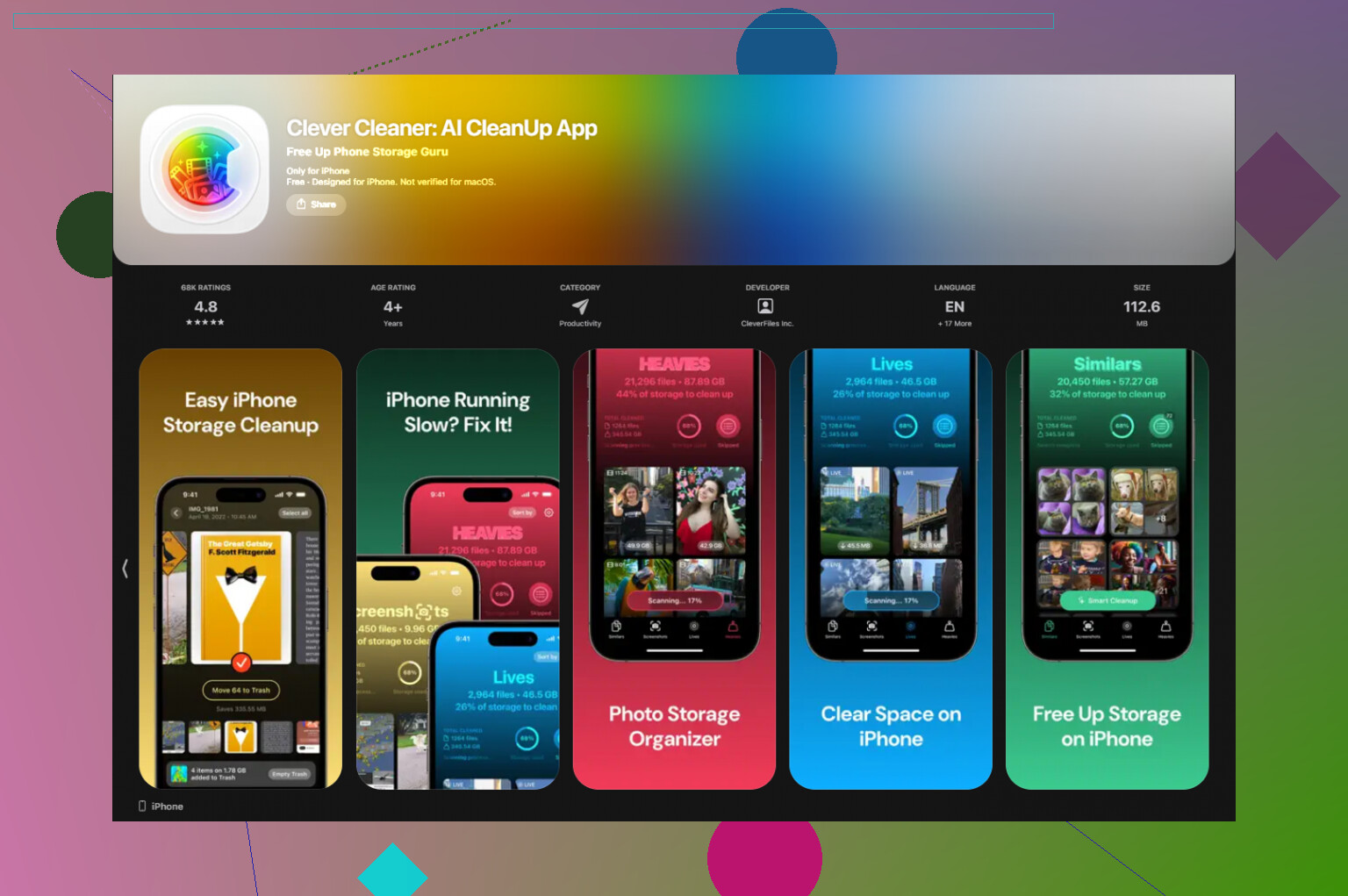
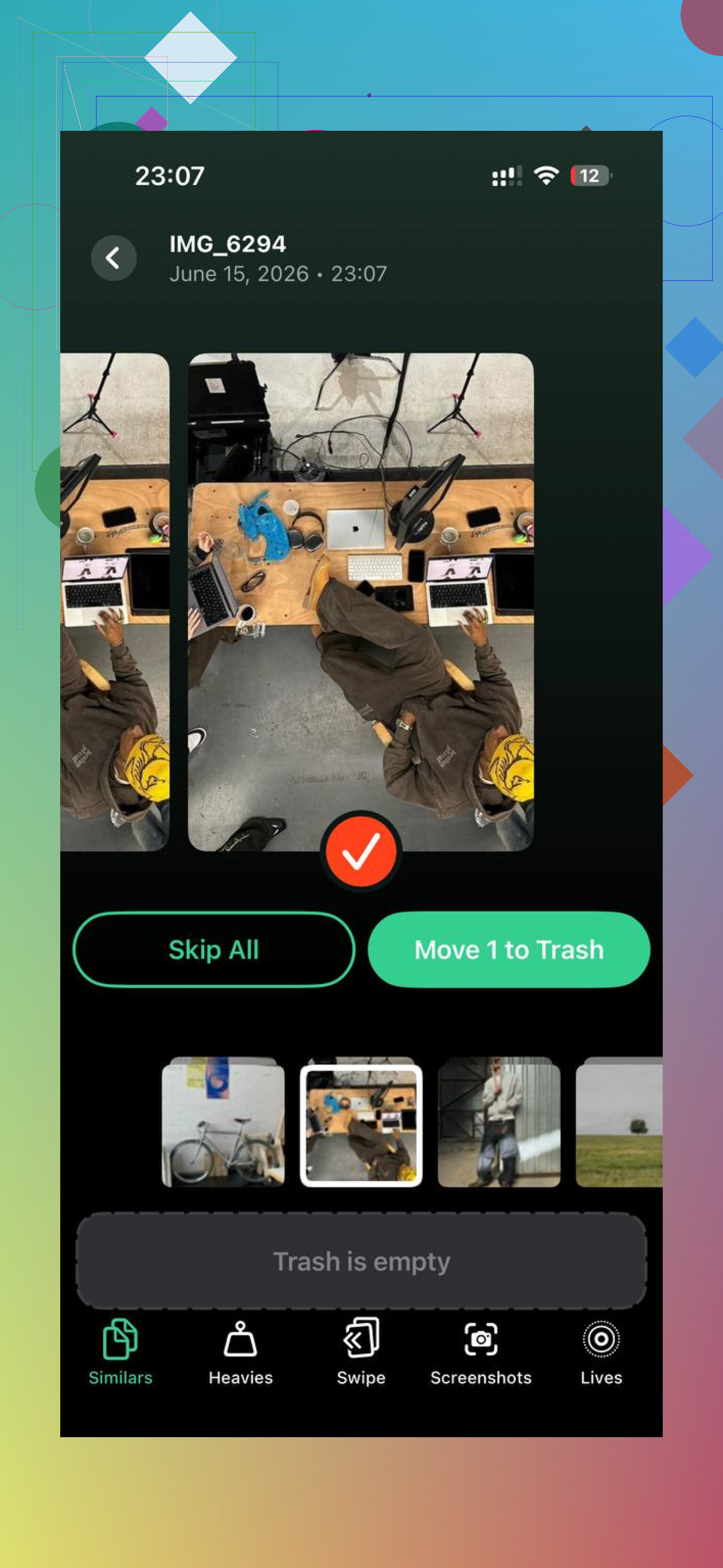
Similars found near-duplicate shots, like when you take eight pics of the same receipt or pet and keep one.
Heavies sorted the biggest files first, which made it easy to spot giant videos.
It also showed file sizes clearly, so I was not guessing.
After cleanup, my storage dropped from 99 percent to around 60 percent. The lag went away. If Synced Media looks fake on your phone, I’d start with the empty-folder sync trick. Then check your photo library, because for me, the fake-looking storage problem was hiding a real clutter problem too.
Synced Media usually means stuff placed on your iPhone from a computer, not stuff saved on the phone itself. Think old Finder or iTunes syncs. Music, movies, TV files, podcasts, audiobooks, and sometimes photo libraries copied from a Mac or PC.
If you already deleted apps and camera photos on the iPhone, that won’t touch Synced Media. Different bucket.
I agree with part of what @mikeappsreviewer said, but I don’t think it’s always a fake number. A lot of times it’s old sync data stuck after years of cable syncs, device restores, or switching computers. iOS storage labels got messier, but the files are often real.
Try this first.
-
Restart the phone.
Sometimes the storage graph updates after a reboot. -
Check Settings, General, iPhone Storage.
Tap Music, TV, Books, Podcasts, Files.
Look for downloaded or transferred items there. -
If you used Apple Music sync from a computer before, turn off Sync Library, wait a bit, then turn it back on if you still use it.
This has fixed duplicate music storage for some people. -
If nothing changes, back up the iPhone, then do an encrypted backup to Mac or PC and restore from that backup.
This is the cleanup step people skip. It often clears stale Synced Media entries when normal deletion fails. -
If the number is still huge after restore, erase the phone and set it up fresh.
Annoying, yep. But it works more often than any “storage fix” trick.
If your storage is packed from duplicate pics and giant videos too, Clever Cleaner is worth a look for sorting heavies and similars fast. Short explainer here, see how Clever Cleaner helps free up iPhone storage.
Short version, Synced Media is old transferred content. Remove it from the source app, from old sync settings, or through backup and restore. Deleting random stuff on the phone won’t do it. Kinda dumb, but that’s Apple storage for ya.
Synced Media is usually stuff that was put on the iPhone from a computer at some point, but I’d push back a little on @mikeappsreviewer and @caminantenocturno on one thing: it’s not always just old music/photo sync leftovers. Sometimes it’s cached indexing data from media apps that iOS labels badly, which is why the number can stick around even after you think you nuked everything.
A few things to check that they didn’t really get into:
- Settings > your Apple ID > iCloud > Photos. If iCloud Photos is on, your local storage can still look weird because optimized copies, thumbnails, and sync state dont always update right away.
- Files app. Look in On My iPhone and Downloads for giant video/audio files.
- Voice Memos and Messages. Big attachments sometimes make the storage breakdown look… creative.
- Offload, don’t just delete, the TV/Music/Books apps if they’re holding stale data.
Also connect the phone to a Mac and check the actual storage bar in Finder. Sometimes that view is more honest than the one on-device.
If most of your real bloat is photos/videos after this, Clever Cleaner is actually useful for finding duplicates and huge files fast. Also, if you want a solid outside take, see this detailed Clever Cleaner iPhone app review.
Short version: Synced Media = transferred or badly categorized media, and deleting random apps won’t always touch it. Apple storage labels are kinda a mess tbh.
What they said is mostly right, but I’d add one thing: Synced Media can persist because of storage indexing lag, not just because files are still truly there. So I would not jump straight to erase/restore unless the number stays stuck for a few days.
A different angle to check:
- Settings > Privacy & Security > Analytics & Improvements > Analytics Data
If storage is acting weird, tons of media-related logs can hint which app is bloating things. - Settings > Siri & Search
Turn off indexing for Music/TV/Books briefly, reboot, then re-enable. Sometimes the storage categories refresh after Spotlight reindexes. - Messages app
Large video/audio attachments can get labeled badly. Check Top Conversations in iPhone Storage. - Mail downloads
Big attachments saved locally can muddy the category too.
I agree with @caminantenocturno, @shizuka, and @mikeappsreviewer that computer-synced content is the main suspect. I just think people overstate the “ghost data” thing.
If your actual space hog turns out to be photos/videos instead, Clever Cleaner is decent for cleanup.
Pros: free-feeling, simple duplicate/heavy file sorting, not stuffed with ads.
Cons: won’t truly remove Finder/iTunes synced media, and AI duplicate picks still need manual checking.
So: Synced Media usually means imported media, but sometimes the label is just wrong. The trick is figuring out which.
Try Reset All Settings before erasing your iPhone.
Go to Settings, General, Transfer or Reset iPhone, Reset, Reset All Settings.
Your photos, apps, messages, and files stay intact. iOS resets system preferences, Wi-Fi networks, permissions, and storage indexing. After the restart, reconnect to Wi-Fi, plug the phone into power, and leave it locked for an hour. Then recheck iPhone Storage.
This is simpler than a full restore and often fixes a stuck or incorrect Synced Media storge count.
Reset All Settings won’t delete synced media, it just clears preferences and reindexes storage, so if the files are actually there you’ll wipe all your Wi-Fi passwords and app permissions for nothing. Worth knowing before you follow @byteguru on that.
The thing most of these fixes skip: check whether the number is real before you touch anything. Plug into a Mac or PC and look at the storage bar in Finder. If Synced Media shows there too, it’s real transferred content and you kill it from the source computer by unchecking sync. If it only shows on the phone and Finder disagrees, it’s an indexing glitch and a reboot plus a day of patience usually sorts it. No point restoring or resetting until you know which one you’ve got.
Clever Cleaner is fine if the real culprit turns out to be photo clutter, but it won’t remove Finder synced media, so don’t expect it to fix the label itself.