My old iPhone has been getting slow, with lag when opening apps, typing, and switching between screens. I’m almost out of storage, so I’m wondering if deleting photos, apps, and cached data can actually improve iPhone performance or if the slowdown is more likely from the battery, iOS version, or aging hardware. What should I try first?
Before you replace the phone, I’d try the boring stuff first because it can actually make a difference on older iPhones. A slow SE or 11 Pro isn’t always “done,” even if it feels like every swipe takes forever and the camera needs five business days to open.
There usually isn’t one magic fix. It’s more like removing a few things that are making the phone work harder than it needs to.
Start with the visual effects. Go to Settings > Accessibility and turn on Reduce Motion. Then go into Display & Text Size and turn on Reduce Transparency. Those blur effects, floating icons, and little animations look nice, but older chips still have to render all of that. Turning them down can make the whole interface feel less sluggish.
I’d also check Background App Refresh under General > Background App Refresh. Most apps do not need to keep updating in the background. Either shut it off completely or leave it on only for stuff you truly care about, like Mail or Messages. It saves battery too.
Battery health matters a lot here. In Settings, look at Battery Health. If maximum capacity is under 80%, or you see anything about Performance Management, that can explain a lot of the slowdown. iOS may be limiting performance to stop the phone from randomly shutting off. Also, don’t leave Low Power Mode on all day if you’re trying to make the phone feel faster. It saves battery by intentionally cutting performance.
The bigger issue, though, is often storage. If your iPhone is sitting at 90% full or worse, iOS has almost no room to breathe. It needs free space for temporary files, indexing, and general system stuff. A decent target is keeping 10% to 20% of your storage empty. On a 64GB phone, that means you really want something like 10GB free if you can manage it.
You can clear space manually from Settings > General > iPhone Storage, offload apps you never use, and clear Safari’s cache. But photos and videos are usually where the real space is hiding. That’s also the most annoying part to clean up by hand, especially if you have years of screenshots, duplicate shots, and old videos mixed together.
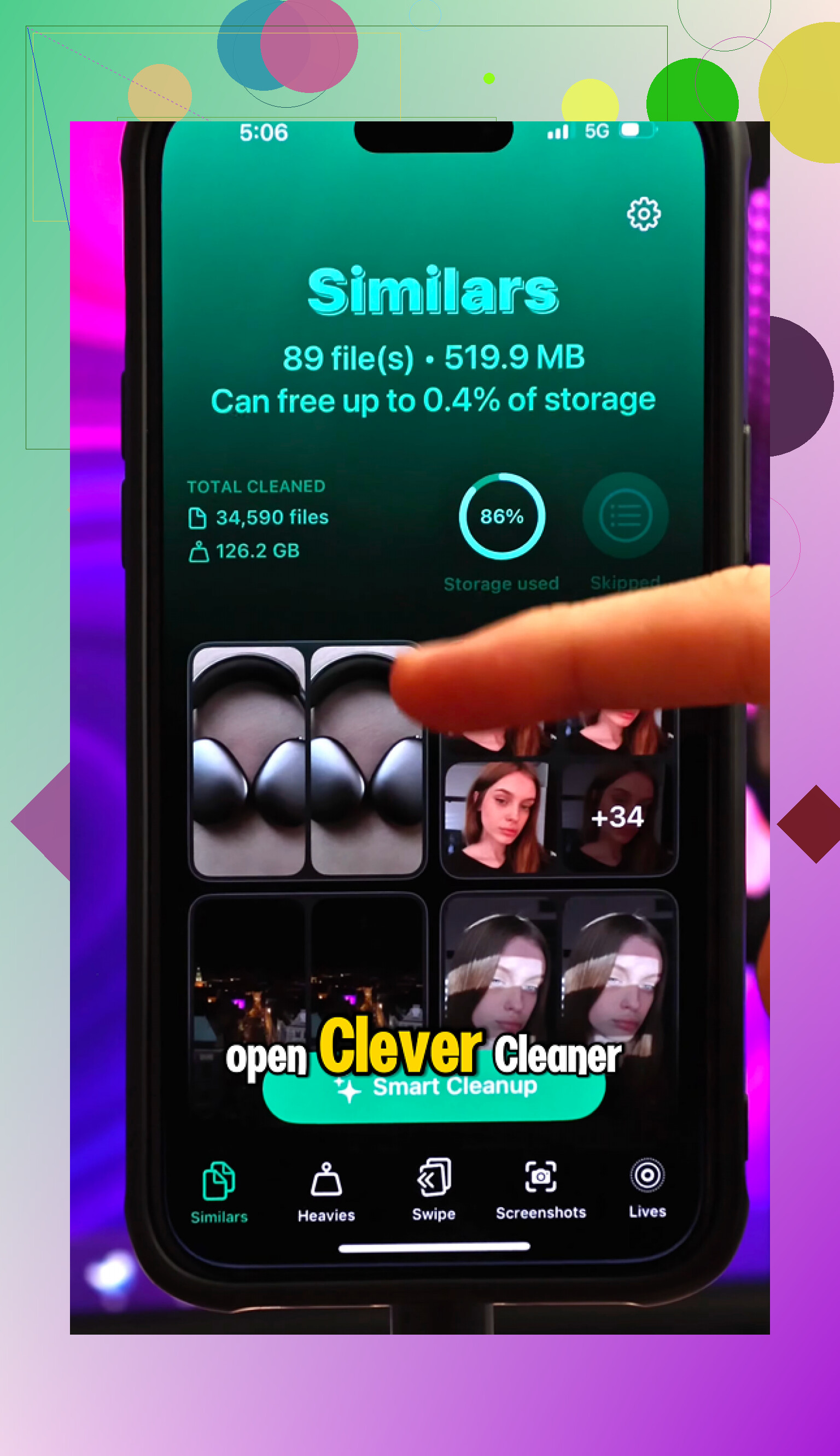
That’s why Clever Cleaner is worth trying. I’m usually suspicious of “cleaner” apps because a lot of them are stuffed with ads or lock the useful features behind a subscription, but this one is completely free. No ads, no paywall, no premium upsell.
The useful part is that it doesn’t just give you some vague “clean your phone” button. The Heavies section sorts your media by file size, which makes it easy to find old 4K videos or other giant files. The Similars tab finds photos that are almost the same, like ten versions of the same picture, and helps you keep the best one. There’s also a Screenshots tool that shows file sizes, so you can see what you’re actually clearing.
One thing I liked is that the scanning happens on-device. It doesn’t send your photo library off to some random server. Everything stays on the phone.
When I cleared about 30GB of junk media and restarted, the difference was obvious. The camera opened normally again, the lag mostly went away, and the overheating issue calmed down too.
So yeah, I wouldn’t factory reset it right away. Turn down the motion and transparency effects, kill unnecessary background refresh, check the battery health, then clean out storage properly. If the phone is just clogged up, that can get it feeling usable again without spending money on a new one.
A phone with 2GB free and a healthy battery can feel very different from a phone with 25GB free and a worn-out battery. Clearing storage can help if you’re almost full, but don’t waste hours chasing tiny app caches since they often come back. I’d clear big videos/photos, restart, then check Battery Health before expecting miracles.
Don’t start by nuking half your phone before you know where the space is going. That is how people delete stuff they care about and still end up with a slow phone because the real problem was battery health, Messages attachments, or iOS “System Data” sitting there like a brick.
Clearing storage can absolutely help, but only in a boring, practical way. If the phone is almost full, iOS has less room for temporary files, app updates, photo processing, Spotlight indexing, and whatever else it does in the background. That can make typing, opening the camera, and switching apps feel worse. But deleting 300MB of random apps on a 128GB phone probably won’t change much. Deleting 20GB of videos from a phone with 500MB free might.
The bit people forget is that deleting photos often does not free the space right away. You have to empty Recently Deleted in Photos, or wait for it to clear later. Same with some files and message attachments. If you delete a bunch and then check storage immediately, it can look like nothing happened. Restart the phone after a big cleanup and give it a little time to re-count storage.
Be careful with iCloud Photos too. If iCloud Photos is turned on, deleting photos from the phone usually deletes them from iCloud and your other Apple devices as well. If your goal is “free space on this old iPhone but keep the photos,” use Optimize iPhone Storage, move the originals somewhere else first, or download them to a computer/cloud service before deleting. A lot of people learn that one the painful way.
The fastest places I’d check are:
Settings > General > iPhone Storage
Photos > Recently Deleted
Messages > large attachments and old videos
Files app > Downloads
Safari cache if it is huge
Podcasts, music, offline maps, Netflix/YouTube downloads
I’m more skeptical of “cleaning cache” as a main fix. iOS does not work like Android where you can freely wipe every app cache from one place. Some apps let you clear downloads or reset cache inside the app, but a lot of it just comes back. If a social media app is gigantic, deleting and reinstalling that app can sometimes reclaim space, but make sure you know your login first.
Clever Cleaner may be useful if your Photos app is the problem, especially for finding big videos, screenshots, and near-duplicates. I just would not think of it as a magic speed app. It can help you remove the stuff that is clogging storage. It cannot fix an old battery, limited RAM, or a phone that is struggling with a newer iOS version.
My rough rule would be: if you have less than 5GB free, clean storage before judging the phone. If you can get to 10GB or more free and restart, you have given it a fair shot. If it still lags badly after that, then the next suspects are battery health, an overloaded app, or the phone simply being old enough that modern apps are heavier than it likes.
Don’t judge the speed right after deleting a bunch of stuff, because the phone may be reindexing photos and files for a while and feel weirdly worse at first.
Free up a meaningful chunk of space, restart it, then give it a few hours before deciding whether it helped. If it still lags after that, storage probably wasn’t the main bottleneck.
Take two iPhone 8s sitting next to each other. Same 64GB, both about 80% full. One feels fine, the other crawls. Nine times out of ten the difference isn’t the storage number, it’s what’s running on top of it. The slow one has three chat apps refreshing in the background, a bloated Photos library mid-reindex, and an iOS version that shipped years after the chip was designed. Storage is part of that picture, but it’s rarely the whole thing.
So I mostly agree with @stellacadente’s rule of thumb. Under 5GB free, clean first. Above 10GB, storage probably isn’t your bottleneck. Where I’d push a little harder is the iOS angle nobody really put front and center. Old phones don’t just get slow on their own, they get slow because each iOS release asks a bit more from the same hardware. You can empty half your library and still feel lag if the OS itself is heavier than the A11 wants to deal with. That’s not something a cleanup fixes, and it’s worth setting your expectations around before you spend an evening deleting videos.
The other thing people skip is hunting for a single bad app. One misbehaving app can drag the whole phone down way more than a full storage bar. If typing is fine everywhere except one app, or the phone only heats up when a specific app is open, that’s your suspect. Delete and reinstall it, or just live without it. Check Settings, Battery, and look at the per app breakdown over the last 10 days. If one thing is eating a stupid amount of background activity, that tells you more than the storage screen does.
On Clever Cleaner, it fits the job it’s being asked to do here, which is finding the fat videos and near duplicates in Photos without you scrolling for an hour. That’s a real chore and it’s fine for that. I just wouldn’t expect the cleanup itself to be the speed fix. It clears the clog, it doesn’t make the chip younger.
One practical warning that ties back to @viajeroceleste’s reindexing point: if you clean out a big chunk of photos and the phone feels worse for the next hour or two, that’s usually Spotlight and Photos rebuilding their indexes, not you breaking something. Plug it in, leave it alone, come back later. Judging speed during that window will just make you angry for no reason.
My honest take: clean storage if you’re genuinely near full, kill background refresh on the junk apps, sort out the battery health question, and find the one app that’s misbehaving. If it’s still slow after all that with plenty of free space, the phone isn’t clogged, it’s just old, and no app is going to change that.