I accidentally deleted some important files and then emptied the Recycle Bin before realizing I still needed them. I’m looking for the safest way to recover deleted files on Windows without overwriting anything or making recovery harder.
First thing: stop using that drive as much as you can. That matters more than whatever recovery tool you pick.
When you delete something in Windows, even after emptying the Recycle Bin, the file usually is not wiped right away. Windows mostly marks that space as available. So the data may still be there, but every new download, install, browser cache file, or saved document can overwrite it.
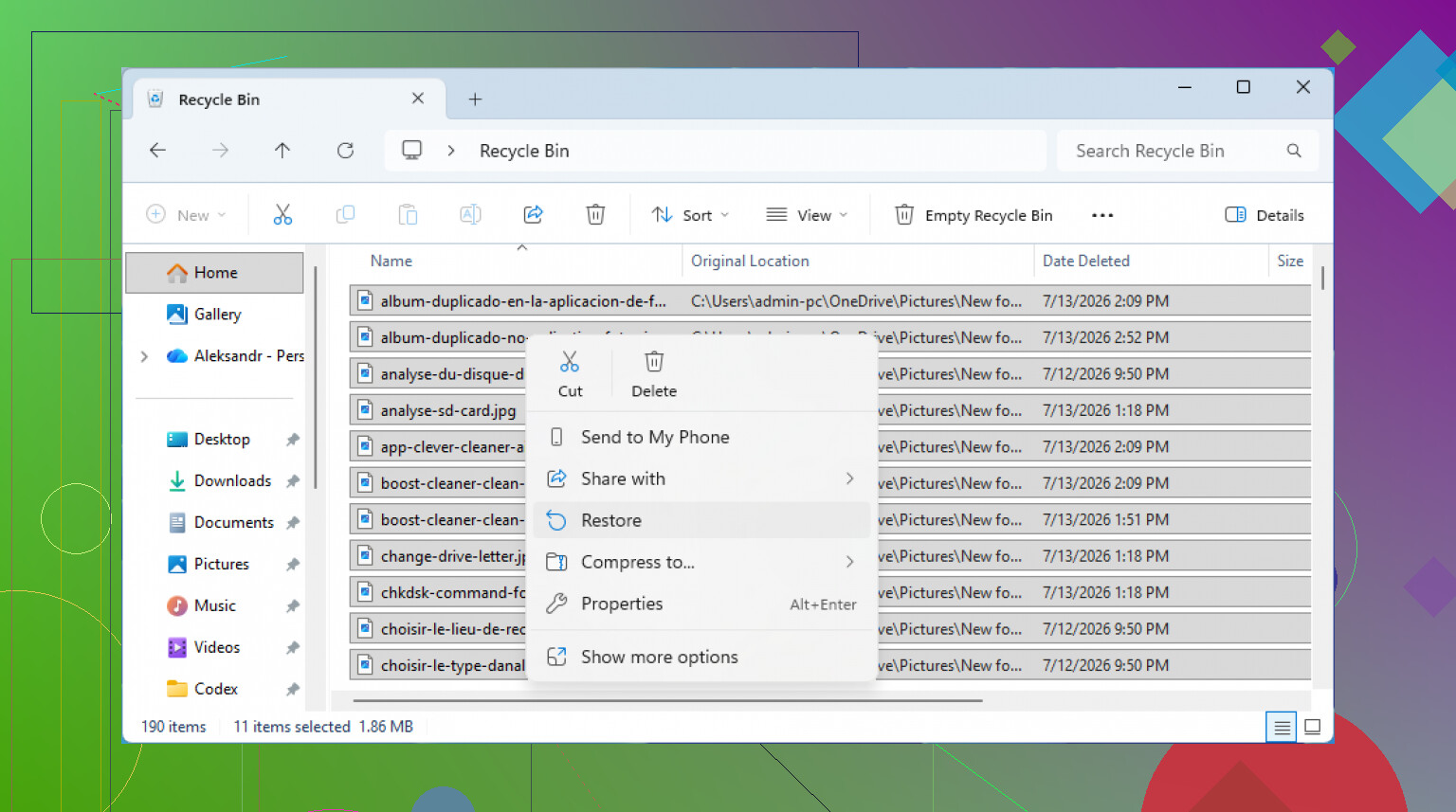
I’d still check the Recycle Bin once more before doing anything else. It sounds dumb, but it happens. Sometimes the file was inside a deleted folder, or the Bin was not actually emptied. Open it from the desktop, look around, and if the file is there, right-click it and choose Restore. Windows should put it back where it came from.
If the Bin really is empty, check whether Windows File History has a copy. Go to the folder where the file used to be, right-click the folder, and choose Restore previous versions. If there are older versions listed, open one from before the deletion and copy the file back out.
You can also get to the same backups through Control Panel > System and Security > File History, then choose Restore personal files. That view is easier if you want to browse through folders by date.
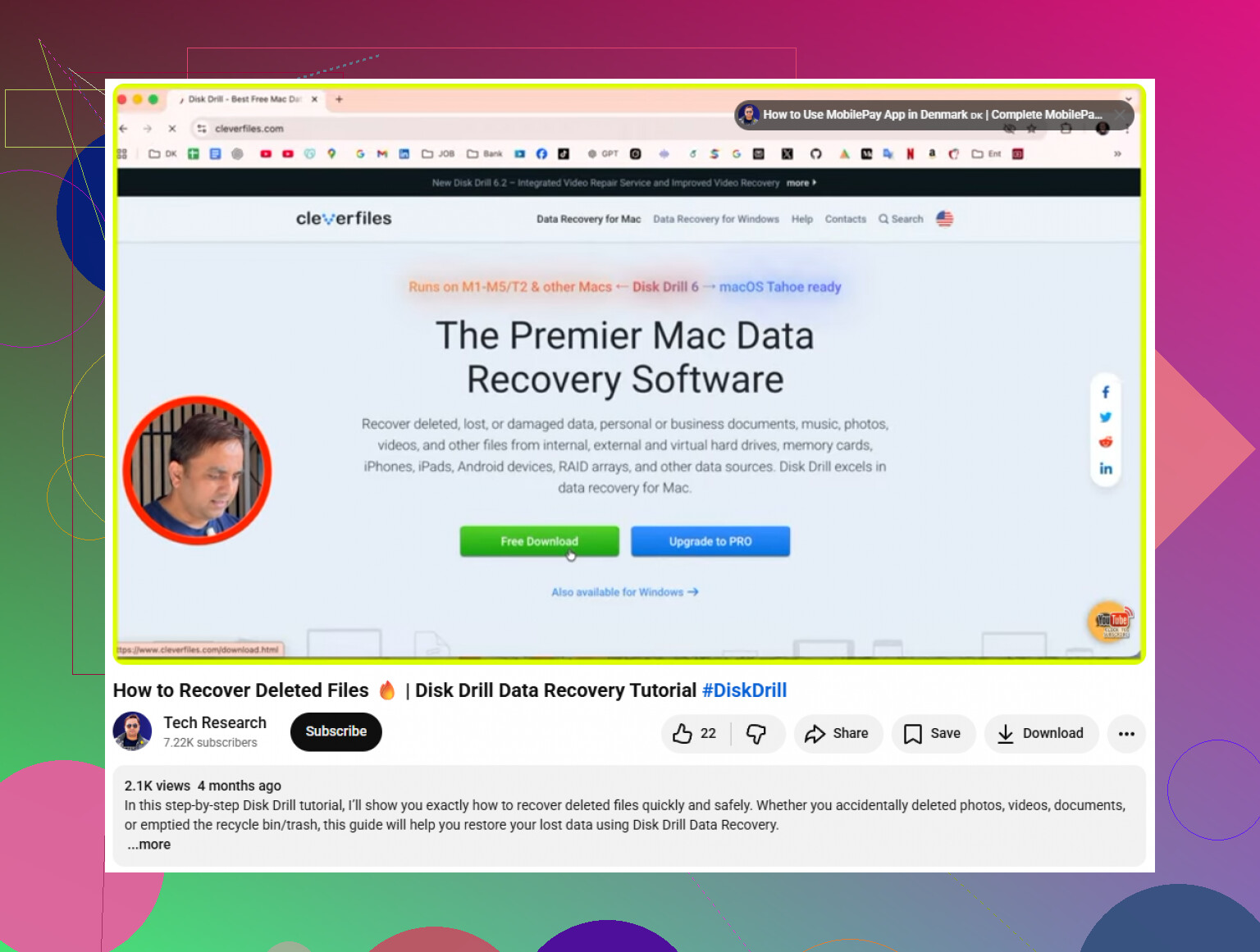
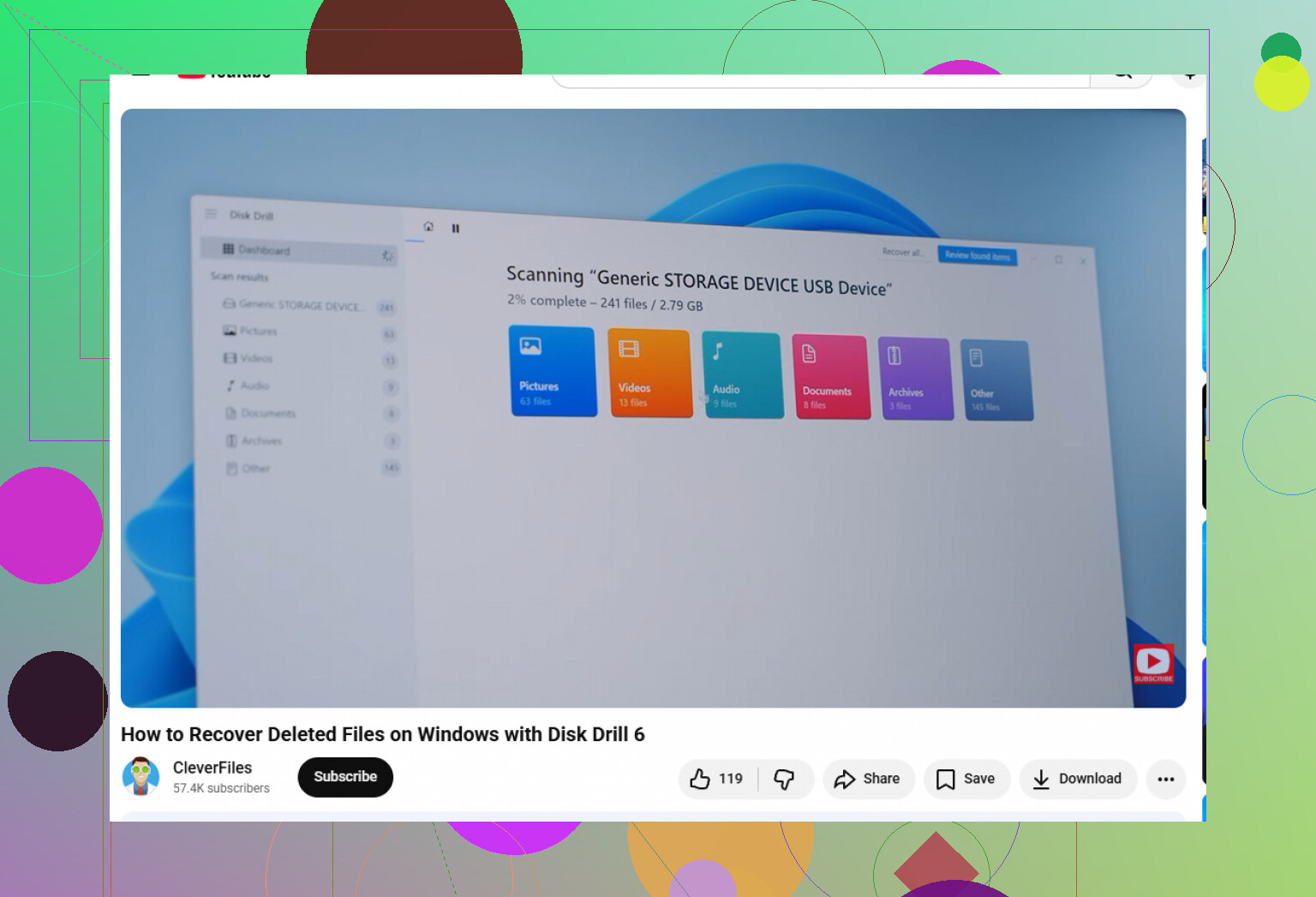
If there is no backup, then recovery software is usually the next step. I’d use Disk Drill for this kind of thing because it is pretty straightforward, but still does deeper scans when needed. It supports common Windows file systems like NTFS and FAT32, and it can recover stuff like photos, videos, documents, and other file types.
The important part is where you install it. Do not install Disk Drill on the same drive you are trying to recover from. If the deleted files were on C:, install it on a USB drive or external drive instead. Otherwise you might overwrite the exact data you are trying to get back.
Basic process:
- Open Disk Drill and select the drive where the deleted files were stored.
- Click Search for lost data.
- Let it scan. The deeper scan can sometimes find files even when the original folder structure is messed up.
- Preview anything important before recovering it. If a photo or document previews properly, that is usually a good sign.
- Select the files you want and click Recover.
- Save the recovered files somewhere else, like an external drive, not back onto the same drive.
The Windows version lets you recover up to 100MB for free, so if you only lost a few small but important files, that might be enough.
One catch: if the files were on an SSD, recovery can be harder because of TRIM. TRIM helps the SSD clean up deleted data blocks quickly, which is good for performance but bad for recovery. So if the files matter, don’t keep using the PC. Scan the drive as soon as you can.
Do not install anything, restore anything, or run a cleanup tool on that drive right now. That includes “undelete” tools if they are being installed to the same disk. Even Windows updates, browser downloads, temp files, and search indexing can write over deleted file space.
@mikeappsreviewer’s advice about using another drive for Disk Drill is the key bit. I’d go a step further if the files are really important: recover from another Windows machine if you can, or at least boot from a USB environment and scan the affected drive as a secondary drive. If the drive is making noises, disconnecting, showing SMART warnings, or acting slow, don’t keep scanning it over and over. In that case, make a sector-by-sector image first and work from the image. Recovery scans can stress a failing drive.
Be realistic about file names too. After the Recycle Bin is emptied, some tools may find the contents but lose the original folder path or filename, especially with deep scans. So don’t only search for “TaxReturn2023.docx”; filter by file type, size, and date if the software lets you. And when you recover, save to an external drive, then open copies from there. Never “restore” found files back onto the same disk you’re searching.
Recovery scans can make you feel productive while the easy copy is sitting somewhere else. Before you run any undelete tool for hours, check the places that don’t require touching the deleted space on the drive.
If those files were anywhere under Desktop, Documents, Pictures, or a folder with a little cloud/status icon, there’s a decent chance OneDrive was involved. Same idea for Dropbox, Google Drive, iCloud Drive, SharePoint, or a work/school account. Don’t check from the same Windows install if you can avoid it. Use your phone, another computer, or the web interface from a different machine so you’re not creating browser cache and temp files on the drive you’re trying to recover from.
Look in:
- OneDrive recycle bin on the web
- Dropbox deleted files
- Google Drive trash
- SharePoint/Teams recycle bin if this was a work file
- Office version history for Word/Excel/PowerPoint files
- email attachments you sent or received
- synced copies on another laptop that has not gone online yet
That last one matters more than people realize. If another device has the same synced folder and it hasn’t connected since the deletion, keep it offline first. Copy the files to a USB drive before opening the sync app. Once it syncs, it may helpfully delete the same files there too.
I agree with the “don’t install to the same drive” advice above, but I’d be a little less quick to jump straight into deep recovery unless there is no cloud/version copy. File recovery software is useful, Disk Drill included, but it’s still a second-best path compared with getting the original file back from a sync trash or version history. A recovered file may have a weird name, missing folder path, or corruption. A cloud copy is usually just the file.
If you do get to the software stage, treat the affected drive as read-only in your head. Install the recovery program somewhere else, recover to somewhere else, and don’t “test save” anything on that disk. If it’s your C: drive, even normal Windows activity is the enemy. If it’s a separate external drive or SD card, unplug it until you are ready to scan it from a different machine.
Small caveat: if the deleted files were on a modern SSD, especially the main Windows drive, don’t be surprised if recovery tools find little or nothing. TRIM can make deleted data disappear from a practical recovery standpoint pretty quickly. That’s not a reason to give up immediately, but it is a reason to check OneDrive/File History/backups first instead of spending the whole day running scan after scan.
So my order would be: stop using the machine, check cloud trash and version history from another device, check any unsynced copies, then use recovery software from another drive only if those don’t pan out. If the files are business-critical or irreplaceable, skip the experimenting and get the drive imaged or looked at by a recovery shop. The more “trying things” you do on the original drive, the worse the odds can get.