I accidentally deleted important files on my Windows 11 PC and emptied the Recycle Bin before realizing it. These documents and photos are really important, and I need help figuring out the best way to recover deleted files on Windows 11 without making things worse. Any advice on safe recovery steps or tools would be appreciated.
First thing, don’t write it off yet. I’ve seen files come back after people were sure they nuked them. What matters now is simple, stop using the drive unless you need to.
Here’s why. On Windows, deleting a file usually removes its record from the file system and frees the space for later use. The file data often stays sitting there until new data lands on top of it. So if you keep installing stuff, downloading videos, letting Windows run updates, or saving random files, you chip away at your odds.
SSDs make this more urgent. Most Windows 11 systems run on SSD storage, and SSDs often use TRIM. Once TRIM does its thing, deleted data gets wiped in the background and recovery gets a lot uglier, sometimes impossible. I wouldn’t sit on it.
Before installing anything, I’d check the boring places people skip:
- Recycle Bin
- OneDrive Recycle Bin, if your folders sync there
- File History backups
- Previous Versions on the folder where the file lived
- Any cloud backup app tied to your PC
I’ve watched “permanently deleted” files turn up in one of those spots more than once. Kinda annoying, but better than loss.
If it’s not in any backup or trash folder, then I’d move to recovery software fast.
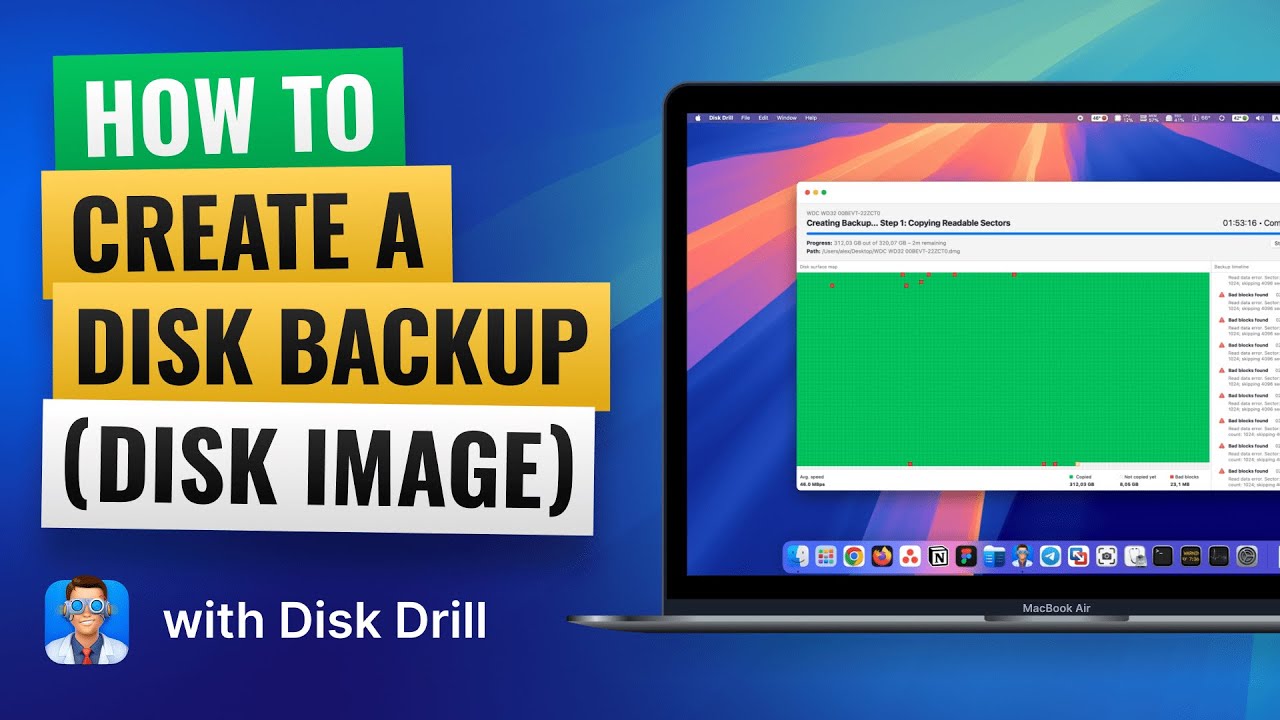
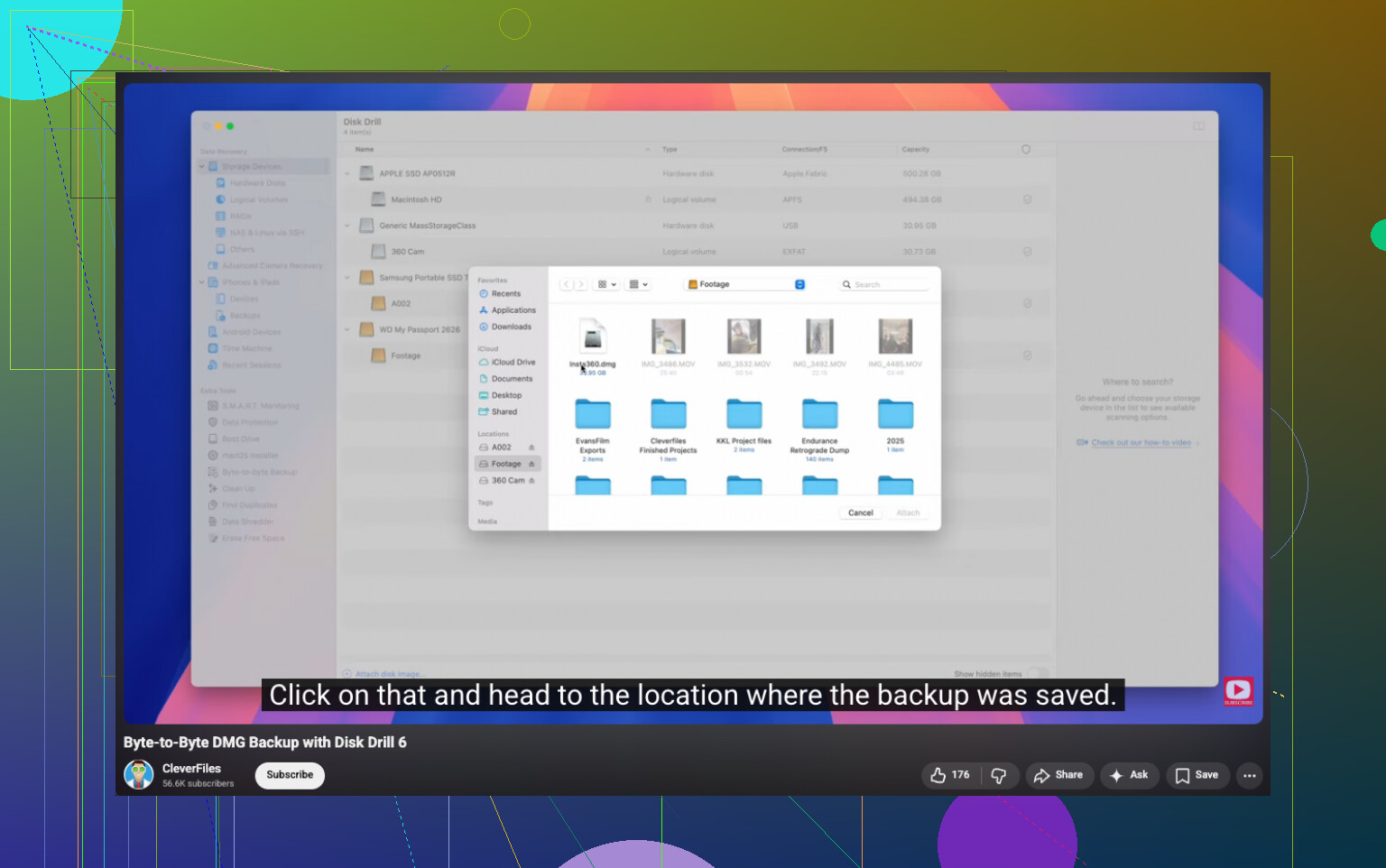
I’ve had good luck with Disk Drill. What I liked when I used it, it found deleted files, handled damaged and formatted partitions better than I expected, and sometimes kept the original names and folder tree intact if the file system wasn’t too far gone. The part I found most useful was the byte-for-byte backup option. You clone the drive first, then scan the copy instead of hammering the original. If the drive looks unstable, that matters. The video for that feature is here:
On Windows, the free version gives unlimited scanning, file preview, and up to 100 MB of recovery. That limit sounds small, yeah, but it’s enough to see whether your file is still there before paying for anything.
If you want a free Microsoft option, there’s Windows File Recovery. I tried it once. It works through Command Prompt, so it’s less friendly if you hate terminal tools or haven’t touched one before. Still useful, less hand-holding.
If this were my machine, I’d do it in this order:
- Stop using the drive.
- Check Recycle Bin, OneDrive, File History, and Previous Versions.
- Run recovery software soon if the file still doesn’t show up.
- Save anything recovered to another drive, not the same one you’re scanning.
Time matters here. Start early and your odds are better. Wait too long, and Windows starts eating the evidence.
I’d add one thing to what @mikeappsreviewer said. Don’t trust recovery apps on the same Windows 11 drive you lost files from. Boot from another USB or connect the drive to another PC if you have the option. That cuts write activity a lot, which matters more than people think.
Also, if your photos were imported from a phone or camera, check the source device. I’ve seen people recover the “deleted” set because the originals were still on the SD card or still in iCloud or Google Photos. Sounds dumb, saves hours.
If you want a clean walkthrough, this helps: Windows 11 permanent deleted file recovery guide
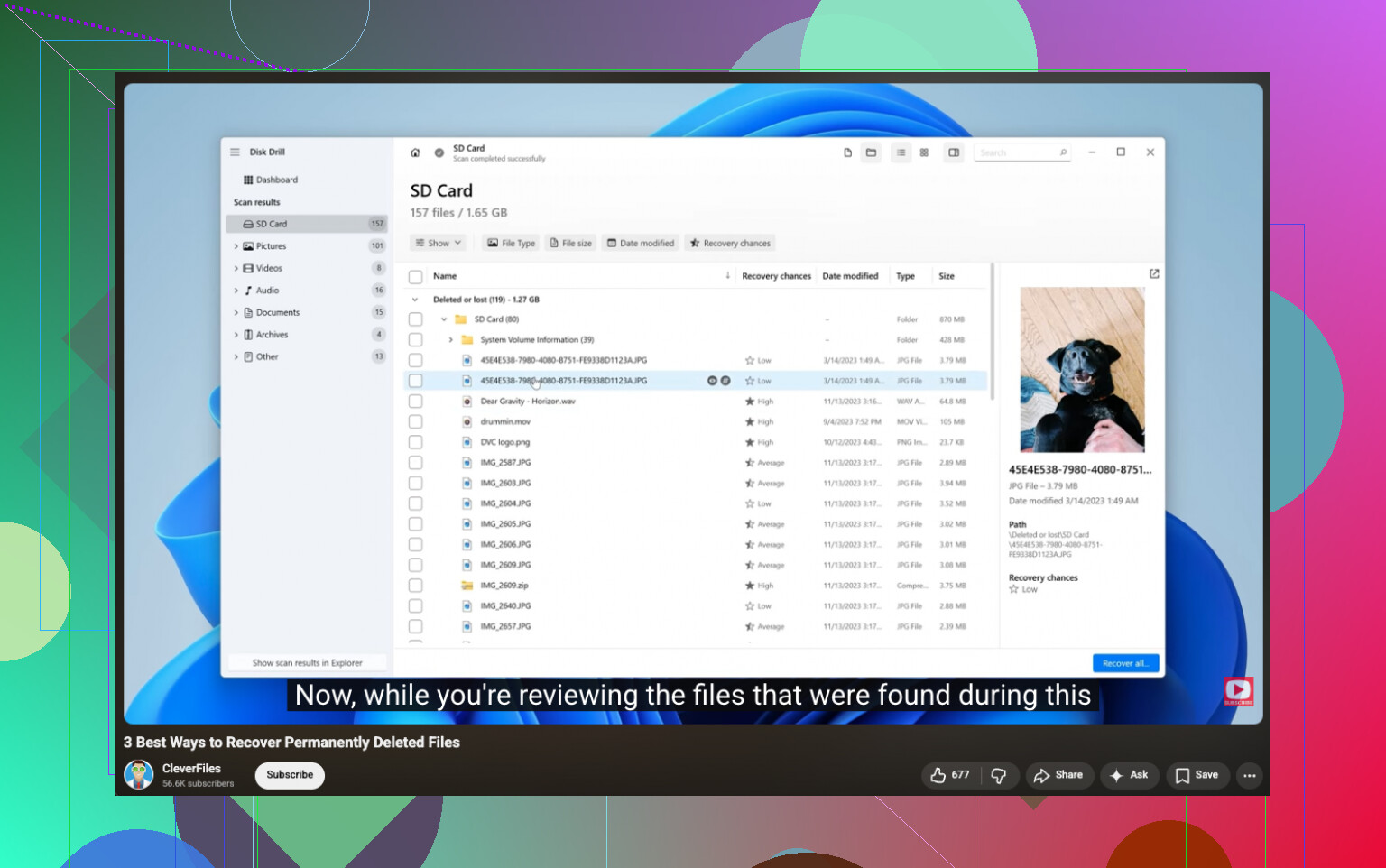
For tools, Disk Drill is a solid pick because it previews files before recovery, so you know if the docs or pics are intact befor you spend time exporting junk. I don’t fully agree with waiting around testing lots of built-in Windows stuff first on an SSD. If the files matter, I’d move straight to scaning from another drive or another machine.
One more thing. Recover to a different disk. Same disk is how people lose stuff twice.
I’d do one thing a little differently than @mikeappsreviewer and @mike34. Before chasing recovery apps too hard, check whether the files were ever in a synced folder like Desktop, Documents, or Pictures with version history enabled. Not just OneDrive trash, but actual file versioning on the cloud side. I’ve seen newer blank files replace old ones, and the older version was still there. People miss that all the time.
If the deleted docs/photos were on an external HDD, your odds are usually better than on an internal SSD. If they were on the main Windows 11 SSD, yeah, the clock is ticking. But I wouldn’t assume instant doom either. TRIM hurts recovery, but it’s not like every deleted file vanishes the secnd you hit delete.
One more tip most people skip: search for temp exports and app caches. Word, Adobe, and some photo editors leave leftovers in weird places:
%AppData%%LocalAppData%C:\Users\YourName\AppData\Local\Temp
For docs, also open Word or Excel and check Recent plus Document Recovery. For photos, check if your editor imported copies into its catalog.
If you do scan, Disk Drill makes sense because preview matters a lot. A lot of recovery tools ‘find’ files that are basically toast. Seeing the image or document preview first saves time. I’d still avoid deep scan first if the quick scan already shows intact file system entries.
Also, this thread on how to recover deleted files from a hard drive on Windows is worth a read.
Big thing: if the files are irreplaceable and worth real money, stop DIY after the first careful pass. Repeated scans and panik-clicking can make a bad sitution worse.
One angle I’d add to what @mike34, @viajantedoceu, and @mikeappsreviewer already covered: check whether the files were deleted from a library location with Known Folder Move turned on. Windows 11 quietly redirects Desktop, Documents, and Pictures into OneDrive on some setups, and people end up looking in the local path while the recoverable copy is actually in the synced account history.
I also slightly disagree with going straight into lots of deep scans unless you already ruled out app-level recovery. For Office files, open Word or Excel first and look for AutoRecover items. For photos, Lightroom, Photoshop Elements, and even some phone import apps keep catalogs, previews, or copied imports in their own folders. Sometimes you do not recover the original file, but you do recover a usable exported copy.
Another overlooked thing: use Everything Search if you have it already installed, or Windows search with broad wildcards. Deleted files are sometimes not deleted at all, just moved, renamed, or saved into a temp/export folder. I’ve seen “lost” pictures sitting in Pictures\Saved Pictures or an editor cache.
If you go the software route, Disk Drill is a reasonable pick mostly because the preview helps sort real recoverable files from garbage.
Pros:
- easy to use
- preview for photos/docs
- can preserve folder structure sometimes
- good for quick triage
Cons:
- free recovery limit on Windows is small
- deep scans can return lots of messy results
- not magic on TRIM-hit SSDs
- paid version is not cheap compared with some alternatives
If the drive is making odd noises, disappearing, or getting slow, stop right there. That is less “deleted file” and more “failing drive,” which changes the play completely.