My GPT partition suddenly disappeared, and I can’t access the files on that drive anymore. Disk Management shows the space differently than before, and I’m worried about losing important data. What’s the safest way to recover data from a missing GPT partition without making things worse?
First thing: don’t do anything that writes to that drive. Don’t create a new partition, don’t format it, don’t run random “repair” options, and don’t keep using the machine with that disk mounted if you can avoid it. When a drive suddenly shows as “Unallocated,” “RAW,” or something weird like a GPT protective partition, the files may still be sitting there. The danger is overwriting the metadata or file data while trying to fix it.
If the files matter, make an image of the disk before you try repairs. A sector-by-sector clone gives you something safe to work from, so if one recovery attempt goes badly, you can start over from the image instead of making the original drive worse. Tools like dd or ddrescue are commonly used for this. It takes space and time, but it’s the safer route.
For most people, I wouldn’t start by manually rebuilding the GPT partition table. That can work, but it’s easy to make the wrong choice and write a bad table back to the drive. A safer first pass is to scan the disk read-only with recovery software and copy the files out to a different drive.
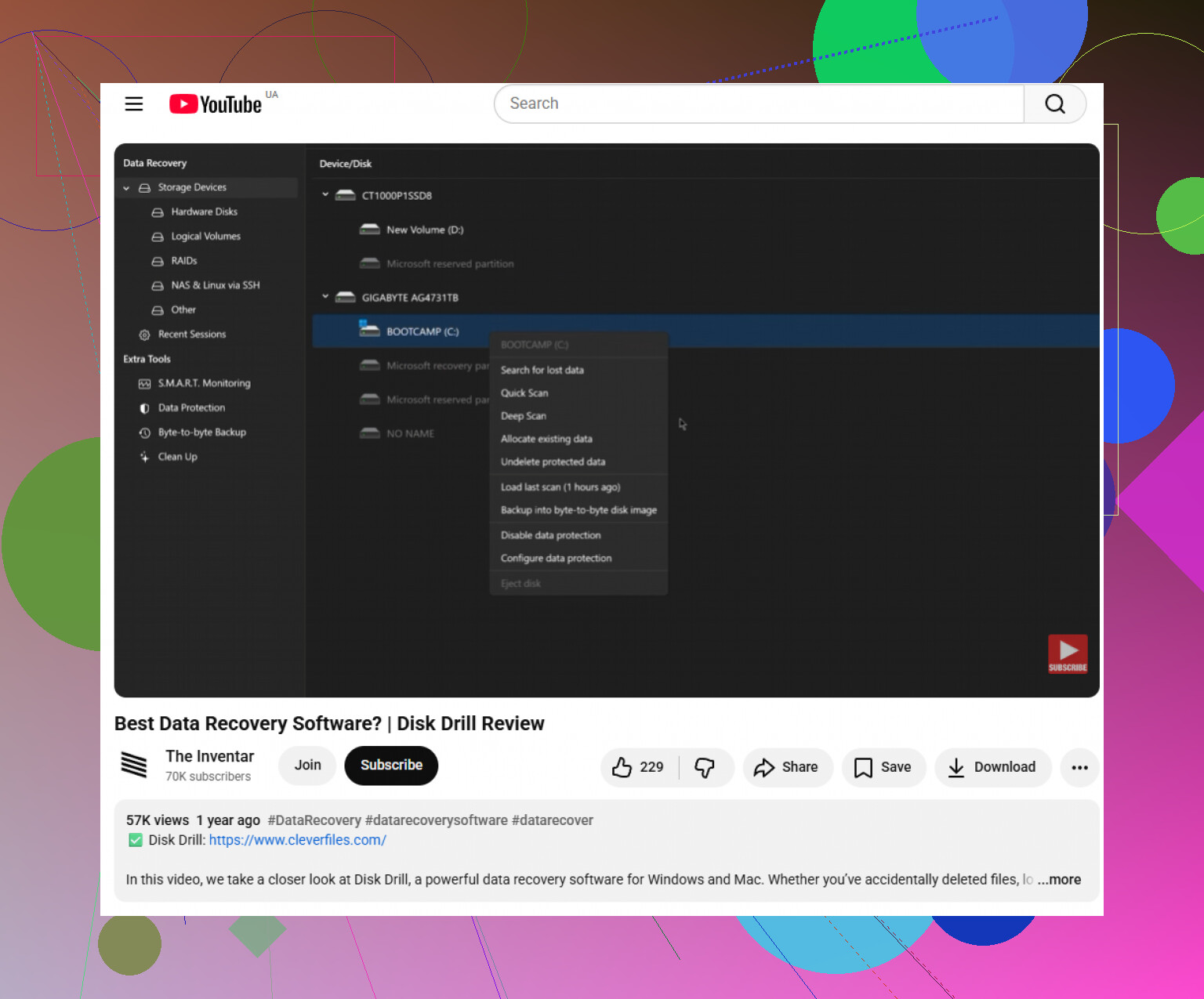
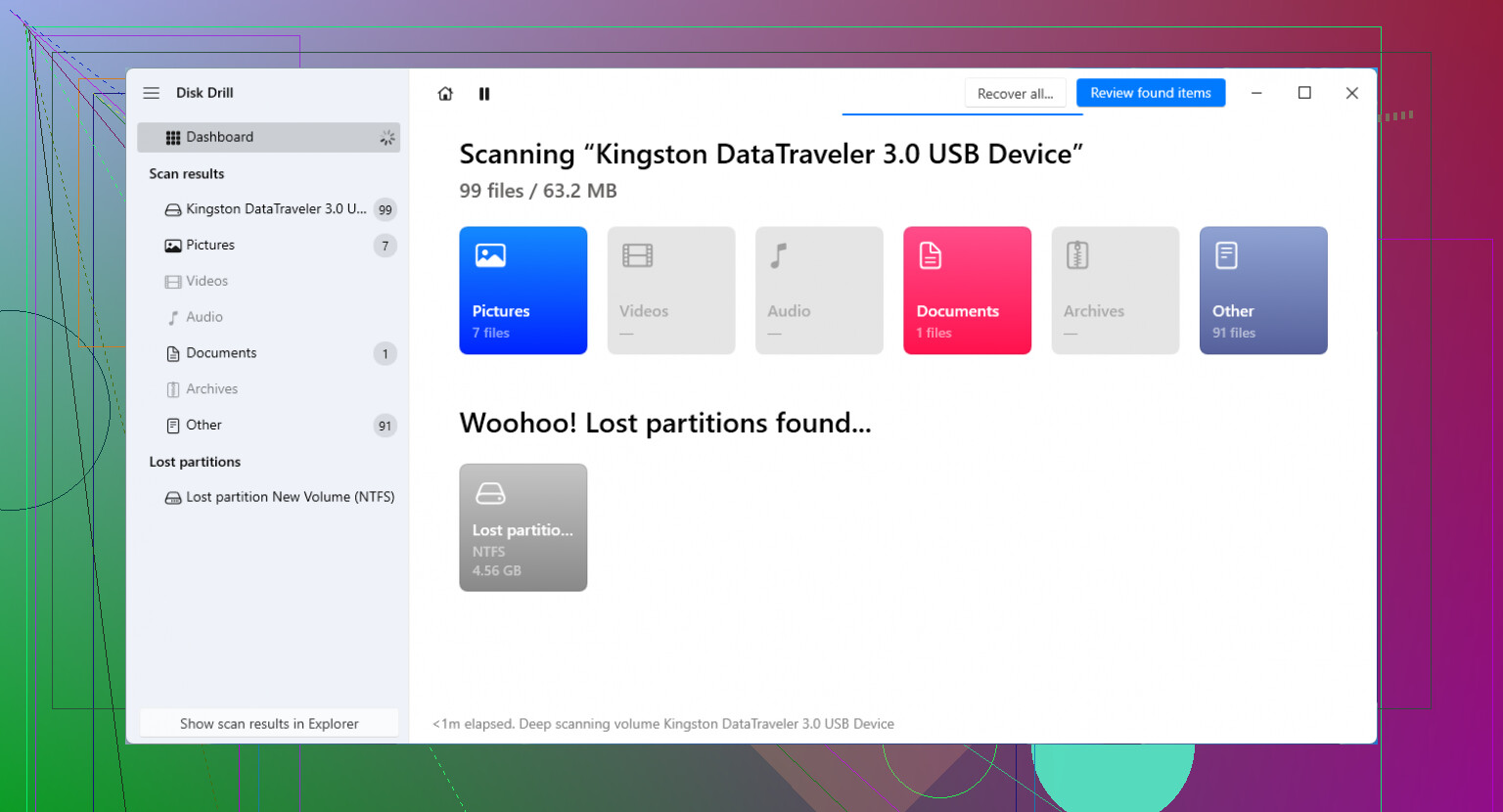
Disk Drill is a practical option for this because it doesn’t require a bunch of command-line work. Run a scan, see what it finds, preview the files if possible, and recover them somewhere else. The important part is that you’re not trying to “fix” the damaged disk right away. You’re just getting your data off it first.
After you have a backup or disk image, then you can think about repairing the partition table itself. GPT does keep a backup header at the end of the disk, so sometimes the structure can be rebuilt.
- TestDisk can scan for lost partitions and write the partition table back if it finds the right one. Be careful here. Don’t hit “Write” unless you’re sure it found the correct partition.
- gdisk can help if the main GPT header is damaged but the backup GPT header is still intact. It has recovery options that can rebuild the primary GPT from the backup.
If Windows Disk Management shows the drive as a GPT Protective Partition, don’t jump straight to Diskpart and run Clean. That will wipe the partition table. This can happen with older systems, USB docks, adapters, or other compatibility weirdness. Try scanning it first with a recovery tool and copy the files to another disk if they show up.
3 Likes
If the partition entry is missing, that’s usually a software recovery job; if the drive is clicking, disconnecting, or showing bad SMART warnings, treat it as a failing disk first. In that second case, don’t waste time running long scans on the original drive, because they can finish off a weak disk. Clone it first, then scan the clone with whatever recovery tool you prefer, including Disk Drill or TestDisk.
Check the adapter before you assume the partition is gone. If this drive was moved between a USB enclosure, dock, old PC, new PC, RAID box, or anything with weird sector-size translation, Windows can show a perfectly good GPT disk as nonsense. Don’t initialize it and don’t “convert” anything in Disk Management. Try the drive connected the same way it was when it last worked, or directly to a motherboard SATA/NVMe slot if possible, then see if the partition appears normally. If it still shows wrong, then go back to the safer route others mentioned: image the disk, scan the image or clone with Disk Drill/TestDisk, and recover files to a separate drive. The boring connection check can save you from doing a whole recovery job for what was really just a bad dock or adapter mismatch.