I need help with SD card video recovery after my camera card suddenly stopped showing several important video files. The card is still detected, but the videos are missing or won’t play, and I’m worried about making things worse by trying random fixes. What is the best method or software to recover deleted or corrupted videos from an SD card in 2026?
Lost a video off an SD card? What I’d do first
That gut-drop when a clip vanishes off an SD card is awful. I’ve had it happen with drone footage and once with a family video I should have backed up sooner. First move, stop. Don’t keep shooting. Don’t poke at the card.
Deleted video files are often still sitting there for a while. What usually changes first is the file system entry, not the raw video data. Your camera or phone marks the space as free, then new files start taking bites out of it. If nothing new lands on those sectors, recovery still has a shot.
1. Stop writing to the card
This part matters more than the software.
Do not:
- record more video
- take photos
- copy anything onto the card
- format the card
- let the device keep using it
Pull the card out and leave it alone until you’re at a computer and ready to recover. I learned this the annoying way. I kept filming after deleting a clip once, and the missing file came back half broken. My own fault.
2. Check if your computer still sees the card
Before you spend time on recovery tools, make sure the card shows up at all.
Try this:
- Use another card reader.
- Switch USB ports.
- Plug it into a different computer.
- Open Disk Management in Windows and see if the card appears there.
If Windows says the card is RAW, or nags you to format it, don’t do it yet. Recovery tools often still read cards in that state. If the card does not appear anywhere, on any machine, with any reader, you might be dealing with a hardware issue instead of a simple delete.
3. Run recovery software
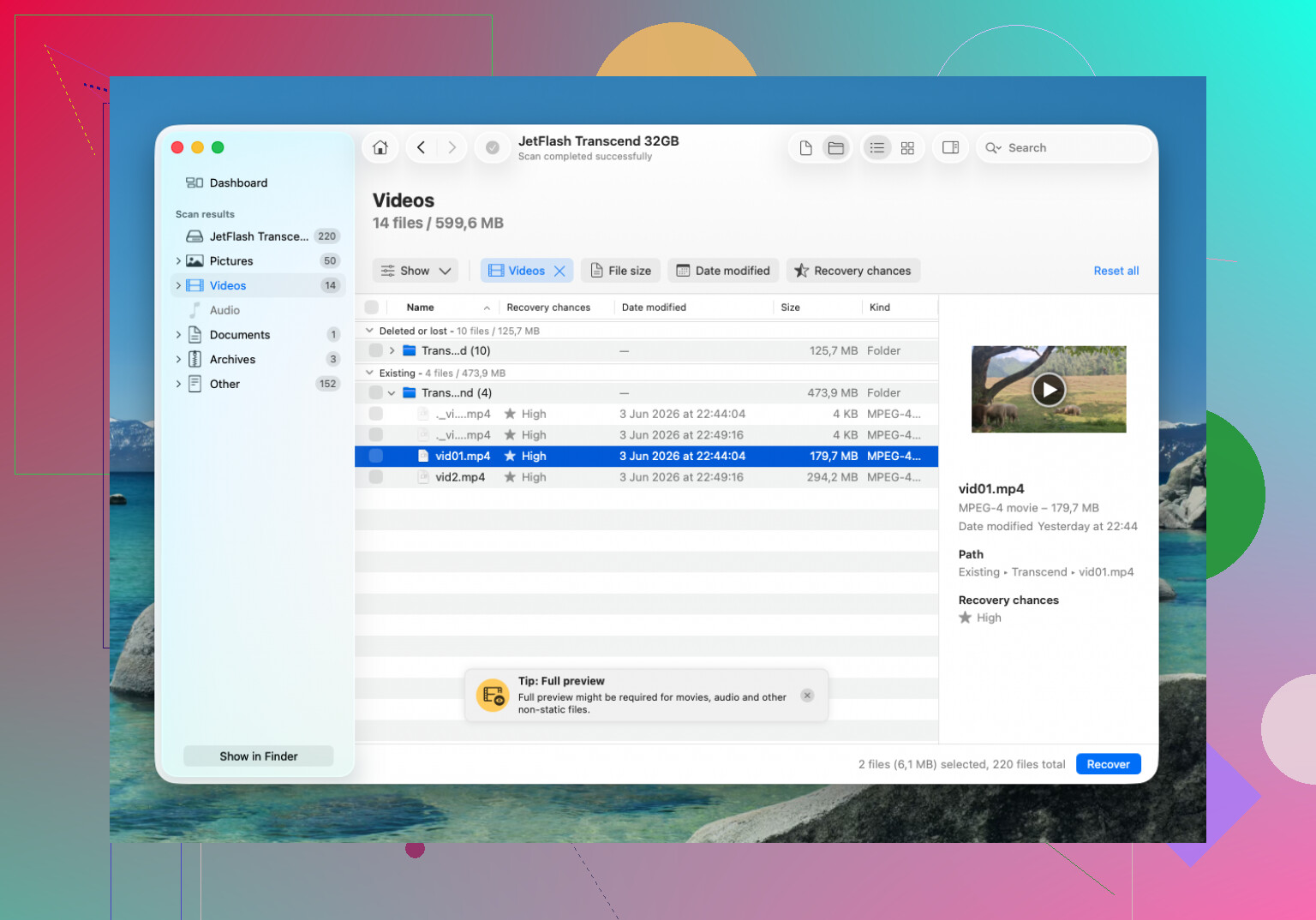
For video files, I’ve had decent luck with Disk Drill.
Why people keep bringing it up:
- it handles a lot of file types
- it scans memory cards well
- it has camera-focused recovery features for fragmented footage
That last part matters more than people think. Cameras, drones, and action cams often scatter video data around instead of writing one neat block. Stuff from GoPro, DJI, Sony, and similar gear tends to be messy under the hood.
On Windows, the free recovery limit is 100 MB. That won’t save a big 4K clip, but it’s still enough to scan, preview results, and see whether your missing video is even there before spending money.
If you want a free route, PhotoRec is still worth trying. It’s uglier. It feels old. It works more often than its interface suggests. Downside, you usually lose the original filenames and folder layout, so expect a pile of files with generic names. Kinda messy, but better than nothing.
4. Recover the files the safe way
The basic flow is simple:
- Connect the SD card with a card reader.
- Run a full scan, or deep scan if the quick one misses stuff.
- Filter results for video formats.
- Preview what looks right.
- Save recovered files somewhere else.
Somewhere else means your internal drive, an external SSD, another USB drive, anything except the same SD card.
Don’t write the recovered files back onto the card you’re scanning. People do this, then wonder why the second missing file never shows up. You end up overwriting the very data you were trying to rescue.
5. If the recovered video won’t play
This happens. A recovered file showing up does not mean it’s healthy.
First thing I’d try is VLC Media Player. It opens damaged files better than a lot of default video apps. I’ve had clips fail in Windows media players and still open in VLC with minor glitches.
If VLC won’t touch it, look into video repair tools. Some of them rebuild broken files using a good sample clip from the same camera, recorded with the same settings. That detail matters. Same device, same resolution, same codec, same frame rate if you’ve got it.
And if your computer keeps asking to format the card, ignore it until recovery is done. Formatting comes later.
The part people mess up
Speed helps. More important, no extra writes.
If you stop using the card right away, your odds are better. If you keep filming, keep deleting, or let the device create new files in the background, your chances drop fast. There isn’t much drama to it. The less you touch the card, the better the result tends to be.
If the card is still readable, I’d scan it before trying anything else. If it’s invisible everywhere, then I’d start thinking physical failure, not user error. That’s a rougher path. But for plain accidental deletion, recovery is often still on the table.
If the card still mounts, make an image of it first. I know @mikeappsreviewer focused on stopping writes and scanning the card, which is right, but I would not scan the original media first if the videos matter a lot. Clone it sector by sector, then work from the copy. Safer. If the card degrades during reads, you keep one stable snapshot.
On Windows, use HDD Raw Copy Tool or USB Image Tool. On Linux or Mac, ddrescue is the better pick. Save the image to your SSD, not back to the SD card.
Then scan the image with Disk Drill. It handles lost partitions and broken file tables well, and it often finds video signatures even when the directory is toast. For cameras, I would check both file system recovery and signature-based recovery. If you only use one mode, you miss stuff.
If the file comes back but won’t play, the issue is often the container, not the video stream. MP4 files need the moov atom. Some cameras write it last. If recording got interrupted, the clip looks dead even when most video data is still there. Untrunc or a repair tool with a sample file from the same camera helps a lot.
One more thing, check for hidden temp clips and sidecar files. Some cameras split long videos into chunks, or leave .LRV, .THM, .IDX, .CPI, .MPL, .XML. Those files help identify missing segments.
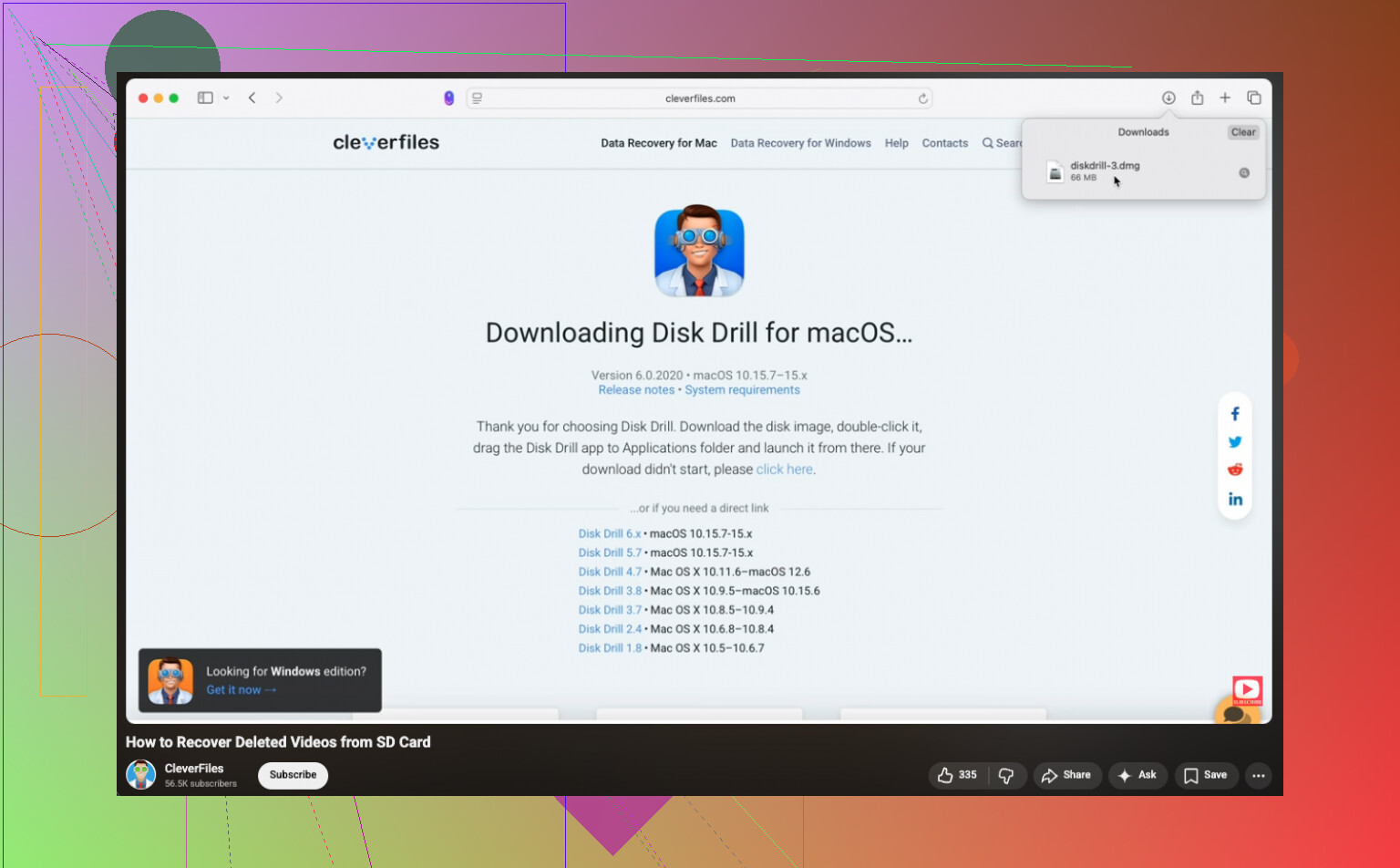
If you want a visual walkthrough, this SD card video recovery guide for missing or corrupted camera files is worth a look. Short and easy to follow.
Do not run chkdsk first. People suggest it way too fast. It fixes file systems by changing them, and yeah, sometmes it helps, but it also buries recoverable entries. I’d leave repair tools for after recovery.
I’d add one thing @mikeappsreviewer and @sterrenkijker only touched lightly: check whether the files are actually gone, or just invisible because the camera database/index got messed up.
A lot of cameras do not just read raw MP4s from the card like a normal folder. They rely on side files and folder structure. If somebody moved folders around, renamed stuff, or the card had a minor file system hiccup, the camera may act like clips vanished even though the video files are still there. So before going full recovery mode, put the card in a computer and manually inspect every folder, including hidden ones. Look for DCIM, PRIVATE, AVCHD, MP_ROOT, CLIP, SUB, etc. Sometimes the footage is sitting there but the camera won’t list it. Annoying as hell.
Also, slight disagreement with the “deep scan first” mindset. Deep scans are great, but if the card is still mounting normally, I’d first copy everything readable off it in plain old File Explorer/Finder. Not recovery, just normal copying. You might save intact clips, metadata, thumbnail files, and the exact folder structure. That can matter later for repair.
If the missing videos show up but won’t play, inspect file size before assuming corruption:
- 0 KB or tiny size = probably bad directory entry or interrupted write
- normal large size = often repairable
- weird duplicate names = possible FAT/exFAT directory issue
For recovery itself, Disk Drill is solid for SD card video recovery because it can find both deleted entries and raw video signatures. I just wouldn’t start randomly “fixing” the card first. No CHKDSK, no format, no camera “repair database” button yet. Those can make stuff worse. Been there, did the dumb thing lol.
If you want more step-by-step reading, this thread on how to recover deleted videos from an SD card and restore camera footage is pretty relevant too.
One more thing people forget in 2026: fake or failing SD cards are still everywhere. If this card suddenly started losing clips, test it after recovery. A card that “detects fine” can still be slowly dying.