I’m trying to set up a universal remote with my TV, but I’m confused about the pairing steps and codes. I’m not sure if I should use the regular physical universal remote I bought or a remote control app on my phone. Can someone explain, step by step, how to properly pair a universal remote or phone remote app to a TV
Most folks my age still think “universal remote” means a chunky gray brick with 50 buttons and a manual that lands with a thud on the coffee table. I used to be in that camp. Then I went down the rabbit hole of pairing a new TV, got annoyed, and ended up ditching physical remotes almost completely.
Here is how the whole thing works now, from the old infrared bricks to using your phone as the main remote.
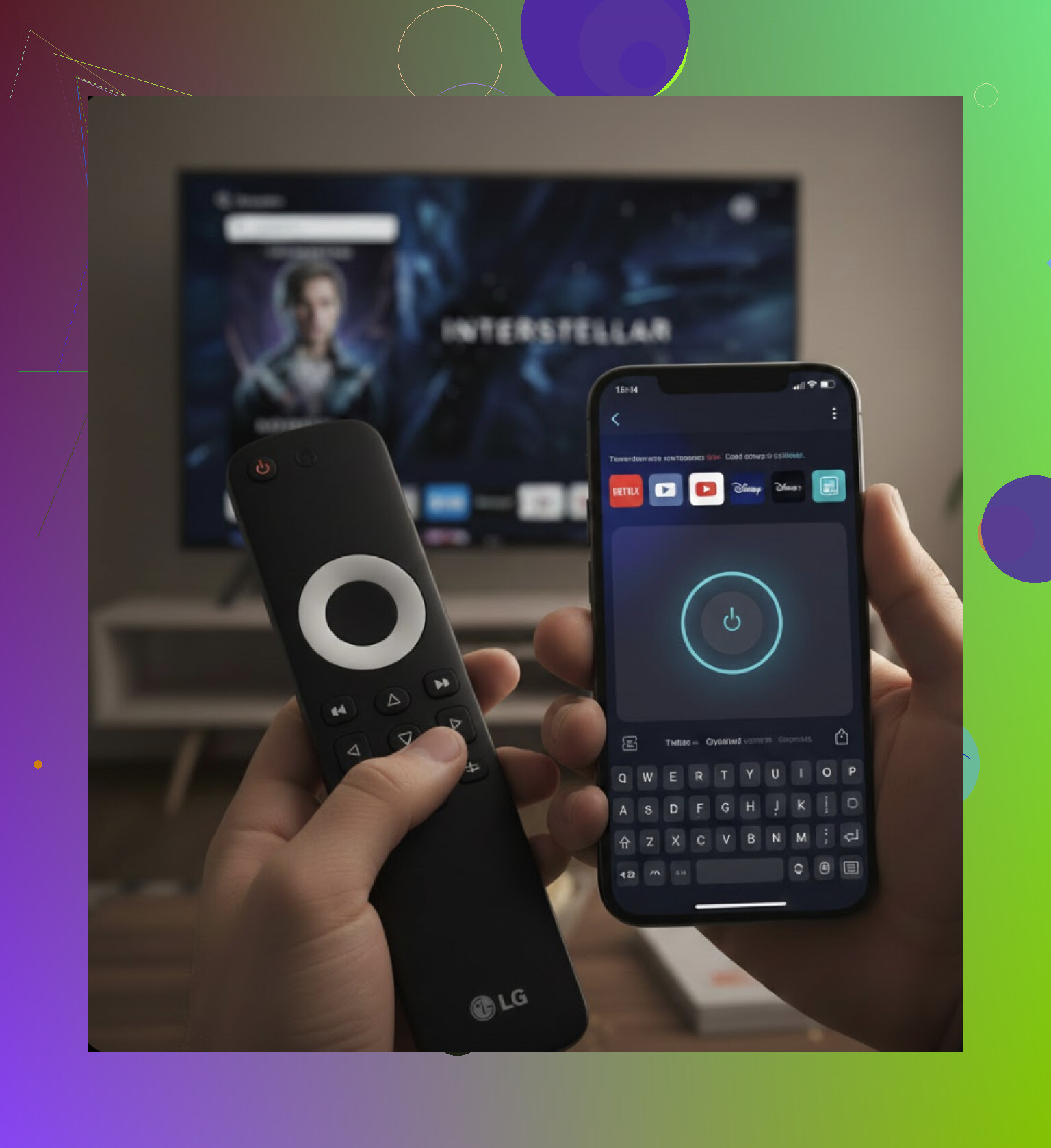
Step 1: The old universal remote grind
If you bought one of those traditional universal remotes, you already know this routine. If you have not, here is what you are walking into.
-
Hunting for the right code
Every TV brand uses its own batch of infrared codes. Some have hundreds.
The remote comes with a folded sheet of paper listing pages of brands and 3 or 4 digit numbers.
You scroll down to “Samsung” or “LG” or “Sony” and get a bunch of codes that all look the same.In my case with an older LG, I went through line after line of numbers. Felt like entering cheat codes on a PlayStation from 2003.
-
Entering “programming mode”
To tell the remote you want to program the TV button, you press and hold a weird combo like SET + TV, or POWER + TV, until a tiny LED stops blinking and stays on.
If you let go too soon, it exits. Hold too long, it exits. There is a sweet spot, but the manual never states it clearly. -
Typing codes, watching nothing happen
You punch in the first 4 digit code.
If the LED blinks a few times and your TV turns off or responds to volume, good, you are done.
If nothing happens, back to square one with the next code.
For my parents’ old Panasonic, I ran through more than a dozen before one worked. -
Auto scan when the manual is gone
Lose the paper, or have an older TV brand, and you end up using “auto search.”
That mode makes the remote fire off IR signals one by one while you point it at the TV.
You sit there with your thumb on the power button, waiting until the TV turns off.
If you are not staring at the TV and miss the reaction, the scan keeps going and you get to start again.
The short version: once the code is in, it works fine, but the setup feels like dialing into the internet with a 90s modem. If the code sheet disappears, that plastic remote turns into dead weight.
Step 2: Using your phone instead of another plastic brick
At some point I got tired of buying remotes, so I tried using my iPhone as the main remote. That changed everything more than I expected.
The basic idea is simple. Instead of guessing infrared codes, your phone uses your home WiFi to talk to the TV. Smart TVs and streaming sticks sit on the same network, so the app finds them and connects directly.
One app that behaves like an actual remote and not an ad farm is:
TVRem – Universal TV Remote
App Store:
What it does is scan your WiFi, list compatible TVs and devices it sees, then you pick the one in your living room. No 4 digit numbers, no paper list.
Once it is connected, the app turns your phone into a remote that does more than the plastic ones ever did.
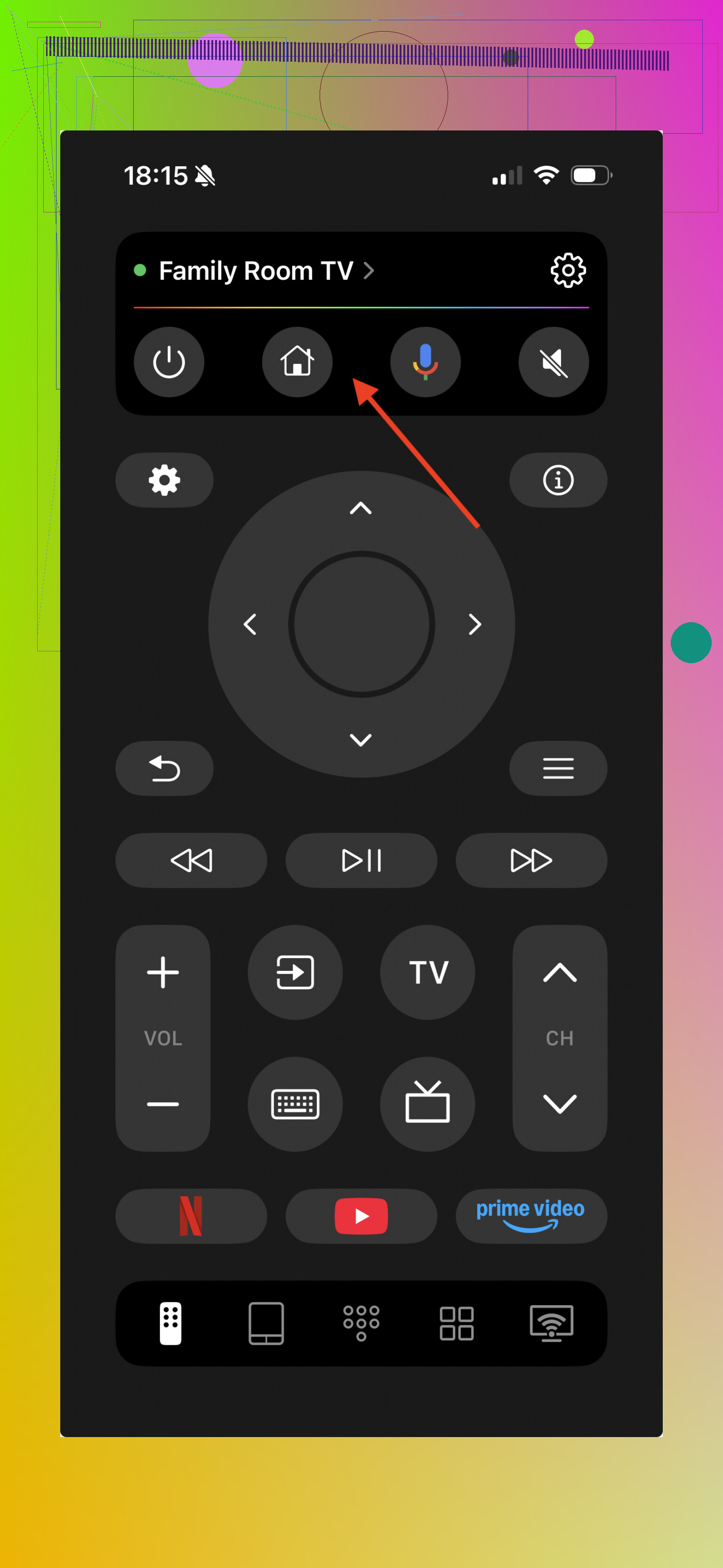
Why this kind of app feels like an upgrade, not a sidegrade
I went from “let me test this” to “where did I put that old remote” in one evening. Here is what made the difference.
-
Touchpad instead of arrow mashing
Most TV remotes have four arrows and an OK button.
Moving across a grid of apps with that is slow. Overshoot once and you spam the left arrow for 10 seconds.TVRem gives you a big touch area on the phone screen. You swipe your thumb and the cursor moves on the TV, like a laptop trackpad.
That made menu navigation feel less like pressing an elevator button and more like using something built in this decade. -
Typing with a normal keyboard
This part sold me.
Try entering “The Lord of the Rings: The Return of the King” on a TV using arrows. You spend half a minute nudging the cursor around the on‑screen alphabet.With TVRem you type on your phone keyboard. Search boxes, login fields, WiFi passwords, emails for Netflix or Disney+ accounts, all take a few seconds.
I timed it once. Login on a TV remote took me over a minute. Same login with the phone keyboard was under 10 seconds. -
Launching apps directly
The app pulls a list of apps installed on the TV, things like YouTube, Netflix, Disney+, etc.
Inside TVRem, you get icons for these. Tap Netflix and the TV jumps straight there instead of making you wander across the home screen. -
Works with mixed brands
My setup at home is chaotic. One Samsung TV, one LG, one cheap Android TV box, and a Roku on an older screen.
TVRem recognizes Samsung, LG, Sony, Roku, Android TV, and Google TV devices without asking for model numbers or codes.
I added each one once, named them “Living Room,” “Bedroom,” etc, and now they all sit in the same app.
There is also a short demo here if you want to see the general behavior before installing anything:

Old physical remote vs phone app, side by side
Here is how it played out for me when trying to decide whether to buy yet another physical universal remote or stick with the phone.
-
Speed
Physical universal remote
• Slow during setup with the codes
• Slow for typing searches and passwords
Phone app
• Setup is “connect to WiFi, pick your TV”
• Text input is instant with the keyboard -
Reliability in daily use
With regular remotes, someone hides them under a blanket, throws them in a drawer, or kills the batteries.
With the phone, it stays charged most of the time because you already use it all day.
Also, if you misplace the phone, you usually notice fast, since your whole life runs through it. -
Clutter
On my parents’ coffee table there are three different remotes for one TV plus a soundbar.
With the app approach, one phone controls multiple TVs, and the soundbar runs off the TV HDMI ARC, so the TV volume control is enough.
Less stuff on the table, fewer things to explain to guests. -
Cost
Universal remotes in stores around me sit around 20 to 30 dollars, more if they are branded.
TVRem is free to download here:
Free TV Remote App for iPhone & iPad: One Remote for Almost All TVs
You can test it with your TV before you spend anything on a new plastic remote.
Where I ended up
After using both for a while, I keep one physical remote per TV in a drawer for emergencies and use my iPhone with TVRem for daily viewing.
If you have an iPhone and at least one Smart TV or Roku or Android TV box on your WiFi, it is worth trying the app path first.
If it works with your setup, you avoid code lists, cut down on clutter, and get proper typing and navigation without buying more hardware.
Short version. Use both. But in a smart way.
Here is how I would tackle your setup, without repeating what @mikeappsreviewer already walked through.
-
Check what your TV supports
• If it is a Smart TV from about 2016 or newer, it almost always supports control over WiFi.
• If it is older or not on WiFi, you depend on infrared and your physical universal remote. -
Start with the physical universal remote, but use the faster method
Instead of hunting codes in the little booklet:
• Google: “[brand] [model] universal remote code list”
• Use your TV model number from the back label or settings menu.
• Look for the exact brand + model, not only the brand. That shrinks the code list a lot.
• If your remote supports “code entry by brand,” use the first code for your brand, test power, volume, input.
If power and volume work and input does not, keep it. Most people need only power and volume. Do not chase perfect. -
Use the app mainly for typing and navigation
I slightly disagree with only living on phone remotes like @mikeappsreviewer. Phone remotes break when:
• WiFi drops.
• Someone changes the TV to a different WiFi.
• You need to power on a TV that is fully off, not in standby.
Infrared still wins for “TV is off, WiFi weird, I need something that always works.”
So keep the physical universal remote programmed for:
• Power
• Volume
• Input/source changeThen use the phone app for:
• Login screens
• Search in Netflix, YouTube, etc
• Jumping between apps -
Pick the right kind of phone app
Do not grab the first top result in the store. A few quick checks:
• Rating above 4.0 and recent reviews, last 3 months.
• No constant full screen ads.
• Explicit support for your TV brand.
If your phone has an IR blaster, use an IR remote app only if your TV is not smart or never on WiFi. Most recent phones in the US do not have IR blasters though. -
Pairing checklist for WiFi remote apps
This solves 80 percent of “it does not see my TV” issues.
• TV and phone on the same WiFi network, not guest network.
• Disable VPN on the phone during pairing.
• Check TV setting for “Remote control via mobile devices” or similar. Turn it on.
• Some brands ask to confirm pairing on screen the first time. Do not skip that popup. -
Keep one stable setup, not five
My advice.
• Program your universal remote once, write the working code on a piece of tape on the back of the remote.
• Install one remote app that you like, not three.
• Store the original TV remote in a drawer as a backup for menus and settings you rarely touch.
So, use the physical universal remote as your “always works” backup and for simple tasks. Use the phone app as your daily driver for typing and quick navigation. That combo cuts down on frustration and you do not get stuck when WiFi or an app update acts up.
If you’re confused, it’s not you, it’s the “universal” part. They should call them “maybe-if-you’re-lucky” remotes.
I’ll skip what @mikeappsreviewer and @techchizkid already covered and come at it from a slightly different angle: decision tree + a couple of tricks they didn’t mention.
1. Decide first what you want the remote to actually do
Before picking phone vs plastic, answer this in your head:
-
Do you just need:
- Power
- Volume
- Input/source
→ Physical universal remote is usually enough, and faster when the TV is actually off.
-
Do you also care about:
- Typing passwords and search
- Jumping between apps
- Controlling multiple smart devices cleanly
→ Phone app wins on sanity.
A lot of people try to make the universal remote perfect for every button the original had. Honestly, that’s where the pain starts. If one code gives you power + volume, stop there. Chasing “perfect mapping” is how you end up swearing at a blinking LED at 1 a.m.
2. Physical remote: use this trick instead of random code mashing
One thing the others didn’t mention:
Most universal remotes only have 3 or 4 “code families” per brand. Codes inside the same family usually differ in small stuff like “does the info button work.”
So:
- Find any code that gives you power + volume.
- Write that code on a piece of tape and stick it to the back of the remote.
- If something essential is missing (like input/source), then and only then try the next code in that brand family.
You’re not trying to recreate the original remote 1:1, you’re trying to make the TV watchable without headache.
Also: if you have cable/satellite box or a streaming stick, it is usually easier to leave those on their own remotes or apps instead of shoving everything into one universal remote. “One remote to rule them all” often turns into “one remote that kind of sucks at everything.”
3. Phone apps: the part nobody likes to admit
I’ll slightly disagree with both of them here:
Phone remotes are amazing… until:
- Someone changes the TV WiFi
- The router gets rebooted
- The TV is “really off” (energy saving mode), not in standby
Then you sit there opening and closing the app while nothing responds.
My pattern that has worked better than what both of them suggested:
- Use the phone app for:
- Initial smart TV setup
- Account logins
- Long searches
- As soon as the TV is configured and logged in to your apps, stop touching those settings. Then:
- Use the physical remote (original or universal) every day for power and volume.
- Only grab the phone when you have to type.
It sounds backwards, but it avoids the “why is my phone remote not seeing the TV again” loop.
4. Check this before you blame the remote or the app
Does not matter if it is a code-based remote or a phone app, these four things break setup more than anything:
-
HDMI-CEC / Anynet+ / Simplink / Bravia Sync
If you have a streaming box or game console, turn CEC on in both TV and device.
Then you can use the TV’s remote to control the box menus. That means you do not need the universal to handle that box at all. -
Input confusion
If the TV is on the wrong input, pairing “works” but you see nothing, so you think it failed.
For testing a code:- Put TV on an HDMI that actually has something plugged in
- Test: power, volume, input
A lot of people think volume doesn’t work when the soundbar is actually taking over.
-
Network nonsense for apps
For phone remote apps:- TV and phone must be on the same NON-guest WiFi
- Turn off VPN or “private relay” type stuff during the first pairing
- Some routers isolate devices between bands; try putting both TV and phone on the same band (both 2.4 or both 5 GHz)
-
Full power-off vs standby
If someone turns the TV off by cutting power at a strip or wall switch, WiFi control will not wake it.
Only IR (physical remote) will. That’s not your fault, that’s how the hardware works.
5. So what should you actually do?
If I had to give you a straight-up plan, without rehashing what they wrote:
-
Program your physical universal remote just enough
- Get one working code for your TV
- Confirm:
- Power toggles
- Volume changes
- Input/source works (nice to have, not mandatory)
- Stop there. No need to perfect every button.
-
Install one phone app and use it surgically
- Use it only when:
- The TV asks you to type something
- You’re navigating a messy menu where a touchpad helps
- Ignore it for daily power/volume unless you really like living in apps.
- Use it only when:
-
Keep the original remote somewhere safe
- That is your “settings and weird stuff” device
- Write “DO NOT LOSE” on it or toss it in a drawer, not the couch
If you share what TV brand/model you have and the model of universal remote, people here can probably tell you the exact 1 or 2 codes to try so you don’t burn a night punching numbers.