I lost my Insignia TV remote and need to control the TV from my iPhone. I’ve searched for an Insignia TV remote app for iOS, but I’m not sure which app actually works or how to connect it. Looking for help with the best iPhone remote app for Insignia TV and setup steps.
Insignia TV remote app on iPhone or iPad, here’s the part I had to figure out first.
Insignia is not one platform. The name on the bezel stays the same, but the software inside does not. From what I ran into, most newer sets are Fire TV Edition. Older ones are often Roku TVs. Your app choice depends on which one you own.
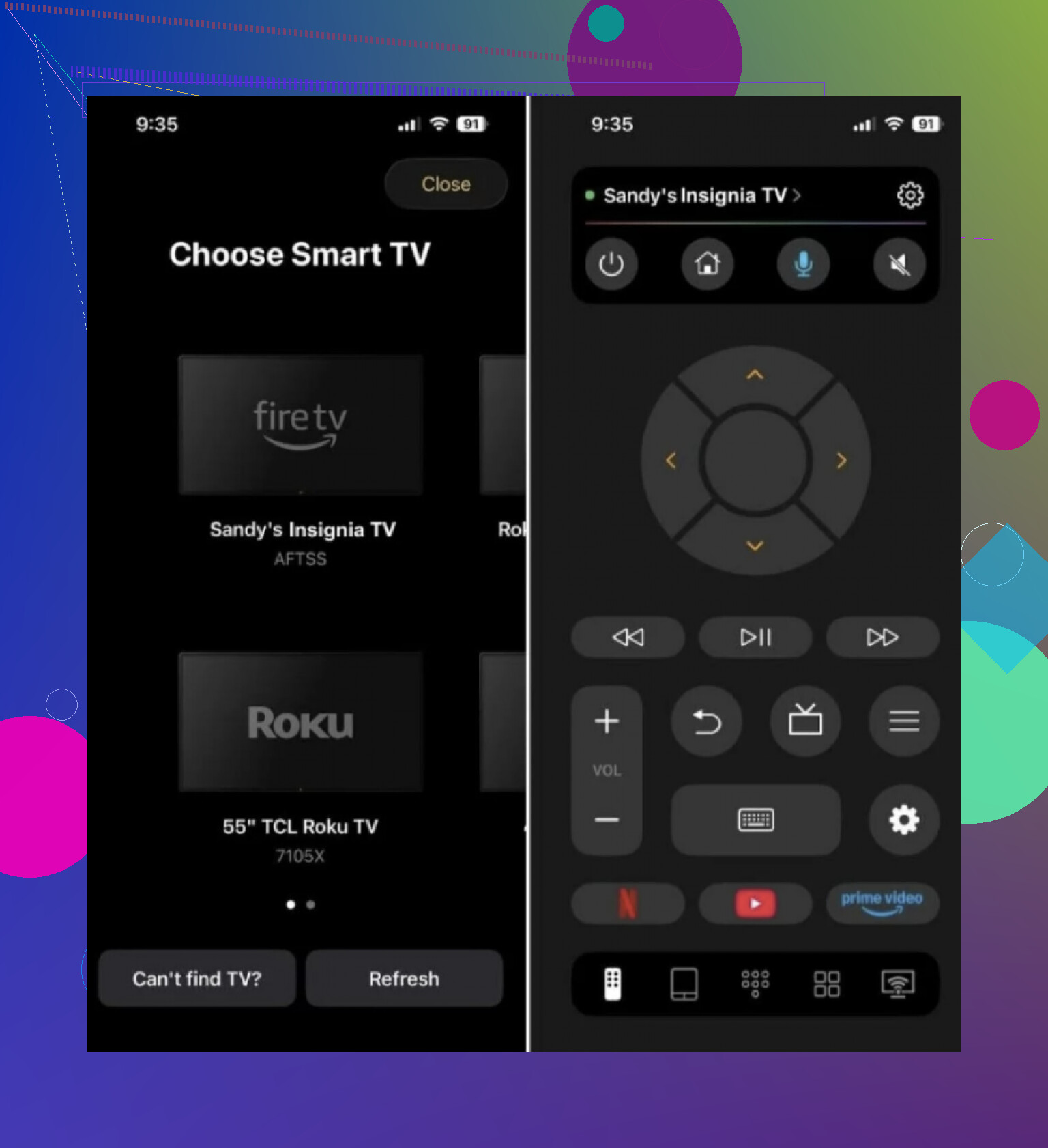
This was the easiest route when I didn’t want to play guessing games. TVRem works with both common Insignia setups, Fire TV and Roku. I had both devices on the same Wi-Fi, opened the app, and it found the TV without much fuss. Pairing took a minute or two.
After setup, you get the usual stuff people need day to day. Direction pad, volume, play and pause, app launch shortcuts, and a keyboard so you’re not pecking through letters on the TV screen like it’s 2009. If you are unsure which Insignia version you have, this is the safer pick.
Universal TV Remote Control
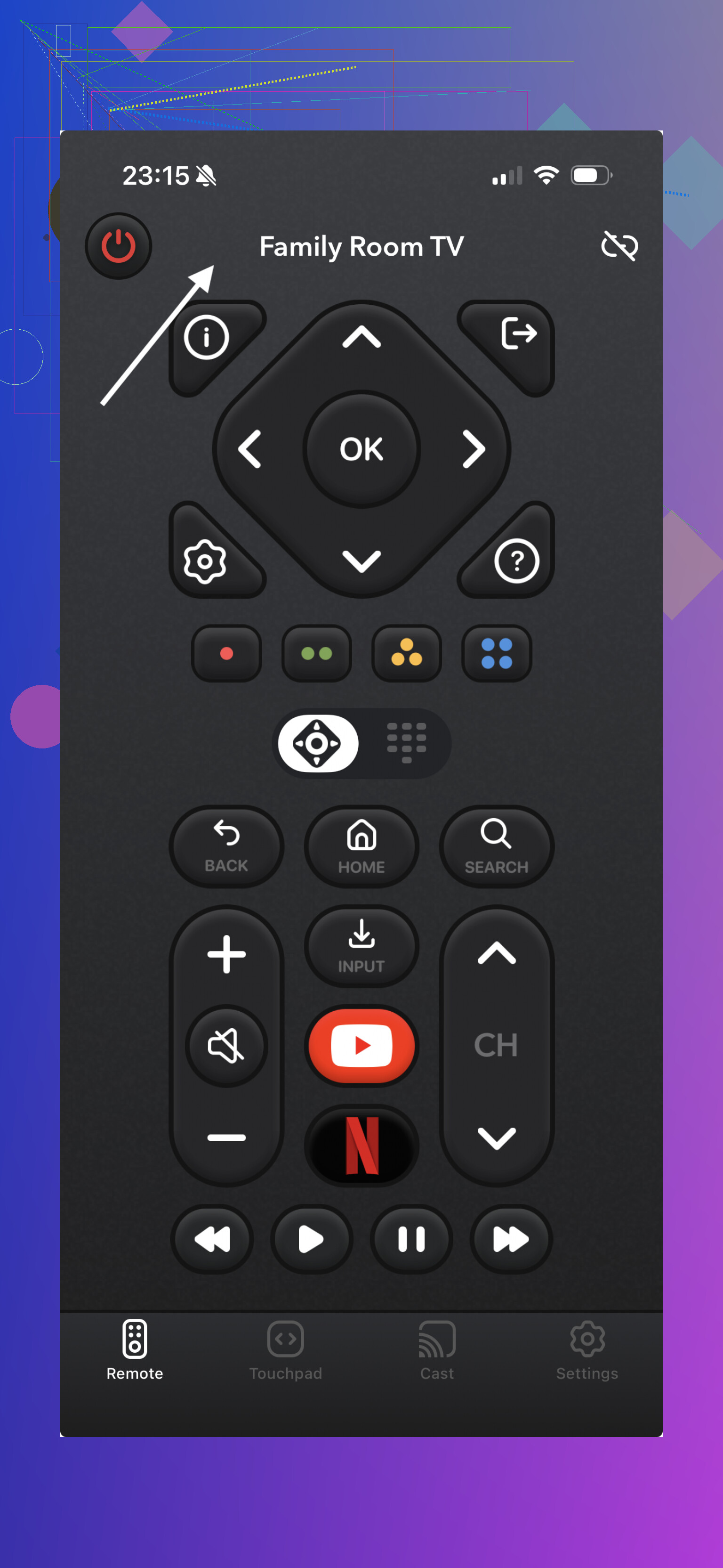
I tried this type of app too. It aims wider and covers a bunch of TV brands, including Samsung, LG, Sony, TCL, Hisense, Vizio, and Insignia. For Insignia, support still comes back to the same issue, Fire TV or Roku. Brand name alone does not tell you enough.
Setup is the usual routine. Put your iPhone and TV on the same Wi-Fi, let the app scan, then connect to the detected device. It worked, but the whole thing felt more stripped down. Fine for basic taps. Less nice if you switch between different TV systems often.
Quick points.
Insignia TVs are usually either Fire TV or Roku.
Both types often work with universal remote apps over Wi-Fi.
The model matters more than the Insignia label.
My take, if you want one app with the best odds of working across both Insignia variants, go with TVRem is the best choice because it covers both Fire TV and Roku and gives you the full remote setup in one place.
The other app is fine if all you need is simple control and you do not care much about polish.
First, figure out which Insignia TV you own. This matters more than the brand name.
Fast check:
If the home screen shows Fire TV tabs like Home, Find, Live, you need a Fire TV remote app.
If it shows the Roku grid with app tiles, you need a Roku remote app.
I slightly disagree with @mikeappsreviewer on one point. A universal app is fine, but I’d start with the official platform app first. Less clutter, fewer ads, fewer weird pairing fails.
For iPhone:
Fire TV model, use the Amazon Fire TV app.
Roku model, use the Roku app.
Both work over Wi-Fi. Your iPhone and TV need the same network. If your TV was connected to old Wi-Fi before you lost the remote, this is where people get stuck. No app will help until the TV is on your current network.
If the TV is offline:
Borrow any Insignia remote.
Use a cheap IR universal remote from Walmart or Target.
If your iPhone has no IR, it won’t control the TV before Wi-Fi pairing.
One more thing, some Insignia sets support HDMI-CEC. If you have a Fire Stick, Roku, Apple TV, or game console connected, its remote might control power and volume too. Kinda a sneaky fix, but it works.
So, shortest path:
Identify Fire TV or Roku.
Try the official iPhone app for that platform.
If the TV is not on Wi-Fi, get a cheap physical remote first.
I did this with an older Insignia Roku set. The app worked fine after network was fixed. Before thta, total waste of time.
Don’t search for “Insignia remote app” as if Insignia has one clean official iPhone app for every set, because that’s where people get stuck. @mikeappsreviewer and @reveurdenuit already covered the Fire TV vs Roku split, so I’ll add the part that tripped me up: model number lookup.
Check the sticker on the back/side of the TV. If the model starts with stuff like NS- and mentions Fire TV Edition or Roku TV, that tells you what ecosystem the set belongs to. That’s more reliable than guessing from memory.
Also, slight disagreement with the “just use universal apps” route. They can work, sure, but a lot of them are bloated, pushy with subscriptions, or flaky after iOS updates. I’d only use one if:
- you don’t know whether it’s Fire or Roku,
- you have multiple TVs,
- the official app keeps acting dumb.
One more workaround nobody mentions enough: if your TV has previously been added to Apple Home through HomeKit or tied into a smart setup, check Control Center, Home app, or even Alexa/Google Home if you had that set up. You might at least get power/input help without the original remote.
If the TV isn’t on Wi-Fi already, the iPhone app route is basically dead untill you reconnect it somehow. At that point a $10 universal remote is less frustrating than spending an hour trying random apps from the App Store.
One angle the others only touched lightly: check whether your Insignia came with a Bluetooth remote originally. Some Fire TV Edition sets rely on Bluetooth for first-run control, which means Wi-Fi remote apps are useless until the TV is already configured. That’s why @reveurdenuit and @sterrenkijker are right about the network trap, but I’d go a bit further and say don’t burn time testing five apps if the TV just got factory reset.
If you want one iPhone app that can cover the usual Insignia split without overthinking it, TVRem – Universal Remote app is the practical middle ground.
Pros
- Works for both common Insignia types: Fire TV and Roku
- Cleaner than a lot of junky “remote” apps
- Good for basic control, typing, navigation
- Handy if you have more than one TV platform at home
Cons
- Still needs the TV on the same Wi-Fi
- Not magic if the TV is offline
My take vs @mikeappsreviewer: universal is fine, but only after you confirm the TV is actually reachable. If not, buy or borrow a physical remote first. Also worth checking Best Buy for a replacement remote by exact Insignia model, since pairing tends to be smoother than with super-cheap generics.
Sneaky backup fix: if you had a soundbar or streamer connected with CEC enabled, try that remote for input navigation. Sometimes enough to get back into network settings.