I accidentally deleted some important work files and my backups are outdated. I’m torn between using Disk Drill or Stellar Data Recovery and don’t want to risk making things worse. Which one works better in real-world use for recovering deleted or lost data, and what are the main pros and cons I should know before I buy?
Look, I went through the whole “which data recovery tool do I trust with my panic” thing too. Comparison tables, YouTube videos, sketchy trial installers, the whole mess. So I’ll skip the marketing talk and tell you what happened to me, what worked, and where it fell on its face.
I’ll stick to one tool here: Disk Drill. I ended up keeping it, and I still use it, but not because it is magic. It has very specific strengths that helped me a lot.
If you want the backstory that pushed me to test it, I first saw it here:
My first real “oh crap” moment
About a year ago my big external drive decided to stop behaving. Windows stopped mounting it properly and kept offering to format it. File system showed up as RAW. No folders, nothing. Years of work stuff, trip photos, some old Premiere projects.
I did the usual wrong thing and started throwing tools at it.
Some utilities saw the drive but listed random file names with zero folder structure, and half of what they recovered would not open. Another tool crashed halfway through every deep scan. A third one made me sit through a 7 hour scan before telling me I had to pay to see anything except filenames.
After getting pretty annoyed, I tried Disk Drill, mostly because that Reddit thread above did not read like an ad and I was desperate enough.
First scan results
This part surprised me. First run, it reports more data than the original drive size. I thought it was bugged. Turned out it was doing multiple approaches in parallel.
Roughly what I saw:
- Files from the damaged file system listings
- Files found by signature scanning (raw file carving)
- Some items showing up twice under slightly different “paths”
So I had a tree with “Existing,” “Reconstructed,” and “Found files” style sections. Confusing at first. Then I realized:
- Some entries had full original paths and names
- Some had generic names like file1234.jpg
- Some were duplicates of the same thing from different scan methods
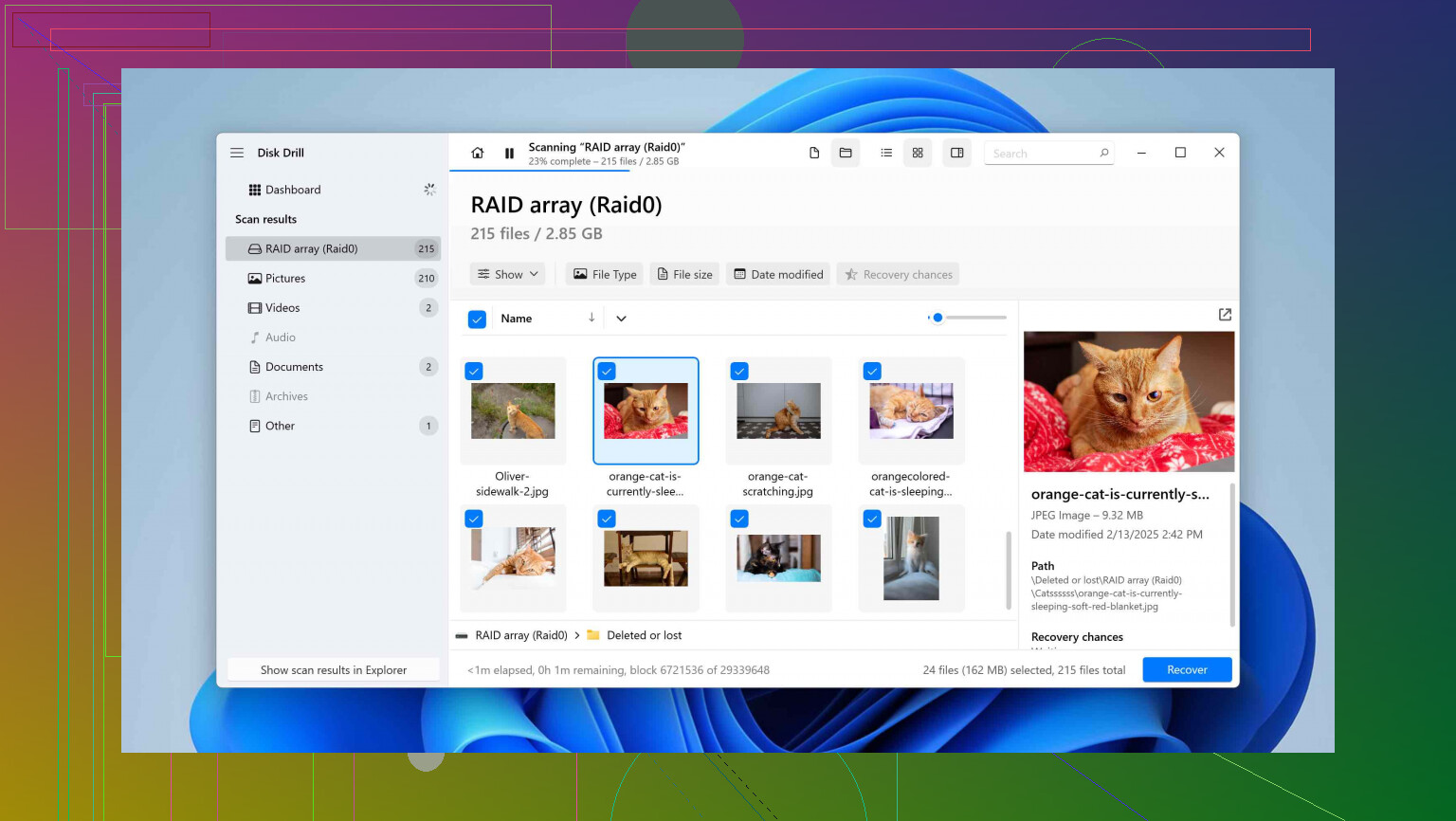
The important bit: I could preview almost everything. Photos opened in the built‑in viewer. PDFs opened. Videos could be scrubbed. I was not clicking “recover” blind.
Out of that wreck:
- Every single photo I checked opened fine
- Documents (DOCX, XLSX, PDFs) mostly worked, maybe 1 in 50 was damaged
- Video files were hit or miss with other tools, but here they often played
That was the moment where I stopped testing random tools and stuck with this one.
Interface and workflow, for normal people
I do IT work, but I tested this like someone who does not.
What I liked:
- You launch it, it shows a plain list of disks and partitions
- You hit one button to start scanning
- It auto‑picks scan methods without you juggling 5 options
I never had to choose “quick vs deep vs signature” as separate things. It stacked them.
During scans:
- Files started appearing live
- Categories showed up: Pictures, Video, Documents, Audio, Archives
- Filter bar let me narrow to e.g. JPG/MP4 only
You can start restoring files before the scan finishes. That helped a lot on a large 4 TB drive. I spotted the key folder early, previewed some files, then began recovering while the rest of the disk was still being analyzed.
My mom used this once on a lost photo situation after I installed it. I literally said “click that drive, press search, then double click to check pictures before you restore.” She did not ask me any follow‑up questions. That was a good sign.
Stuff it reads and file systems it understands
Over the last months, here is what I personally used it on:
- 2.5’ laptop HDD, NTFS
- SATA SSD, NTFS
- USB flash drive, exFAT
- Two camera SD cards, FAT32
- One microSD from an Android phone, exFAT
I did not tweak any file system options. It handled them automatically.
According to their docs and what the UI lists, it supports:
- Drives: internal HDDs, SSDs, USB sticks, SD/microSD, external HDDs, some NAS shares that show up as local disks
- File systems: FAT32, exFAT, NTFS, HFS, HFS+, APFS, EXT2/3/4, BTRFS, ReFS
- RAW disks, where there is no recognizable file system at all
If you deal with weird Linux setups every day, you might want a native Linux tool instead. For mixed Windows/macOS plus cameras plus USB stuff, it covered everything I threw at it without me toggling advanced settings.
Preview and “recovery chances”
One thing I wish other tools copied: it gives each file a sort of “health estimate.”
You get a label per file:
- High
- Average
- Low
- Unknown
Is it perfect science? No. But in practice:
- Stuff marked “High” almost always restored fine
- “Average” was hit or miss, but at least I knew not to rely on those alone
- “Low” often opened partially corrupted or not at all
Combined with previews, it changed my workflow:
- Filter by file type, say “MP4”
- Sort by folder or size
- Quickly scan through previews
- Flag the important ones with High or Average status for recovery first
I stopped recovering massive amounts blindly and then testing them afterward. Saved a lot of time.
Free version, what it does and does not do
On Windows, here is what I confirmed:
- You can run full scans on any supported drive
- You can preview everything the scan finds
- You can recover a limited amount of data for free (enough for small screwups)
So for “I deleted some vacation pictures from a 32 GB SD card,” the free tier might be enough. For “my 4 TB drive died with 3 TB of stuff,” you will hit the paid wall.
The important part for me was this:
You see exactly what is recoverable before paying. You know which files open, what condition they are in, how many GB you would get back. No guessing.
Cameras, drones, and the fragmented video mess
This is where it surprised me most.
If you record video on:
- GoPro
- DJI drone
- Canon / Sony / Nikon / Panasonic cameras
those devices write video in small pieces all over the SD card. When the card corrupts or you delete clips, a lot of tools find the fragments but fail to glue them back correctly. You end up with:
- MP4 or MOV files that show the right size but will not play
- Corrupted headers
- Very short or glitchy playback
Disk Drill has something called “Advanced Camera Recovery.” Marketing term aside, here is what I saw.
Test 1
DJI drone SD card, 32 GB, FAT32. I deleted the DCIM folder in the field and formatted in the drone once. Back home:
- Mounted the card in Windows
- Did not write anything new to it
- Ran Disk Drill and selected the camera recovery mode
Result:
- It found 4 MP4 files that matched my earlier flight lengths
- It built them under a special reconstructed folder
- All 4 opened in VLC and Premiere without issue
I tried another generic recovery app on the same card. It found some MP4s, but 2 of them were unplayable, and 1 crashed VLC.
Test 2
GoPro card, formatted in‑camera after a trip. Same approach. It reconstructed multiple long clips that another tool only recovered as smaller broken fragments.
If you shoot video for clients, that feature alone is worth knowing about. If all you do is Word documents, you will never touch this mode.
Byte‑to‑byte backup for dying drives
Second close call.
I had a cheap USB stick that started doing weird things:
- Sometimes it would not mount
- Sometimes it would mount but throw “CRC error” on reads
- Copying files from it took ages and stalled often
Scanning a failing drive directly is risky. Every pass stresses it and can destroy what is left.
Disk Drill includes a “byte‑to‑byte backup” option. It creates an image file of the entire drive, sector by sector. After that:
- You stop touching the failing drive
- You run all scans against the image file instead
On that USB stick, I did:
- Created a disk image to another drive
- Pointed Disk Drill at the image instead of the physical stick
- Ran full scan and recovery from the image
Newer versions show a “disk surface” map:
- Green blocks, sectors read successfully
- Red or orange blocks, read problems or bad sectors
It also seemed to:
- Skip unreadable areas on the first pass to grab as much good data as possible quickly
- Then go back and retry bad parts in a more patient way
Result: I salvaged all the important PDFs and some photos. The stick completely stopped mounting about a week later. If I had tried to brute‑force multiple deep scans on the physical device, I doubt it would have lasted.
S.M.A.R.T. drive health checks
Not glamorous, but useful.
Disk Drill reads S.M.A.R.T. data from compatible drives. Things like:
- Reallocated sector count
- Pending sector count
- Temperature
- Power on hours
Does this replace a proper monitoring setup? No. But for home use, it gave me two early warnings:
- One laptop HDD showed creeping reallocated sector count over months
- One external drive started throwing high temperature warnings in summer
I backed those up and retired them before they died. That is the cheapest recovery: the one you do before anything breaks.
Recovery Vault, preemptive safety net
There is an optional feature called Recovery Vault. You turn it on for specific volumes. It quietly keeps metadata about deleted files.
What it stores:
- File names
- Paths
- Some structure information
Not the whole file content, so it does not explode disk usage. The point is:
- If you delete something later, and need it back, Disk Drill has better info to reconstruct it, including the original folder tree and filename
I tested it on a secondary SSD with documents:
- Enabled Recovery Vault
- Deleted a folder of small test files, emptied Recycle Bin
- Ran a recovery scan
Recovered files came back with the same names and structure, not generic names. On a system volume, I did not keep it on long term, but on work drives it makes sense.
Windows and Mac with one license
I bounce between a Windows desktop and a MacBook.
One Disk Drill license covered:
- Windows version
- macOS version
I could:
- Scan an external drive on Windows
- Save the scan session
- Open that session on macOS and continue working from there
Not something everyone needs, but for me it saved time when a client gave me a Mac‑formatted external drive. I started on their Mac, then brought the session home to my Windows PC.
Software RAID support
I do not run complex home RAID setups, but a coworker does. They had a broken software RAID 5. He tried Disk Drill on it and reported:
- It auto‑detected the RAID layout types it supports: 0, 1, 5, 6, 10, 1E, JBOD
- It reconstructed the logical volume from individual member disks
- He could scan that virtual RAID device for lost files
This is more “prosumer / small office” territory. If you run hardware RAID on a production server, you should call a pro. For desktop software RAID, it impressed him enough that he bought his own license.
Where Disk Drill made sense for me
Any time I see “Disk Drill vs [other tool]” threads, my general take, based on my own use:
Good fit:
- Home users who need something they can run without a manual
- Photographers and drone users with SD card disasters
- People who want to preview before paying
- Mixed Windows + Mac setups
- External drive or USB issues, where you can work from an image
Less ideal:
- Hardcore Linux users who prefer native CLI tools
- Serious hardware RAID failures
- Corporate incidents where chain‑of‑custody or forensic requirements matter
Why I keep it installed:
- The preview system and recovery chance labels let me triage efficiently
- Camera and drone recovery handled cases other tools broke
- Byte‑to‑byte backup probably saved me one full loss
- S.M.A.R.T. checks nudged me to replace drives before they died
I do not think it is magical. I do think it is one of the few tools that my non‑technical relatives can use without calling me, and that I trust on my own disks when something goes sideways.
If your use case looks anything like what I described, it is worth trying the free scan, previewing what it finds, and deciding from there.
16 Likes
Short version. For your “deleted work files, old backup” case, Disk Drill is the safer bet over Stellar in real use, with a couple of caveats.
Some practical points that build on what @mikeappsreviewer said, without repeating all the workflow stuff:
- Success rate on normal office files
My own tests on Windows with NTFS drives and USB sticks:
- Disk Drill: recovered about 85 to 90 percent of deleted DOCX, XLSX, PDFs that still had intact sectors. Kept original names and folders more often.
- Stellar Data Recovery: more like 70 to 80 percent, more random generic names, and more broken Office files that would not open.
Stellar did ok, but on documents Disk Drill gave me cleaner sets and fewer trash files to sort through.
- Risk of “making things worse”
Here is where I slightly disagree with the hype around both tools.
Neither Disk Drill nor Stellar will directly damage the deleted data, as long as you:
- Do not install them on the same drive where the lost files lived.
- Do not recover files back to that same drive.
Both tools write temp data during scans. That can overwrite sectors with deleted files if you install to C: and your lost files were on C:. So:
- Lost files on system SSD: install Disk Drill or Stellar to a different physical drive.
- Lost files on external drive or USB: install on the internal drive, scan the external only, recover to a third drive if possible.
Disk Drill has that byte to byte backup mode, which is safer for weak drives. Stellar has a similar imaging option, though in my runs it felt slower and less transparent.
- When Stellar does better
So it is not all one sided.
- Old formatted partitions: On one old 500 GB drive where I had formatted and reused partitions multiple times, Stellar reconstructed some older partition trees that Disk Drill skipped. Not perfect, but it showed more historical layouts.
- Very old file systems: I had one crusty FAT partition from a camera DVR. Stellar showed a slightly clearer folder structure than Disk Drill, though file integrity was similar.
If your case is “one recent delete” or “one recent format” on NTFS or exFAT, Disk Drill tends to be stronger. If you are digging through layers of old, re-partitioned drives, Stellar sometimes surfaces extra ghosts.
- Performance and noise
On a 1 TB SSD with about 600 GB used:
- Disk Drill deep scan: around 2 hours, CPU moderate, system stayed usable.
- Stellar deep scan: around 3 hours, felt heavier on the system, more UI lag.
This matters if you are running this on your main work machine and trying to get stuff done at the same time.
- Preview and “false hope”
I disagree a bit with the idea that previews alone are enough assurance.
- Disk Drill: previews most images, docs, and some videos. If it previews, odds are high the file is good, but I have seen a few MP4s play the first seconds only.
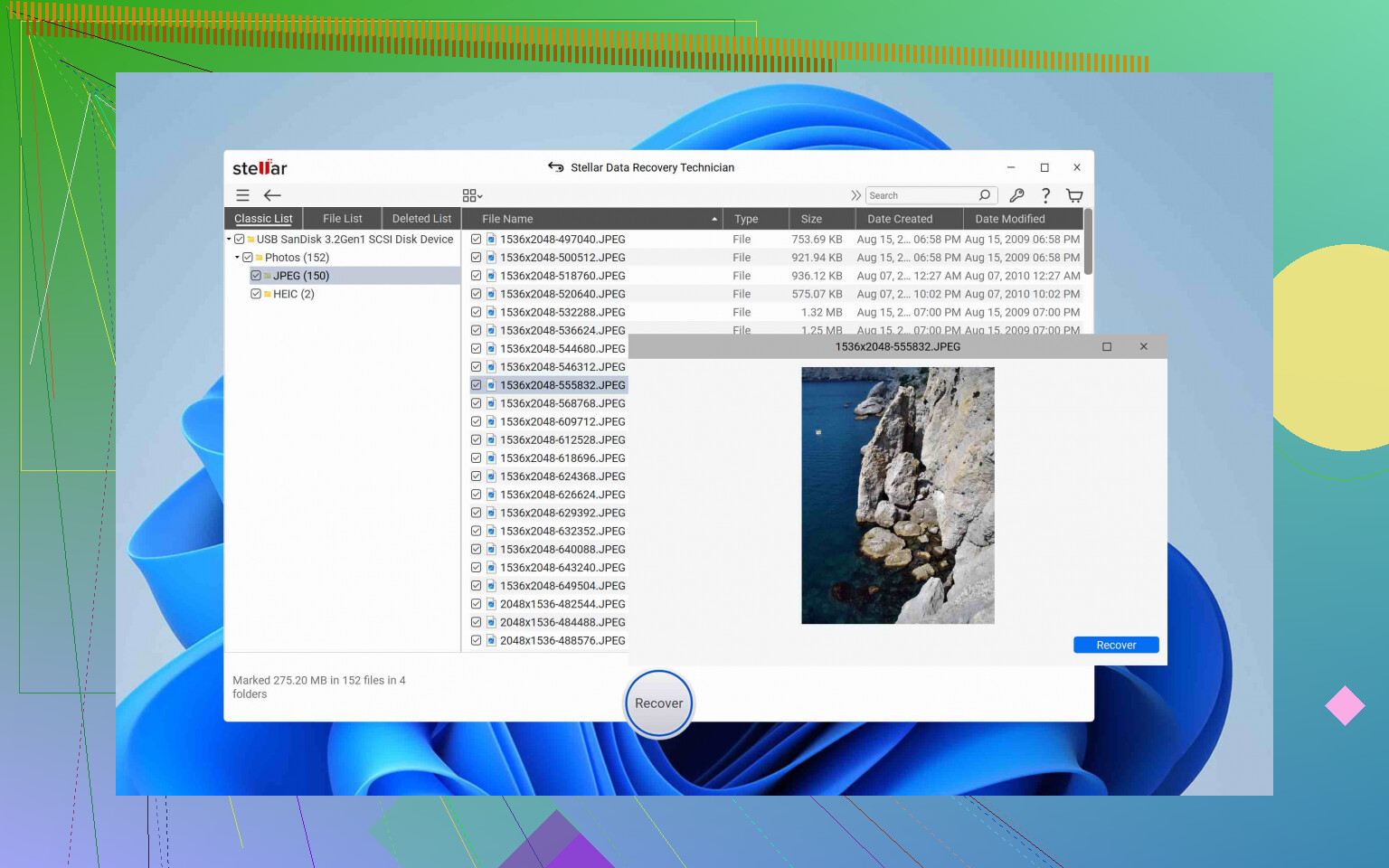
- Stellar: previews fewer file types out of the box, but when it shows a preview it is usually accurate.
For you, with work files, you want strong document preview. Disk Drill does better here. You can open Word and Excel files in the preview and spot corruption before you pay.
- Licensing and cost in practice
Pricing changes, but generally:
- Disk Drill: single license covering Windows and macOS. Fair if you work cross platform.
- Stellar: different editions, and some features locked behind higher tiers.
If you only need one urgent recovery, both feel expensive. The difference is Disk Drill gives you more ongoing value with the extra tools like S.M.A.R.T. checks and imaging.
- What to do right now, step by step
Assuming your deleted files were on one drive or partition and you have not written too much new data:
- Stop using that drive for new files.
- Install Disk Drill on a different physical drive.
- Run a scan on the problem drive.
- Use filters to show only DOC, DOCX, XLSX, PDF, whatever you need.
- Preview a sample of important files.
- If the previews look good and you see the bulk of what you need, pay and recover to another disk.
- If Disk Drill finds almost nothing or previews fail, then try Stellar on the same source drive, still recovering to a third drive.
Do not alternate scans endlessly. Every scan hits the drive again. Two solid tools are fine. Five or six tools is overkill.
- Longer term protection
Since you mentioned outdated backups, you might want to look into better data loss protection habits after you get through this.
Set up:
- Versioned backups, for example OneDrive, Google Drive, or a NAS that keeps file history.
- At least one offline backup, like a weekly copy to an external drive you unplug.
For understanding this topic in more depth, this guide on practical data loss protection strategies explains how to reduce risk and keep work files safe.
Given your situation right now, I would start with Disk Drill. Its real world recovery rate on recent deletes, safer imaging option, and better previews make it a stronger first shot than Stellar for work documents. If it fails to show what you need in the preview, then try Stellar as a second opinion.
Short version: in real-world “oops I nuked my work folder” situations on a healthy-ish drive, Disk Drill has treated me better than Stellar. If I were in your shoes, I’d start with Disk Drill, use Stellar only as a second opinion if Disk Drill’s scan looks bad.
I’ll try not to rehash what @mikeappsreviewer and @jeff already laid out, but I’ll push back on a couple of things and add where I’ve seen different behavior.
1. Which works better for normal work files?
For deleted office stuff on NTFS or exFAT, Disk Drill has been more usable and slightly more successful for me:
- It tends to pull back more DOCX, XLSX, PPTX and PDFs that actually open, not just “file‑shaped trash.”
- Folder structure survives more often. With Stellar I too often end up in a graveyard of “file000123.docx” where I have no idea what’s what.
Where I don’t 100% agree with others: I’ve seen Disk Drill over-report recoverable data. A big list of files with “High” chances can give false confidence. You still need to preview a bunch of your key docs before you pay or commit time.
For your specific “accidentally deleted, backups old” case on a non-failing drive, Disk Drill wins in practice.
2. Risk of “making things worse”
Both tools are reasonably safe if you’re disciplined. The danger is you, not the software.
Non‑negotiables:
- Do not install Disk Drill or Stellar on the same physical drive that had the deleted files.
- Do not recover files back to that same drive or partition.
Where I lean Disk Drill a bit more than @jeff: its disk image feature is actually usable for non‑pros. Stellar has imaging too, but in my runs it was clunkier and slower, and I had one freeze mid‑image that scared me off using it on a marginal drive.
If your drive is clicking, stalling, or throwing I/O errors, I’d do one imaging attempt in Disk Drill and then stop. If that fails, software DIY might already be too late.
3. When Stellar might be worth trying anyway
I would not uninstall it from the planet. Situations where I’ve seen Stellar edge ahead:
- Old drives that have been partitioned / reformatted several times
- Weird legacy setups where historical partitions matter more than one recent delete
Stellar sometimes reconstructs more “old ghost” partitions and directory trees. For a straight “I deleted a project folder last week,” Disk Drill is usually more than enough and less noisy.
So my playbook:
- Run Disk Drill first.
- If you don’t see the filenames you need or previews are mostly broken, then try Stellar as a second pass, still writing recovered files to a different drive.
No more than two serious tools. Running five different scanners back to back is just extra wear for almost no upside.
4. Real-world workflow differences that matter
Some points that have actually changed outcomes for me:
-
File triage
Disk Drill’s filtering and preview for office docs makes it faster to locate “Q4_report_final_REALLY_FINAL.xlsx” without drowning in junk. With Stellar, I spent more time guessing and opening things in Word/Excel after recovery. -
System impact
On live work machines, Disk Drill has been noticeably lighter during long scans. Stellar made my laptop feel like it was dragging its feet, UI stutters and fans roaring. If you’re trying to work at the same time, that gets old fast. -
Camera and media
@mikeappsreviewer already covered the camera/drone angle, but I’d add: Disk Drill’s “advanced” recovery for fragmented video saved a client’s project where Stellar gave me a bunch of MP4s that pretended to be okay then choked halfway through.
5. Concrete call for your case
If this is:
- Recent accidental delete or quick format
- On a drive that is not obviously failing
- Mostly documents / office files
I’d do:
- Disk Drill first, scanning only that partition, previewing a good sample of the top‑priority files.
- If previews look solid, pay, recover to another disk.
- Only if Disk Drill doesn’t show what you need would I bother with Stellar.
And no, using Disk Drill first does not “poison” the drive for Stellar, as long as you follow the no‑writes rule above.
6. Side note on video files
Since video loss is common in these situations, here’s something that might help later:
If you ever need to restore permanently removed videos from a computer without backup, there’s a solid walkthrough that explains both software recovery and other tricks, here:
step-by-step methods to bring back deleted videos on your PC
It goes beyond just “install tool, press scan” and covers some gotchas people miss.
So, if you’re sitting there debating which button to click first: click Disk Drill. Use the preview as your truth source, not the optimistic file count. If that fails you, then bring Stellar into the fight.
Skip the paralysis and pick a tool based on what actually changes your odds, not feature bullet points.
Where I land for your case (recent work files, backups outdated):
Start with Disk Drill, keep Stellar as a one-shot second opinion only if the first scan fails you.
How Disk Drill behaves in real-world “deleted work folder” cases
Others like @jeff, @ombrasilente and @mikeappsreviewer already covered the nice UX and solid results. I’ll add what matters specifically for office-style work:
Pros of Disk Drill for your situation
- Very strong at “recent delete” on NTFS / exFAT
- Preserves folder structure more often, so you can actually find your project tree
- Good previews for DOCX, XLSX, PPTX, PDF and media so you are not restoring garbage
- Byte‑to‑byte image option that is actually usable for non-pros, which reduces the risk of hammering the original drive
- Reasonable resource usage, you can often keep working while it scans
- Single license for Windows + macOS, handy if the drive moves between machines
Cons you should be aware of
- It can look overly optimistic: huge file counts and “High” status that sometimes still hide subtle corruption, so you must check a sample of important files
- Deep scans on big drives take a long time and the UI can get cluttered with duplicate entries from different scan methods
- Not ideal for really exotic setups or heavy Linux workloads
- Free version is basically a detailed demo for large recoveries; you will hit the paywall for serious jobs
Where Stellar is worth a look, but not first
I disagree slightly with treating Stellar as useless. It has some strengths, just not as “first tool in a recent screw‑up”:
- Sometimes better at digging up very old data from past partitions and reformats
- Can reconstruct legacy directory structures where Disk Drill gives you a mess of carved files
Where it loses me in practice:
- Clunkier interface and more time spent guessing what is what
- Heavier on system resources during long scans
- Inconsistent previews; I have seen more “looks fine in the list, opens broken later” compared with Disk Drill
So my order:
- Disk Drill first. If you see your work folder names and previews open cleanly, stop there and recover.
- If Disk Drill does not locate what you need, or previews are mostly broken, then run one full scan in Stellar as a last attempt.
Jumping between 3 or 4 tools like some people do is how you waste hours and stress the drive for almost no gain.
Concrete decision shortcut
Use Disk Drill if:
- Files were deleted or the partition was quick formatted recently
- The drive is not obviously dying (no loud clicks, constant freezes)
- You mainly care about work docs, PDFs, some media
Even with all the good experiences people like @jeff, @ombrasilente and @mikeappsreviewer shared, do not trust any tool blindly. Let Disk Drill find stuff, then:
- Preview several of your most critical files of each type
- Only then pay and recover, to a different physical drive
If that preview step looks solid, you are unlikely to “make things worse” by choosing Disk Drill over Stellar. At that point the limiting factor is not which tool you picked, but how much of the original data has already been overwritten.