I’m trying to get a physical COM port passed through from my Windows host to a guest VM in Hyper-V so I can use a legacy serial device for work. I’ve tried changing VM settings and using named pipes, but the virtual machine still can’t see or talk to the serial port correctly. Can someone explain the right way to configure COM port passthrough in Hyper-V, or suggest reliable workarounds or tools that actually work in a production environment?
Hyper‑V and real hardware serial ports are… not exactly best friends.
Hyper‑V itself can’t directly map a host COM port to a guest like VMware or VirtualBox can. The “COM port” option you see in Hyper‑V is really just a named pipe for the VM’s debug console, not a real serial passthrough for legacy devices. That’s why the guest never actually sees your physical port, no matter how much you click around.
So you basically have three realistic options:
-
Use software that bridges the physical COM port to the VM over TCP/IP
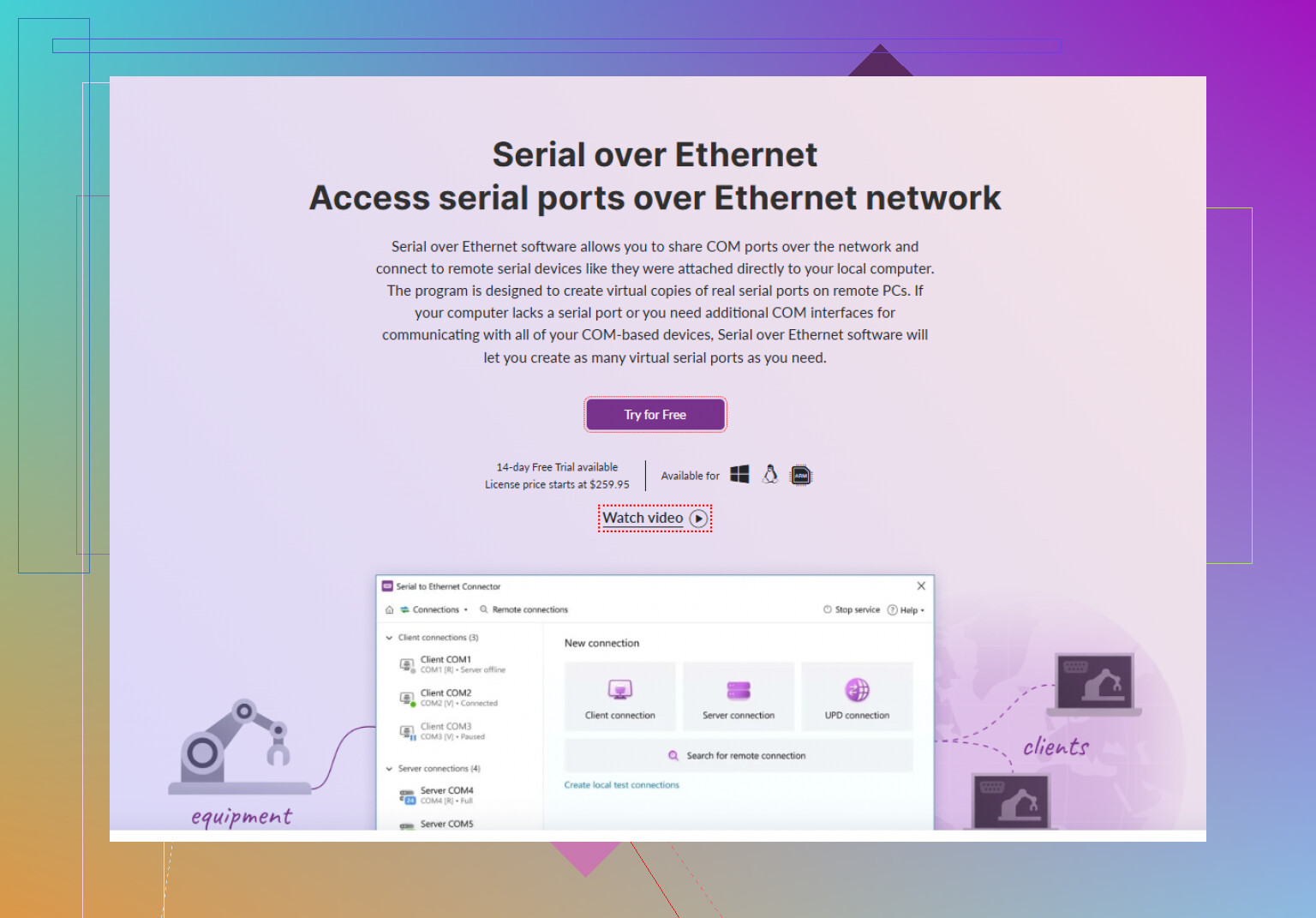
This is usually the least painful route. On the Windows host, you install something like Serial to Ethernet Connector, point it at your actual COM port (COM1, COM2, whatever), and it exposes that port as a network‑shared serial device.
Inside the VM, you either:- Create a virtual COM port that connects to that TCP endpoint, or
- Use your legacy app directly over the network endpoint if it supports it.
Tools like Serial to Ethernet Connector are tailored for Hyper V serial access, and they basically make the guest think it has a local COM port while the host is doing the real talking to the hardware.
-
Use a USB to serial adapter passed to the VM in a roundabout way
Hyper‑V does not do direct USB passthrough to the guest, but if your serial interface is USB:- Plug the USB serial adapter into another physical machine or even the same host.
- Share that serial port over the network with Serial to Ethernet Connector or similar.
- Connect from the VM over TCP, same idea as above.
So you’re still not doing “raw Hyper‑V passthrough,” you’re tunneling it over IP.
-
Run the app on the host and remote into it
Boring but sometimes simplest. Install the legacy app on the host where the real COM port lives and then just RDP into that machine from your “VM” environment. Not pretty, but works when you just need the device online and don’t care where the app actually runs.
If you want a guide that’s specific to this, check out something like
setting up reliable serial communication in a Hyper V virtual machine. It walks through how to get a Hyper V compatible serial connection working so the guest OS can talk to physical serial hardware without you fighting named pipes all day.
Bottom line: Hyper‑V won’t do true “hardware COM passthrough” on its own. The usual fix is to virtualize the serial port over the network (Serial to Ethernet Connector is built exactly for that) and let the VM connect to it as if it were local.
Hyper‑V + physical COM passthrough is one of those things that should exist but simply… doesn’t. @caminantenocturno already covered the virtualized-over-network angle pretty well, so I’ll skip rehashing pipes-and-TCP and add some other routes you can take (and a couple of “don’t bother” paths).
First, to clarify one common misconception:
The COM port option you see in Hyper‑V settings is only for debugging with named pipes. It’s not like VMware’s “use host COM1” feature. No amount of fiddling in that UI will make your guest see the host’s physical COM port as real hardware.
Here are some alternative tactics, from most “sane” to “why am I doing this to myself”:
-
PCIe/PCI serial card passed to a VM via an intermediate layer
Hyper‑V does not support generic PCI passthrough, so you cannot just cram a PCIe serial card into the host and map it to the VM like you might on ESXi. But unless you feel like rebuilding your setup, this entire direction is a dead end on Hyper‑V. If you see people talking about “SR-IOV” or “Discrete Device Assignment” for GPUs, note that regular serial cards are not really viable there for most setups. So I’d personally skip hardware passthrough attempts on Hyper‑V. -
Use a network serial device instead of the PC’s COM port
Instead of trying to pass a host COM port to the VM, offload the serial problem to a hardware box that is designed to talk over IP.
For example, something like a Lantronix / Moxa / similar “serial-over-Ethernet” hardware adapter:- Serial device plugs into the box.
- Box is on your LAN.
- VM connects to it via TCP or via a vendor driver that creates a virtual COM port in the guest.
This feels backwards at first, but in practice it’s often more reliable than any Hyper‑V hack, especially if multiple VMs or hosts might need that device later.
-
Use a different hypervisor if COM access is mission‑critical
Slightly contrarian to what @caminantenocturno suggested: if this serial device is absolutely central to your job, I’d honestly consider moving this particular VM to a hypervisor that does actual serial passthrough at the host level, such as:- VMware Workstation / Player on Windows
- VirtualBox on Windows
Both can map host COM1/COM2 directly to the guest. Then you can: - Either run just this one VM in Workstation/VirtualBox
- Or run the VM there and keep the rest of your stuff in Hyper‑V.
Yeah, running two virtualization stacks is a bit janky, but it beats spending hours debugging Hyper‑V named pipes that will never behave like a real serial port.
-
Run the guest OS “bare metal” in a dual‑boot or on a spare machine
If your legacy app only runs in, say, an old Windows version and really wants direct access to COM1, sometimes the most time‑efficient solution is:- Install that OS on a small spare PC or a cheap mini‑PC with a real COM port.
- Access it via RDP from your main machine.
It feels like going backwards in time, but the serial hardware will Just Work because there is no hypervisor in the way at all.
-
Combine RDP and remote serial use more creatively
Instead of trying to make the VM talk to the COM port, flip it:- Install the legacy software on the host (where COM1 lives).
- Use the VM purely as your “work environment” and RDP into the host only when you need to operate the device.
This is boring and not very “pure,” but if the device is used occasionally, this is often the least painful hack.
About the software solution @caminantenocturno mentioned (Serial to Ethernet Connector): that’s actually one of the better approaches when you must stay with Hyper‑V. On the host, it exposes the real COM port over the network; inside the VM, it creates a virtual COM port that forwards all data over TCP. From the app’s perspective, it looks exactly like a local serial port, but all the real serial traffic is handled by the host.
If you want something robust and Hyper‑V friendly for serial communication, this kind of tool is worth a serious look. You can grab a Windows build and test it out from here:
reliable serial-over-Ethernet tools for Windows
To summarize without the fluff:
- Hyper‑V will not give you “proper” hardware COM passthrough.
- Named pipes in Hyper‑V are for debugging, not legacy device access.
- Practical solutions are:
- Network-based serial sharing using something like Serial to Ethernet Connector.
- Hardware serial-to-Ethernet device boxes.
- Different hypervisor that actually supports host COM mapping.
- Or run the app closer to the metal and just remote into it.
If you post the exact legacy app and what speeds / parity / odd serial quirks it needs, people can probably say which of these options is least likely to choke on it.
Short version: you’re not missing a magic Hyper‑V checkbox. There isn’t one. What you can do is pick the least painful workaround that fits how critical and “weird” your serial device is.
Since @techchizkid and @caminantenocturno already covered the usual named‑pipe / TCP tunneling angle pretty well, here are some extra angles plus a more critical look at using Serial to Ethernet Connector.
1. Clarify what your actual constraints are
Before choosing a route, answer:
- Does the legacy app hard‑require a COM port (COM1, COM2) or can it talk via TCP?
- Is the device timing sensitive (fast polling, custom baud, weird flow control)?
- Is this 24/7 production or “I use it a couple times a week”?
If it is very timing sensitive and production critical, you should be more skeptical about any network virtualized serial solution, including Serial to Ethernet Connector or hardware serial servers.
2. Serial to Ethernet Connector: realistic pros and cons
Both previous replies mentioned Serial to Ethernet Connector, and for Hyper‑V this kind of tool is actually one of the more practical options, but it is not magic.
Pros
- Gives the guest a real COM port object in Device Manager.
- Works over TCP/IP, so you are not fighting Hyper‑V’s lack of COM passthrough.
- Lets multiple VMs or hosts potentially access the same physical port (with care).
- Easier and faster to get going than deploying a dedicated hardware serial server.
Cons
- Costs money; you are adding another proprietary layer in a critical data path.
- Adds latency and one more moving part that can break (service crash, Windows update).
- Timing‑sensitive protocols or odd baud / parity combinations may behave differently under load.
- Troubleshooting can get hairy: is the problem the VM, the app, the COM driver, or the connector service?
My rule of thumb:
For typical 9600 / 19200‑baud industrial stuff or diagnostic consoles, Serial to Ethernet Connector is usually fine. For ultra‑finicky real‑time gear, I would seriously consider something more direct.
3. Hardware serial device servers as an alternative
@caminantenocturno hinted at Lantronix / Moxa style boxes. These have their own tradeoffs compared with Serial to Ethernet Connector:
Pros
- Purpose‑built hardware that tends to be rock solid once configured.
- Offloads serial timing from your Windows host and Hyper‑V stack.
- Often supports a vendor driver that presents a COM port in the VM.
Cons
- Extra hardware to buy and maintain.
- Another point of failure on the network.
- Vendor drivers can be finicky across OS versions and updates.
If this serial device is business‑critical and always‑on, I generally trust a decent serial device server a bit more than stacking more Windows software on top.
4. Where I partially disagree with the previous answers
- Both @techchizkid and @caminantenocturno focus heavily on the network‑virtualization route. That is fine, but I think they underplay a very simple option: stop fighting Hyper‑V entirely for this one workload.
If:
- This one VM is only needed because of that serial device
- And the app really wants deep, direct access to COM
Then honestly:
- Put it in VMware Workstation or VirtualBox on the same host and map COM1 directly, or
- Stick the OS on a small separate box with a physical serial port and RDP in.
Yes, running two hypervisors or a spare box sounds ugly. In practice, it is often less ugly than debugging edge‑case serial timing issues for days.
5. Practical decision matrix
Use this to decide quickly:
- Light / occasional use, not too timing sensitive
→ Try Serial to Ethernet Connector on the host, VM uses virtual COM. - Always‑on production, moderate timing sensitivity
→ Consider a dedicated serial device server box instead of host‑based software. - Very sensitive / old / finicky legacy protocol
→ Move that workload to a hypervisor that supports real COM passthrough or to bare metal, and remote into it.
If you share which device and app you are working with (baud, parity, handshake, how “chatty” the protocol is), people can usually say whether Serial to Ethernet Connector is likely to behave well for your specific case or if you should skip straight to hardware or a different hypervisor.
Try Remote Desktop COM redirection if your Windows guest supports incoming RDP. It shares your host’s serial port with the remote session without a separate serial connector.
On your host, save an mstsc conection as an .rdp file. Open it in Notepad and add redirectcomports:i:1 to its setings. Connect to your VM through this file, then launch your legacy app inside the remote session. Keep guest policy “Do not allow COM port redirection” disabled. This provides session-based access, rather than permanent VM hardware passthrough.
RDP COM redirection has a catch that trips people up: it forwards the serial port from whatever machine you’re connecting from, into the session on the machine you connect to. So if the physical COM port lives on your host and you’re RDPing into the guest, the device has to be on the client side for that redirect to do anything useful. @maxthewidget’s setup can work, but only if you’re clear on which side actually owns the hardware. And it dies the moment you log off, which is fine for occasional use and useless for anything that needs to keep running.
That last part is where I’d lean on Serial to Ethernet Connector over the RDP trick if this is a device you want available even when nobody’s sitting at the machine. It runs as a background service on the host, so the shared port stays up across logoffs and reboots without you babysitting a session. For a legacy device that some scheduled job or always-on app talks to, that alone makes it the saner choice.
I think @yozora nailed the real decision point though. Timing sensitivity is what breaks these network serial setups, not the COM emulation itself. If your device is a plain diagnostic console at a normal baud rate, any of these routes will hold up. If it’s chatty with tight timing, stop tunneling and put it on bare metal.