My Windows PC keeps showing the “Parameter is incorrect” error when I try to open my external hard drive, and it won’t go away after reconnecting it. I need help figuring out how to fix the external hard drive error without losing my files.
This usually isn't a total disaster, but it depends on what caused it. I've seen this happen with external drives where the data was still on the disk, but Windows couldn't read the file system properly anymore.
I would not start with formatting or CHKDSK if the files matter. Those are repair steps, not recovery steps, and if the file system is damaged or the drive is beginning to fail, they can make things worse. Get the important data off first, then deal with fixing the drive.
Start with the basic checks before doing anything heavy:
- Swap the USB cable.
- Plug the drive straight into the computer, not through a hub.
- Try a different USB port.
- Test the drive on another PC.
- Check Disk Management and see whether the drive shows up with the right size.
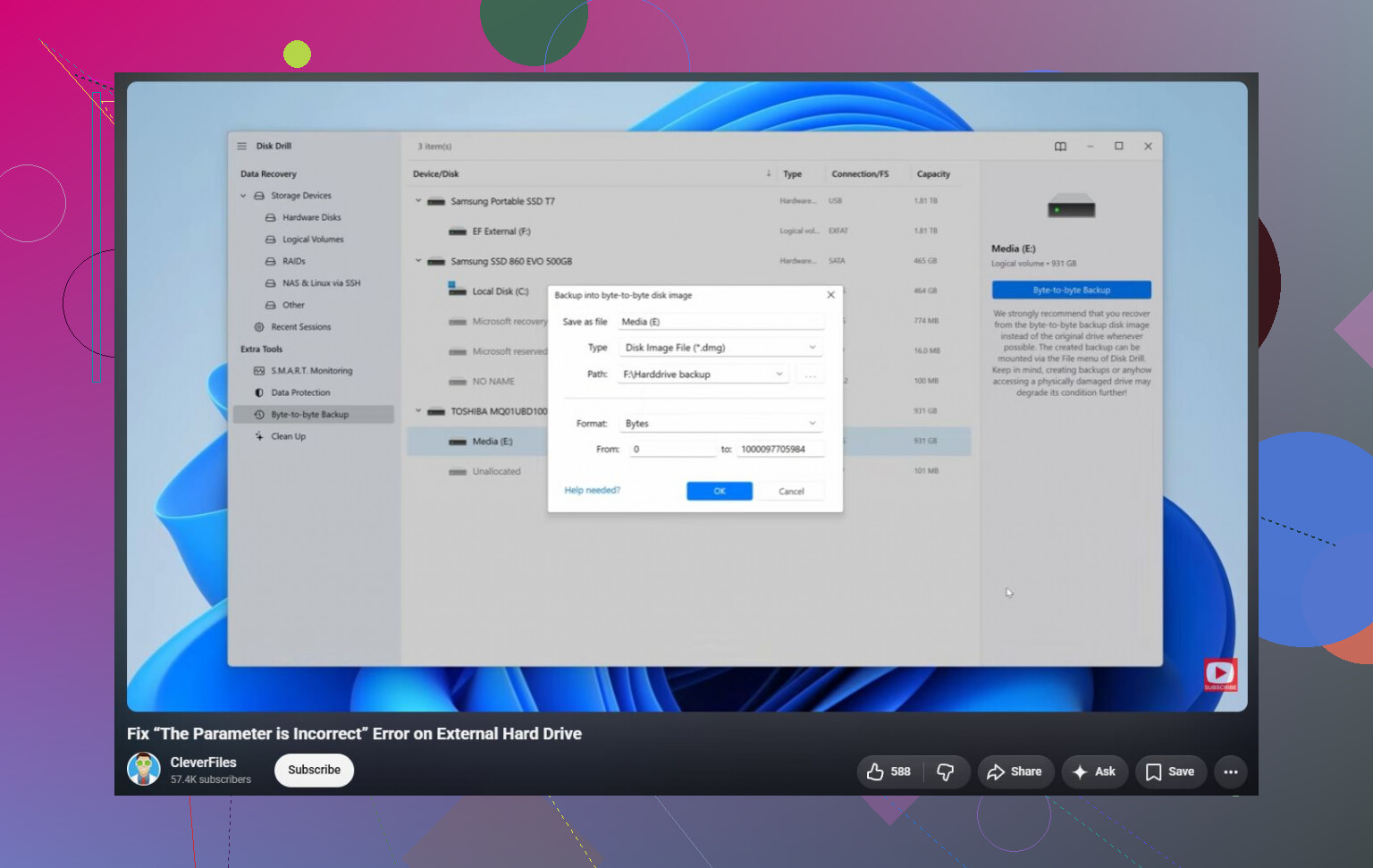
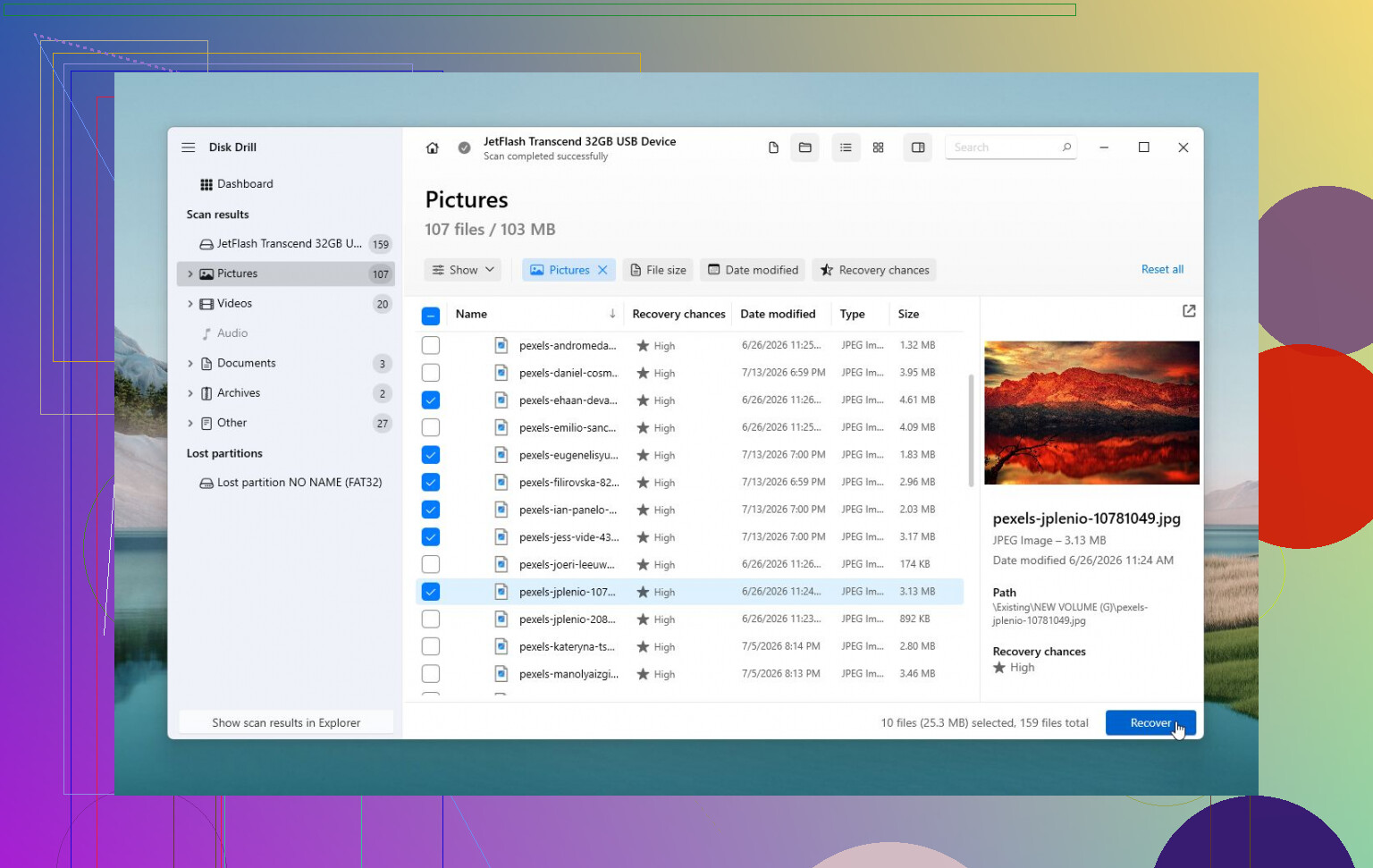
If Windows can still see the drive, recovery software is the safer next move. Disk Drill is a decent option here because it can sometimes read a drive even when Windows gives the 'The parameter is incorrect' message. If the drive is acting flaky, make an image of it first and scan that image instead of scanning the physical drive directly. That gives you a better shot if the drive is getting worse.
After the files are copied somewhere safe, then you can try fixing the drive:
- If the file system is still recognized, run
chkdsk X: /r, replacingX:with the correct drive letter. - If the partition shows as RAW or CHKDSK refuses to run, try TestDisk. In some cases it can repair partition damage without wiping the drive.
- If recovery is already done and nothing else helps, a quick format can clear logical file system corruption by creating a new file system.
There is also one weird Windows-related thing worth checking. If this started right after changing regional settings, make sure the decimal separator is set to a period (.). It is uncommon, but it can trigger this error on some setups.
If the drive is clicking, dropping in and out, vanishing from Disk Management, or SMART shows a lot of reallocated or pending sectors, stop using it. That points more toward hardware failure, and at that stage a professional recovery lab is usually the safest option if the files are important.
Don’t keep unplugging it and retrying while Windows is still trying to read it. That can make a marginal drive worse, and it can leave the file system in a dirtier state each time if writes are pending.
@mikeappsreviewer is right that CHKDSK should wait if you care about the files. The angle I’d check first is whether the error is really the disk or the USB side of the setup. If Disk Management shows the wrong capacity, no partition layout, or the drive appears and disappears, treat the enclosure/cable/power as suspect. For a desktop external drive, use its original power adapter if it has one. For a portable drive, avoid front-panel USB ports and cheap extension cables since they can cause weird read errors that look like file system damage.
If the drive shows the correct size and the partition still looks like NTFS or exFAT, try reading it without File Explorer before doing repairs. Open Command Prompt and run dir X:\ with the right letter. If that lists files, copy the important stuff out with something basic like robocopy X:\ D:\Recovered /E /R:1 /W:1. Explorer can sometimes choke on a bad folder or metadata problem while command-line copying still gets a lot of the files off.
Once the files are safe, then repair attempts make sense. If you can’t list anything, or the drive is RAW, I’d image it or scan it with recovery software such as Disk Drill rather than poking at the original over and over. If the drive makes clicking noises or keeps disconnecting, stop there and don’t try to “fix” it in software. That’s usually past the point where normal Windows tools are your friend.
If Disk Management shows the partition normally and the size is correct, I’d try removing the drive letter and assigning a new one before doing anything destructive. Windows can get weird with a stale mount point, especially if the same letter was used for a card reader, mapped drive, phone, or backup disk before. Right-click the partition in Disk Management, choose “Change Drive Letter and Paths,” remove the current letter, then add a different unused one like M: or P:. If it opens after that, copy your files off right away and then run checks later. If Disk Management itself freezes, shows RAW, or asks to initialize the disk, don’t do this and stick with the recovery-first advice above.
If the drive still shows the right size but Windows refuses to browse it, try a Linux live USB before repairing anything. Sometimes Linux will mount an NTFS/exFAT drive read-only when Explorer just throws “parameter is incorrect,” and that’s a cheap way to copy files off without touching CHKDSK yet. If Linux also errors or the drive drops out, then I’d stop treating it like a Windows problem.