My iPhone storage is almost full, and most of it looks like junk, cached files, old app data, and random downloads. I’m not sure what’s safe to delete or which iPhone storage cleanup steps actually work without losing important photos, messages, or apps. What’s the best way to free up space?
Start with Settings > General > iPhone Storage. That’s the part that actually tells you what’s eating the space instead of guessing.
I had the same thing happen a few months after a vacation. My iPhone kept warning me that storage was almost full, and I figured there had to be some kind of junk folder to clean out, like on Windows. There really wasn’t. In my case, the problem was mostly photos and videos, by a lot.
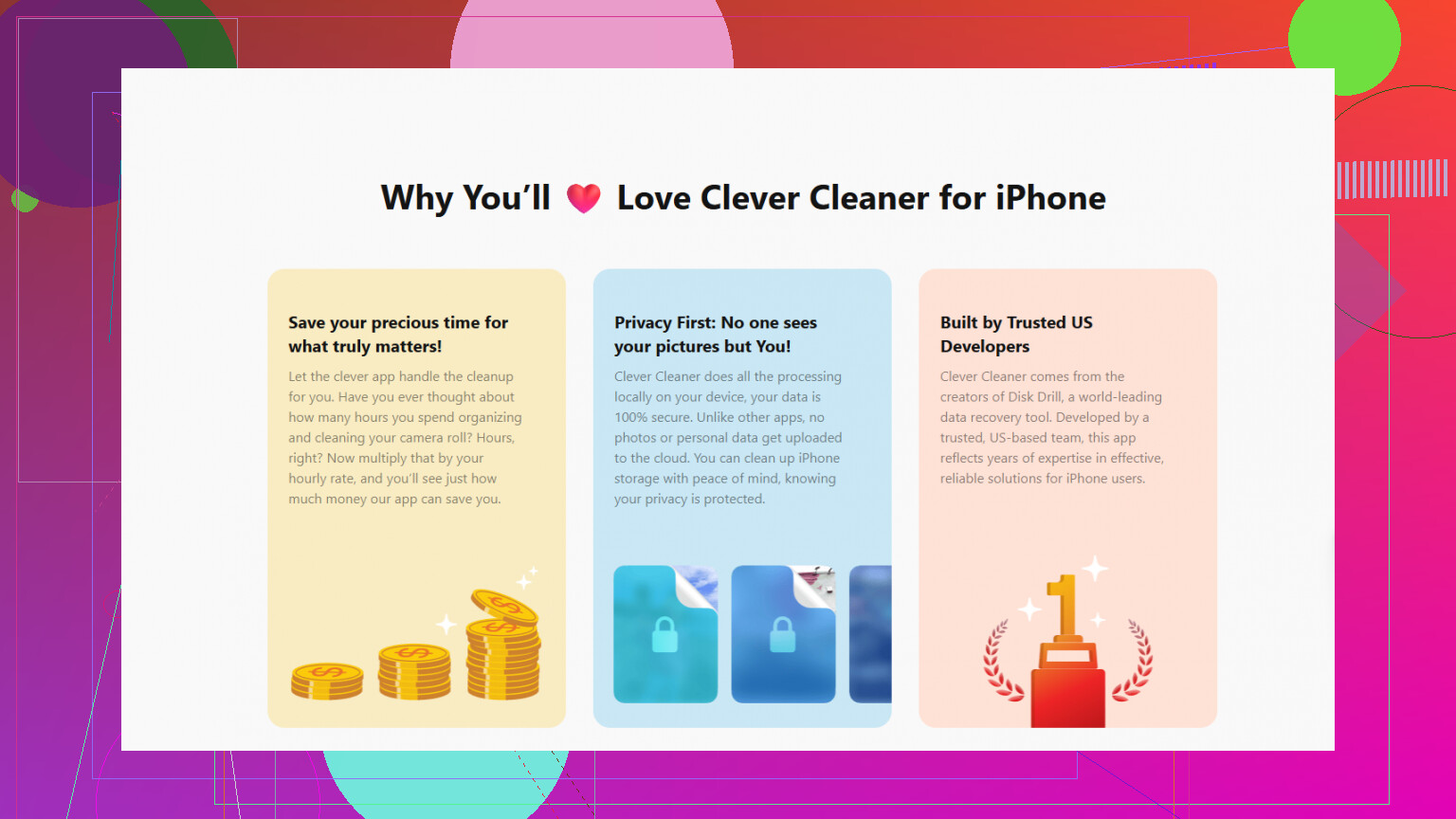
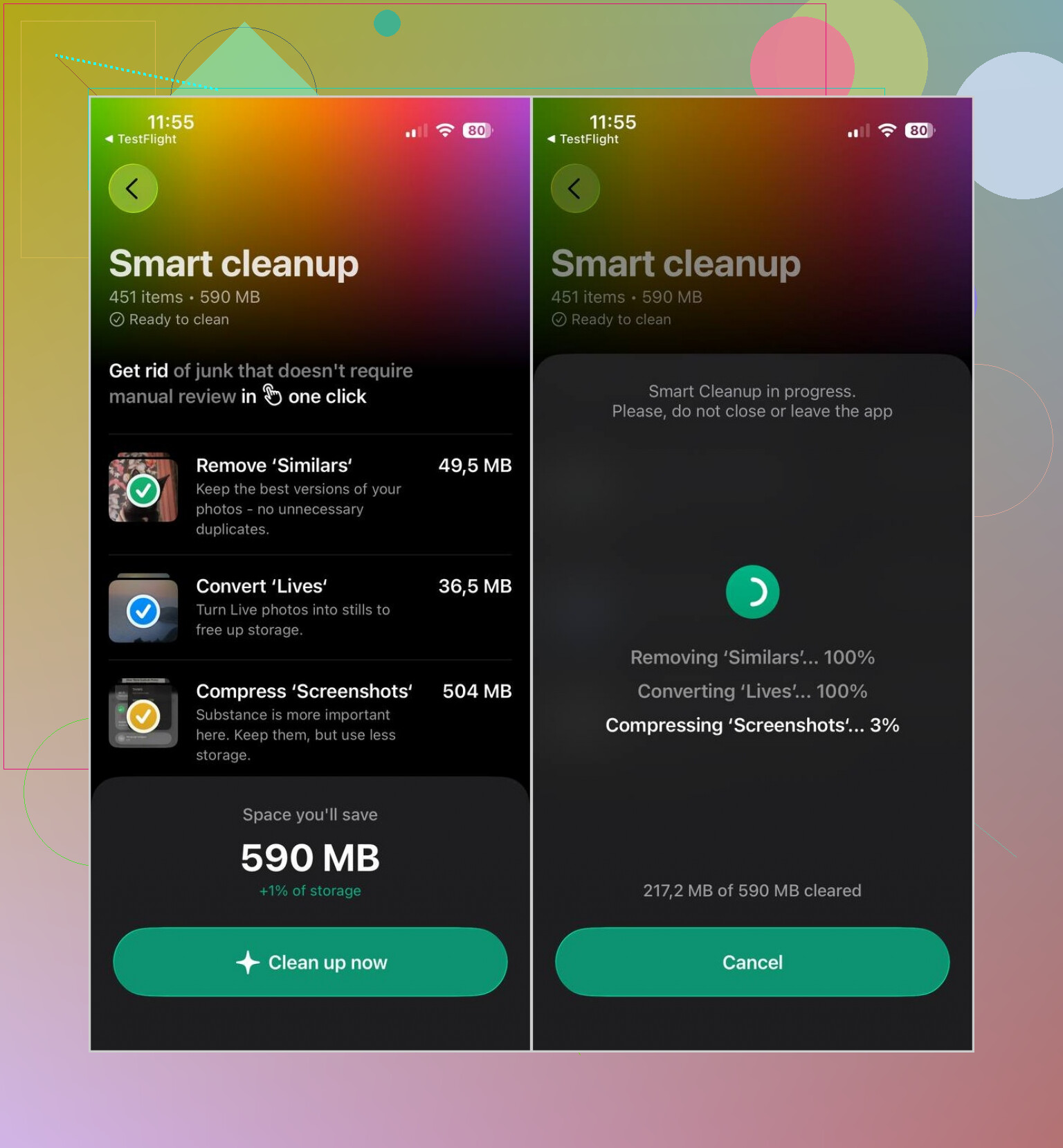
What made the biggest difference for me was cleaning up the photo library first. The Photos app can catch exact duplicates, but it doesn’t do much for all the almost-identical shots, big videos, screenshots, and Live Photos. I used Clever Cleaner for that. It checks everything locally, doesn’t have ads, and the free version was enough for normal cleanup stuff. Just don’t forget to empty Recently Deleted afterward, because the space won’t come back right away if those files are still sitting there.
After that, I’d check a few other obvious places:
- Delete apps you haven’t used in forever, or use Offload App if you want to keep the app’s data.
- Clear Safari or Chrome browsing data.
- Look inside apps like Telegram or Spotify for cached files, downloads, or saved media.
- Open the Files app and check Downloads. Old PDFs, ZIP files, and random attachments can pile up without you noticing.
- If Messages is high on the storage list, go through old conversations and remove big photo or video attachments.
One thing I wouldn’t trust is any app claiming it can clean all iPhone junk files or wipe hidden system caches. Apple doesn’t let App Store apps reach that stuff. Most real space savings come from photos, videos, downloads, app caches you’re allowed to clear, and apps you don’t use anymore.
So yeah, check the storage breakdown first. It usually points straight to the thing worth fixing.
If your storage is full because of photos or downloads, you can usually make space fast; if it’s mostly “System Data,” that’s a different problem and cleaner apps won’t really touch it. For that case, try the boring stuff first: restart the phone, update iOS if there’s an update waiting, delete large offline content inside apps, then leave the phone plugged in on Wi-Fi for a while so iOS can finish housekeeping. I agree with @mikeappsreviewer that the storage screen is where to start, but don’t chase every “junk” label like it’s a trash folder. On iPhones, the safest wins are removing media, old message attachments, offline maps/music/videos, and unused apps. If System Data stays huge after all that, the more drastic fix is an encrypted backup, erase, and restore, but I wouldn’t do that unless the storage number is really ridiculous.

Do not delete anything from Photos until you know whether iCloud Photos is turned on. If it is syncing, deleting a photo from the phone usually deletes it from iCloud and your other Apple devices too. A lot of people think they are “removing it from this iPhone” when they are actually deleting the library copy.
For photos, the safer storage move is usually to go to Settings > Photos and turn on Optimize iPhone Storage. That keeps smaller versions on the phone and leaves the full-size files in iCloud, assuming you have enough iCloud storage. It is not instant, so don’t expect 40 GB to appear five seconds later. The phone has to be plugged in, on Wi-Fi, and given time to sort itself out.
I agree with the others that Settings > General > iPhone Storage is the right starting point, but I’d be careful about treating that screen like a to-do list where everything must be erased. Some app storage is real data. Some of it is cache. Some of it is “I downloaded half of Netflix and forgot.” The safest pattern is to open the app that is using the space and delete downloads from inside that app first. That matters for stuff like Spotify, YouTube, Netflix, Audible, podcast apps, Google Maps offline areas, Kindle books, and chat apps.
Messages is another sneaky one. If Messages is high on the list, go to iPhone Storage > Messages and look at large attachments. You can usually remove old videos, GIFs, and huge image threads without deleting the whole conversation. That is cleaner than randomly wiping chats and then realizing you needed something.
For apps, I prefer offloading before deleting if I’m unsure. Offload App removes the app itself but keeps the documents and data. If you reinstall later, your data should still be there. Delete App is the harsher option and can remove local data. That difference matters with apps that store projects, notes, saved files, or login/session data locally.
The “junk cleaner” idea is where expectations get weird. iPhones do not work like a PC with a giant temp folder you can safely empty. Third-party cleaner apps can help with things they are allowed to see, mainly photos, videos, contacts, calendar clutter, and sometimes duplicate-looking files. They cannot properly clean hidden iOS system caches across the whole phone. So if an app claims it will remove all secret junk and magically fix System Data, I would treat that as marketing.
Before doing any aggressive cleanup, make a backup. iCloud backup is fine for most people, but if you are about to delete a lot, I’d rather have a computer backup too, especially an encrypted one if you use Finder or iTunes. That keeps more account and health/password-related data than a plain backup. It is boring, but it beats realizing after the fact that a “random download” was the only copy of something.
A quick practical order I’d use:
Check iPhone Storage and identify the top three categories.
Handle downloaded media inside the apps first.
Turn on Optimize iPhone Storage if Photos is the issue and you use iCloud Photos.
Clear large Messages attachments instead of nuking whole conversations.
Offload apps you rarely use.
Empty Recently Deleted in Photos and Files after you are sure you do not need the items.
Restart the phone and give it some time before judging the final number.
If the storage bar still says a massive amount is System Data after all that, then yeah, @boswandelaar’s backup, erase, restore route is the real reset button. I just would not start there. Most “full of junk” iPhones are really full of media, app downloads, and message attachments, not actual removable system trash.
Open the Files app and check Browse > On My iPhone before you start deleting apps. A surprising amount of “junk” is just stuff saved locally by Safari, Mail, WhatsApp exports, PDF viewers, scanner apps, or random ZIP files you downloaded once. The iPhone Storage screen won’t always make that obvious because it may show the space under an app name instead of saying “Downloads.”
I’d push back slightly on offloading as a cleanup tool. Offloading is good if you want to remove the app but keep its data, but that is exactly why it sometimes does not solve the problem. If an app is bloated because its Documents & Data is huge, offloading may leave the bulky part behind. For apps where everything important is cloud-based, like social media apps, streaming apps, Reddit-type apps, shopping apps, etc., deleting and reinstalling can clear more cache than offloading. Just don’t do that with apps that store work locally unless you know it’s backed up.
A photo cleanup app like Clever Cleaner can make sense if your camera roll is the big problem, especially for similar shots and large videos, but I wouldn’t spend time there if Settings says the real hog is one or two apps. The fastest cleanup is usually boring: remove downloaded shows/music/podcasts, delete big message attachments, empty Files downloads, then reinstall cache-heavy apps that you can safely sign back into.
Another annoying detail: the free space number can lag. After deleting a bunch of stuff, empty Recently Deleted in Photos and Files, restart the phone, then check again later. If the phone is almost completely full, iOS can act weird while trying to clean itself up, so try to free even 2 to 5 GB first before doing anything bigger like an update or backup.
For “safe to delete,” I’d use this rule: delete copies, downloads, and cloud-synced stuff first. Be suspicious of anything named Projects, Recordings, GarageBand, Voice Memos, local notes, scanner documents, or app folders in Files. That “random” file might be the only copy.
Half the time these ‘storage full’ panics aren’t even about the phone. People get an iCloud full warning and a device storage warning and treat them as the same thing. They aren’t. Freeing 20GB off your camera roll does nothing for a full iCloud, and paying for more iCloud does nothing for a physically full phone. Check which alert you’re actually getting before you start deleting stuff.
That matters for the Optimize iPhone Storage tip @voyageurdubois gave, which is solid advice but has a catch nobody mentioned: it only helps if your iCloud has room for the full-size originals. If your iCloud is already maxed at the free 5GB, turning on Optimize just leaves everything sitting on the phone because there’s nowhere to offload to. So that step quietly does nothing for a lot of people until they either buy more iCloud or clear space up there too.
On the cleaner app that keeps coming up, Clever Cleaner is fine for the photo pile specifically, similar shots and fat videos, and the local-only bit is the reassuring part. But I’d set expectations low. It’s a photo tool, not a storage fixer. If Settings says your top hog is one app or Messages, opening that app yourself will always beat running a cleaner and hoping.
The thing people forget is that iOS gets genuinely flaky when the phone is stuffed right to the edge. Deletes don’t register, the free space number sits frozen, backups fail halfway. @jeff already touched on this, and it’s real. Claw back even a few gigs by hand first, restart, then let it settle for an hour or so before you judge anything. Chasing the number in real time will just annoy you because it updates on its own schedule, not yours.
And before the drastic backup-erase-restore route, ask whether you actually need to. That’s a whole afternoon and a real risk if a backup goes sideways. Most ‘full of junk’ phones are just full of video and downloaded media, so I’d only reach for the nuclear option if System Data is stuck at something absurd like 40 or 50GB after everything else is clean.