My iPhone storage is completely full, and now I can’t install updates, save new pictures, or use some apps normally. I have thousands of photos I really need to keep, so I’m looking for the best ways to clear space without deleting them. What should I remove or change first to free up storage safely?
I dealt with this for months, and yeah, it wore me out. I’d try to grab a quick video, save a file from work, even update an app, and the phone would throw the same ‘Storage Full’ warning in my face again. After a while the low space issue stopped being a warning and turned into a whole-phone problem.
Once mine got packed, it started dragging. Apps opened slow. The keyboard lagged. Photos took a beat to load. A few times the screen froze for a second or two and I thought the phone was dying. It wasn’t. I later learned iPhones need some free room for temp files and routine system tasks. When storage gets squeezed too hard, the phone starts feeling older than it is.
I spent way too long doing cleanup by hand. I deleted random screenshots, old memes, a few duplicate pics. Barely changed anything. What moved the number for me was Clever Cleaner.
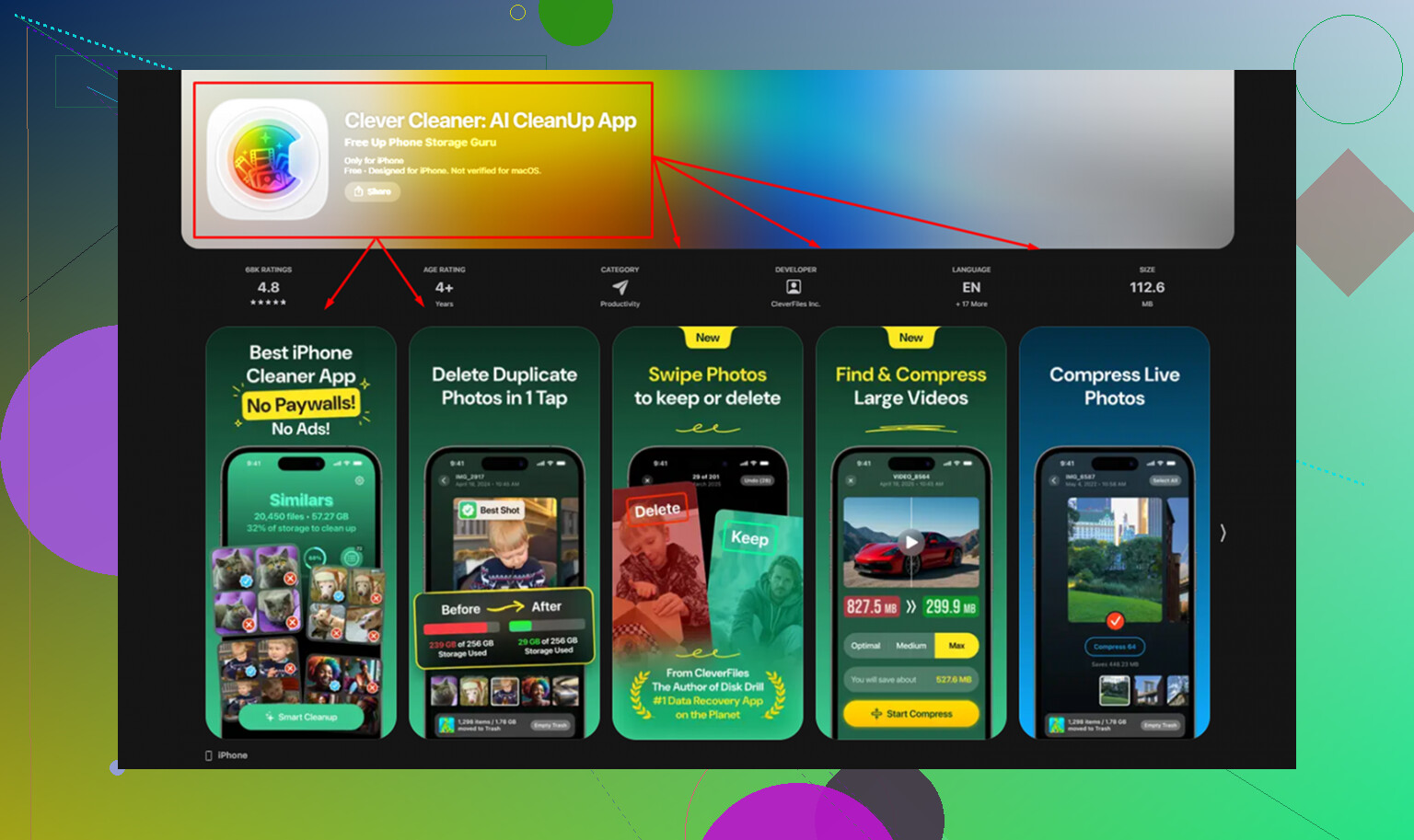
I’m usually suspicious of cleanup apps on iPhone. Most of the ones I tried were junk, full of ads, or they blocked the useful part behind a subscription screen five seconds in. This one felt different because it was free, no ads, no paywall, no weird upsell screen every minute.
The parts I used most:
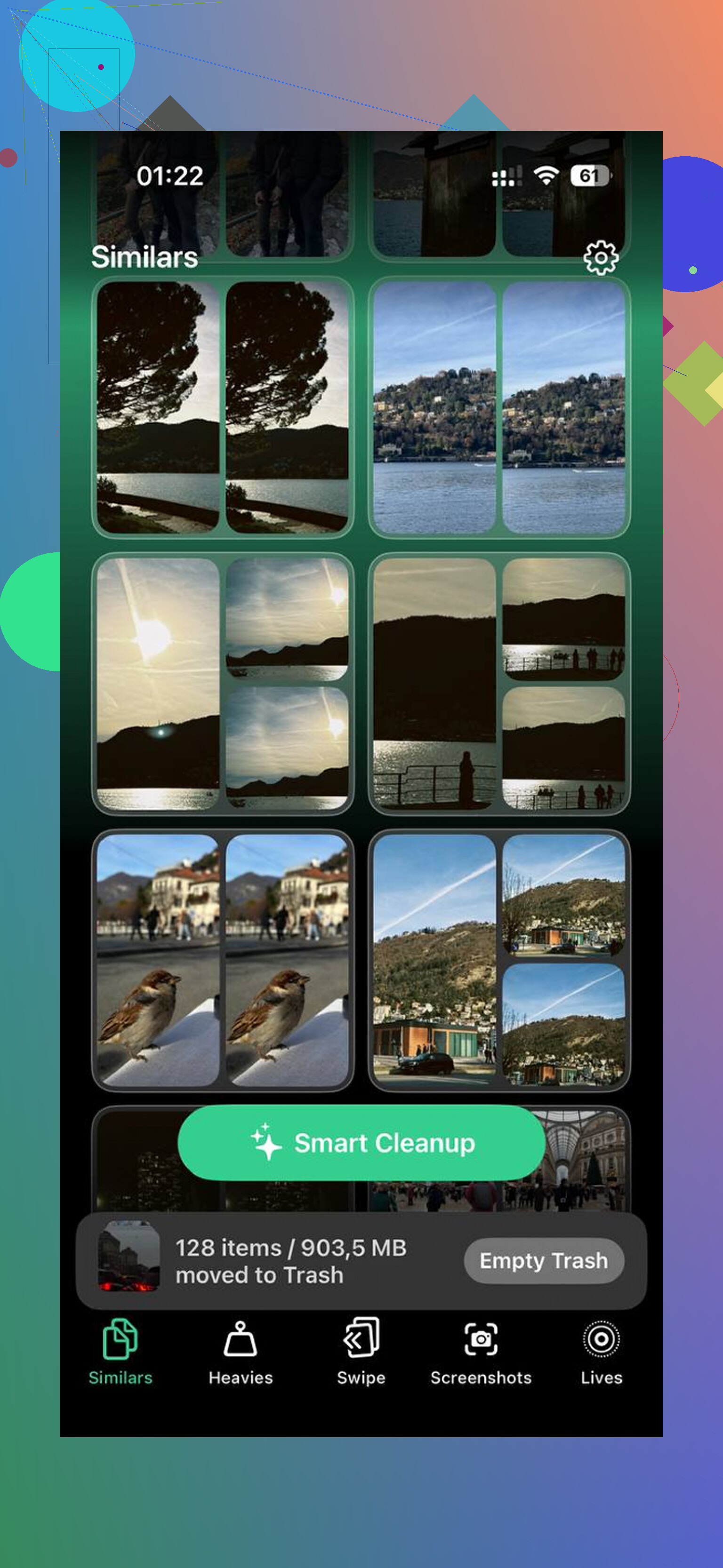
Similars
This one found near-duplicate photos fast. If you take five or ten shots of the same thing to get one decent pic, this helps. It grouped them, picked a best shot, and I dumped the extras without sorting one by one.
Heavies
This was the one I needed. The normal Photos app never gave me a clean way to sort big videos by size. Here I could see which old clips were taking 1GB, 2GB, sometimes more. It also showed screenshot sizes, which helped me stop deleting tiny files while giant videos sat there untouched.
On-device processing
This mattered to me more than I expected. My photos stayed on the phone during the scan. They weren’t sent off somewhere else. If you care about privacy even a little, you’ll notice this.
If you want to free up space without randomly deleting stuff you still need, these were the methods that worked best for me.
- Turn on iCloud photo optimization
Go to Settings > Photos and switch on Optimize iPhone Storage.
This keeps full-resolution originals in iCloud and stores smaller versions on the phone. Your library still shows up as normal. When you open a photo, the full file downloads if needed. On one phone I saw photo storage drop from tens of gigabytes to a small fraction after this kicked in.
- Offload apps you don’t use
Go to Settings > General > iPhone Storage and look for Offload Unused Apps.
I like this more than deleting apps outright. It removes the app itself but keeps your data, settings, and sign-in info. So if you tap it again later, it comes back how you left it. Good fix for apps you need twice a year but don’t want eating space every day.
- Delete and reinstall social apps
This one felt dumb the first time I did it, but wow, it worked. TikTok, Instagram, Facebook, and similar apps build up cached junk fast. Videos, images, temp files, all of it piles up. A lot of them give you no proper clear-cache option on iPhone.
So I deleted the app, reinstalled it, signed back in. One of mine dropped from around 3GB to a few hundred MB. Worth the two minutes.
- Clear Safari data
Go to Settings > Safari > Clear History and Website Data.
If you browse a lot, Safari stores a surprising amount of leftovers. Clearing it got me back a decent chunk of space. Not massive every time, but enough to matter. You’ll get logged out of some websites, so do it when you’re not in a hurry.
- Convert Live Photos if you don’t care about motion
Live Photos eat more room than standard stills because they store extra movement and audio data. If you never use the motion part, they’re easy space to reclaim. Doing this manually is annoying, which is one reason I used the app above. It has a Lives tool for this.
And this part is easy to miss.
Empty Recently Deleted in Photos.
Deleting files doesn’t finish the job on iPhone. They sit in Recently Deleted for 30 days unless you remove them yourself. So if you cleaned out a bunch of photos and your storage number didn’t move much, check there. I forgot this the first time and thought my phone was broken. Nope. Apple was still hanging onto all of it.
After I finally cleaned mine up, the phone felt normal again. Less lag. Fewer freezes. No more storage warning every time I tried to do something small. If your iPhone is full, start with the biggest files first, not the little junk. I did the small stuff for weeks and got nowhere. The bigger cleanup made the diff pretty fast.
Start with the stuff Apple hides in plain sight.
Go to Settings, General, iPhone Storage. Wait for the color bar and recommendations to load. A lot of people skip the wait and miss the useful breakdown. Look for Messages, Files, Music, Podcasts, Voice Memos, and app data. Photos gets blamed for everything, but on many phones Messages is the sneaky storage hog.
Big one people miss, clean up Messages attachments. Open Messages, tap a convo, tap the contact name, then see Photos, Links, Documents. Old videos people texted you sit there forever. Group chats are usualy the worst. I cleared 6GB on my mom’s phone from message videos alone.
Next, check Files app, Downloads folder, and “On My iPhone.” PDFs, ZIPs, screen recordings, and old AirDrop files pile up fast. Same with GarageBand, iMovie, CapCut, and podcast downloads. Streaming apps too. Netflix, Spotify, YouTube, Spotify, all cache and offline-save stuff.
I slightly disagree with @mikeappsreviewer on one thing. Reinstalling social apps helps, but I’d do a storage audit first. If your phone is at 127.9GB of 128GB, deleting Instagram for 800MB won’t move the needle much if Messages is sitting at 12GB.
If you want to keep photos and still clean safely, Clever Cleaner is worth a look for finding waste around your library. Also, this review from NY Weekly gives a solid breakdown after hands-on testing, NY Weekly’s hands-on Clever Cleaner review for iPhone storage cleanup.
Last thing, restart the phone after cleanup. Storage totals sometims lag. iOS needs a minute to catch up.
If you really do not want to delete photos, then stop treating Photos as the only culprit. I actually agree with @shizuka more than @mikeappsreviewer on that part, because on a lot of iPhones the sneaky storage killers are backups, message attachments, and app data, not just your camera roll.
A few things I’d check that they didn’t really get into:
-
Old iOS update files
Go to Settings > General > iPhone Storage and see if an iOS update is already downloaded. Those can take several GB. Delete it, then re-download later after cleanup. -
Messages set to keep forever
Go to Settings > Apps > Messages > Keep Messages and change it from Forever to 1 Year or 30 Days if you can live with that. This clears a shocking amount of junk, espically old videos. -
Mail attachments
If the Mail app is bloated, remove and re-add your email account. Cached attachments can get ridiculous. -
Voice memos and screen recordings
People forget these exist. One long screen recording can be huge. -
Third-party cloud backup
If you won’t delete photos, move the pressure off the device. Google Photos, OneDrive, or iCloud Photos can hold originals so your phone keeps less local stuff.
And yeah, Clever Cleaner is useful if your library is full of duplicates, similar shots, giant videos, and Live Photos you forgot about. That’s probly the most efficient photo-related cleanup if you want to keep the memories but lose the clutter.
Also worth reading if you’re comparing cleaner apps: why Clever Cleaner is a top truly free iPhone storage cleaner
One more thing people skip: if storage is completely maxed out, do the cleanup while plugged in and after a restart. iPhones get weird when free space hits absolute zero.
A different angle from @shizuka, @byteguru, and @mikeappsreviewer: check what is being synced locally, not just what is stored.
A lot of “full” iPhones are bloated by offline content:
- Apple Music downloads
- Spotify smart downloads
- Netflix/Prime offline videos
- Maps offline areas
- WhatsApp/Telegram media auto-save
Those don’t always stand out until you open each app.
Also, if you use iCloud Drive heavily, open Files and remove local downloads. Many files look cloud-based but are actually cached on-device.
One thing I disagree with a bit: offloading apps is useful, but if your phone is critically full, you need large wins fast. Downloaded media usually clears more space than app binaries.
For photo-safe cleanup, Clever Cleaner is decent if your issue is duplicate shots, similar pics, giant videos, and Live Photo clutter.
Pros:
- easy to spot space-wasting media
- useful for duplicate/similar cleanup
- keeps the process focused on your library
Cons:
- won’t help much if storage is being eaten by messages or app caches
- you still need to review before deleting
- less useful if your photo library is already well organized
My order would be:
- Remove offline downloads
- Disable auto-saving media in chat apps
- Clear local Files downloads
- Then use Clever Cleaner for photo clutter
That combo usually works better than attacking Photos alone.