My iPhone media storage keeps increasing even after I delete photos, videos, and downloaded files. I’ve already cleared recently deleted items, but the storage still won’t go down and it’s taking up a lot of space. I need help figuring out what’s causing this and how to fix iPhone storage not updating properly.
Owning an iPhone taught me one annoying thing fast. The storage graph lies by omission. I’d wipe out downloads, delete old clips, clear random junk, then look again and see Media sitting there like I hadn’t touched a thing. Sometimes it looked worse. Super irritating.
What Apple puts inside 'Media'
Most people read Media and think music, movies, done. It’s wider than that. On my phone, this bucket pulled in a bunch of stuff I forgot even existed:
- Offline songs from Apple Music or Spotify
- Saved podcast episodes
- Audiobooks from Books
- Old voice memos and custom ringtones
- Album art, thumbnails, and other cached graphics apps keep around so scrolling feels faster
If your phone runs iOS 17 or newer, there’s another wrinkle. Apple added 'Synced Media.' This is for files you moved over from a Mac or PC through Finder or iTunes. Before, those files were easier to mentally track because they showed under apps like Music or TV. Now they sit in one big block. No useful breakdown. No easy peek inside. So your Music app might look empty while storage says nope, still full.
Why the number keeps creeping up
I noticed this with podcast apps first. I’d remove a few episodes, then new ones would roll in on their own because auto-download was still enabled. Same story with YouTube and similar apps. Features like Smart Downloads keep grabbing videos in the background. Streaming apps also hang onto cached data, cover images, previews, and temp files. So even if you stopped saving stuff by hand, your phone is still collecting scraps behind the curtain.
Why Apple’s built-in storage screen doesn’t help much
Settings > General > iPhone Storage gives you a list, sure. I didn’t find it useful once the clutter got messy. It shows categories and app sizes, but it doesn’t point out the real offenders in a way normal humans want. It won’t say, hey, these three forgotten videos are 2GB each. It won’t group the nine nearly identical cat pics you snapped in one minute. You end up opening app after app, poking around like you lost your keys in the dark.
What ended up working for me
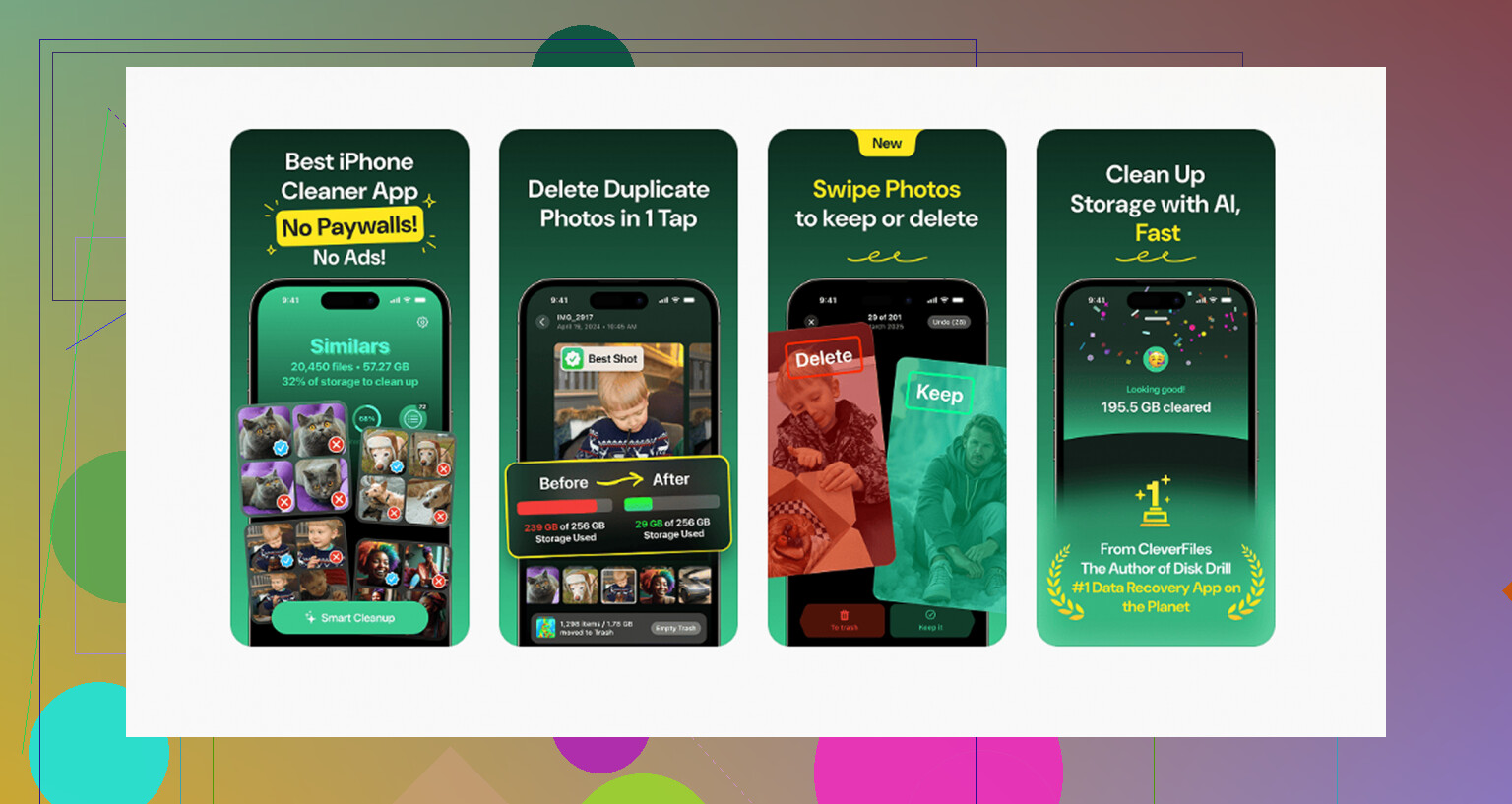
I burned way too much time trying to fix this by hand. After a while I gave up on the built-in tools for photo and media cleanup and used Clever Cleaner. I went in skeptical. Most cleanup apps I tried before had some catch, paywall, ad spam, fake scan, whatever. This one didn’t hit me with any of that when I used it.
Here’s what made it useful on my phone:
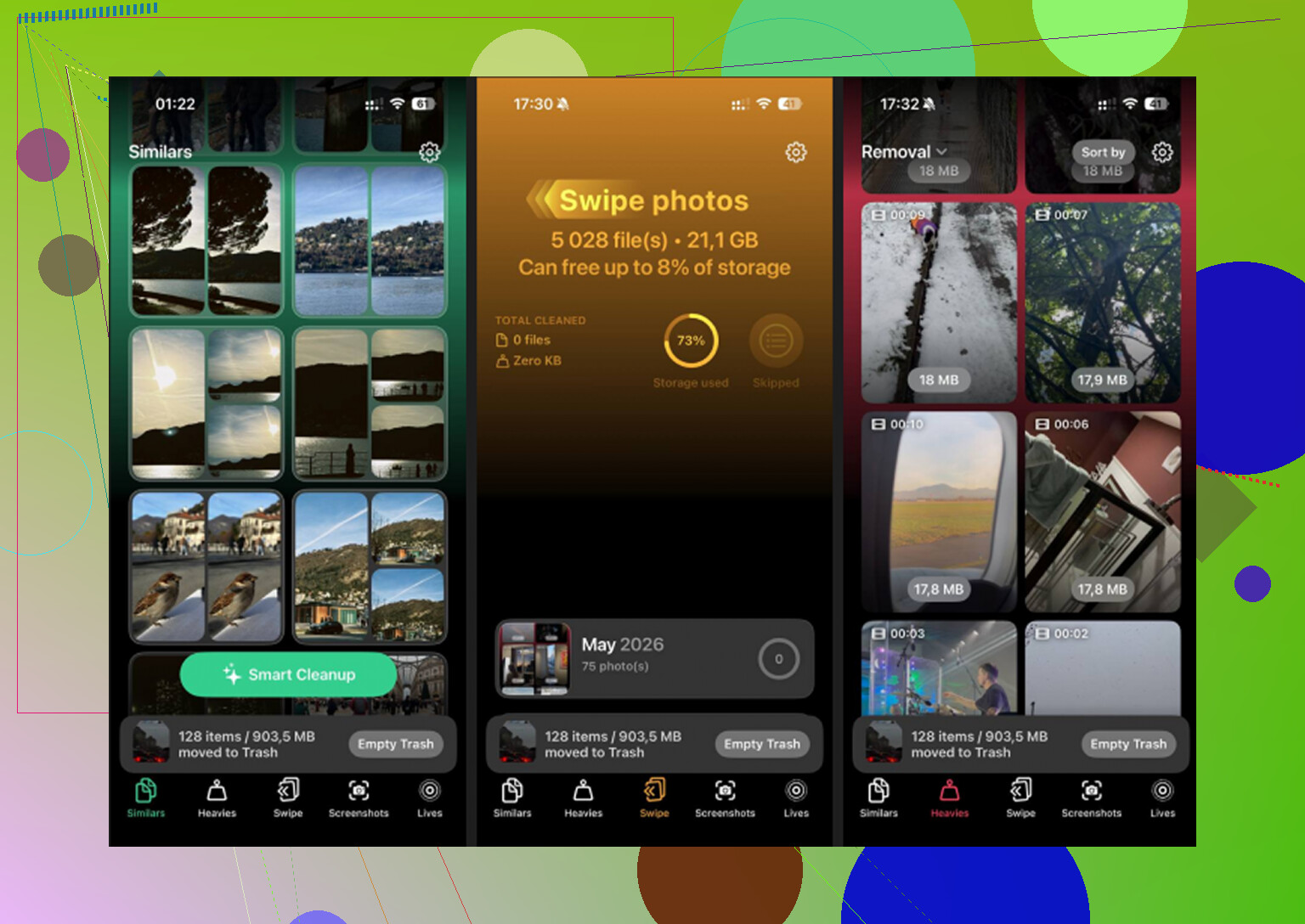
- The Heavies section showed large videos and files sorted by size. This saved me the most time. I found a couple giant 4K clips I forgot about and removed them fast.
- The Similars section grouped near-duplicate photos. Good for burst shots, repeated pet photos, blurry retries, all the usual stuff.
- The Screenshots section cleaned up months of junk I never meant to keep.
- Processing stayed on the device, which mattered to me because I didn’t want my library uploaded somewhere random.
The step people skip
Deleting files is only half the job. Open Photos, check Recently Deleted, and clear it. If you don’t, iPhone keeps those files around for 30 days, and the storage bar often won’t drop the way you expect. I missed this once. Thought my phone was bugged. Nope. The trash was still full.
iPhone storage stats lag a lot. I don’t fully agree with @mikeappsreviewer on one part, the graph is not always “lying.” Sometimes iOS has not re-indexed storage yet. I’ve seen it take hours, and after a reboot it finally dropped.
Try this in order.
-
Restart the iPhone.
A plain reboot forces a fresh storage check more often than people think. -
Turn off sync/download stuff.
Check Music, TV, Podcasts, Spotify, YouTube, Netflix, Audible.
Look for auto-download, offline media, smart downloads.
Those refill storage behind your back. Annoying, but true. -
Check Messages.
Settings, General, iPhone Storage, Messages.
Old videos, GIFs, and attachments eat space fast. I found 6 GB there on my phone once. Photos app looked clean, storage was still packed. -
Clear Safari downloads.
Files app, Browse, Downloads.
Also check On My iPhone. Some apps dump media there and never clean up after themselfs. -
Offload or reinstall the worst apps.
Apps like Instagram, TikTok, Telegram, Spotify, and podcast apps build cache over time. Deleting and reinstalling often cuts 1 to 5 GB. -
Connect to Wi-Fi and power overnight.
iOS does indexing and cleanup jobs when idle. Sounds dumb, works sometiems.
If you want a faster scan, Clever Cleaner is decent for spotting large videos, duplicates, and screenshot clutter. Also, people discussing free iPhone cleaner apps on Reddit seem to rate it well here:
what Reddit users say about a free iPhone cleaner with no ads
If storage still stays stuck after all this, back up the phone, then do a restore. That fixed a “Media” bug for me once. Pain in the neck, but it worked.
One thing I’d add to what @mikeappsreviewer and @sonhadordobosque said: sometimes the space isn’t really “media” in the way Apple labels it. iOS can lump failed sync leftovers, edited-photo versions, and app-created temp exports into storage buckets that make zero sense. So deleting originals does not always kill the extra copies right away.
A couple things worth checking that they didn’t really get into:
- Photos edits: if you edited a lot of videos in Photos, iMovie, CapCut, or VN, exported versions can still be sitting in the library or Files as separate files.
- Files app tags like Recents are misleading. Recents is not a folder. Check actual locations like iCloud Drive, On My iPhone, and app folders.
- Mail attachments: the Mail app can hang onto giant attachments and cached previews. Removing and re-adding the mail account sometimes clears a surprising amount.
- Shared albums: people forget these exist. They do not count exactly the same way as your main library, but they can still confuse what you think you deleted.
- Photo Library sync weirdness: if iCloud Photos is on and Optimize iPhone Storage is off, your phone may be re-pulling full-res media.
My unpopular opinion: I would not jump straight to a full restore unless you’ve checked iCloud Photos settings first. Restores are a pain in the butt and sometimes the same junk comes right back after sync.
Also, go to Settings > Photos and see if “Download and Keep Originals” is enabled. If yes, switch to “Optimize iPhone Storage.” That alone can drop usage after a bit, especailly if you shoot lots of video.
If you want a quicker way to spot the actual big stuff, Clever Cleaner is decent for finding huge videos, duplicate shots, and screenshot clutter without a bunch of nonsense. This explainer is useful too: see how a free iPhone cleaner can clear hidden storage fast.
Honestly, Apple’s storage categories are kind of a mess. Sometimes you fix the files, then wait for iOS to catch up. Annoying, but yeah.
One angle I think @sonhadordobosque, @sternenwanderer, and @mikeappsreviewer only partly touched: streaming cache can survive normal deleting. Not just downloads. Some apps keep temp media blobs until their own cache gets purged, and iOS may still count that under Media instead of the app cleanly.
What I’d check that’s different:
- Settings > Apple ID > iCloud > Manage Account Storage > Backups
If an app is backing up huge local media, that can hint where the bloat really lives. - Voice Memos
People forget this one. Long recordings can be massive. - GarageBand / iMovie / CapCut projects
Project files and exports are separate. Deleting the final video does not always remove project assets. - Books app
PDFs and audiobook downloads hide there forever. - WhatsApp / Telegram internal storage managers
Don’t trust Photos alone for media cleanup.
Small disagreement with the “just wait overnight” advice: sometimes waiting does nothing if an app is actively rebuilding cache every day.
If you want a quicker scan, Clever Cleaner is useful.
Pros: finds large videos fast, helps spot duplicates, simple UI.
Cons: won’t fix every iOS storage bug, less useful for app-specific caches, you still need to verify before deleting.
If Media still climbs after checking those, I’d suspect one bad app, not iOS itself. Delete the likely culprit, reboot, recheck storage, then reinstall only if the number drops.
Since you’ve already emptied Recently Deleted, skip repeating it.
A simpler option, if you already use iCloud Photos, is Optimize iPhone Storage. Open Settings > your name > iCloud > Photos, then select Optimize iPhone Storage. Your originals stay in iCloud while your phone keeps smaller versions when space gets tight. You’ll need enough iCloud space for your library.
Check teh setting before deleting more photos. Storage savings aren’t instant, so dont expect an immediate drop. This targets your photo library rather than the app caches discussed above.
A phone where Media is mostly your own 4K clips behaves nothing like a phone where Media is streaming leftovers, and people keep applying the fix for one to the other. If the bulk is footage you actually shot, then yeah, delete, empty the trash, give iOS a minute, and the bar drops. If the bulk is cache from apps that stream, you can delete photos all day and nothing moves, because none of what you touched was the problem.
That’s why I lean toward @jeff’s point over the ‘just wait overnight’ advice. Waiting does help when it’s a re-indexing delay, but if an app is rebuilding its cache daily, you’re basically racing it and losing. The honest tell is simple: note the Media number, do your cleanup, reboot, check again in a few hours. If it climbs back on its own, stop blaming your photo library and go kill the app that’s refilling. Spotify and the podcast apps are the usual ones for me, but any app with offline playback does it.
One correction on the mental model though. ‘Media’ in that storage bar is not the same thing as your Photos library, so the Optimize setting @swiftadmin2299 and @sternenwanderer mention only touches part of it. Good advice, just aimed at a different bucket.
I’ll still open Clever Cleaner when I want to find the big offenders in my own footage quickly, it’s handy for that. My one gripe is that it lives entirely on the photo side, so if your growing Media is really app cache, it can’t see any of it and you’ll walk away thinking you fixed something you didn’t. Use it for what it’s for, then handle the app caches by hand.