My hard drive started acting up after a sudden shutdown, and now it’s running slow with occasional read errors. I’m looking for reliable hard drive repair software that can scan for bad sectors, fix file system issues, or at least help me recover data before it gets worse. Any suggestions?
The main thing is to get your files off the drive before you start trying to “fix” it. A lot of repair attempts write to the disk, and if the drive is already unstable, that can make recovery harder.
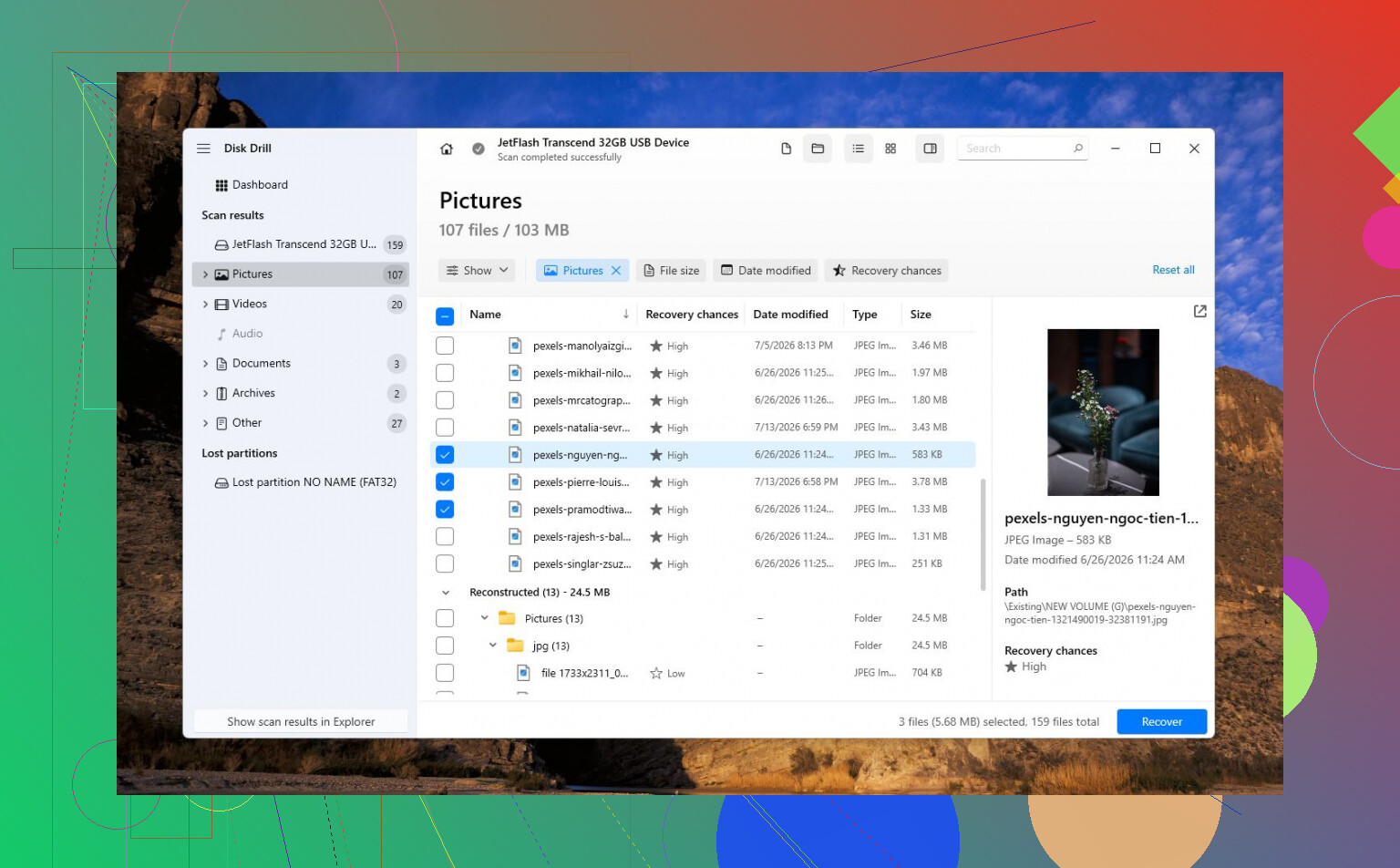
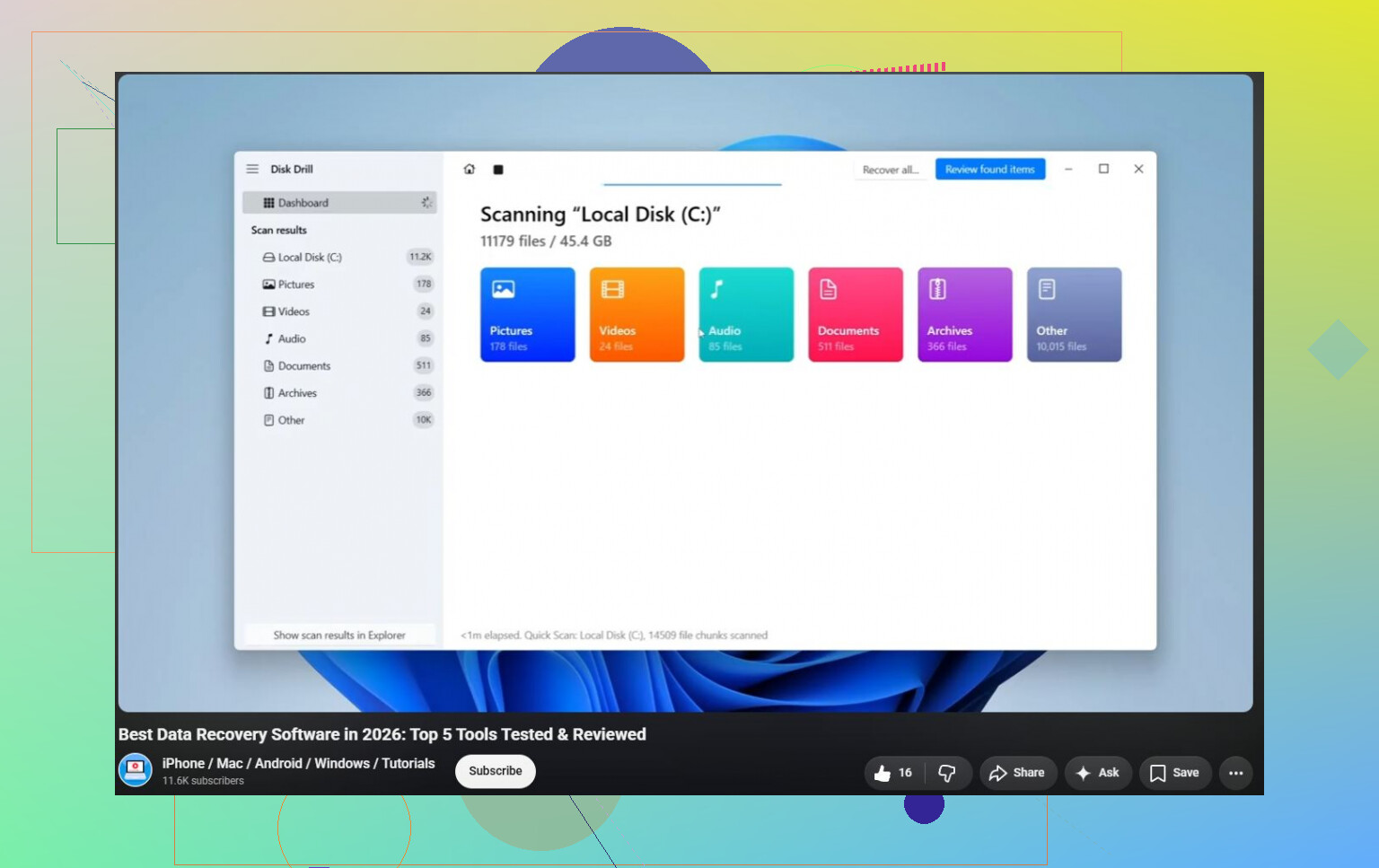
For that reason, I’d probably start with Disk Drill for most normal hard drive problems. It’s not some magic tool that repairs everything, but that’s kind of the point. Disk Drill is mainly useful for recovering data from drives that are corrupted, RAW, formatted, or won’t boot. It also has S.M.A.R.T. monitoring, so you can see if the drive is showing signs of hardware failure. The disk image feature is a big one too. If the drive is acting flaky, make an image first, then recover from that copy instead of hammering the original drive over and over.
A couple other tools are worth knowing about, depending on what’s actually wrong:
- TestDisk is great when the issue is a lost partition, broken partition table, or damaged boot sector. It’s free and very capable, but it’s not beginner-friendly. It’s text-based, and you can make things worse if you’re guessing your way through partition changes.
- Hard Disk Sentinel is more for drive health than recovery. It reads S.M.A.R.T. data, watches temperatures, and can warn you before the drive gets bad enough that Windows starts complaining.
Just don’t expect software to save a drive that’s physically dying. If you’re hearing clicking, grinding, buzzing, or the drive keeps vanishing, that’s not a normal software problem. Same goes for extremely slow reads, random freezes, I/O errors, repair prompts from Windows, or a rising bad sector count.
When those signs show up, I wouldn’t keep running repair tools repeatedly. Recover or back up whatever matters, then replace the drive. Once the hardware starts failing, it usually doesn’t get better.
If the drive isn’t detected at all, is making loud mechanical sounds, or has data you genuinely can’t lose, stop messing with DIY tools and talk to a professional recovery lab. They can handle board repairs, damaged components, or platter-level recovery in a clean-room setup. It’s expensive, though. Logical recoveries are often around $300–$700, and serious mechanical failures can run $1,000–$2,500+.
My rough order would be:
- Recover the important files first. Disk Drill would be my first pick.
- Check the drive’s health.
- Only try repairs if the drive seems stable.
- Replace it if there are hardware failure signs.
- Use a recovery lab if it has physical damage or isn’t recognized.
Do not start with CHKDSK /r.
That command gets recommended everywhere, but on a drive that is already throwing read errors it can sit there for hours beating on weak sectors. I’d only run light checks first, like Windows “Error checking” or chkdsk /scan, and only after the important files are copied somewhere else. If the issue came from the sudden shutdown, it may just be file system damage. If the drive is slow because it’s struggling to read sectors, that’s a different problem and “repair” software won’t really repair the hardware.
Disk Drill makes sense if you care about the files, especially because imaging the disk first is safer than scanning the original over and over. For actual drive testing, I’d use the maker’s diagnostic too: SeaTools for Seagate, Western Digital Dashboard for WD/SanDisk, etc. Those tools are boring, but they’re good for telling you whether the drive is failing and should be replaced instead of patched up.
If you’re comparing utilities, this hard drive repair software roundup may help, but I’d treat most “repair” features with caution. Read-only scan, clone/image, recover files, then decide. Anything that writes fixes, remaps sectors, rebuilds partitions, or “repairs” bad blocks should come after you’ve got a copy of the data.
The hidden downside with a lot of these tools is that a “successful repair” can leave you with a drive that looks usable right up until it drops out again. I’d treat the drive as guilty until proven innocent, especially since you’re already seeing read errors. Don’t move files around on it, don’t defrag it, and don’t run anything that promises to “refresh” or “regenerate” bad sectors.
Before paying for software, I’d rule out boring hardware stuff. If it’s an internal drive, try a different SATA cable and port. If it’s in a USB enclosure, try another enclosure or connect it directly if possible. Bad cables and cheap USB docks can cause slow reads and disconnects that look like drive failure. If the errors follow the drive, then yeah, assume the disk itself is the problem.
Disk Drill is reasonable if your goal is getting data back, but I’d use it for imaging/recovery, not as a magic repair button. If the files matter, image the drive first and work from the image. If you want a visual walkthrough before touching anything, this damaged hard drive recovery guide may help. After the data is safe, check SMART with something like CrystalDiskInfo or the manufacturer’s tool. Any reallocated, pending, or uncorrectable sectors means I’d replace the drive rather than keep trying to nurse it along.
Stop booting from that drive if it’s the Windows drive, because Windows will keep writing logs, updates, temp files, and paging data while you’re trying to “repair” it.
If you can, pull it and connect it as a secondary drive to another PC, then use Disk Drill or another recovery tool from the healthy machine. After the files are safe, I’d wipe-test or replace the disk rather than trusting a repaired one with read errors.