Important files suddenly disappeared from my external hard drive after I plugged it into my laptop, and now the folders look empty even though the drive still shows used space. I need help figuring out if the files are hidden, corrupted, or deleted, and what recovery steps are safest before I make things worse. Looking for advice on external hard drive file recovery, missing files, and data recovery options.
Files ‘vanishing’ from an external drive is ugly, but I’ve seen it end up being a file system mess more often than a true wipe. Windows loses the map, the partition gets weird, folders stop showing up. Meanwhile the data still sits there, taking space.
First thing, stop using the drive.
Do not copy anything onto it. Do not format it. I wouldn’t run repair tools yet either. If a tool rewrites file system info before you pull your files off, recovery gets harder fast. I learned this the annoying way once.
Here’s what I’d check before doing anything else:
- In File Explorer, enable Hidden items. Sometimes the files were hidden and nothing more.
- Look at used space on the drive. If the drive still shows close to the same used capacity, even while folders look empty, that’s a decent sign. It often means the files are still there but the index is broken.
- If Windows still detects the drive, I’d skip ‘fixing’ it for now and go straight to a recovery scan.
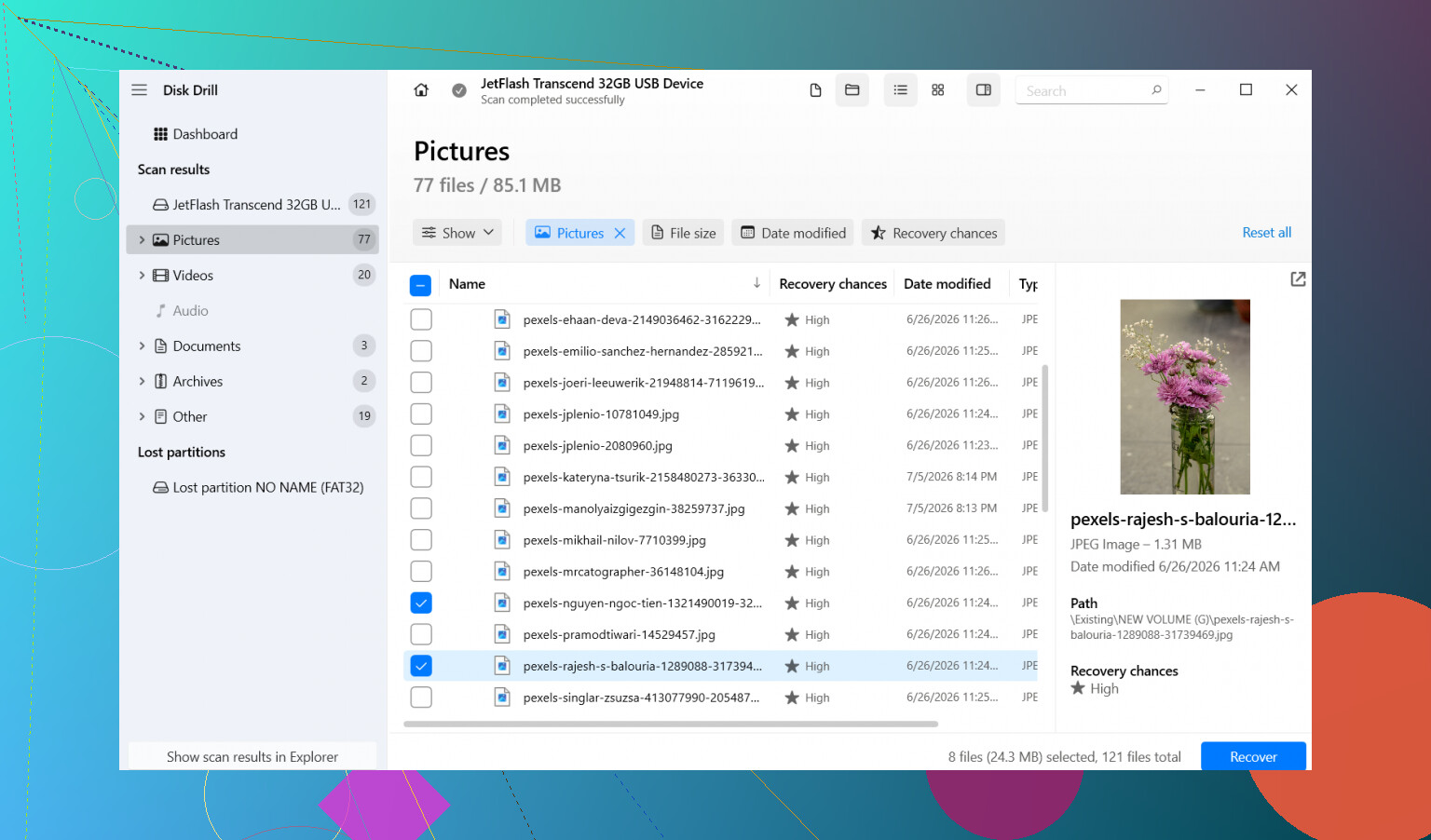
What worked for me was Disk Drill. I used it after an external drive showed almost nothing in Explorer, yet the used space was still in the hundreds of GB. The missing folders showed up in the scan without much drama.
The steps I’d follow:
- Install Disk Drill on your internal drive, or any other healthy drive. Do not install it on the external drive with the missing files.
- Plug in the external drive and open Disk Drill.
- Pick the problem drive, then click Search for lost data.
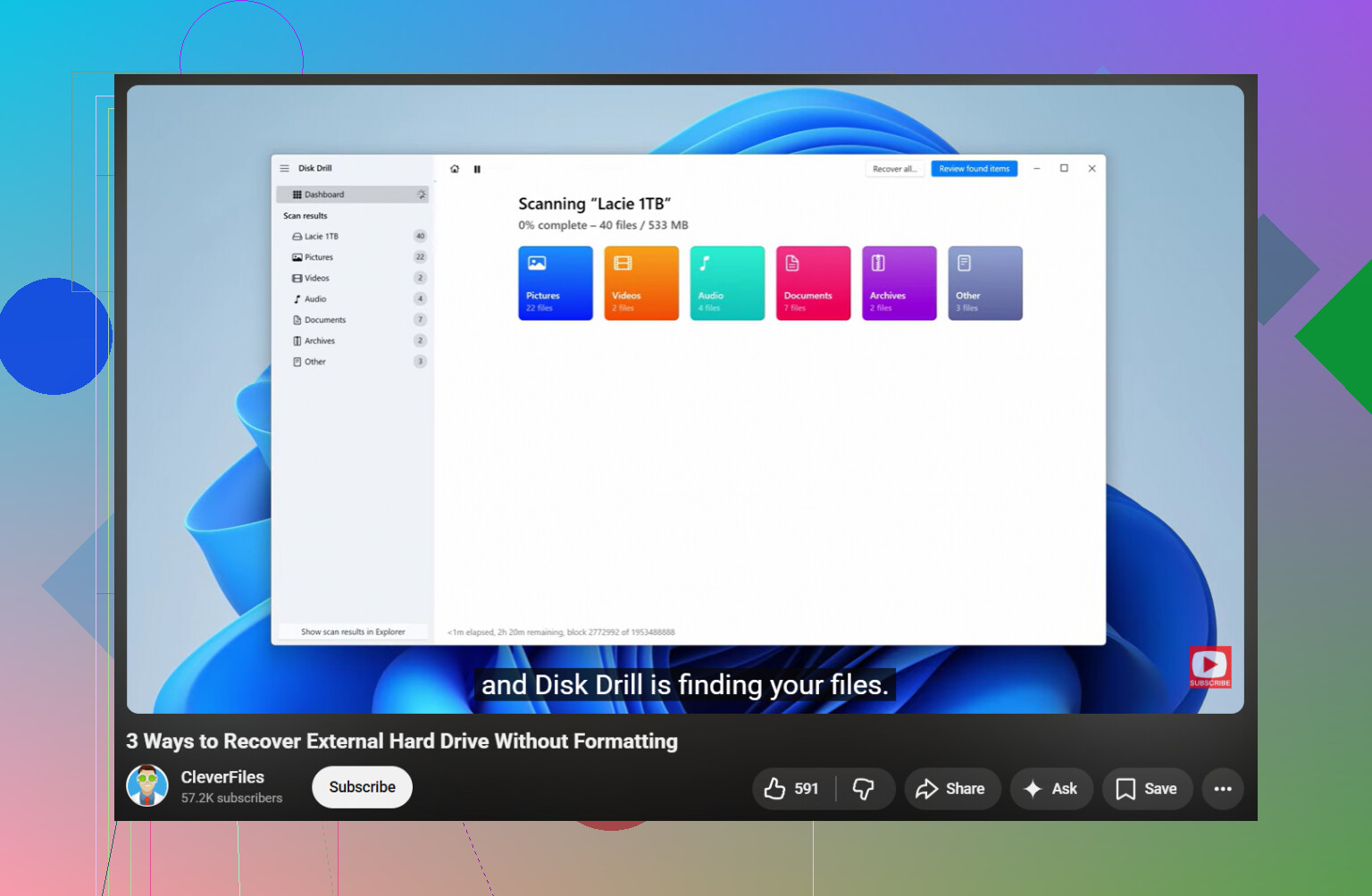
- Let the scan finish. Don’t stop halfway unless the drive starts acting sick. Afterward, browse the results or filter by file type if you’re hunting for photos, video, docs, whatever.
- Preview some files first. I always do this, saves time and tells you if the recovery is clean or garbage.
- Select the files you want, hit Recover.
- Save everything to a different drive. Not back onto the same external. Never do that.
After your important stuff is safe, then deal with the original drive.
One thing I would not touch early is CHKDSK. Google throws it at you for everything, but it’s a repair tool, not a recovery tool. It edits file system structures. Sometimes it helps the drive mount cleanly, sure. Sometimes it also trashes damaged directory records you needed for file recovery. My rule has been recover first, repair later.
Same deal with the Windows message saying the drive needs to be formatted. I’ve seen people click Format out of panic, then spend hours trying to undo the damage. That warning often means the file system is corrupted, not gone.
There is one big exception. If the drive is making clicking noises, grinding, dropping off and reconnecting, or struggling to spin up, stop. Don’t keep scanning it. Don’t keep retrying. At that point I’d hand it to a recovery lab, because repeated reads on a failing drive can push it over the edge.
So yeah, if your external drive still shows up and it isn’t making bad noises, your files might still be recoverable. I’d treat it like a read-only emergency, pull the data off first, then worry about fixing or replacing the drive.
If the drive shows used space, your files are often still there. Empty folders usually point to file system damage, hidden attributes, or a bad USB connection.
I agree with @mikeappsreviewer on one big point. Do not write anything to the drive. I differ a bit on one part though. I would check the cable and USB port early, before a long scan. Bad power or a flaky cable makes externals act wierd. Try a different port, different cable, and if possible another computer. Read only, no fixes.
A few things to check fast.
- Open Disk Management. See if the full partition size looks normal.
- In Command Prompt, run attrib X:\ /s /d, only to inspect if files were marked hidden. Replace X with your drive letter.
- Check Event Viewer, Windows Logs, System. Look for disk or NTFS errors around the time files vanished.
- If this happened after moving between Mac and Windows, look for file system mismatch issues like exFAT corruption.
If the drive mounts cleanly, Disk Drill is a solid next step for external hard drive file recovery. Preview files before recovery. Save recovered data somewhere else. If filenames and folders matter, scan sooner not later. Delaying often makes recovery messier.
For a simple guide on the best ways to recover files from an external hard drive, this helps: watch this external hard drive recovery walkthrough
If the drive disconnects, clicks, or freezes the system, stop there. Scanning a failing disk is how people turn a recoverable mess into a dead drive.
If the folders look empty but the drive still shows a bunch of used space, I’d also consider one annoying possibility that @mikeappsreviewer and @viaggiatoresolare only touched indirectly: the files may still exist, but the directory entries got scrambled and Explorer is basically lying to you.
I would not start with CHKDSK either, but I also would not jump straight into ‘fixing’ hidden attributes from command line unless you’re sure what changed. Sometimes malware or a bad unsafe eject flips attributes, sure. Other times the file system is just half-broken and poking it too much makes things worse.
What I’d do differently:
- Check the drive in a file manager other than Explorer, or on another OS if available
- Look for weirdly named folders, RAW partitions, or zero-byte directories
- If the data is really important, make a sector-by-sector image of the external drive first, then scan the image instead of the original drive
That last part is boring but smart. If the drive is degrading, every extra read matters. Imaging first gives you one stable source to work from. Windows users can use tools like HDD Raw Copy Tool or similar. Then run recovery software on the clone/image.
If you just want the practical route, yeah, Disk Drill makes sense for this kind of external hard drive recovery, especially when files disappeared but storage space is still occupied. I’d use it after imaging if possible, not before. Preview results, recover to another disk, and ignore any Windows prompt asking to format the drive. That prompt is basicly Windows saying ‘I’m confused,’ not ‘your files are definitely gone.’
Also, if this happened right after plugging into one specific laptop, check whether that system has encryption, backup sync, or antivirus stuff that may have quarantined or hidden files. Sounds dumb, but I’ve seen ‘missing files’ turn out to be software interference.
For more ideas, this external hard drive file recovery discussion with practical fixes is worth a read too.