My iPhone storage is almost full because I’ve built up thousands of screenshots over time, and deleting them one by one is taking forever. I’m looking for the quickest way to mass delete screenshots on an iPhone without accidentally removing photos I want to keep.
I ran into the same mess. I opened Photos to find one pic from a trip, then got buried under login screenshots, shipping receipts, random memes, and old parking spots I saved for no reason. My library had turned into a junk drawer.
Apple made this easier on newer iPhone updates, though a few parts still trip people up. Here’s the clean way to remove screenshots without wiping out normal photos.
The safe route, use the Screenshots album
Do not start from All Photos. That view mixes everything together.
Open Photos, then go to Albums, or Collections on newer versions. Scroll down to Media Types. There’s a Screenshots album there. Work from that album only. If you delete items there, you’re deleting screenshots and not your regular camera shots.
If you only have a small pile, tap Select and drag across the thumbnails. It’s quicker than tapping one by one. If your phone is stuffed with thousands of them, hit Select and look for Select All in the top left.
Newer iOS versions, filtering works too
On iOS 18 and newer, including iOS 26, Apple changed the layout a bit. In the library view, tap the filter icon at the bottom, the one with two arrows. Pick Filter, then choose Screenshots.
Now the library only shows screenshots. From there, tap Select. I usually do a press-and-swipe move across the grid to grab a big chunk fast, then tap the trash icon.
If the app hangs, delete in chunks
I learned this the annoying way. Deleting 5,000 screenshots in one shot made Photos lock up on me. Sometimes it froze, sometimes it kicked me out.
Smaller batches worked better. Around 500 to 1,000 at a time felt safer. It sounds slower, but it ended up saving time because I wasn’t sitting there waiting for the app to recover.
If you do this a lot, set up a Shortcut
I ended up making this because my screenshot habit is bad.
Open the Shortcuts app. Make a new shortcut. Add the Find Photos action. Filter it by Is a Screenshot. Then add Delete Photos under it.
One setting matters or it fails on the first run. Go to iPhone Settings > Apps > Shortcuts > Advanced, then turn on Allow Deleting Large Amounts of Data.
After that, you can tell Siri to run your shortcut, like “run delete screenshots,” and it handles the boring part.
When built-in tools aren’t enough
Photos works fine for simple cleanup. It gets weaker when you need details, especially if you’re low on storage and want to remove the biggest files first.
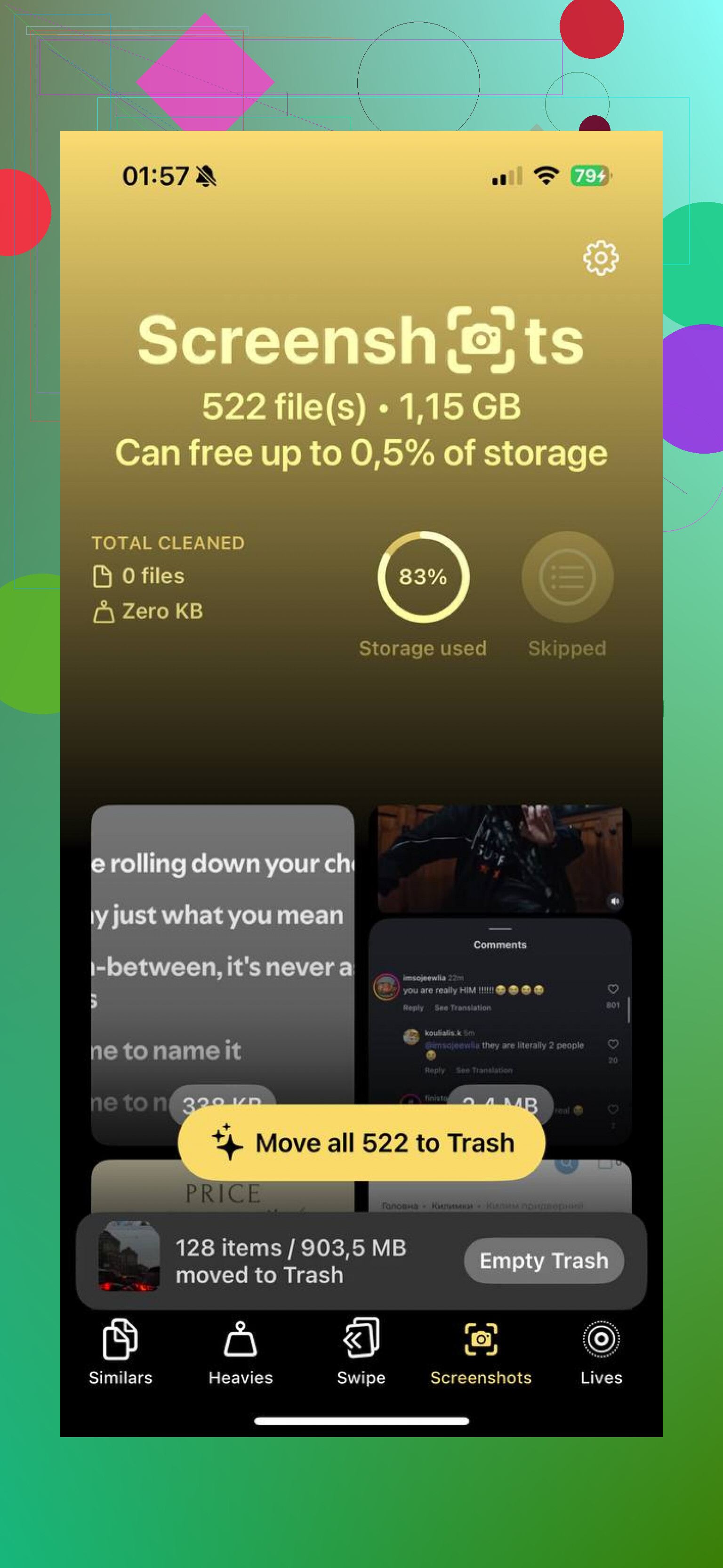
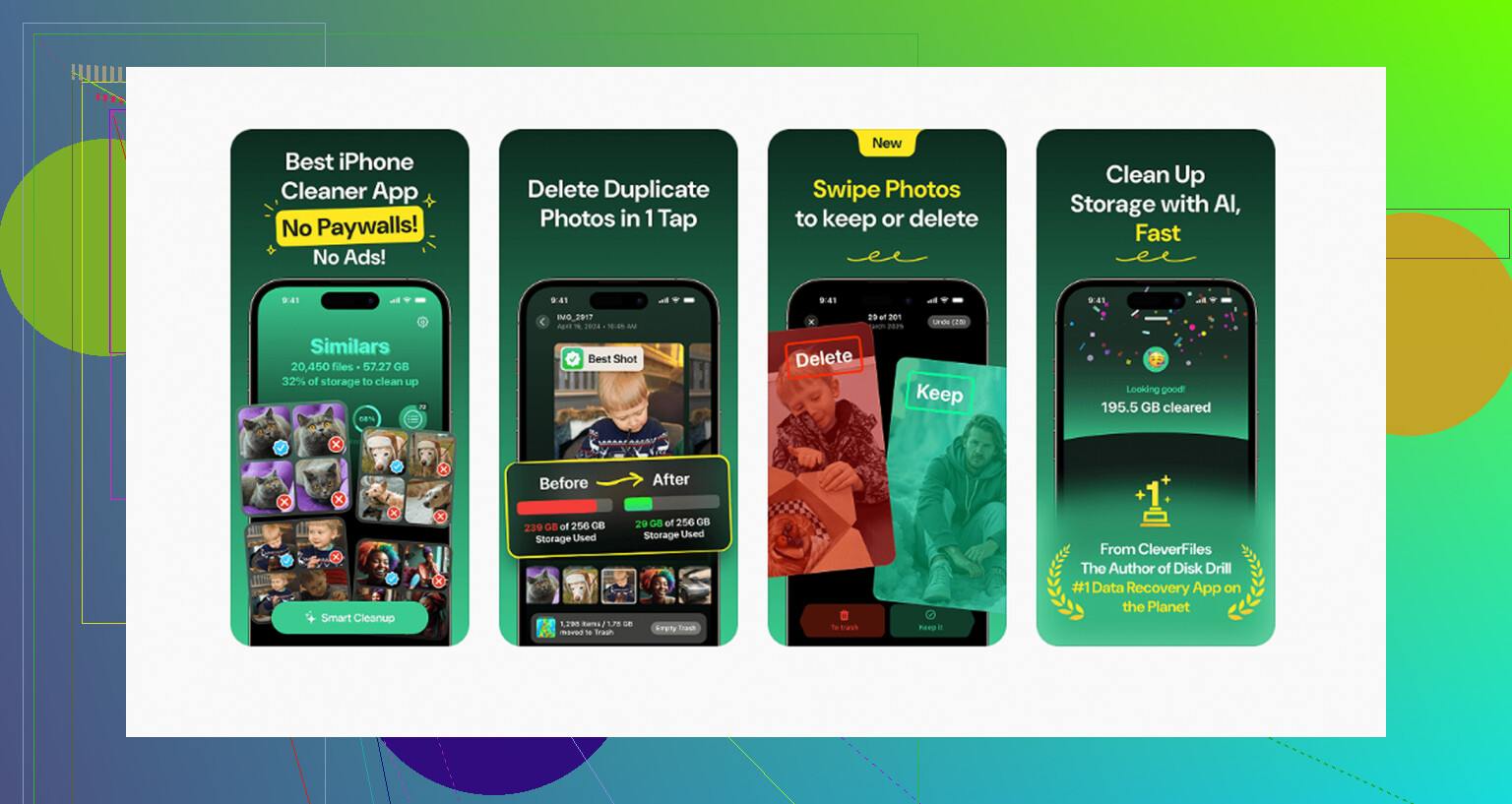
I tried a few cleanup apps, and Clever Cleaner was the one I kept on my phone.
Why I kept it:
- It’s free. No ads popping up, no subscription wall, no pay-to-finish nonsense.
- The Heavies tab sorts by file size, so you can cut the biggest junk first.
- The Similars tool helps when you saved near-duplicate screenshots. I had a bunch where I took the same shot three times because the first one missed part of the screen.
- It processes on-device, so your photo library stays on your phone.
If your storage is almost full, sorting by size helps more than random deleting.
Watch out for iCloud Photos
If iCloud Photos is on, deleting a screenshot on your iPhone removes it from your other Apple devices too, and from iCloud. It usually happens fast.
If the trash button is grayed out, those images were often synced from an older computer through a cable instead of being saved normally on the phone. I hit this once with old albums. The fix was dumb but simple, I had to reconnect the phone to the same computer and remove them through sync settings there.
Do the last step or space won’t come back
This part gets skipped all the time.
Deleted screenshots go into Recently Deleted for 30 days. Until you clear that folder, your storage does not fully come back.
Go to Recently Deleted under Utilities. Tap Select, then Delete All if you want the space back right away.
If you removed something by mistake, that 30-day hold is useful. After it’s gone from there, recovery gets harder, and at that point people usually end up looking at file recovery tools.
Once I cleared mine out, Photos felt usable agian. Way easier to find real pictures when the screenshot pile is gone.
6 Likes
Yes. Fastest route is from a Mac or PC, not on the iPhone.
If you plug your iPhone into a computer and use Image Capture on Mac, or Windows Photos/File Explorer, you can sort imported items by type or date and wipe huge screenshot batches faster with a mouse and keyboard. It feels way less painful than doing giant touch selections on a phone. I know @mikeappsreviewer mentioned working inside Photos, and that’s fine, but for 10,000+ files I think desktop is faster, less laggy, and less prone to fat-finger mistakes.
Two other tricks people miss:
-
Search by file name pattern.
A lot of screenshots show up with names like “IMG_E” or standard screenshot naming when viewed through desktop import tools. Bulk select, delete, done. -
Sort by date range first.
Screenshots usually come in bursts. If you know your worst hoarding era was 2022 or whenever, nuke those blocks first. Faster than skimming every thumbnail.
If you want an iPhone-only route, Clever Cleaner is worth a look, esp if storage is near full. It’s easier when you want to remove large junk fast and not babysit the Photos app. Also useful if your screenshot pile includes duplicates.
If you want more cleanup ideas, this title says it cleanly: 5 Best iPhone Cleaner Apps to Free Up Storage Fast. And here’s a solid video on best iPhone cleaner apps for freeing storage.
One more thing people forget. After deleting, restart the phone if storage numbers look wrong at first. iOS sometiems takes a bit to catch up.
Honestly, I slightly disagree with @yozora on the desktop being the best default move. Faster with a mouse, sure, but if iCloud Photos is on, importing/deleting from a computer can get messy depending on sync settings. For most people, the quickest low-risk option is: let iPhone identify screenshots for you, then use a cleanup tool that batches them better than Photos does.
What I’d do if storage is nearly maxed:
- Go to iPhone Storage first and see whether Photos is actually the main hog.
- In Photos, sort your screenshot cleanup by oldest stuff first mentally, not thumbnail by thumbnail. Old screenshots are usually disposable.
- If Photos keeps choking on huge deletes, use Clever Cleaner. It’s easier when your phone is lagging and you just want to clear junk fast without fighting the app.
- After deleting, wait a bit before assuming nothing happened. iOS storage counts are kinda janky sometiems.
Also, not every screenshot is worth treating equally. Big screen recordings and edited screenshots can eat more space than plain ones, so targeting large media first can free space way faster than just deleting random batches.
@mikeappsreviewer already covered the built-in album route pretty well. I’d just add this: if your phone is almost full-full, stop taking new screenshots during cleanup or iOS gets even more annoying about caching and temp storage.
If you want more on comparing cleanup approaches and safety stuff, this thread is useful: best way to choose a safe iPhone cleaner app
Short version: yes, there’s a faster way, but the fastest practical one is usually using the Screenshots grouping plus Clever Cleaner, then making sure the deleted stuff is actually purged so the storage comes back.
One angle nobody’s mentioned enough: use search operators inside Photos before you delete.
Type stuff like “screenshot”, app names, or even website names in Photos search. A lot of screenshot clutter is clustered around one app or task, so you can wipe the junkiest groups first instead of scrolling forever. That’s often faster than mass-selecting a giant mixed pile.
I slightly disagree with @yozora on desktop being automatically fastest. If your phone is nearly full and iCloud sync is mid-chaos, computer import/delete can turn into a second project. And while @codecrafter and @mikeappsreviewer are right about album-based cleanup, I’d prioritize targeted deletion over total deletion first.
What works well:
- Search specific junk categories
- Delete edited screenshots and long screenshots first
- Remove old message/app-related screenshots in clusters
- Then empty Recently Deleted later when you’re sure
If the Photos app keeps stalling, Clever Cleaner is a decent fallback.
Pros for Clever Cleaner
- quicker bulk review than Photos
- helpful for duplicates/similar screenshots
- good when storage is critically low
Cons
- still another app handling photo cleanup
- you may prefer Apple’s built-in tools for full control
- bulk cleanup always carries some risk if you rush
Best strategy in practice: delete the most useless screenshot groups first, not everything at once.