My Mac hard drive suddenly stopped working, and I realized I don’t have a Time Machine backup or any recent copies of my files. I need help figuring out if Mac hard drive recovery is still possible, what tools or steps are safest, and whether I should stop using the drive before trying anything.
The big thing is to stop writing anything to that drive right now. If it’s an external drive, eject it and unplug it. If it’s the Mac’s internal drive, keep usage to the absolute minimum. Deleted or formatted data usually isn’t wiped immediately. macOS often just marks that space as free, and the danger is that new activity can overwrite the stuff you’re trying to recover.
I’ve had that stomach-drop moment before. Years ago I thought my thesis was safely copied to a flash drive, and it wasn’t. After messing with Macs for a long time, the main lesson is that “missing” doesn’t always mean “gone.” A lot depends on whether the data has been overwritten yet.
Check the simple stuff first. Look in the Trash, even if it feels too obvious. Also, external drives can have their own hidden trash folder. Plug the drive in, open it in Finder, then press Shift + Command + . to show hidden files. Look for a folder named .Trashes. If your files are in there, you can usually right-click them and choose “Put Back.”
If you use Time Machine, try that next. Enter Time Machine from the menu bar, go back to a date when the files were still there, select what you need, and restore it. That’s usually the cleanest recovery path if backups were running.
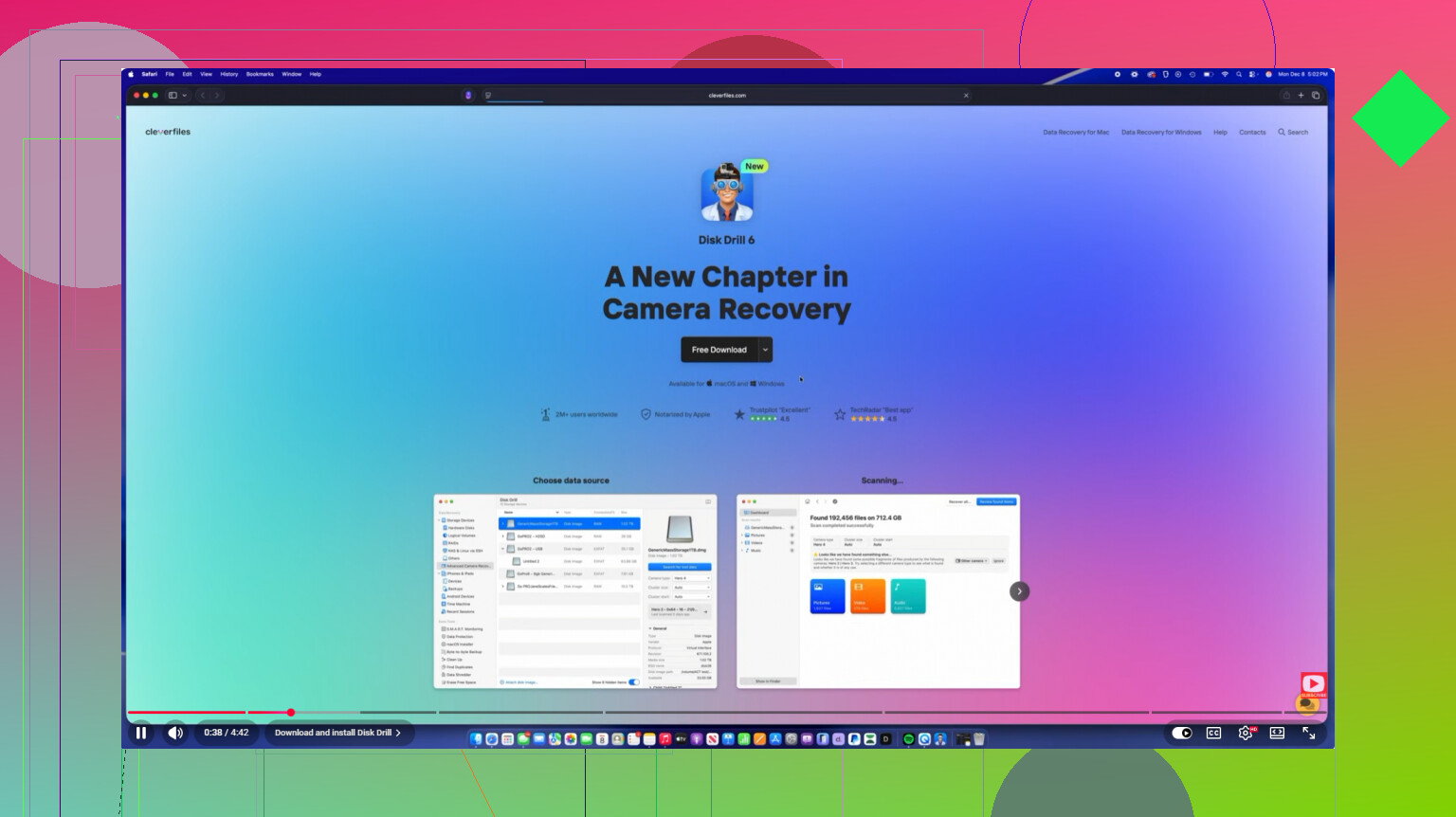
If there’s no Trash copy and no Time Machine backup, then recovery software is the realistic next step before paying a lab. Disk Drill is one of the better Mac options in my experience, especially with APFS and HFS+ drives. It’s also less confusing than a lot of recovery tools.
The useful part is that it can scan beyond just filenames. It looks for file signatures, so it may still find things like JPGs, documents, and other file types even when the directory info is damaged or missing. If the drive seems flaky, slow, or randomly disconnects, use the Byte-to-Byte Backup feature first. Make a full disk image, then scan the image instead of hammering the original drive over and over.
One catch: internal Mac SSDs are harder. Modern SSDs use TRIM, which can clear deleted data in the background to keep the drive performing well. That means recovery can get worse fast, so don’t keep using the machine while you decide what to do.
If the drive is clicking, grinding, or making weird mechanical noises, don’t run scans on it. Unplug it. Software won’t fix physical failure, and repeated attempts can make the damage worse. For really important data, that’s when you send it to a professional recovery service, even though it’s expensive.
After this is over, set up Time Machine and add a cloud backup too. For now, the safest move is simple: stop using the drive, check the easy recovery spots, then scan carefully with a proper tool if needed. If the data hasn’t been overwritten, there’s still a decent chance you can get it back.
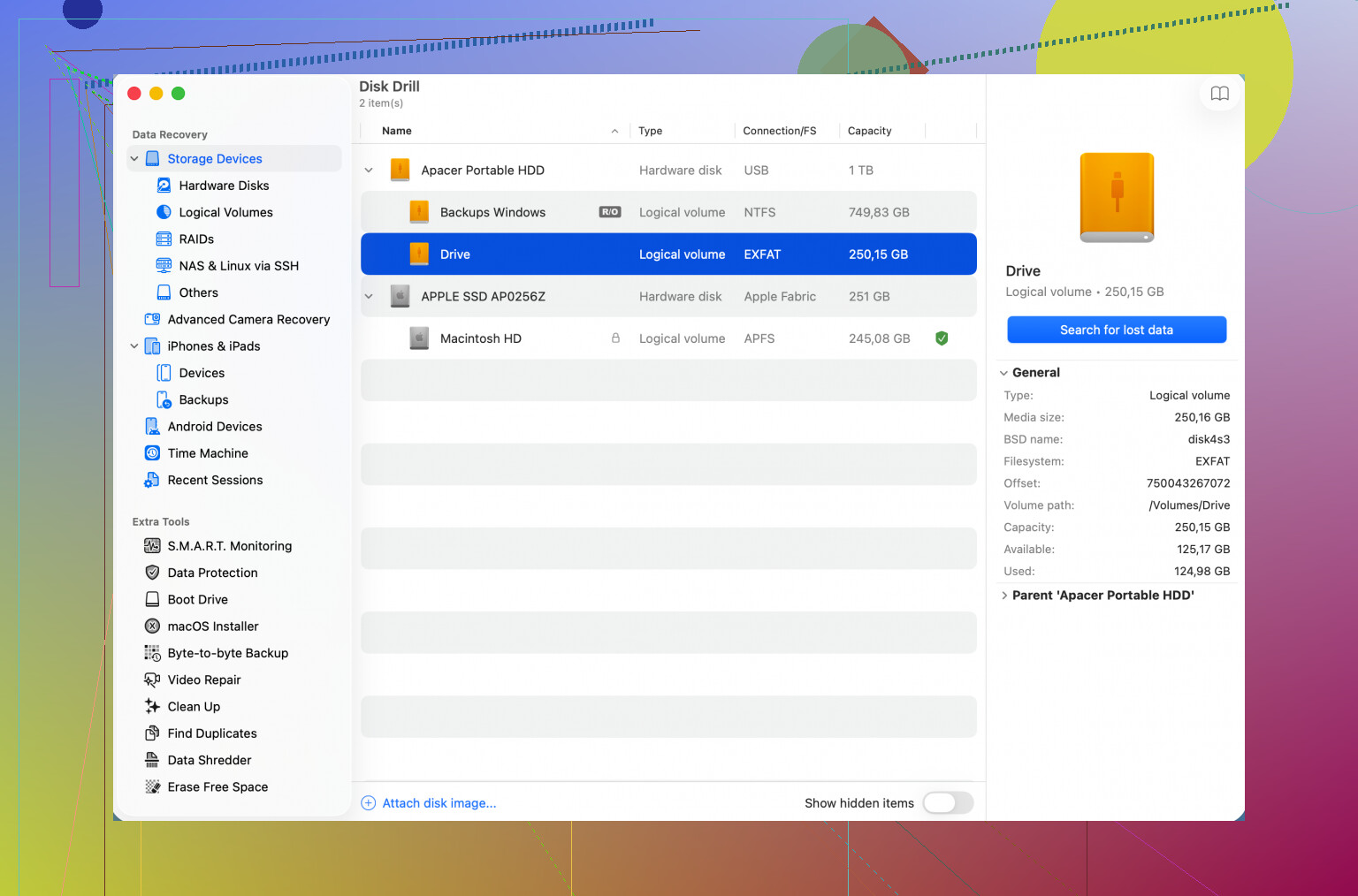
Boot from something other than the problem drive if you can. That’s the step people often skip. Installing Disk Drill, downloading macOS updates, or even just using Safari on the same internal drive can write new data over the space you’re hoping to recover from.
I agree with @mikeappsreviewer about stopping activity, but I’d be extra careful with “repair” buttons too. Disk Utility First Aid is fine for checking a healthy-ish volume, but if the file system is already damaged and the files matter, I wouldn’t start running fixes before making an image. Repairs can change the directory structure, and sometimes that makes recovery messier. Same idea with reformatting because macOS says the disk is unreadable. Don’t initialize it.
If it’s an external drive, work from your Mac’s normal drive and recover files to a different disk, never back onto the broken one. If it’s the internal drive, the cleaner setup is another Mac, an external boot drive, or at least putting the Mac in recovery/target disk mode depending on the model. And if FileVault was enabled, make sure you know the login password or recovery key, because recovery software still has to get past encryption before it can see useful data.
So yes, recovery without a backup is possible, but the odds depend less on the app name and more on how much the drive has been used since the failure and whether the drive is physically dying. If it clicks, vanishes from Disk Utility, or keeps disconnecting, stop trying software scans and think lab recovery. If it mounts or can be imaged, then a tool like Disk Drill is a reasonable next move, with the recovered files saved somewhere completely separate.
A dead external USB drive and a dead modern MacBook internal SSD are two very different recovery jobs. With an external drive, the drive itself is usually the patient. With a newer Mac’s internal storage, the Mac, the logic board, encryption, and the SSD controller may all be part of the problem.
That matters because “my hard drive stopped working” can mean a bunch of things. If the Mac still turns on and asks for your password, you may have a file system problem or a volume that won’t mount. Software recovery might work. If the Mac will not power on at all, recovery software is not going to see anything yet. On many recent Macs the internal SSD is soldered in and encrypted through the machine, so the practical first step may be getting the Mac to boot far enough to unlock the disk, not pulling the “drive” out like people used to do.
I agree with the caution above about not running repair tools right away. I’d be even more boring about it: first identify whether the disk is readable at all.
Check these before doing anything aggressive:
- Does Disk Utility see the physical disk, even if the volume is grayed out?
- Does it show the correct size, or something weird like 0 bytes?
- Does the Mac ask for a FileVault password?
- Is the drive making noise, disconnecting, or getting very hot?
- Is this an Intel Mac, Apple silicon Mac, or an external drive?
If Disk Utility sees the correct device size, that is a better sign than if the drive vanishes or reports nonsense. If it appears and disappears, I would stop poking at it. That is the kind of situation where every scan can make things worse.
For an internal drive on a working Mac, Recovery Mode can sometimes be useful without booting into your normal desktop. On Apple silicon Macs, there is a “Share Disk” option in recovery that can let another Mac access the internal storage after it is unlocked. On older Intel Macs, Target Disk Mode may be the equivalent. That can be cleaner than booting the broken system and letting macOS write logs, caches, Spotlight indexes, and other junk while you are trying to save data.
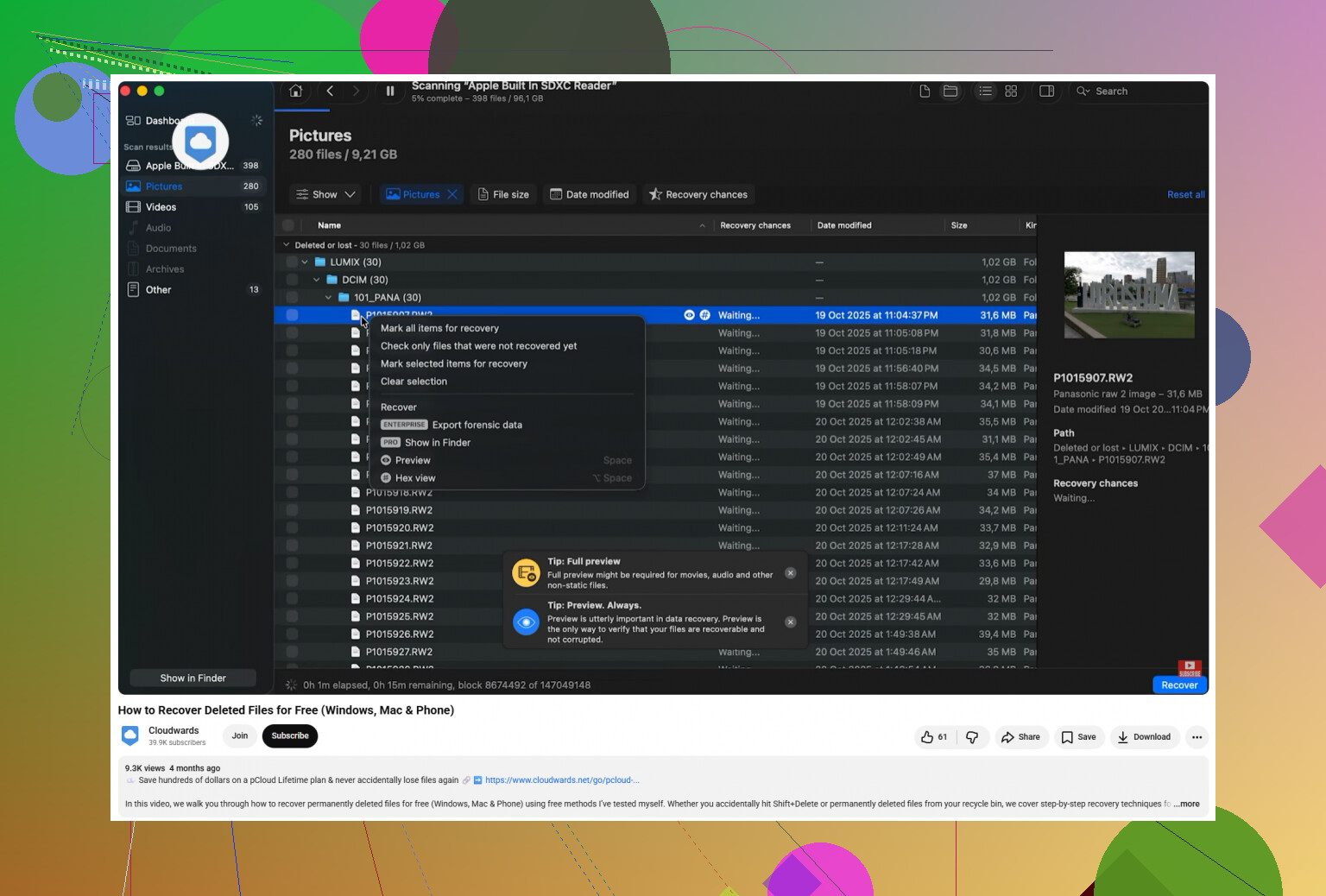
Small caveat on recovery apps: don’t treat the scan results as proof until you preview or open recovered files. A lot of tools can show a huge list of filenames or file types, but some may be partial, corrupt, duplicated, or missing folder structure. Disk Drill is fine to try if the drive is readable or you have made an image, but I would not pay for any tool until it shows previews of the files you actually care about. If all it finds is thousands of unnamed JPGs and fragments, that may still be useful, but it is not the same as getting your folders back.
Another thing people forget is to look outside the disk before assuming everything depended on Time Machine. If you used iCloud Desktop and Documents, check iCloud Drive and Recently Deleted from another device or the web. Same for Dropbox, Google Drive, OneDrive, Adobe apps, Photos syncing, email attachments, Messages, browser downloads, and old external drives. None of that replaces a backup, but it can turn a disaster into “I only lost some stuff.”
If the data is valuable enough that you would pay a few hundred or a few thousand dollars to get it back, don’t experiment much. Power it down and call a recovery lab. If the data is annoying but not life-changing to lose, then the order I’d use is:
Stop using the Mac or drive.
Try to access it from another boot source or another Mac.
If readable, copy the most important visible files first to a separate disk.
If the file system is damaged, make an image if possible.
Scan the image, not the original.
Recover to a different drive, never back to the same one.
So yes, recovery without a backup is possible. The less satisfying answer is that “possible” ranges from easy copy job to no realistic DIY option, depending on whether the storage is still readable and whether encryption can be unlocked. The worst move is treating every case like a normal undelete job when the drive may actually be failing.
A drive that was accidentally erased yesterday is a very different problem from a drive that is disappearing from Disk Utility every few seconds. The first one is often a software recovery job. The second one is a race against the hardware, and treating it like a normal scan can turn a recoverable case into a worse one.
I’d be a little skeptical of starting with any recovery app until you know which situation you’re in. Disk Drill, R-Studio, PhotoRec, etc. all need the storage to be readable long enough to scan. If the disk is stable and shows the right size, then sure, scan an image or scan from another Mac and save the recovered files somewhere else. Disk Drill is fine for that kind of case because the preview feature can tell you whether it is actually finding usable files instead of just file-shaped junk.
The thing people underestimate is the destination drive. You need somewhere safe to put recovered files, and it should be larger than the amount of data you expect to recover. Do not recover back onto the same Mac drive “just temporarily.” If you only have one external disk and it is the bad one, buy or borrow another disk before doing anything. Recovery can produce a messy pile of duplicates, renamed files, and partial folders, so having extra space matters.
For newer Macs, the ugly caveat is encryption. If it is an internal SSD and the Mac cannot boot far enough to let you authenticate, software on another computer may not see anything useful. Your login password or FileVault key is part of the recovery path. If the logic board or security hardware is the thing that failed, that can be a much bigger problem than “remove the drive and plug it into a dock,” because on many Macs there is no removable drive in the old sense.
So yes, Mac hard drive recovery without a backup can be possible, but I’d split the decision fast: if the drive is stable, image it or scan it carefully and recover to another disk; if it is unstable, noisy, overheating, showing 0 bytes, or constantly disconnecting, stop and price out a recovery lab before experimenting. The cheapest path is not always the first free scan you run. Sometimes the cheapest path is doing nothing until you have the right setup.