I accidentally formatted my USB flash drive and lost important photos and work files that were not backed up. I stopped using the drive right away and need help figuring out if formatted flash drive data recovery is still possible and what steps I should take next.
Yeah, there’s still a shot, if you quit using the USB right now.
That part matters most. I’ve seen people format a flash drive, then copy a few files onto it while trying fixes from random posts. Once new data lands on the same blocks, the old files are gone for good. Recovery apps don’t fix overwritten data.
What I’d think about first is how the format happened.
If the format finished in a few seconds, it was likely a quick format. That’s the better outcome. A quick format usually rebuilds the file system table and clears the index Windows uses to track files, but the file contents often stay in place until something new replaces them.
If it was a full format, your odds drop hard. Full format writes over the storage, so there often isn’t much left to pull.
I would skip command line “fixes” and repair tools. I did this once with CHKDSK on a damaged USB and it made the mess worse. Tools like CHKDSK are for file system repair, not for bringing back files after formatting.
What I’d do:
- Stop using the flash drive.
- Install recovery software on your computer’s internal drive, not on the USB.
- Plug in the formatted USB.
- Run a full scan.
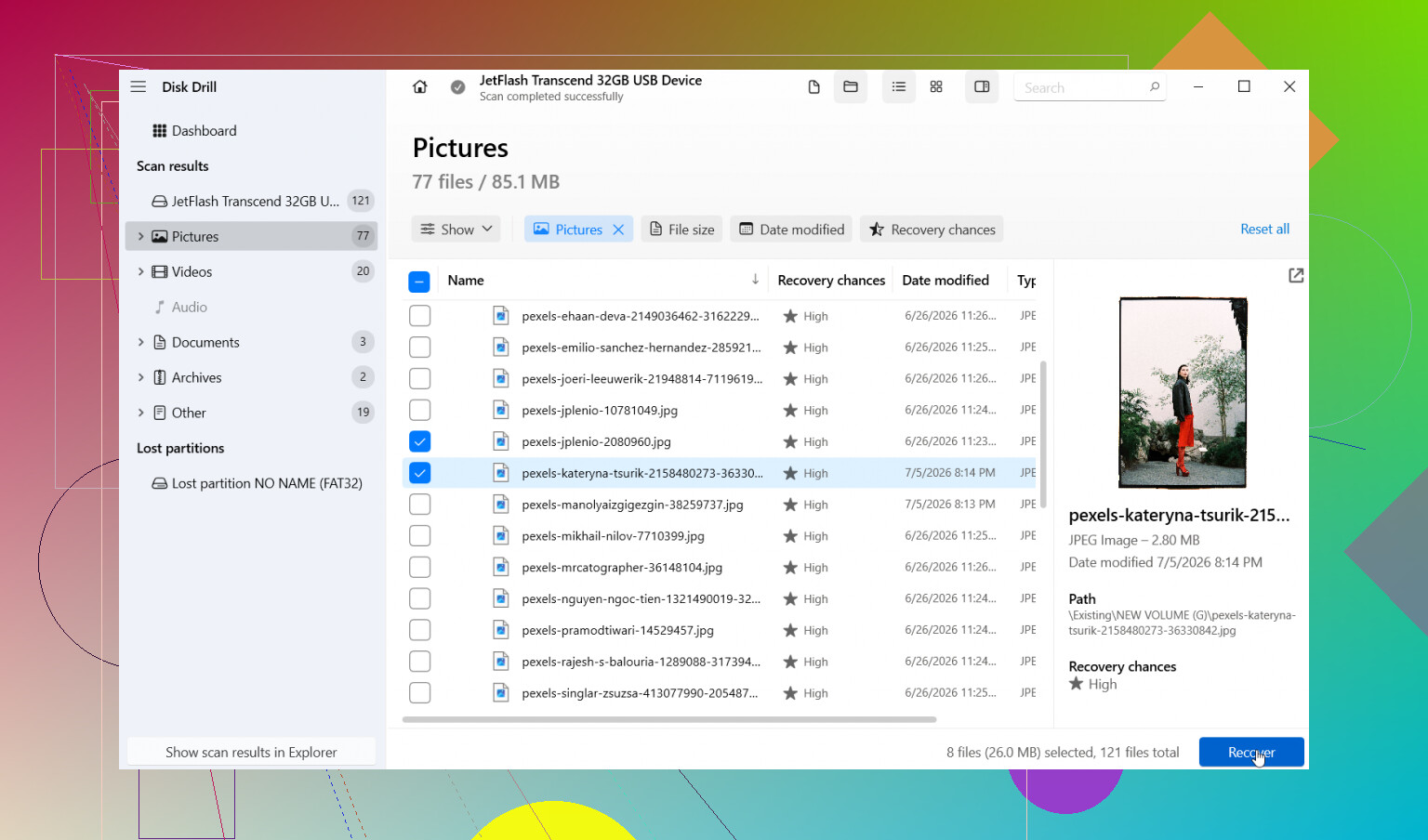
- Preview what shows up before restoring it.
- Recover files to a different drive, never back onto the same USB.
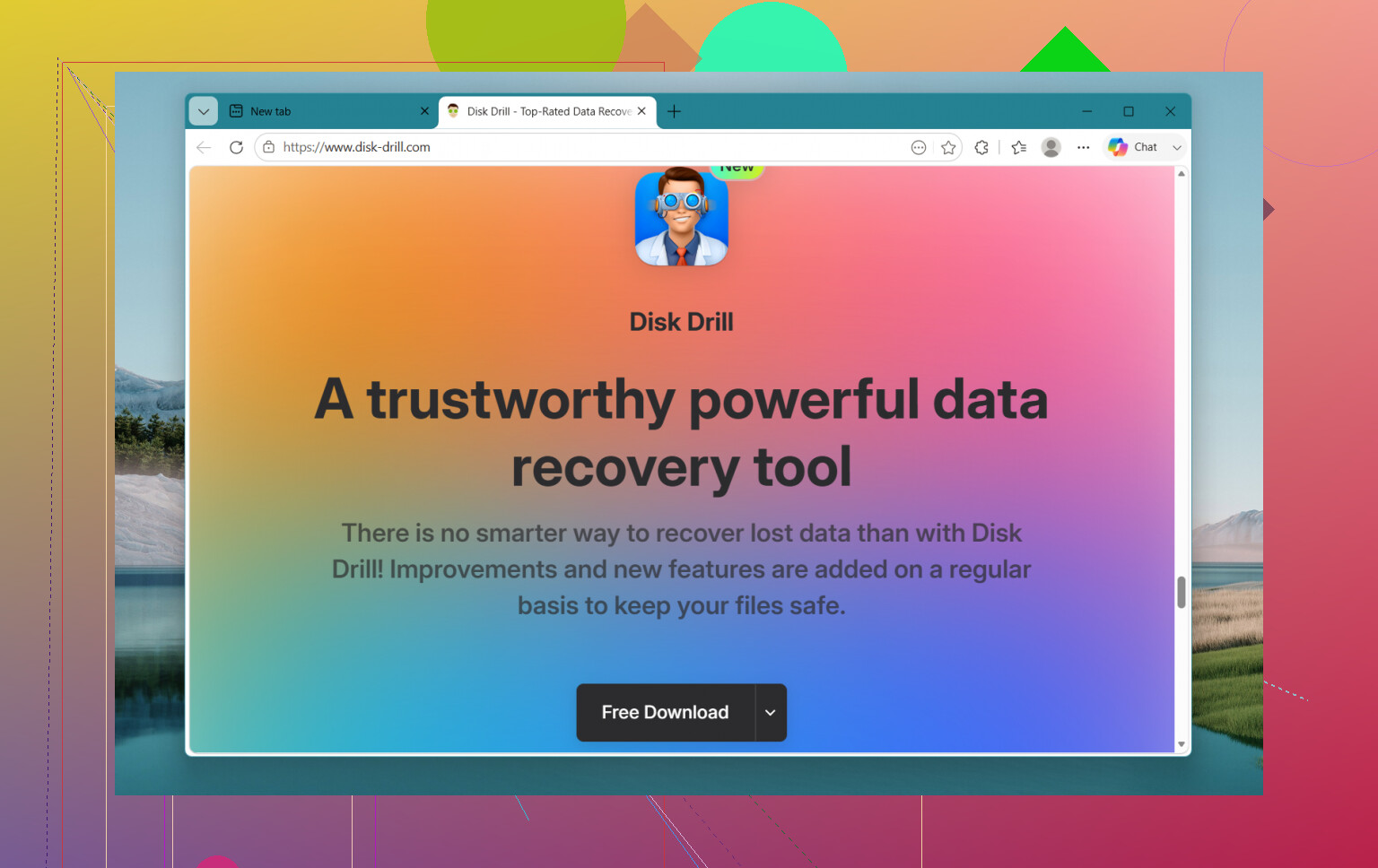
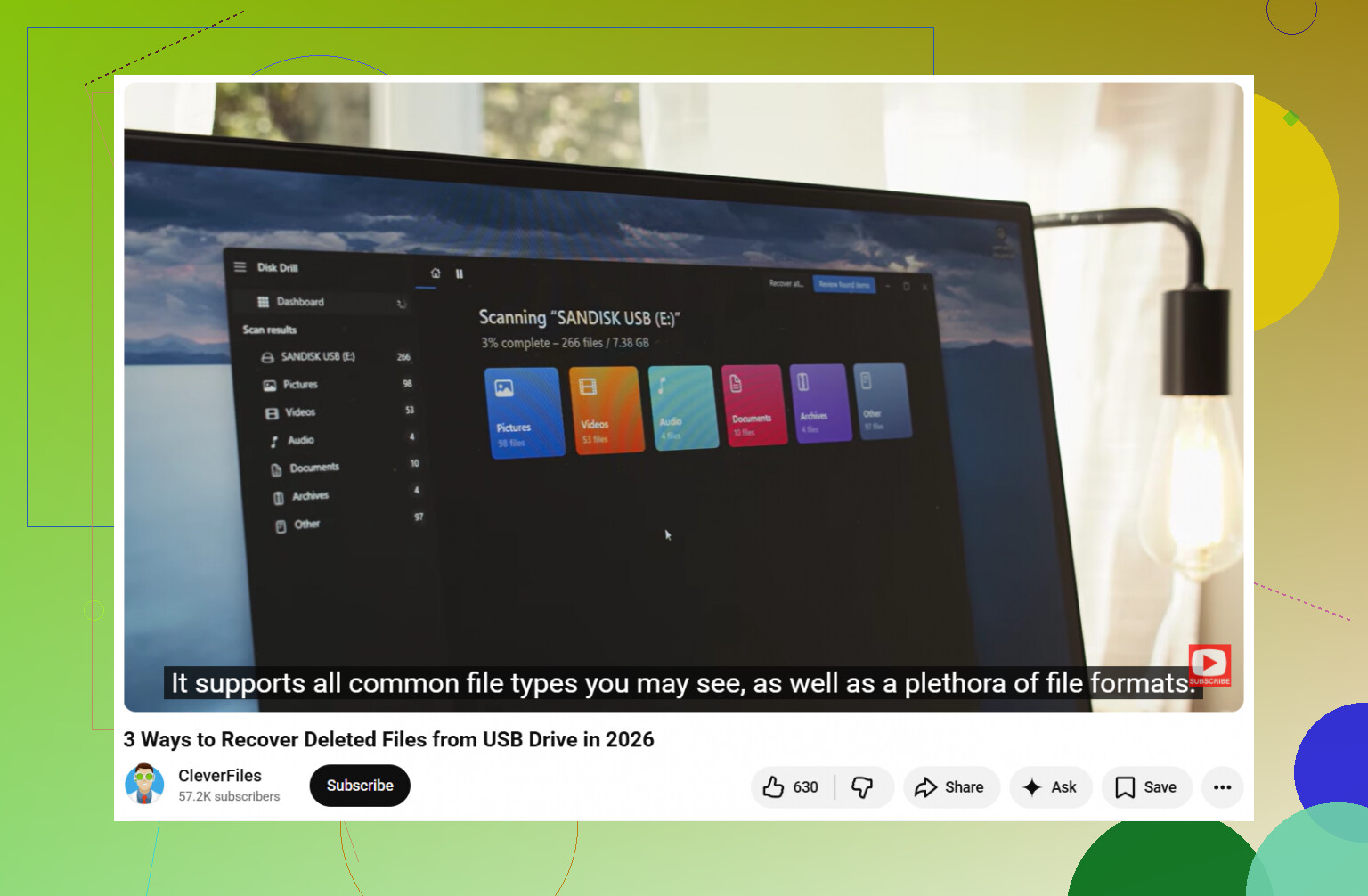
I’ve had decent results with Disk Drill. It’s one of the easier ones if you haven’t done recovery before. Pick the USB, run Universal Scan, wait it out, then sort through the results.
A few things I liked when I used it:
- It sorts found files by type.
- Filters help when the list gets huge.
- Preview is useful. If a photo opens in preview or a document looks readable there, I’d treat that as a good sign.
One thing I wouldn’t skip is the disk image option. If the flash drive keeps disconnecting, throws read errors, or shows weird behavior in Windows, make an image first. Then scan the image instead of hammering the original stick over and over. I’ve had one cheap USB drive die halfway through repeated scans, so yeah, learned that the dumb way.
Stuff that changes your odds:
- If you wrote nothing new after formatting, recovery chances are better.
- If you changed the file system, some file details might be lost, though raw file recovery still works in a lot of cases.
- Photos, videos, and common document types usually show up better than obscure file formats.
If recovered files come back with bad names or no folder structure, don’t freak out. I’ve seen loads of recovered files renamed into generic strings. Sorting by size, date, or type helps a lot when you’re digging through the pile.
Also, don’t stop the scan early. This part gets ignored all the time. I’ve watched scans look useless for the first chunk, then more complete results appeared later. Leave it running to the end.
If the USB is not detected, disconnects nonstop, or Windows reports the wrong size, the problem might be more than a format. At that point I’d avoid repeated attempts. Flash memory tends to get worse under stress when it’s already failing. If the files matter, try imaging it first. If it won’t stay connected long enough for that, a recovery shop starts making more sense.
So yes, you might get the files back without a backup. The two big things are whether it was a quick format and whether you wrote anything to it after. If it was quick and the drive stayed untouched, your chances are still pretty good.
4 Likes
Yes, recovery is still possible if you stopped using the USB fast. That was the right move.
I agree with @mikeappsreviewer on the big point, no more writes to the drive. I differ a bit on full format though. On flash drives, a ‘full’ format does not always mean every old block is wiped in a clean, recover-proof way. Wear leveling and TRIM make USB behavior messy. So the odds drop, but I would not write it off untill you scan it.
A few practical things people skip:
-
Check the drive size in Disk Management.
If Windows shows the wrong capacity, like 0 bytes or some weird tiny number, this points more to hardware or controller trouble than a simple format issue. -
Look at SMART only if the USB supports it.
Most flash drives do not report useful health data, so don’t waste an hour chasing missing diagnostics. -
If your lost files were photos and office docs, start with signature scan results first.
JPEG, PNG, DOCX, XLSX, PDF often recover better by file signature than by folder tree after a format. -
If filenames matter more than file content, stop expecting perfect results.
Formatted flash drive data recovery often brings files back with generic names. The data matters more than the labels. -
Test recovered files in small batches.
Restore 20 photos. Open them. Restore a few docs. Check if they are intact. Don’t dump 50 GB of junk to another disk before you know the scan is finding usable stuff.
Disk Drill is a solid pick for this because it handles both file system scans and deep signature scans in one workflow. That saves time if you are not trying five diff tools back to back. I’d use it on a disk image first if the USB feels unstable.
Also, skip ‘repair’ mode in random tools. If the goal is file recovery, repair steps are often where people make a bad sitation worse.
If you want a simple flash drive recovery guide, this helps:
watch this step by step USB data recovery walkthrough
Short version, your chances are best if it was a quick format, no new files were written, and the drive still reads normally. If the scan finds previews, that’s usuallly a strong sign your files are still there.
Yes, still possible. Stopping use imediately was the smartest thing you could do.
I mostly agree with @mikeappsreviewer and @sternenwanderer, but I’d add one thing people gloss over: flash drives are weird little liars. Sometimes a format looks like the problem, but the real issue is the USB controller starting to fail. If the drive is suddenly slow, disconnects, or asks to be formatted again after reconnecting, don’t keep poking it over and over.
A few things I’d do differently:
- Try the USB on another PC first, just to rule out a bad port or driver hiccup.
- If the files are truly irreplaceable, don’t run 5 recovery apps back to back. Every long scan stresses the drive.
- Recover by priority. Grab the photos and work docs first, not every random temp file.
I wouldn’t obsess too much over whether it was “quick” or “full” until you actually scan it. On many USB sticks, reality is messier than Windows labels make it sound.
Disk Drill is a reasonable choice here because it’s simple and lets you preview recoverable files before restoring. That matters. If previews work, your chances are usuallly decent. Just restore everything to your computer or another external drive, never back to the same stick.
Also worth bookmarking if you want a cleaner walkthrough:
easy guide to recover data from a formatted USB drive
If the USB shows 0 bytes, wrong capacity, or keeps vanishing, skip DIY experiments and consider pro recovery. That’s where the line usually is.
One slight disagreement with @mikeappsreviewer: a “full format” on a USB is not always a guaranteed total wipe. On flash storage, controllers, remapping, and sometimes TRIM behavior make it less black-and-white than on an old hard drive. So I would not assume the case is hopeless just because the format was not quick.
What I would add that nobody really stressed enough: check whether the recovered files are logically useful, not just recoverable. After a format, you can often get back hundreds of JPEGs or DOCX files that technically exist but are partially corrupt. That is why preview quality matters more than the raw file count.
A practical angle:
- If your photos are from a camera, look for original folder patterns like DCIM.
- If your work files were Office docs, pay attention to file sizes. Tiny recovered DOCX/XLSX files are often junk.
- If the USB was encrypted at any point with BitLocker or vendor software, recovery gets much uglier unless you still have the key.
About Disk Drill specifically:
Pros:
- easy to use
- combines quick filesystem findings with deeper signature recovery
- previews are helpful for sanity checking
- decent sorting by type and size
Cons:
- deep scans can return a mountain of renamed files
- folder structure after formatting is often poor
- on flaky USB sticks, scanning the device directly can be risky unless you image first
So yes, still possible. If the stick mounts normally and shows the correct size, Disk Drill is a reasonable first shot. If it shows bad capacity, disconnects, or freezes Explorer, stop treating this like a simple format mistake and start treating it like failing hardware, which is more in line with the caution from @sternenwanderer and @yozora.