I’m trying to recover missing camera photos from a CF card after images suddenly disappeared from my camera. The card is still recognized, but the files are not showing up, and these pictures are really important. I need help figuring out if CF card photo recovery is possible and what steps I should take next.
CF card went bad? What I’d do first
Yeah, this sucks. I’ve had a CF card throw a fit with photos on it, and the first mistake people make is continuing to use it. If your files vanished, stop right there. Don’t put the card back in the camera. Don’t shoot test photos. Don’t copy stuff onto it. Don’t format it because the camera or computer asks.
A lot of the time, the files are still sitting on the card. What gets damaged first is the file table, the index, the part telling the system where everything lives. Your images or video clips might still be there until new data lands on top of them.
First checks before you do anything dumb
I’d rule out the easy failures first, because card readers fail more often than people think.
- Try another USB port
- Try another CF reader
- Try a second computer
- Check whether the card appears in Disk Management on Windows
- Check Disk Utility on Mac
If the card shows up there, even if you can’t open it in Finder or File Explorer, recovery still has a shot.
If the card is detected, use recovery software
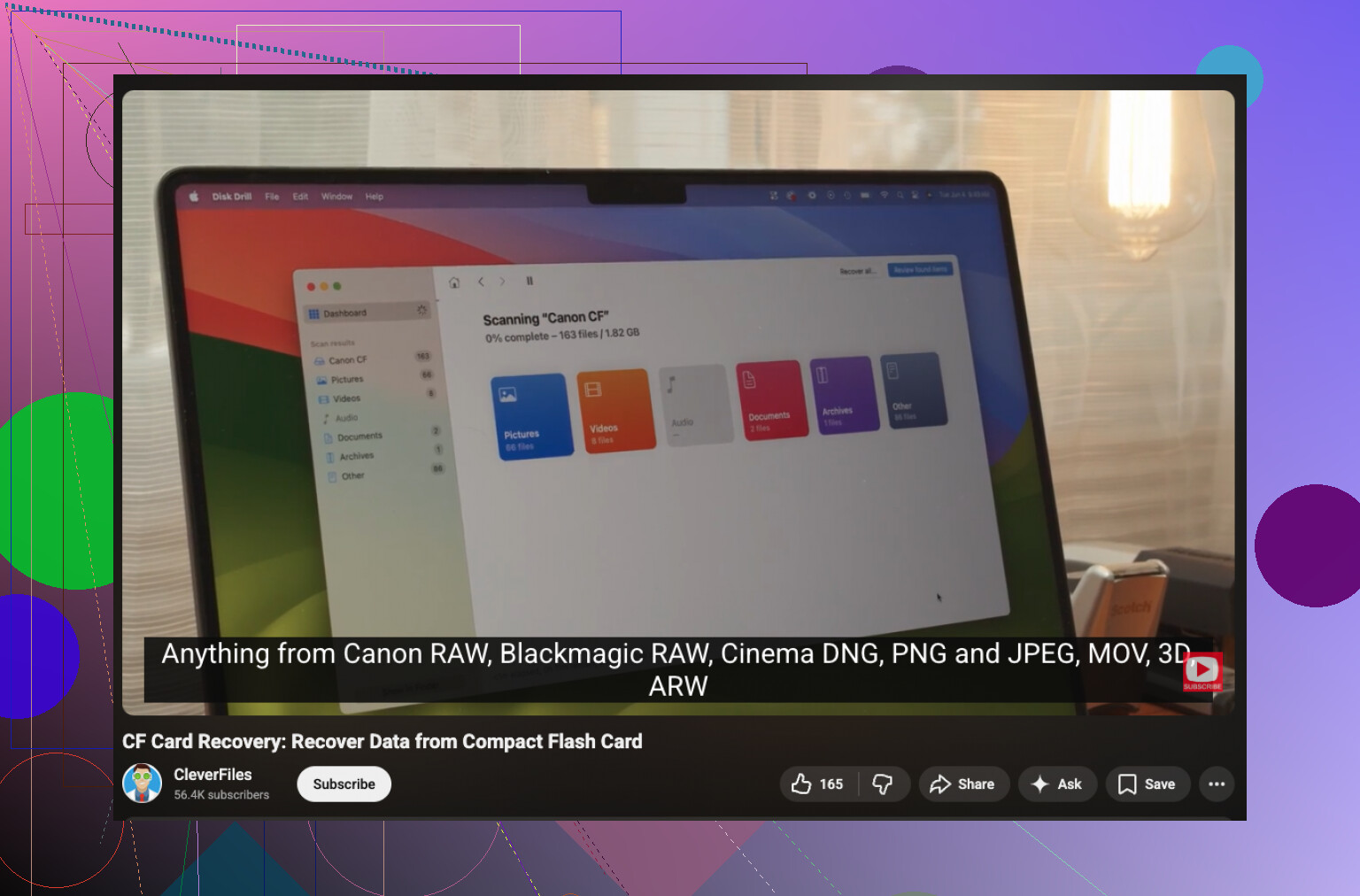
If the system sees the card, I’d go with recovery software before trying any repair tool. Disk Drill is one option people use for CF cards. It handles the file systems you usually see on camera media, like FAT32 and exFAT, and it scans for deleted or missing photos, videos, and RAW files.
The preview part matters more than people say. I’ve used previews to figure out fast whether the scan found real files or a pile of broken junk.
The plain step-by-step version
- Remove the CF card from the camera.
- Plug it into your computer with a decent CF card reader.
- Install the recovery app on your computer, not on the CF card.
- Pick the CF card in the app and start the scan.
- Go through the found files and preview the ones you care about.
- Save recovered files to your computer or another external drive.
Do not recover files back onto the same card. I know it sounds obvious, but people still do it, and then they wipe out data they were trying to save.
If the card looks unstable, make an image first
This part gets skipped a lot. If the card disconnects, throws errors, freezes, or behaves off, work from a copy instead of the original. Make a disk image first, then scan the image.
I’d do this any time the card feels flaky. It lowers the chance of making things worse while you poke at it.
Stuff I would not touch yet
Leave these alone until after recovery:
- CHKDSK
- First Aid
- repair options
- any “fix” prompt from the OS or camera
Those tools aim to make the card usable again. Your goal is different right now. You want files off the card first. Repairs come later.
When software stops being the right move
If the CF card:
- isn’t detected anywhere
- has bent pins
- gets hot
- drops connection over and over
then I’d stop with repeated software attempts. At that point, a recovery shop is the safer path.
Short version
If the card still shows up, your odds are often decent. Stop using it, connect it with a reader, scan it, preview what was found, and recover everything to another drive. That order matters.
6 Likes
Yes, CF card recovery is often possible if the card still shows up in your computer. Missing photos do not always mean the image data is gone. Sometimes the folder structure breaks, or the camera stops reading the directory right.
I agree with most of what @mikeappsreviewer said, but I would add one thing first. Check the card in the camera and on a computer for hidden DCIM folders or odd partition info. I’ve seen cards where the photos were still there, but the camera stopped listing them after a write error. On Windows, use Disk Management. On Mac, use Disk Utility. Look for the card size and file system. If the shown capacity looks wrong, stop poking at it.
If the card mounts but opens empty, skip repair tools and go straight to recovery. Disk Drill is a solid pick for CF card photo recovery because it tends to find RAW, JPEG, TIFF, and video files by signature even when the file table is messed up. Preview results before saving. If previews open, your odds are decent.
One place I disagree a bit with @mikeappsreviewer, trying multiple readers is smart, but too many reconnect attempts on a flaky card is a bad move. If the card drops out, image it early and work from the image. Fewer reads, less risk.
Also, do not trust the camera if it suddenly says the card is empty. Cameras lie. They only report what they see in the index, not what still sits in storage. Seen it happen more than once.
For a simple walkthrough, this helps:
step by step CF card photo recovery guide
If the card gets hot, reads at 0 bytes, or disconnects nonstop, stop DIY stuff. At taht point, a lab is the safer route.
Yes, CF card recovery is absolutely possible if the card is still being detected. That part matters more than whether the camera says the photos are gone. Cameras are kinda dumb about this stuff. If the directory gets messed up, they act like the card is empty even when image data is still there.
I mostly agree with @mikeappsreviewer and @kakeru, but I’d add one extra thing people skip: check whether the missing photos were saved in a format your current viewer just isn’t showing properly. I’ve seen RAW files look “missing” on one machine and show up fine on another app. Also, if this happened right after the battery died or the camera locked up mid-write, the last few files may be damaged while older ones are still recoverable.
What I would do is read the card once, as little as possible, and pull a sector-level backup if you can. Then scan that copy with Disk Drill. I know some people jump straight into scanning the card itself, but if the card has even minor read issues, imaging first is the safer play. Disk Drill is solid for CF card photo recovery because it can find files by file signatures even when the folder structure is toast.
One small disagreement with the usual advice: I would not spend too long trying every random adapter in the house. Bad readers can make a borderline card act even weirder. One known-good reader is better than ten mystery dongles.
Also worth checking:
- card capacity showing wrong
- files appearing as 0 KB
- weird renamed folders
- only thumbnails exist, not full images
If you want more community input, this thread has useful CF card photo recovery advice from the Data Recovery Help community.
If the card starts disconnecting, gets hot, or makes the system freeze, stop. That’s where DIY goes from “maybe” to “welp, that was a bad idea.”
One thing I’d add to what @kakeru, @cacadordeestrelas, and @mikeappsreviewer covered: check whether the camera changed file numbering or playback filters. Some cameras hide images from playback if the folder naming no longer matches what the body expects, even though the files are still on the CF card.
I slightly disagree with the “scan immediately” approach in one case. If the card is stable and readable, first copy the entire visible card contents to a folder, including empty-looking folders. Sometimes only the catalog is broken and sidecars, thumbnails, or hidden metadata help recovery software rebuild context.
If normal browsing shows nothing useful, then yes, Disk Drill is a reasonable next move.
Pros of Disk Drill:
- easy preview for photos
- good at finding JPEG, RAW, TIFF, video by signature
- works even when folders are missing
Cons:
- deep scans can lose original filenames/folder structure
- not ideal if the CF card has real hardware failure
- full recovery usually requires the paid version
Also, if your recovered photos open halfway, show gray blocks, or have wrong colors, that usually means partial overwrite or corruption, not failed recovery software. That distinction matters.