I keep deleting photos and videos from my iPhone to free up space, but the storage fills right back up or barely changes. I already emptied Recently Deleted, so now I’m confused about what’s using my iPhone storage and why it’s not clearing properly. I need help figuring out what to check next and how to actually free up space.
I ran into this on a couple iPhones, and the storage graph made it look like the phone ate a pile of space overnight. It usually wasn’t a sudden dump of new files. What I saw was one bloated category crossing some hidden line, then iOS started throwing low storage warnings.
First place I checked was Settings > General > iPhone Storage. Don’t guess. Open it and wait a minute for the bars to settle. You’re looking for the chunk doing the damage. On most phones I checked, it was one of these:
- Photos
- Apps
- Messages and attachments
- Downloads
- System Data
If Photos is near the top, I’d start there. People tend to look for exact duplicates and stop. Wrong target, from what I saw. The storage hogs were usually:
- Burst shots you forgot about
- Slightly different versions of the same pic
- Screenshots
- Old videos
- Live Photos
This part mattered most for me. The built-in Duplicates album on iPhone only catches exact copies, so it often finds almost nothing. Meanwhile, the real clutter is all the near-matches. I kept seeing reports from people who used cleanup apps and found hundreds, sometimes thousands, of similar images Apple didn’t flag at all.
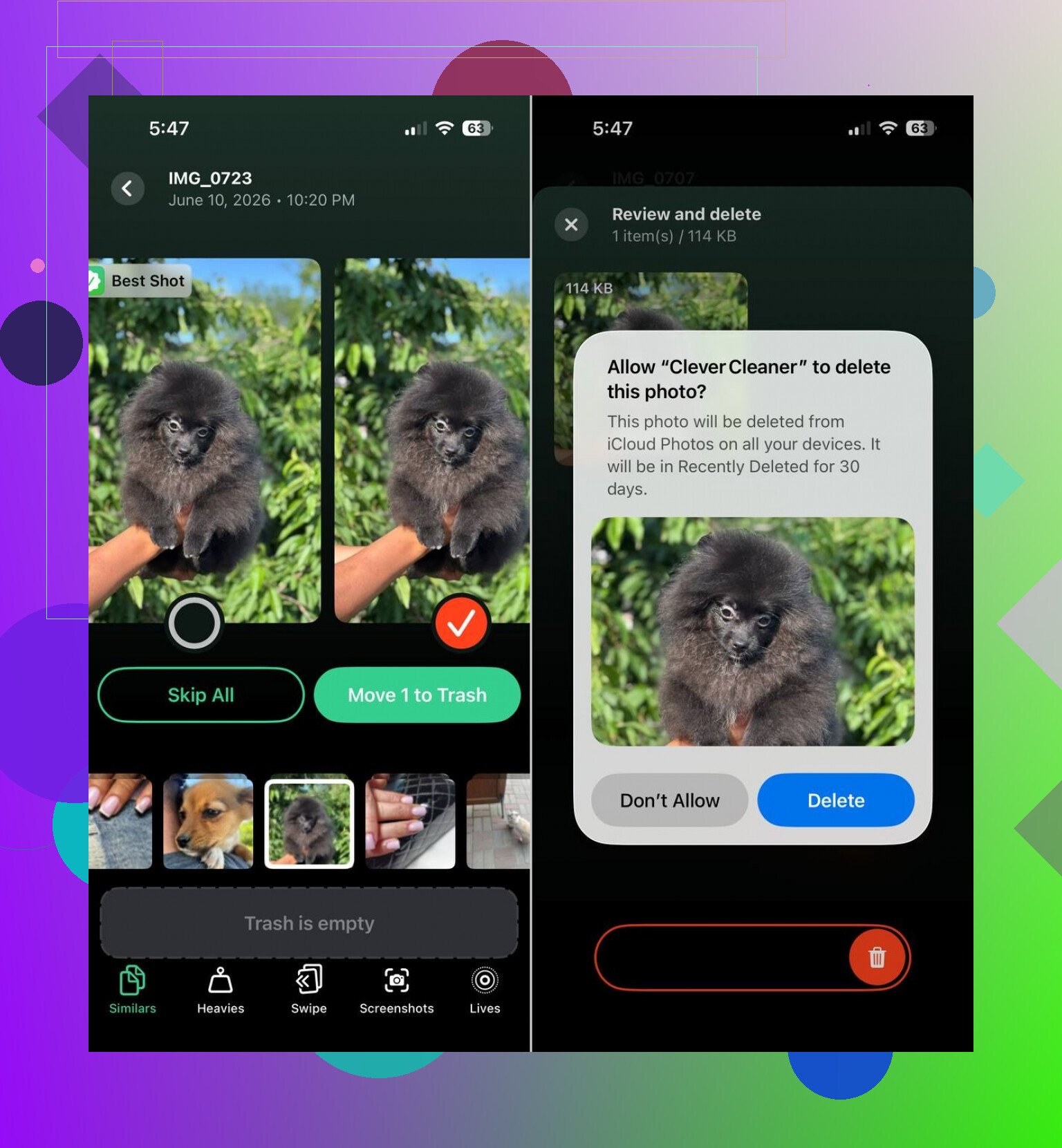
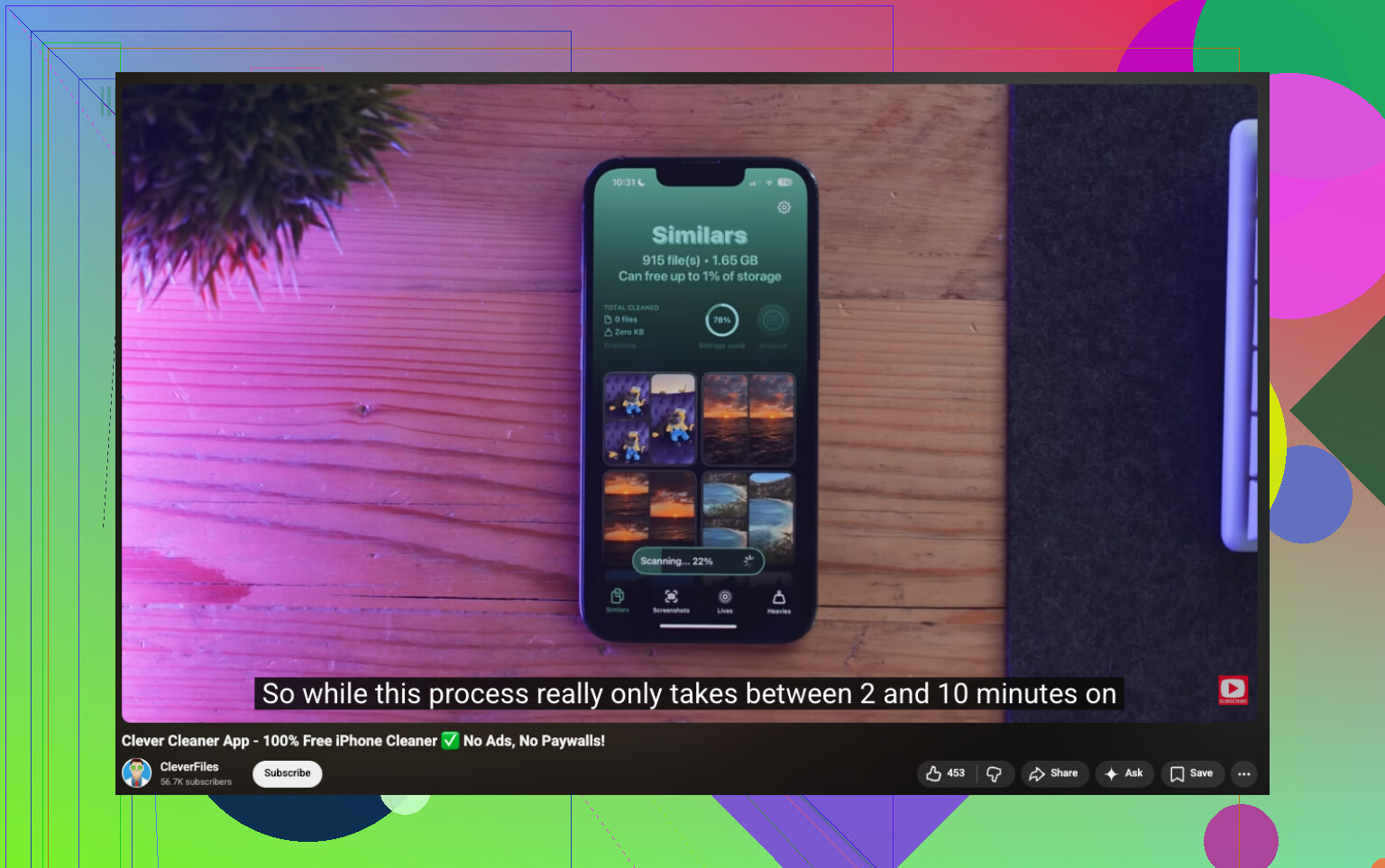
I’d start with Clever Cleaner. I tried it because Photos was the main problem on the phones I dealt with. It goes after the stuff which usually eats the most room: similar photos, screenshots, oversized videos, and Live Photos. It also helps turn Live Photos into stills, which shaved off more space than I expected. From what people shared, some got back around 10 GB. Others were closer to 30 GB after cleaning out similar shots, screenshot piles, and Live Photos.
The sections I’d look at first:
- Similars, for near-duplicate photos
- Heavies, for the biggest videos and images
- Screenshots, for fast bulk cleanup
- Lives, for converting Live Photos into regular photos
What I liked, and this mattered, was you still review everything before deletion. You’re not tossing files blind. I was wary at first too. After checking the picks, the app was right more often than I expected.
After Photos, I’d move to apps. Social apps, streaming apps, and browsers collect cached junk fast. I’ve freed more storage by deleting and reinstalling one fat app than by removing fifty random photos. Check Safari data, offline downloads inside apps, and saved media you forgot was there.
If the storage number keeps climbing and none of this explains it, look at System Data. iOS doesn’t give you a clean button for it. Annoying, yeah. On a few phones, the only fix with a noticeable result was backup, reset, then restore. Bit of a pain, but sometimes it’s the only thing which works.
So if your iPhone storage looks full out of nowhere, I’d put my money on Photos first, app cache second, System Data third. I’d do one pass with Clever Cleaner, then go app by app and clear downloads. Every time I chased “mystery storage,” it ended up being one of those.
One thing I’d add to @mikeappsreviewer’s point, the storage number often lags. iPhone does not always recalculate fast after deletions. I’ve deleted 15 to 20 GB before and the free space looked almost the same for hours. A restart fixed the display once, and plugging into power plus Wi-Fi overnight fixed it another time.
Also check Messages. Big video threads and meme dumps eat space fast. Go to Settings, General, iPhone Storage, Messages, then review large attachments. Same for Voice Memos, Files, Podcasts, Music downloads, and Netflix or Spotify offline stuff. Those are common space leaks ppl miss.
I disagree a bit on blaming System Data early. It gets blamed for everything. A lot of the time it’s app data hiding under the app itself.
If Photos is still the culprit, Clever Cleaner is worth a look for iPhone photo storage cleanup and duplicate removal. This see how to free up iPhone storage with Clever Cleaner video shows the idea. I’d also check Mail. Huge attachments sit there forever and nobody remembers them. That part got me once, lol.
One thing I’d push back on a little from @mikeappsreviewer and @viajantedoceu: deleting photos is not always the main battle. Sometimes the space comes right back because iPhone starts re-downloading stuff you told it to keep synced. iCloud Photos can do this weird loop where you delete local items, then optimized/original versions and thumbnails reshuffle, and the storage number looks cursed for a while.
Check these specifically:
- Photos > iCloud Photos and whether Download and Keep Originals is on
- Files app > On My iPhone > Downloads
- Mail app attachment cache
- WhatsApp/Telegram media storage inside the apps
- iCloud Drive offline files
Also, if you use shared albums or photo apps like Lightroom, Google Photos, or Snapseed, they can keep local copies even after you delete pics from the main Photos library. That catches ppl off guard a lot.
For cleanup, Clever Cleaner makes sense if your photo library is messy, especially for similar shots and storage-heavy media. Also worth skimming this thread on best free iPhone cleaner app for clearing duplicate photos.
My honest guess? It’s either synced media, app-held files, or message attachments. iPhone storage math is kinda dumb sometiems. Restarting after cleanup still helps too.