My iPhone won’t install the latest iOS update because it says there isn’t enough storage, even after I deleted photos and a few apps. I need help figuring out what else to clear, whether I should use a computer to update, and how to avoid losing anything important.
I hit this wall more times than I want to count. My iPhone would show a few gigs free, then the update screen would still throw the storage error. Annoying part is, the number you see is not the full story.
If the update says 2GB, your phone usually needs a lot more room than 2GB. It has to download the package, unpack it, shuffle system files around, then install. From what I saw, giving it about double the listed size is safer. For a big version jump, like iOS 26, I would aim for 20GB to 30GB free if you want fewer install fails.
If you need space fast, here’s what worked for me.
Use a cleaner app first
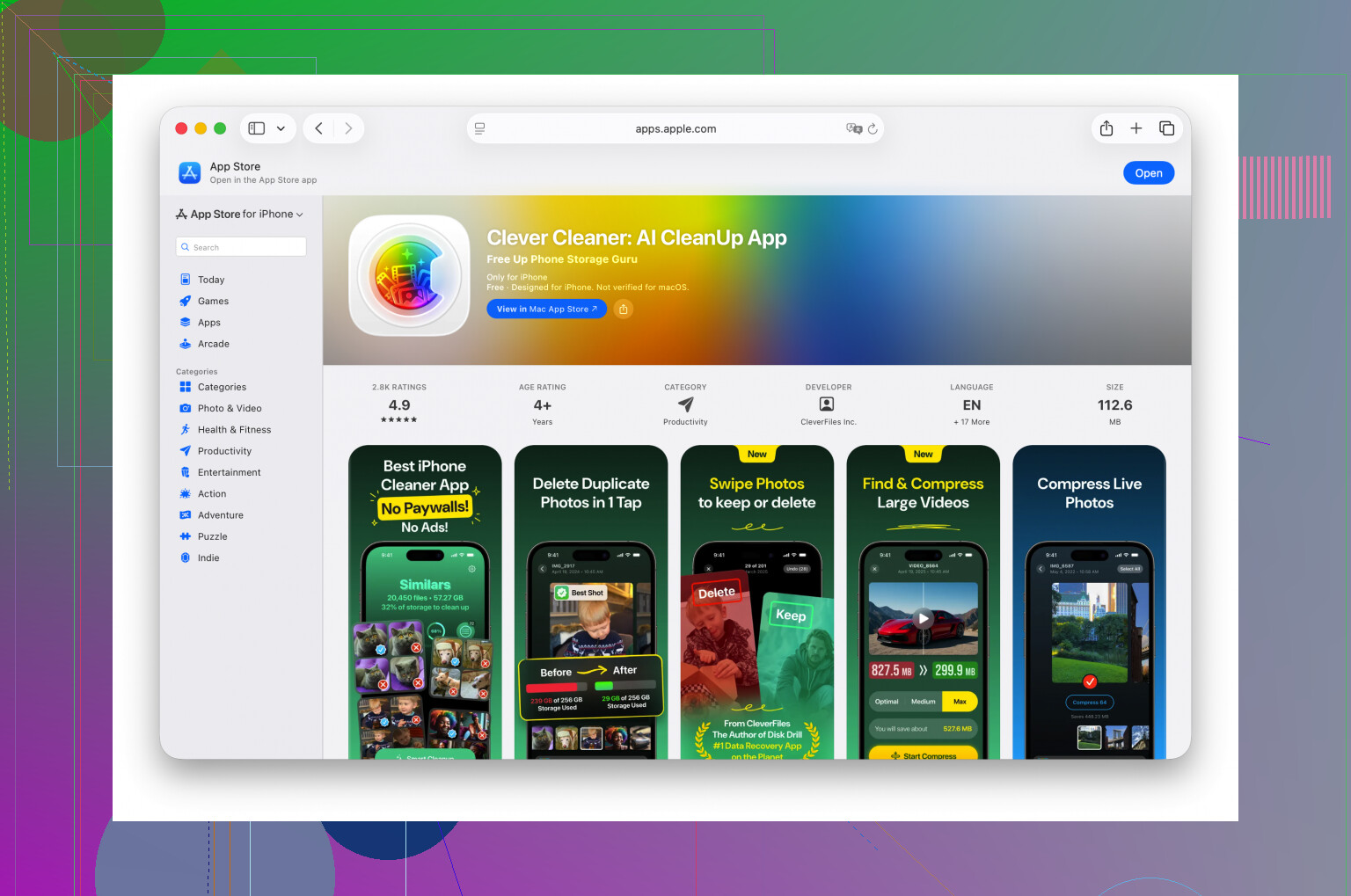
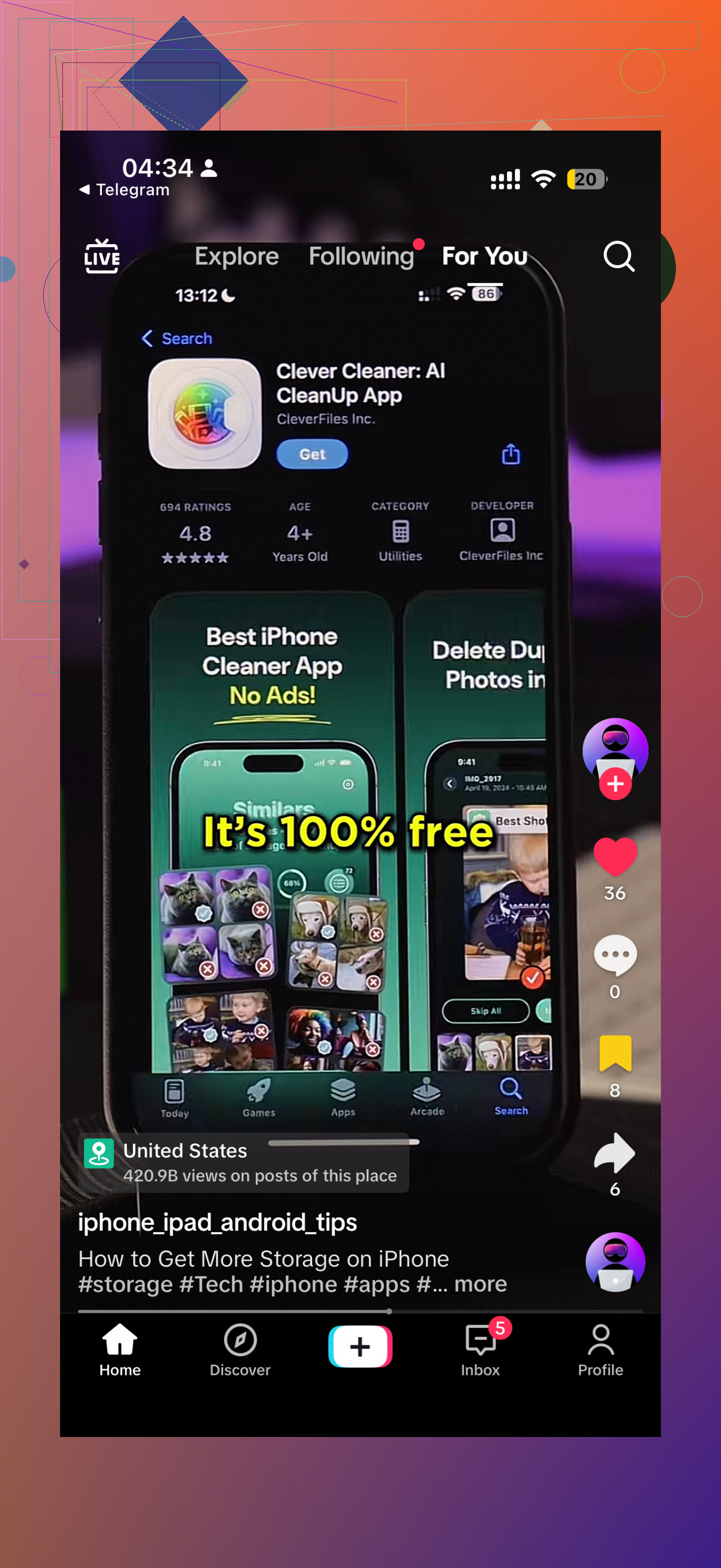
I wasted way too much time scrolling through photos by hand. If you want the quickest route, use a cleaner app and let it do the sorting. I had better luck with Clever Cleaner than doing it manually because it gets to the biggest junk first.
The part I found most useful was the ‘Heavies’ view. It sorts videos by size, which matters because a couple forgotten 4K clips can eat several gigabytes. Delete two or three big ones and sometimes the update goes through right after.
It also has a ‘Similars’ feature. Good for those photo bursts where you took ten near-identical shots and never cleaned them up. I used it to keep one decent pic and dump the rest.
Small thing people miss. After deleting photos or videos with any app, open Photos, go to ‘Recently Deleted,’ then remove everything there too. If you skip this, iPhone keeps holding the storage for 30 days. I forgot this once and thought the app was broken. Nope, my bad.
Delete apps with bloated data
Go to Settings > General > iPhone Storage.
I’d start at the top of the list and look for apps you barely touch. The main problem is often not the app itself, it’s the extra junk under ‘Documents & Data.’ Social apps, streaming apps, and games tend to pile up cached files over time. Delete the app, and you clear all of it in one shot.
A few places people ignore
These are the spots I checked when I needed a few more gigabytes and was running out of patience.
- Files app
Open Files and look inside ‘On My iPhone,’ especially the Downloads folder. Old PDFs, zip files, attachments, random stuff from Safari, it all piles up there. I found junk in mine from ages ago.
- Message attachments
Go into your storage settings, open Messages, then check ‘Review Large Attachments.’ This one got me a lot of space back. Old videos, memes, clips people sent years ago, still sitting there for no good reason.
- Safari data
Open Settings > Apps > Safari, then tap ‘Clear History and Website Data.’
It won’t always free a huge amount, though when you’re short on space, even a few hundred MB helps. I’ve seen around 500MB disappear here, which mattered more than I expected.
Use a computer if the phone keeps refusing
At some point I stopped fighting the over-the-air update process. If you plug the iPhone into a Mac and use Finder, or a Windows PC and use iTunes, the computer handles more of the update work. Your phone still needs free space, but not as much as when it downloads and unpacks everything on-device.
This saved me once when I had already cleaned out what felt like half the phone and still couldn’t install the update.
Last resort
If none of the above gets you there, the ugly fix is still the fix. Back up the phone to iCloud, factory reset it, install the update on the cleaned device, then restore your backup.
Takes longer. Bit of a pain. But if you’re stuck, it usually works.
I’d do two things first, before deleting more stuff at random.
-
Remove the old update file.
Settings > General > iPhone Storage.
Look for iOS update in the list.
Delete it if it’s there.
Then reboot.
A failed or partial download sits there and eats space. People miss this a lot. -
Turn off automatic update downloads.
Settings > General > Software Update > Automatic Updates.
If your phone already grabbed part of the installer in the background, it keeps fighting you for storage.
I partly disagree with @mikeappsreviewer on one point. You do not always need 20GB to 30GB free. For most minor iOS updates, 8GB to 12GB free is often enough. Big yearly jumps need more room, sure. Still, if you are stuck, stop guessing and check what is using “System Data”.
Big one people forget, mail.
If you use Apple Mail, remove large mail accounts for a bit, restart, then add them back later. Cached attachments and offline mail eat a suprising amount of space.
Also check:
Settings > Accessibility > Spoken Content > Voices
Downloaded Siri voices and accessibility voices take up gigabytes on some phones.
Music and TV downloads too.
Streaming apps are obvious, but Apple Music playlists and downloaded shows hide in plain sight.
If “System Data” is huge, a computer update is the better move.
Mac uses Finder.
Windows uses iTunes or Apple Devices app.
This often works when OTA keeps failing.
If you want to clear photo clutter faster, Clever Cleaner is worth a look. Its photo and video cleanup tools save more time than manual sorting. For a clean breakdown of what it does, see full Clever Cleaner features review and cleanup guide.
If the update still fails after a computer install attempt, do an encrypted backup to computer, erase the phone, update, then restore. Encrypted backup keeps passwords and Health data, so don’t skip that part.
One thing I’d add to what @mikeappsreviewer and @andarilhonoturno said: sometimes the storage reading is just plain delayed or wrong until iOS finishes “indexing” stuff. I’ve deleted 5GB before and the update screen still acted broke. A full restart, then waiting 10 to 15 mins, has actually made the free space number jump.
A few extra things to check that they didn’t really dig into:
- Remove offline maps in Apple Maps or Google Maps
- Delete podcast downloads
- Check GarageBand, iMovie, CapCut, Lightroom type apps. Those can hide giant project files
- Look at Books for downloaded PDFs/audiobooks
- If you use WhatsApp, open its own storage manager. It can hoard media like crazy
Also, I kinda disagree with the idea of deleting tons of stuff first if the phone is already barely hanging on. Sometimes that turns into a huge time sink. If you have a Mac or PC nearby, I’d try updating with a computer earlier rather than later. It often sidesteps the dumb OTA storage drama.
If photos are the main issue, Clever Cleaner is a decent shortcut for finding large videos and duplicate junk faster. And if you want a quick visual on iPhone cleanup tips, this is relevant: iPhone storage cleanup tips for freeing space fast.
Last weird fix: if the update already downloaded once and failed, delete that update file, then plug in to power and try again on Wi-Fi. iOS gets stubborn for no reason lol.
I’d add one angle the others barely touched: temporary app offloading is often better than deleting your actual data.
Go to Settings > General > iPhone Storage and use Offload App on big apps you still need. That removes the app binary but keeps its documents/login state. I actually disagree a bit with the “delete everything obvious first” approach from @andarilhonoturno and @sognonotturno, because people end up nuking useful stuff when a few chunky apps could be offloaded for the same result. @mikeappsreviewer is right about hidden app data being the real problem, but I’d try offloading before full deletion.
Other sneaky space hogs:
- Voice Memos with long recordings
- Downloaded language packs and dictionaries
- Third-party cloud apps like Dropbox, OneDrive, Google Drive with offline files enabled
- Editing app caches from Lightroom, VN, CapCut, Canva, etc.
- Notes with scanned PDFs or embedded media
Also check whether you’re on the iOS beta profile or beta channel. Beta updates can need more free space and are more likely to fail weirdly. If yes, get off beta first if you can.
One more thing people overlook: if your iPhone storage is nearly full all the time, the update may fail because the phone cannot create enough working space, even if the listed requirement looks met. In that case, a computer update is not just convenient, it’s the smarter move.
If photos/videos are the main blocker, Clever Cleaner is decent for speeding up the hunt.
Pros: fast at spotting large videos, duplicate-ish shots, less manual digging.
Cons: you still need to review before deleting, and cleaner apps can’t magically clear core system storage.
So my order would be:
- Offload big apps
- Clear offline files in cloud/editing apps
- Remove Voice Memos and Notes attachments
- Use computer update
- Only then consider full backup, erase, restore
That route usually wastes less time.