My iPhone keeps showing a memory full message even after I deleted photos, apps, and old files. I’ve restarted it and checked storage, but the warning will not go away. I need help figuring out what is causing it and how to fix it so I can use my phone normally again.
That “iPhone Storage Full” alert showing up again after you already deleted a bunch of stuff is one of those iPhone problems that feels fake until you check twice. I ran into this on my own phone, and the reason was not what I first assumed.
Storage, not memory
When iPhone throws this warning, it is talking about storage space. Not RAM.
People mix those up all the time. RAM is the short-term stuff your phone uses while apps are open. Storage is the long-term space where your photos, videos, apps, messages, downloads, and system files sit. This alert points to storage. Always.
Why deleting photos often does nothing
This tripped me up the first time.
On iPhone, deleting a photo or video in the Photos app does not erase it right away. It gets moved into Recently Deleted and stays there for 30 days. While it sits there, it still takes up the same amount of space.
So if you deleted 8 GB of videos and your phone still says full, yep, this is often why.
What I had to do:
- Open Photos
- Tap Albums
- Scroll to Recently Deleted under Utilities
- Tap Select
- Tap Delete All
Until you clear that folder, your storage number often won’t move in any meaningful way.
Other places where storage hides
Go to Settings > General > iPhone Storage and wait a bit. The colored storage bar takes a second to finish loading. If you check too fast, you miss part of the picture.
A few things worth looking at:
- System Data or Other
If this chunk looks huge, it usually means cached files, Siri voices, temp data, logs, and leftover bits from apps. I’ve seen this number jump around for no obvious reason.
A restart helped on my phone. Not magic, but enough to force iOS to recalculate storage and clear some stuck temp junk.
- Messages attachments
Open iPhone Storage and scroll down to Messages. There’s usually a section for large attachments. Old videos, memes, voice notes, and random clips from group chats pile up quietly. This one sneaks past a lot of people.
- Safari cache
Go to Settings > Safari > Clear History and Website Data.
If you browse a lot, cached site data builds up. I didn’t expect much from this one, but it freed a noticeable chunk on an older device.
- Unused apps
Inside iPhone Storage, there’s an Offload Unused Apps option. This removes the app itself but keeps its documents and saved data. Good if you don’t want to lose progress or settings.
One thing people keep mistaking for a system warning
If you see a storage full pop-up while browsing in Safari or watching some sketchy streaming page, and it says your SIM is damaged or there’s a countdown timer, that is not an Apple alert. It’s a scam ad.
Real iPhone storage warnings show up as normal iOS alerts or inside Settings. They do not act like some flashing browser panic box.
I’d avoid tapping anything in those pop-ups. Close the tab.
When the built-in tools stop being useful
This was the part I found annoying. iPhone shows storage totals by app, but it doesn’t help much when you want specifics.
You don’t get a clean way to sort your photo library by size. You don’t get a fast way to find near-duplicates either. So if your library is huge, cleanup turns into a long manual slog.
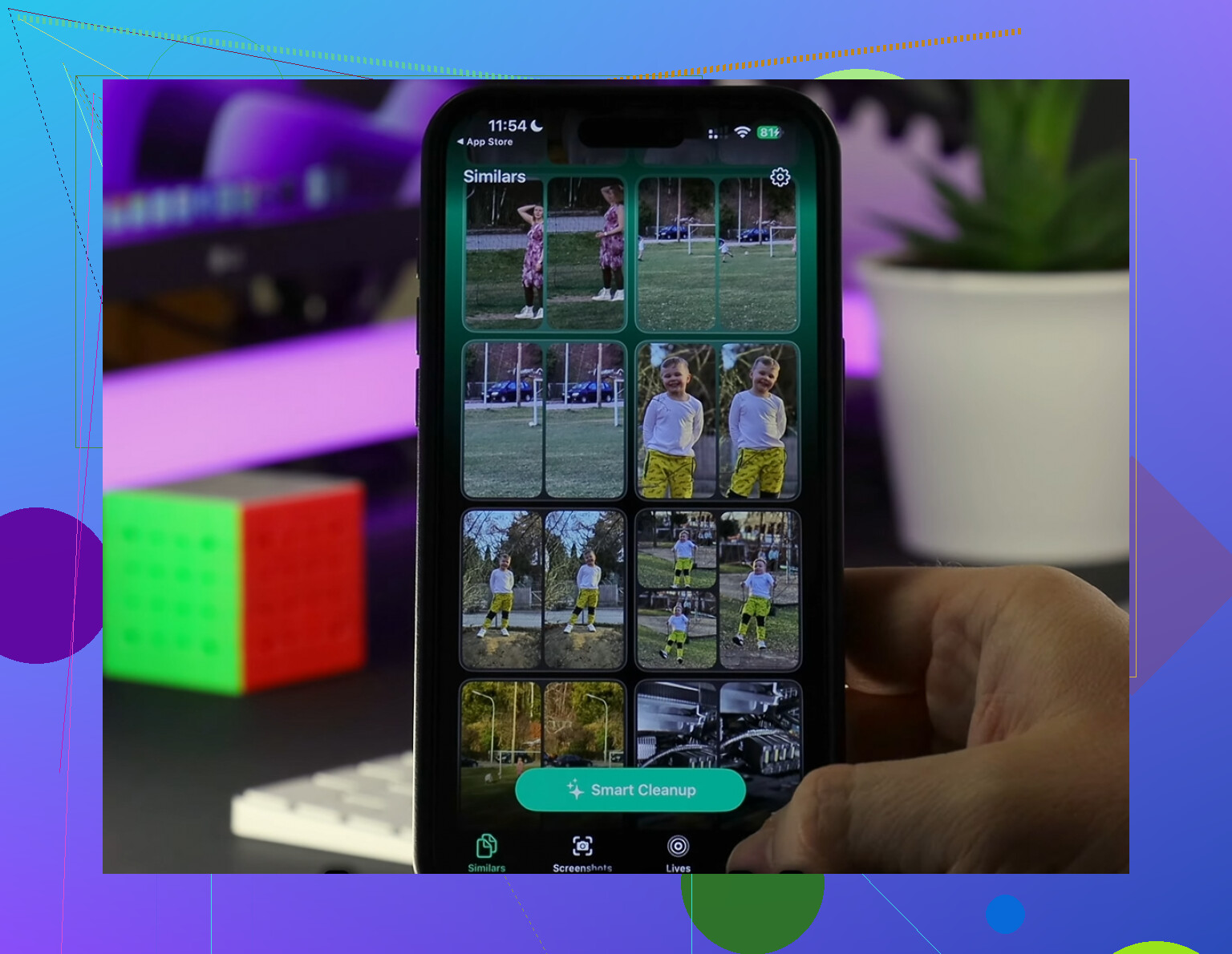
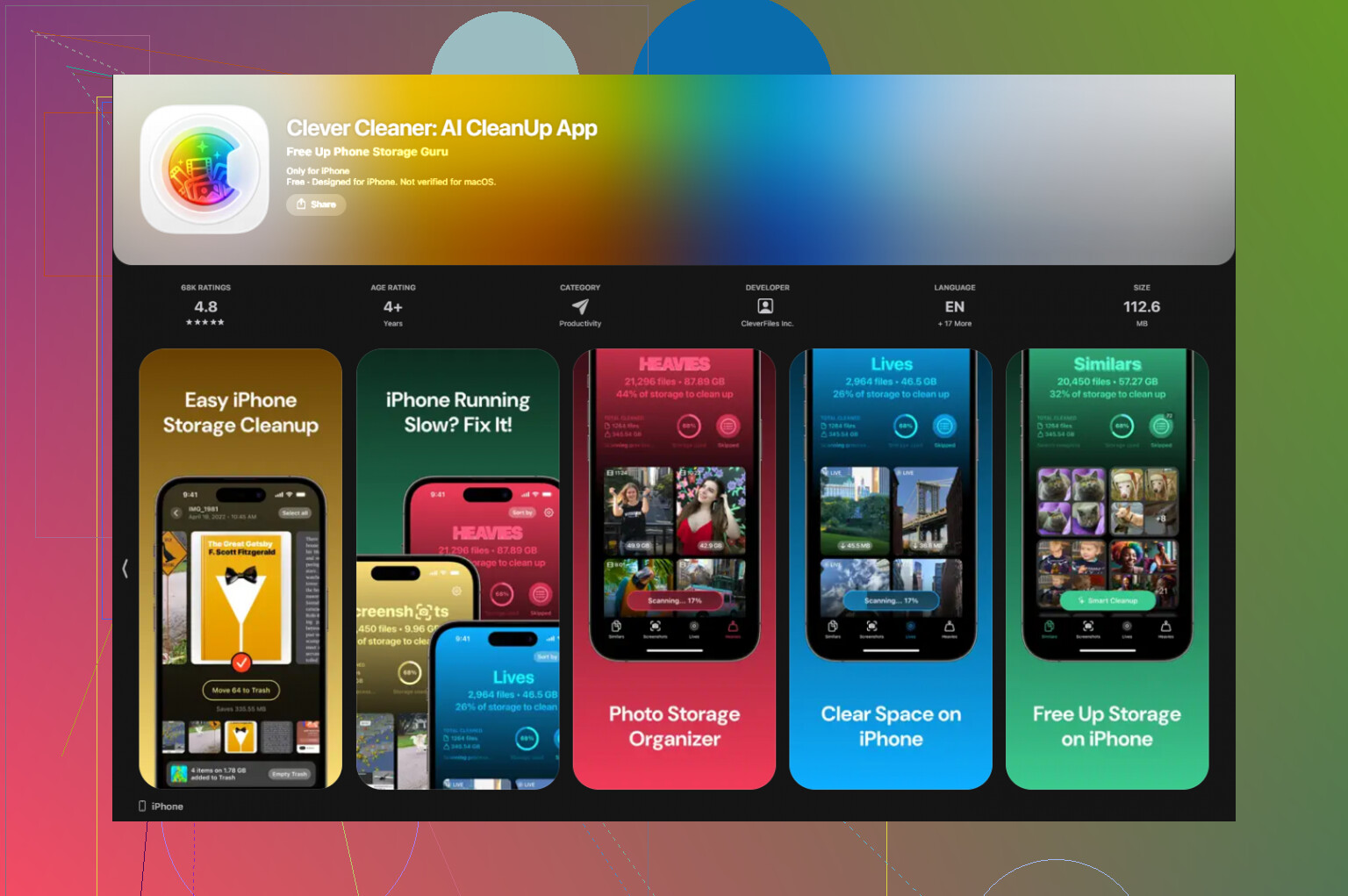
I ended up trying Clever Cleaner for this part because I wanted to see which files were eating the most space first.
What stood out to me:
- The Heavies section puts the largest media files at the top, so the big 4K videos and screen recordings show up first
- The Similars section groups near-matching photos and picks a best shot, which helped with burst photos and repeat tries
- File sizes are visible before deleting anything
- The app says processing stays on-device
- No ads showed up for me, and I didn’t hit a paywall
On my phone, I cleared around 12 GB there, then emptied Recently Deleted, and after that the storage alert stopped coming back. The phone felt less sluggish too. Not night-and-day dramatic, but noticeable.
If the warning still shows even when you have free space
This is the weird case.
If Settings shows open storage but the warning keeps appearing, I’d suspect a sync bug or broken storage calculation. I’ve seen iPhones hold onto bad numbers longer than they should.
The fix for stubborn cases:
- Make a full backup to iCloud or a computer
- Erase the iPhone
- Restore from backup
It’s annoying. Takes time. Still, it forces iOS to rebuild the storage map from scratch, and this tends to clear phantom storage readings when lighter fixes fail.
What worked for me, in order
- Empty Recently Deleted
- Restart the phone
- Check Messages large attachments
- Clear Safari data
- Offload unused apps
- Sort large media files and duplicate photos
- Backup, reset, restore if the warning still lies
If you only do one thing first, check Recently Deleted. I missed it once and spent half an hour deleting stuff for nothing.
7 Likes
Check one thing people skip. iCloud sync backlog.
If iCloud Photos, Messages, or Files got stuck, iOS keeps local temp copies and the storage alert loops. Go to Settings, tap your name, then iCloud. See if Photos, Messages, Drive, or Backup shows syncing, paused, or low iCloud space. If your iCloud is full, the phone gets weird about cleanup. Free some iCloud space or turn off the stuck sync item, then reboot once.
Also look at Mail. The stock Mail app caches attachments hard. If Mail is using a lot, remove the mail account, restart, add it back. Same idea for Podcasts, TV, Music, and downloaded Maps. Those apps hoard offline files and iPhone Storage does a bad job showing all of it fast.
One place I disagree a bit with @mikeappsreviewer. Reset and restore is not my first nuke option. I’d try Settings > General > Transfer or Reset iPhone > Reset > Reset All Settings first. This does not erase your data. It resets system settings, network stuff, storage indexing quirks sometiems clear after this.
If the alert appears only inside one app, delete and reinstall tht app. Its cache is often the real pig.
If you want faster photo cleanup, Clever Cleaner is fine. This free iPhone cleaner app review for saving storage space gives a decent breakdown.
One angle I’d add to what @mikeappsreviewer and @ombrasilente said: check whether the alert is being triggered by storage recommendations failing, not actual full storage.
I’ve seen iPhones get stuck when iOS is trying to generate things like photo indexing, message attachment analysis, or app storage recommendations. In that case, you delete stuff, the number looks better, but the warning hangs around like it didnt get the memo.
A few things I’d try that are different:
- Plug the iPhone in, connect to Wi-Fi, lock it, and leave it alone for an hour or two. iOS does a lot of cleanup/indexing only when idle.
- Update iOS if you’re not current. Some storage warning bugs were fixed in later builds.
- Check Settings > Accessibility > Spoken Content and any downloaded voices, plus keyboards/dictionaries. Those extra language files can be weirdly large.
- Look in Files app > On My iPhone. Downloads, ZIPs, and video exports hide there all the time.
- If you use editing apps like CapCut, iMovie, Lightroom, TikTok, Instagram, etc, open them directly and clear drafts/project cache. Deleting the app sometimes leaves stuff in iCloud Drive or Files.
- If you use WhatsApp/Telegram, check their in-app storage managers. Those apps can hoard media like crazy.
Also, slight disagreement with the “reset stuff early” approach. I’d do a forced restart plus iOS update before any reset, because resets are annoying and often overkill.
If the main problem is photos/videos and you want to find the actual biggest junk fast, Clever Cleaner is honestly useful for that. Less guesswork than poking around manually.
If you want a visual walkthrough, this step-by-step iPhone storage cleanup guide may help.
If the warning only appears inside Safari or one random site/app, I’d suspect fake popups before I’d trust the message. Apple alerts are boring. Scam alerts are dramatic as hell lol.