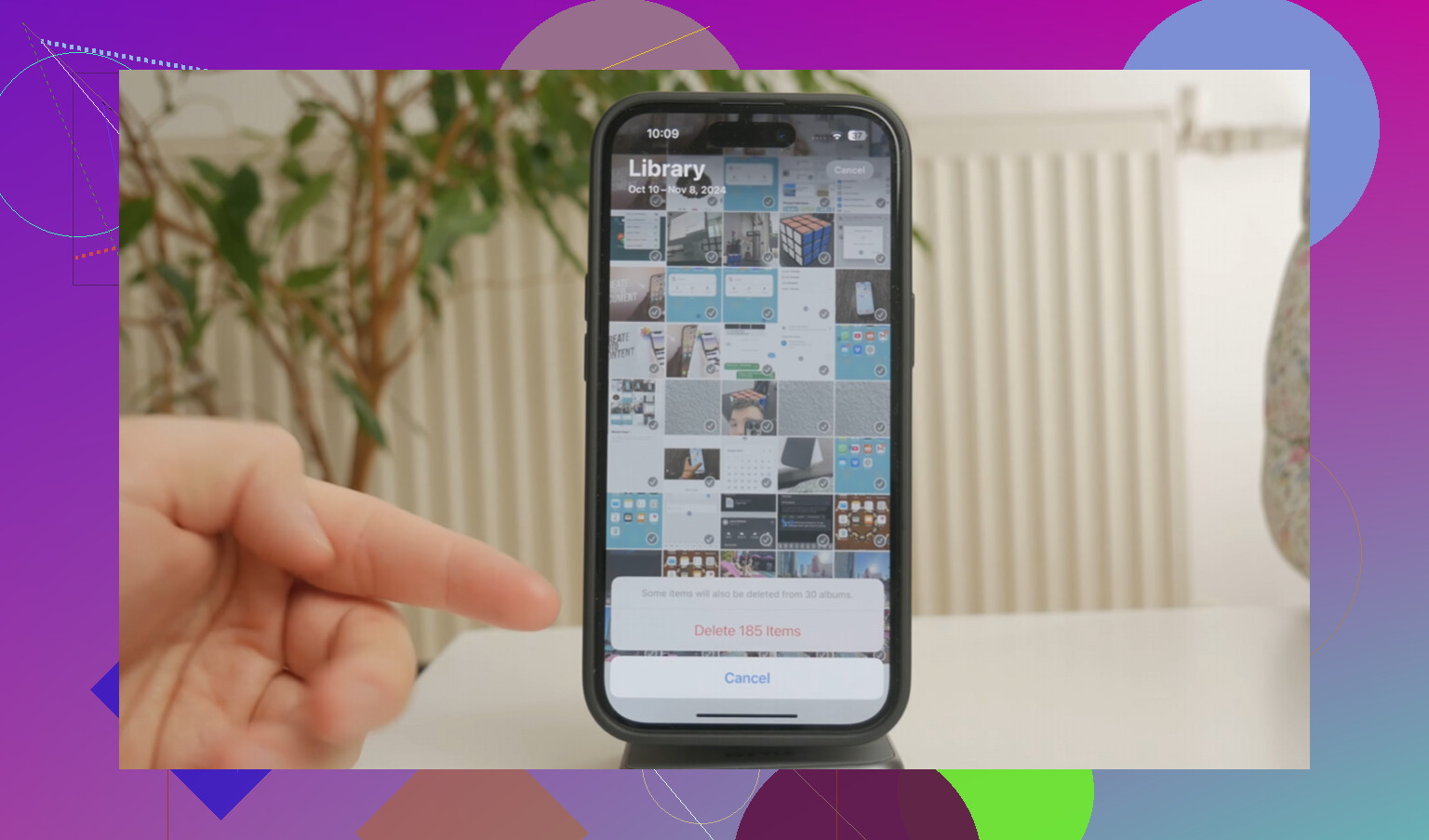
My iPhone storage is almost full, and I want to bulk delete all photos except the ones marked as Favorites. I’m trying to find out if iOS has a built-in way to do this in the Photos app without manually selecting thousands of images or risking deleting my favorite photos.
If your goal is basically “delete everything except my Favorites,” the annoying part is that Apple still doesn’t give you a clean button for that. Favorites are just marked photos, not a real separate folder, so if you mass-select from the main library, your favorites get swept up with everything else.
The safest no-computer workaround is to temporarily hide the stuff you want to keep. Open your Favorites album, tap Select, then Select All. Use the three-dot menu or share menu, depending on your iOS version, and choose Hide. That moves those photos out of the regular library view into Hidden. Then go back to All Photos or Recents, select what’s left, and delete it. After that, open Hidden, select everything, and Unhide it. It’s clunky, but it works without having to tap thousands of photos one at a time.
There’s also a newer option if you’re on something like iOS 18.4. You can make a temporary album, maybe called “Keepers,” and add all your favorites to it. Then go back to the main library view and use the filter button in the lower-left corner. If “Not in Album” shows up, it can help you isolate everything that isn’t in that Keepers album so you can delete it in bulk. Just double-check what it’s showing before deleting, because that filter can be weird and may not appear if you’re viewing things from inside an album instead of the main library.
If the Photos app is already lagging badly, Shortcuts can be a better route. Make a shortcut with “Find Photos,” set the filter to “Is Not Favorite,” then add an action to create a photo album named something like “To Be Deleted.” Run it, let it collect the non-favorites into that album, then open the album, select all, and delete. That’s a lot easier than trying to scroll through a giant library by hand.
I hit this problem when my library was around 15,000 items, and the phone was barely usable. Photos would hang, apps took forever, and even scrolling felt broken. At that point, Apple’s built-in cleanup tools just weren’t enough.
I tried a few of the cleaner apps too, and most of them were awful. Either they’re packed with ads or they act free until you actually want to delete anything, then suddenly there’s a subscription.
The one I ended up keeping was Clever Cleaner. It’s free, with no ads, no paywall, and no fake “pro trial” stuff. It also works on-device, which matters if you don’t want your photos and screenshots uploaded somewhere just to be scanned.
The most useful part for me was the Heavies tab. It sorts your library by file size, which Apple Photos really should have by now. I found old 4K screen recordings and long videos that were taking up more space than thousands of regular photos. The Similars tab was useful too, since it groups near-duplicate shots, like all those almost-identical sunset photos where you only need one. For screenshots, it shows the file size right on the thumbnail, so you can see what’s actually worth deleting. Clearing out the huge files and duplicates was what finally stopped my phone from lagging.
One thing people forget: deleting photos doesn’t immediately free the space. iOS puts them in Recently Deleted for 30 days, and they still count against your storage while they’re sitting there. After your cleanup, go to Albums, open Recently Deleted, and choose Delete All. If storage still looks wrong after that, restart the phone. That usually makes iOS recalculate the space properly.
The sneaky catch is that if iCloud Photos is on, this is not just cleaning the phone, it is deleting from your iCloud library too. A lot of people think they are freeing local storage only, then later realize the same deletes synced to their iPad, Mac, and iCloud.com. Before doing any bulk method, I’d check Settings > your name > iCloud > Photos and make sure you understand what is syncing.
As for the actual question, no, iOS Photos still doesn’t have a simple “delete all except Favorites” command. I agree with the general workaround above, but I’d be more cautious about using Hidden as the only safety net. Hidden is not a backup. It is just another state inside the same Photos library, so a wrong selection or sync issue can still make a mess. If these are important pictures, export the Favorites somewhere first, even if it’s just to a computer, external drive, or a temporary cloud folder.
The shortcut approach is probably the closest built-in-ish way, but I’d run it on a tiny test first. Make sure “Is Not Favorite” is really catching what you expect, especially with videos, edited photos, shared-library items, or photos that are still downloading from iCloud. Once you trust the result, then do the big delete. And yes, empty Recently Deleted afterward, otherwise your storage number may barely move.
Do not use an album as your “safe copy” unless you understand that albums are only labels, not separate duplicates. If a photo is in Favorites and in some other album, deleting it from the Library still deletes the actual photo everywhere. That trips people up because albums feel like folders, but Photos does not work that way.
The direct answer is: no, iOS Photos does not have a normal built-in button for “delete everything except Favorites.” You can view Favorites, and you can delete selected items, but Apple does not give you an inverse selection tool in Photos like “select all non-favorites.”
Where I slightly differ from the hide/unhide workaround is that I would not treat it as my first choice if the library is large or important. It can work, but it depends on you not missing anything and not getting confused by what view you are in. Hidden is still part of the same library, and it is easy to forget that some items may be in Shared Library, imports, synced albums, screenshots, videos, or bursts.
If you have access to a Mac, I think the cleaner “Apple way” is actually through Photos on macOS, not the iPhone. Make a Smart Album where Favorite is not true, review it, then delete from there. That still affects iCloud Photos if syncing is on, but the Mac interface is much less painful for checking a huge selection before you trash it. iOS is just clumsy for this kind of bulk library operation.
If you are staying on the phone only, Shortcuts is probably the closest thing to built-in automation. I would make it collect “not favorite” items into an album first, then inspect that album before deleting anything. The important detail is that putting photos in a “To Delete” album does not delete them by itself. When you delete from that album, make sure you are choosing the option that deletes from the library, not merely removes them from the album.
I’d also decide whether you actually want to delete your library or just free local phone storage. Those are different problems. If iCloud Photos is enabled and “Optimize iPhone Storage” is off, turning that on may free a lot of device space without destroying the library. If your iCloud library itself is too big, then yes, deleting is the right direction, but then you are doing permanent library cleanup, not just phone cleanup.
Before the big delete, I’d do a boring but useful test:
- Pick 10 or 20 random non-favorites.
- Delete only those.
- Check Recently Deleted.
- Check another Apple device or iCloud.com if you sync.
- Make sure your Favorites are still where you expect.
- Only then run the bulk version.
And after deleting, don’t judge the storage number immediately. Photos keeps deleted items in Recently Deleted for up to 30 days, and iOS storage reporting can lag. Empty Recently Deleted only after you are sure you did not trash anything important.
So the short version: no built-in iPhone command for this, Shortcuts or a Mac Smart Album are the least annoying Apple-based methods, and albums should not be mistaken for backups. If the photos matter, copy the Favorites somewhere outside Photos before doing any mass delete.