My iPad has gotten really slow lately and keeps freezing when I open apps, browse the web, or try to switch between screens. I’ve already restarted it and cleared some storage, but the lag is still there. I need help figuring out what actually fixes an iPad running slow and freezing before it gets worse.
I ran into this with two iPads, one after an iPadOS update, one out of nowhere. Both felt broken. App switching lagged, Safari dragged, keyboard pops came late. I thought I was headed for a full wipe. I wasn’t.
If the slowdown started right after an update, I’d wait a day before touching anything. iPadOS does cleanup and indexing in the background after big updates, and performance dips for a bit. I usually leave it plugged in overnight on Wi-Fi. More than once, it settled down by the next morning. If it still feels slow after 24 hours, then I start checking the usual problem spots.
The first thing I look at is storage. This gets missed a lot. Once an iPad gets close to full, it starts behaving badly. Around 80 percent used, things often get rough. Under 1 GB free, mine was a mess. Newer iPadOS builds also lean on storage for memory swap during heavier multitasking, so low free space hits harder than people expect.
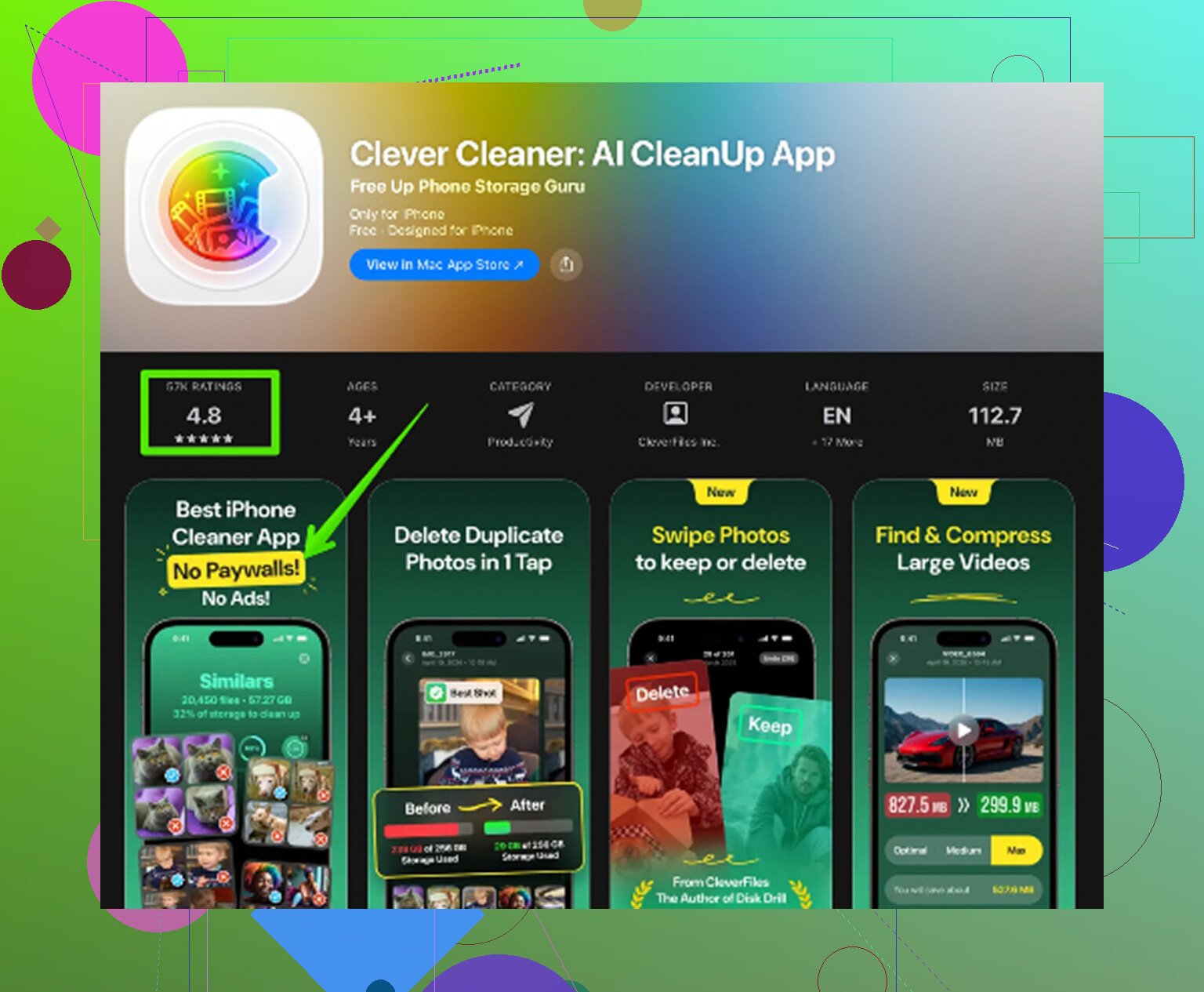
What got me once was years of junk I stopped seeing. Screenshots. Duplicate photos. Old screen recordings. A few huge videos. Random downloads. I tried cleaning it by hand and gave up fast. I ended up using Clever Cleaner because I wanted something quicker to sort the pile.
What I liked, and why I kept it installed for a bit, was the simple stuff. No paywall in my face. No ads every two taps. It handled things on the device, which mattered to me because I don’t love handing my photo library to some server. The Heavies section made the big files obvious right away. The Similars section flagged near-duplicate shots and blurry trash I would never have hunted down myself. It even broke out screenshot sizes, which helped more than I expected. I cleared around 15 GB, rebooted, and the lag was mostly gone. Not magic, but close enough.
If your storage looks fine, I’d move to settings next.
Background App Refresh is one of the first switches I cut. A lot of apps do not need to sit there doing chores when you’re not using them. On older iPads, this seems to help more than people think. I also turn on Reduce Motion under Accessibility. Sounds minor. Didn’t feel minor on my older unit. The interface looked less fancy, but it felt quicker and less choppy.
Then I do the boring fixes people skip because they sound too easy. Reboot the iPad. Full restart, not sleep and wake. This still fixes weird hangs, stuck processes, and memory cruft. I’ve seen it clear up laggy typing and random pauses more than once.
Safari is another one. If the slowdown shows up mostly while browsing, clear its data. Go to Settings > Safari > Clear History and Website Data. I’ve had Safari go from sluggish and glitchy to normal right after doing this. Not every time, but enough times where I check it early now.
Battery matters too, even if people hate hearing it. Older batteries don’t deliver peak power as well once they’ve aged. When mine got into the 4 to 5 year range, I started noticing more slowdowns under load. If your iPad is older, some of this might be plain hardware age. Not a fun answer, I know.
Still, I wouldn’t jump to a factory reset or replacement first. My order is simple:
1. Wait 24 hours after an update.
2. Check free storage.
3. Remove big files, duplicates, screenshots, junk media.
4. Turn off Background App Refresh for apps you don’t need.
5. Enable Reduce Motion on older models.
6. Reboot.
7. Clear Safari history and website data.
8. If it’s an older iPad, think about battery health.
For me, storage was the main offender both times. Once I freed space, the iPad stopped feeling like it was dragging itself across the floor. If your device slowed down out of the blue, I’d start there first. It’s the least destructive fix, and in my case, it did the most.
2 Likes
If you already restarted and freed storage, I’d stop chasing the usual tips for a minute. @mikeappsreviewer covered the storage angle well. I disagree on waiting too long if the freezing is bad across multiple apps. If it’s locking up for days, I’d move faster.
What fixes this for me is isolating whether the issue is system-wide or tied to one setting, one app, or bad network stuff.
Try this order.
-
Force close the worst apps, then test one app at a time.
If Safari, YouTube, and Settings all freeze, it points more to iPadOS than one buggy app. -
Update every app in the App Store.
Old app builds hang after iPadOS changes. I’ve seen one broken app eat memory and make the whole iPad feel slow. -
Remove VPN, ad blocker, or “security” apps.
These are common troublemakers. Same for stale widget stacks on the Home Screen. Delete them for a day and test. -
Reset network settings.
Settings, General, Transfer or Reset iPad, Reset, Reset Network Settings.
If web browsing and app loading are the worst parts, this helps more than people think. Annoying, yes. Works often, also yes. -
Check Analytics data.
Settings, Privacy & Security, Analytics & Improvements, Analytics Data.
If you see the same app name or “JetsamEvent” over and over, your iPad is running out of memory or one app is crashing the system. Older 2 GB and 3 GB RAM iPads do this a lot. -
Offload and reinstall the apps freezing most.
Do not keep years of app cache. Social apps and browsers get bloated. -
If nothing changes, back up, then do a full reset and restore.
If restore brings the lag back, set it up as new for one test run. It’s a pain, but this is the cleanest way to rule out OS junk.
If photos and videos are clogging things up, Clever Cleaner is still worth a look for duplicate shots, large files, and screenshot cleanup. This guide is easy to follow: watch the Clever Cleaner step by step cleanup for iPhone and iPad storage
One more blunt point. If your iPad is old, like A10 or older, some freezing is hardware age. No setting fixes aging hardware forever. Sad but truee.
If you already did the basic restart + freed some space and it still freezes, I’d look at something a little less obvious than the usual “clear storage and pray” advice from @mikeappsreviewer and @reveurdenuit.
What has fixed this for me before was checking whether the iPad was choking on a setting or thermal/power issue.
A few things to try:
- Turn Low Power Mode OFF if it’s on. Weirdly, some older iPads feel extra sluggish with it enabled.
- Take the case off and use it for 15 minutes. If it’s getting warm, performance can tank hard.
- Check Settings > Battery and see which apps are using a stupid amount of background activity. Sometimes one app is basically the villian.
- Disable Location Services for apps that do not need it. Same for Bluetooth if you barely use it.
- Go to Settings > Accessibility > Touch > Touch Accommodations and make sure nothing odd got enabled by accident.
- In Files, delete old downloads. People forget that folder exists and it gets bloated fast.
Also, if Photos is still huge, storage can still be “cleared” but not really cleaned up well. That’s where Clever Cleaner is actually useful for finding duplicate photos, big videos, screenshots, and other junk faster than doing it manually. If you want a solid overview, this article is a decent read: see why Clever Cleaner is one of the best free iPhone and iPad cleaning apps.
One thing I kinda disagree with: I would not jump straight to full reset unless the iPad also freezes in Settings itself. If it does freeze in Settings, yeah, then backup time. If not, it’s usually one bad app, heat, battery weirdness, or leftover media/cache junk. Kinda annoyng, but fixable.

I’d add one check none of the others really pushed: watch RAM pressure by behavior, not storage. If the iPad reloads tabs constantly, kicks you out of apps when switching, or the keyboard stutters, that usually means memory exhaustion, not just “too many files.” In that case, deleting photos helps less than people hope.
What I’d do:
- Turn off Home Screen widgets for a day
- Disable Live Photos preview-heavy wallpapers
- Shut off Safari tab groups with dozens of tabs open
- Remove web clips/PWA apps you saved from Safari
- Test in Safe conditions: charger unplugged, Bluetooth off, one app open, no Split View
I slightly disagree with waiting too long if it is freezing hard. If it is happening in Settings, Files, and Safari, I’d skip straight to Settings > General > iPad Storage and see whether one app is absurdly large, then delete that app completely, not offload.
Also check battery health through Apple Support diagnostics if you can. Weak batteries can cause weird lag even before obvious shutdowns.
About Clever Cleaner:
Pros: fast at spotting duplicate photos, screenshots, big videos, easy cleanup.
Cons: mostly useful for media clutter, not a real fix for app bugs or aging RAM, and some people may prefer manual control.
So yeah, @reveurdenuit, @cazadordeestrellas, and @mikeappsreviewer covered the common lanes. I’d focus on RAM symptoms, widgets, Safari tab overload, and one bad oversized app before nuking the whole iPad.