I’m trying to free up space and want to remove some email attachments, but I’m worried the original messages might disappear too. I received important files in older conversations and still need the emails for reference, so I need help understanding whether deleting attachments will also delete the messages that came with them.
I ran into this when my iPhone storage was packed and Messages was eating a weird amount of space. It sounds risky at first, like one wrong tap and your saved photos are gone. It does not work like that.
If you delete an attachment, do saved photos vanish too?
No. Once you hit Save Image on a photo from a text, iPhone puts a separate copy into the Photos app. I tested this with a few pics from an old thread. I deleted the attachment inside Messages, then checked Photos. The saved image was still there. No link between the two after saving.
Does removing attachments wipe the conversation?
Nope. The text thread stays. You lose the image or video file tied to the message, not the written part of the chat. If you delete from the chat info screen or from iPhone Storage settings, you are trimming media, not erasing the conversation log.
Why your storage number might look unchanged
I saw this too. Deleted a pile of stuff, checked storage, and it barely moved. Two things were going on.
First, deleted message media sits in Recently Deleted for 30 days. So the phone has not finished removing it yet. If you want the space back now, open Messages, tap Edit in the top-left corner, choose Show Recently Deleted, then remove the items there for good.
Second, iOS is slow to refresh storage totals. A restart usually fixes the count and shows the real free space.
What about iCloud?
If Messages in iCloud is on, the deletion syncs. So if you remove an attachment on your iPhone, it disappears from your other Apple devices using the same Apple ID too. If Messages in iCloud is off, the change stays local to the device where you deleted it.
Why doing this by hand gets old fast
Apple gives you the Large Attachments section under Settings, then General, then iPhone Storage. It works. The annoying part is the lack of a select-all option. You have to tap items one by one. I did this once with a few hundred clips and screenshots. It was bad. Slow, repetitive, easy to miss stuff.
A quicker way if the problem is bigger than Messages
What got me was not only message attachments. It was also giant videos, repeated screenshots, and near-duplicate photos clogging the whole library. When storage gets low, iPhone starts feeling off. Apps pause, keyboard lags, camera takes longer. Mine did.
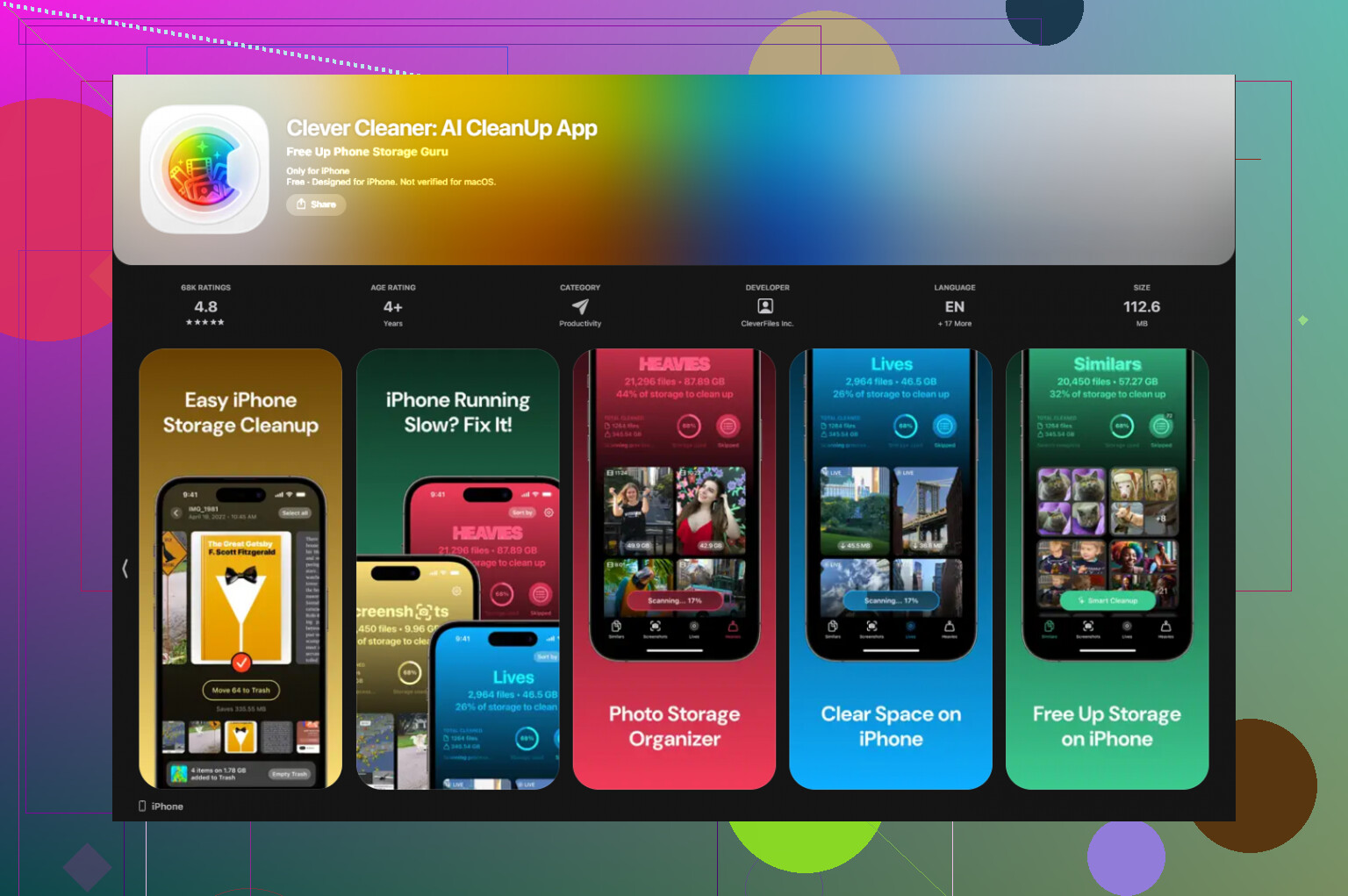
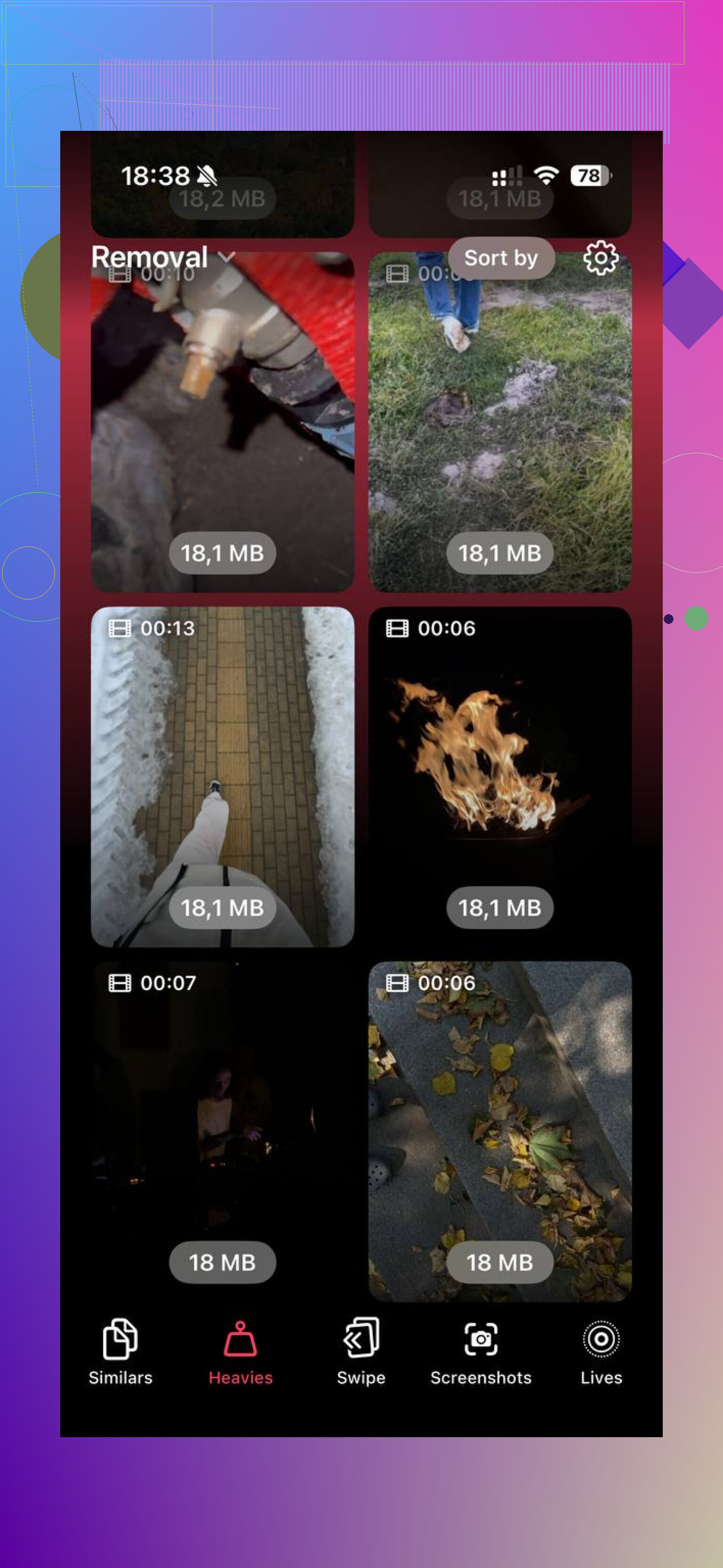
Clever Cleaner was the faster route for me. The Heavies section puts the biggest files first, with file sizes shown right on the thumbnails, so the worst offenders are easy to spot. The Similars section groups near-matching photos, not only exact duplicates, which helped with burst shots and those five nearly identical pics I forgot to clean up. Processing stays on the device, which mattered to me.
After I cleared about 30GB from large videos and old screenshots, then emptied Recently Deleted, the storage drop showed up and the lag stopped. Kinda annoyng Apple does not make the built-in cleanup less tedious, but here we are.
If you delete an email attachment, the email usually stays. The message body, sender, date, and thread remain. You lose the file, not the whole conversation.
One catch. In many mail apps, the attachment is part of the message record. So you often do not get a clean “remove attachment only” option like you do in some messaging apps. You either delete the whole email, archive it, or move it. That’s where I’d slightly disagree with @mikeappsreviewer. Their point fits Messages on iPhone well, but email apps are often less flexible.
Best move, save the file first if you still need it. Put it in Files, Photos, or cloud storage. Then clean up old mail with large attachments. Gmail, Apple Mail, and Outlook all let you search by size or has:attachment style filters, which is faster than scrolling forever.
If your iPhone storage is tight outside of Mail too, Clever Cleaner is worth a look for photo and video cleanup. Also, this Clever Cleaner guide for freeing up iPhone storage fast is easy to follow. Helped me sort out what was taking space, tbh.
Usually, no, deleting an attachment does not automatically delete the email text/thread. But with email, the catch is that a lot of apps don’t really separate the file from the message cleanly. That’s where I slightly part ways with @mikeappsreviewer, since that advice fits Messages way more than Mail.
For email, it’s often one of these:
- the attachment is stored as part of the email
- removing it locally does not change the server copy
- some apps just won’t let you delete only the attachment at all
So if the email matters, I’d first save the file somewhere else, then test with one non-important message before going on a delete spree. Apple Mail in particular can be annoyng about what is local cache vs what is actually in the message.
Also worth checking whether your goal is freeing iPhone storage or cleaning your mailbox quota, becuase those are not always the same thing. Mail apps cache attachments, and clearing old downloaded mail data may help without touching the actual emails on the server.
If the storage issue is broader than just mail, Clever Cleaner is honestly more useful for the real space hogs like videos, duplicate pics, and giant screenshots. I’d read this Clever Cleaner for iPhone review and storage cleanup guide if you want a clearer breakdown of what it actually does.
Short version: maybe not, but don’t assume your mail app supports attachment-only deletion. Test one first.
Depends on the mail service more than the phone.
For email, I’d actually push back a bit on the simpler “delete attachment, keep message” idea. @mikeappsreviewer is right for Messages-style media cleanup, but email attachments are often embedded in the message itself. In a lot of mail apps, there is no true detach option anymore. You delete the whole email, or just clear the local download/cache.
So the key distinction is:
- Delete cached attachment/download = email stays, server copy usually untouched
- Delete the email = attachment and message go together
- Save attachment elsewhere first = safest move
I agree with @hoshikuzu and @kakeru that testing one non-important email first is the smart play. Also check whether you use IMAP, Gmail, Exchange, or POP, because syncing behavior changes things a lot.
One thing not mentioned enough: some apps show a paperclip even after the file is no longer stored locally, because the original message still contains attachment metadata. That confuses people into thinking nothing was removed.
If your real goal is iPhone space, Mail often is not the biggest offender anyway. Photos, videos, and message media usually dwarf it. That’s where Clever Cleaner can be useful.
Pros of Clever Cleaner
- fast at surfacing large files
- good for duplicate and similar photos
- easier than digging through storage menus
Cons
- not really a mailbox manager
- won’t solve server-side email quota
- you still need to verify before deleting anything important
Short version: removing an email attachment does not usually delete the conversation, but many email apps won’t let you remove just the attachment cleanly at all.
The earlier replies mix email with iPhone Messages. In Apple Mail on Mac, Remove Attachments keeps the email text. Deleting the email removes both.
For iPhone space, a simpler option leaves your emails alone. Open Settings, General, iPhone Storage. Choose an unused game, then tap Offload App. This removes the app while keeping its documents and data.
I’d try this frist if phone storage is your concern. It leaves those older conversations untouched, though it won’t reduce your mailbox quota. Keep your important files seperate from any cleanup.
Worth flagging that the Remove Attachments trick @technode8929 mentioned is a Mac Mail thing. On the iPhone Mail app there’s no equivalent, so you’re down to delete the whole email or leave it. If you actually need the file long term, pull it out to Files first, then let the email go, because trying to surgically strip attachments on iOS is a dead end. And if the pressure is phone space rather than mailbox quota, Mail is rarely the culprit anyway. I’d point Clever Cleaner at the photo and video side and leave your inbox alone until you see whether that even moves the needle.