I accidentally deleted the wrong disk partition while trying to manage my drive, and now important files are missing. I need help with deleted partition recovery as soon as possible because this partition had personal and work data on it. What should I do first to avoid making things worse and improve my chances of restoring the partition and recovering the files?
I went through this once, and the biggest mistake is rushing. A deleted partition looks catastrophic, but a lot of the time the files are still sitting there. What changes the outcome is what you do after the deletion.
What I’d do, in order:
- Stop writing anything to the drive
Don’t make a new partition. Don’t format the empty space. Don’t copy random files onto the disk. Every write raises the odds of wiping out data you still had a shot at recovering.
- Look in Disk Management first
I’ve seen cases where the partition wasn’t gone. Windows had dropped the drive letter, so the volume vanished from File Explorer and looked dead. If you open Disk Management and the partition is there without a letter, give it one.
If the area shows up as Unallocated, then yeah, the partition was likely removed.
- Pull your files off before trying repairs
This is the part people skip, and it bites them. Even if your end goal is to restore the partition itself, get the important data out first.
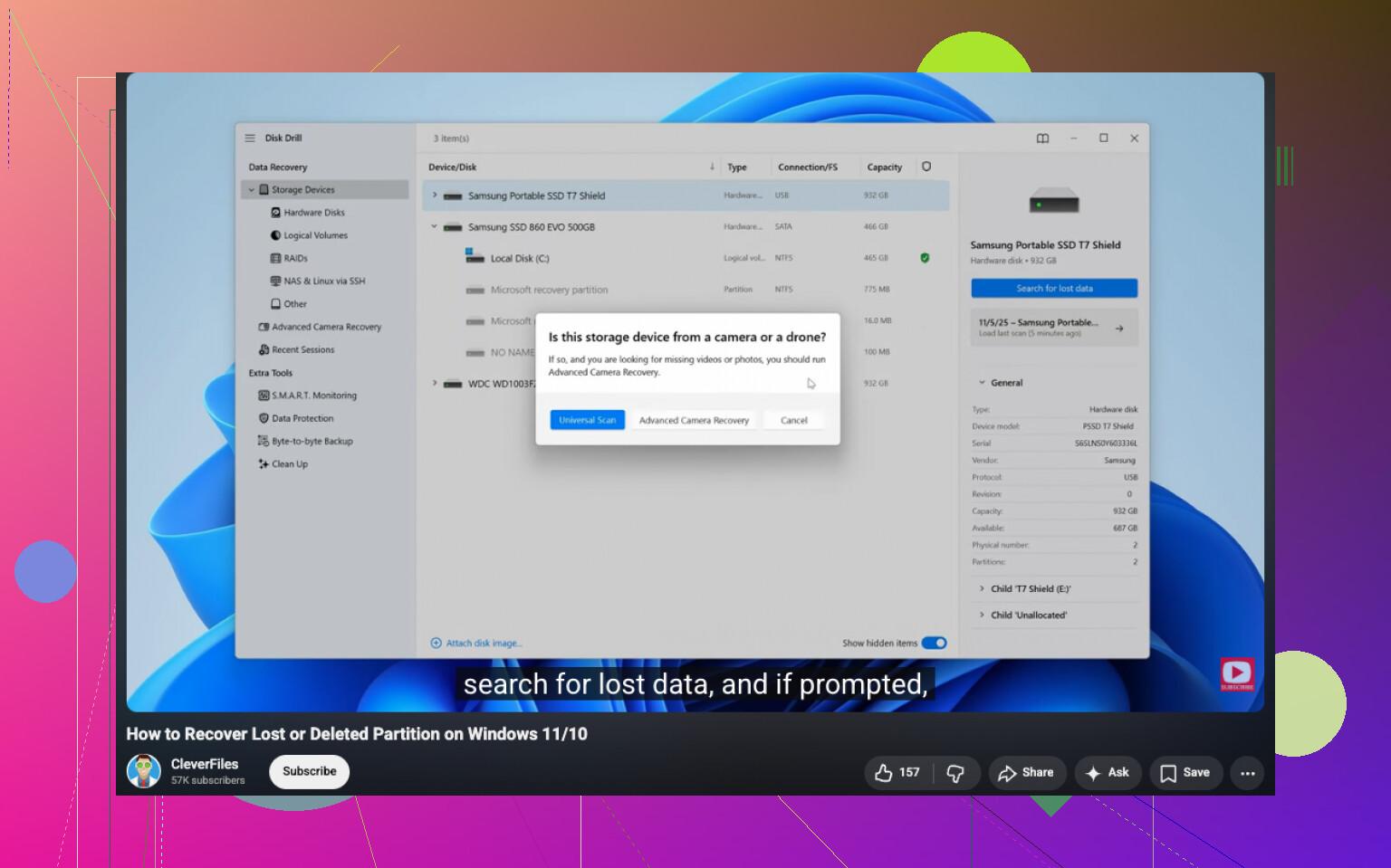
A recovery app is usually the safer move here. I had better luck with Disk Drill than with a few others I tested. It found deleted partitions, kept folder names in many scans, and let me preview files before I copied them out. That last part saved me time, since I wasn’t restoring junk blind.
If the drive was acting weird before all this, slow reads, disconnects, clicking, do not keep hammering the original disk. Make a full byte-for-byte image first, then scan the image.
- Try partition recovery only after the data is safe
If you want the partition back and not only the files, TestDisk is the usual free option people point to. Fair enough. It’s good, but it’s also easy to misuse if you haven’t touched partition tables before.
I wouldn’t start there unless the files I cared about were already recovered. One wrong choice in TestDisk and the mess gets worse.
- Rebuild the partition last
If recovery of the old partition fails, then make a new one in Disk Management, do a quick format, and copy your recovered files back. Last step, not first.
A couple of things change the odds:
If you noticed the deletion right away and stopped, your chances are often solid.
If you already made a new partition in the same space, or formatted it, recovery gets harder. The file data might still exist, but some of the old partition info and file system metadata may be gone.
SSDs are less forgiving than hard drives in some cases. TRIM can wipe deleted data sooner. It does not always fire the second a partition gets deleted, but I wouldn’t bet your files on delay.
So my order stays the same. Freeze the drive. Check whether it only lost its letter. Recover files first. Mess with repair tools after. That sequence gave me the best results, and it avoids turning a fixable mistake into a dead disk sitaution.
If the partition is gone, your fastest path is to treat the disk like evidence. No writes. No resize. No format. I agree with @mikeappsreviewer on the stop-first part, but I disagree on waiting too long to verify the partition map. A quick read-only check with TestDisk often tells you in minutes whether the old partition entry still exists.
My order would be this.
-
Check SMART health first with CrystalDiskInfo or similar. If health is bad, clone the drive first. If it’s an SSD, move fast. TRIM hurts recovery odds.
-
Run a partition scan tool in read-only mode. TestDisk is strong for finding lost partition entries. If it sees the old start and end sectors, you might restore the partition table without pulling every file one by one.
-
If the file tree matters more than the partition itself, use Disk Drill and recover to a different drive. For a lot of home cases, this is faster and less messy. Deep Scan helps when file system records are damaged.
-
If the deleted partition held photos or docs, sort by file type and date first. You save time. Don’t recover junk you dont need.
A clean search phrase for this issue is deleted partition recovery guide for Windows, restore lost drive and recover files fast.
Also worth watching, watch this deleted partition recovery walkthrough.
One more thing, if this was an external USB drive, swap the cable and enclosure before doing anything fancy. I’ve seen “deleted” drives turn out to be bad adapters.
If the partition was deleted like actually deleted, I’d add one thing neither @mikeappsreviewer nor @kakeru really pushed hard enough: check whether you have Volume Shadow Copies or File History before you go deep into recovery mode. People forget Windows sometimes left breadcrumbs. If that partition was on an internal NTFS volume, tools like ShadowExplorer can sometimes show older snapshots. Not a cure-all, but way faster if it works.
Also, I would not rush to ‘restore the partition’ unless you are 100% sure the exact layout is right. That’s where people turn a recoverable oops into a bigger oops. File-first is still the safer play for most normal users, even if @kakeru is right that a read-only partition scan can be useful.
My take:
- check if the disk is still detected properly in BIOS/UEFI
- confirm whether it was basic disk or dynamic disk
- if BitLocker was enabled, find that recovery key now
- if the drive is an SSD, every minute kinda matters
- recover data to another physical drive, not the same one
For deleted partition recovery on Windows, Disk Drill is a pretty practical option because it can scan lost partitions and pull files out without you having to manually rebuild the partition table first. That matters if you just need the pics/docs back ASAP and dont care about restoring the exact old volume structure.
If you want more comparison info on data recovery tools, this thread is decent: best data recovery software for deleted partitions and lost files
One more thing, if the files are irreplaceable and the drive is making weird noises, stop DIY stuff. At that point software can make it worse, not better.
One angle I’d add to what @kakeru, @cacadordeestrelas, and @mikeappsreviewer said: check whether the partition deletion happened on the system disk. If yes, stop booting from it. Every reboot, update, temp file, and cache write can chip away at recoverable metadata. Pull the drive, attach it to another PC, or boot from a USB recovery environment.
I slightly disagree with the “recover files first no matter what” approach in one case: if the partition was deleted only seconds ago and nothing new was written, a careful read-only inspection of the old partition boundaries can be the least destructive move. But if you are not confident reading partition layouts, skip that and go straight to extraction.
A few things people miss:
- Check if the missing partition was hidden, not deleted
- If it was NTFS, inspect with a hex viewer for the NTFS boot sector signature before changing anything
- If it was an SSD in a USB enclosure, TRIM may or may not pass through. That changes recovery odds a lot
- If Windows asked to initialize the disk, do not accept
About Disk Drill since it keeps coming up:
Pros
- Easy lost partition scan
- Good preview for photos, docs, video
- Faster for non-technical users who just want files back
- Can recover to another drive without rebuilding the partition first
Cons
- Deep scans can lose original folder structure
- Large recoveries take time and space
- Better at file recovery than teaching you what actually broke
- Paid features may be needed depending on how far you need to go
So my practical take is this: if the files matter more than the partition layout, use Disk Drill on the affected drive from another OS and save recovered data elsewhere. If the drive shows any read instability, image it first and work from the image, not the original disk.