I’m trying to find out how much total storage my iPhone has, not just how much is currently used. I was clearing space for photos and apps, but I realized I don’t know whether my phone is 64GB, 128GB, or more. I need help finding the exact total storage in iPhone settings.
Storage warnings on iPhone always hit at the worst time. Mine popped up while I was trying to record a short video, and the phone went sluggish right after. I dug through settings more than once, and the layout is kind of messy, so here’s the version I wish I had earlier.
How to check total storage and used space
Start here.
Settings > General > iPhone Storage
This screen gives you the main view. At the top, there’s a colored bar with used and free space. You’ll see something like 184 GB of 256 GB used. If you want the quickest answer, this is it.
If you want the device’s listed capacity, go here instead.
Settings > General > About
Scroll to Capacity. One thing threw me off the first time, the number there might look lower than the one from the box. For example, 124 GB instead of 128 GB. I saw this too. It’s normal because iOS takes some storage for itself.
If the phone is dead and you need the size for a trade-in or resale, I’d check a few other places:
- The back of older iPhone models
- The SIM tray on some models
- Your carrier account page
- The original receipt or order email
What is filling up your storage
Back in iPhone Storage, scroll down. Apple lists your apps from largest to smallest. This part is more useful than the top bar.
I found junk here fast. Streaming apps had offline downloads I forgot about. Messages had old attachments sitting there forever. Photos was the worst one on my phone.
You’ll usually see storage grouped like this:
-
Apps
The installed app itself. -
Photos & Media
Photos, videos, music, podcasts, and similar files. -
System Data
This one confuses almost everybody. It includes cached files, logs, fonts, Siri voices, and other system leftovers.
Why the storage numbers don’t always match
I noticed the same thing when I checked my phone on-device and then plugged it into a computer. Finder on Mac or iTunes on Windows might show different numbers.
From what I saw, cached files are the usual reason. The iPhone tracks temporary stuff while you use apps. When you sync or connect to a computer, some of those temp files get cleaned up. Then the computer view shows a bit more free space than the phone did a minute earlier.
Also, iCloud storage and iPhone storage are separate. This part trips people up all the time. You might pay for 2TB in iCloud and still have almost no room left on the phone.
What low storage felt like on my phone
Once I got down near the last 2 or 3 GB, the phone turned weird.
Apps opened slow.
The camera hesitated.
The UI felt sticky.
Typing even felt off once in a while.
I used to think my phone was aging out. Turned out I had boxed it into a corner with no breathing room left. iOS needs free space to shuffle files around. When storage gets cramped, the whole thing drags.
What fixed it for me
I tried the usual stuff first. Offloaded apps. Cleared old threads. Removed a few downloads. Helped a little, not much.
The main problem was my photo library. Too many duplicate-ish shots, screenshots I never needed, and huge videos.
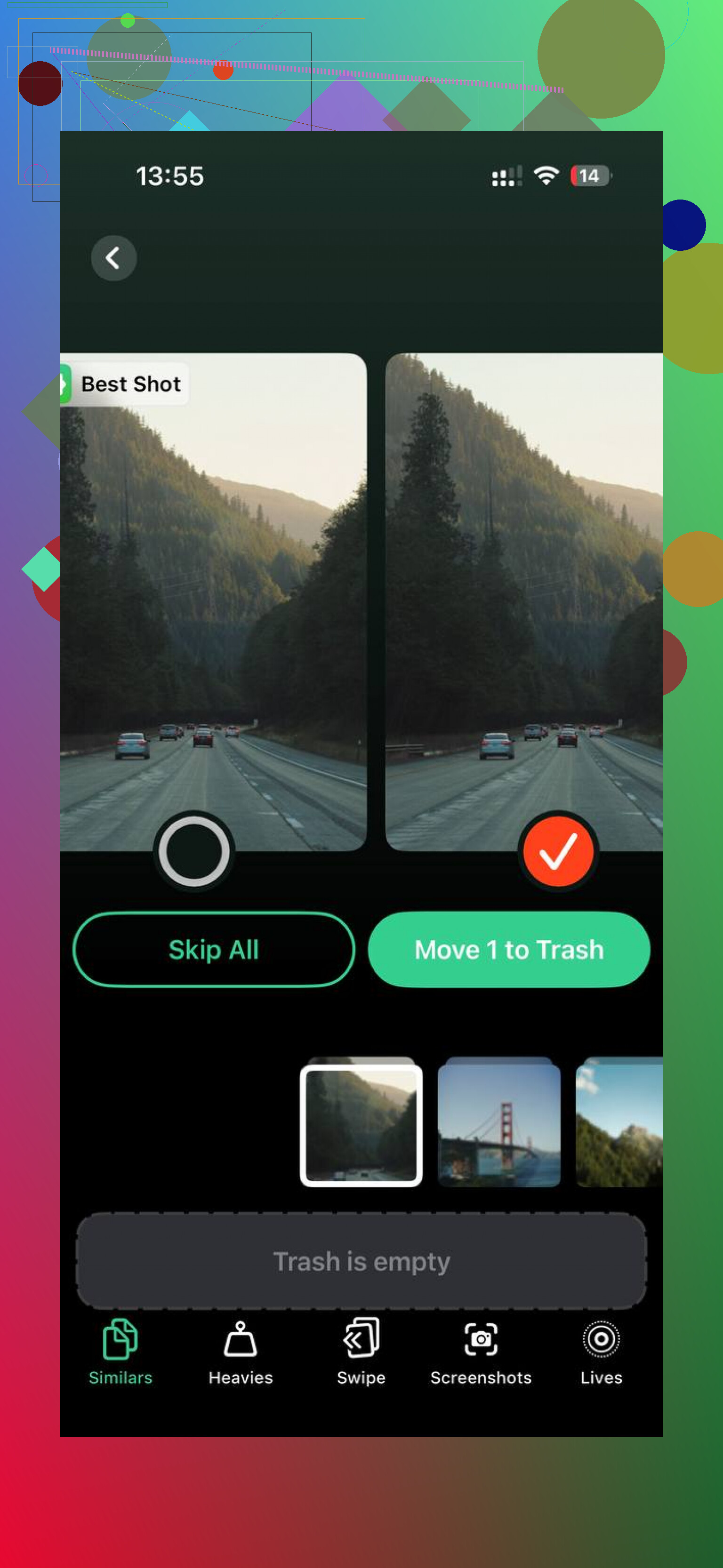
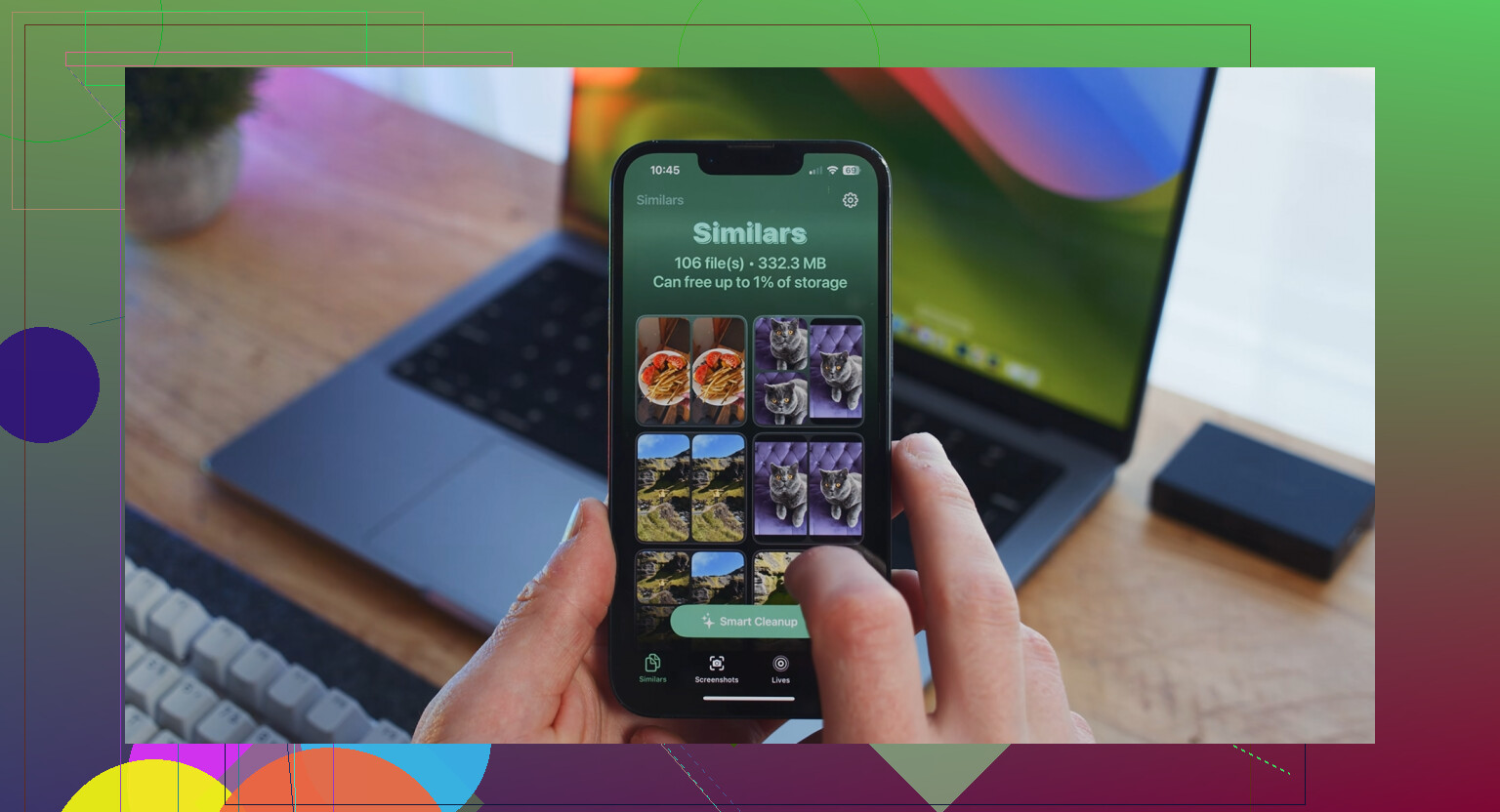
I ended up using Clever Cleaner. I was skeptical at first because a lot of cleanup apps feel shady or lock basic features behind a paywall. This one didn’t do that in my case.
A couple things stood out:
- The Heavies section made it easy to find the biggest files first
- The Similars section grouped near-duplicate photos well enough to save time
- It showed file sizes clearly, so I knew what deleting something would get me
- It processed things on the device, which I cared about because I didn’t want my photos sent off somewhere
After I cleaned out around 15 GB, the lag was gone. Not magic, not instant perfection, but the phone felt normal again. Faster camera, smoother app launches, less random freezing.
If your iPhone keeps nagging you about storage, check iPhone Storage first, then look hard at Photos, Messages, and offline downloads. That’s where my space went. The system data number might bounce around, so I wouldn’t obsess over it unless it stays huge for days.
That’s the whole map I ended up using. A bit annoying, yep, but once you clear enough space, the phone stops acting half-dead.
If you want the total storage size without digging through the storage graph, check your model number instead.
Go to Settings, General, About, then tap Model Number once if needed to switch formats. Copy the model number and search it on Apple’s site. That tells you the original storage tier, like 64GB, 128GB, 256GB. I prefer this when the Capacity line looks odd or rounded.
I slightly disagree with @mikeappsreviewer on one part. The Capacity number in About is useful, but if you want the factory storage size for resale, model lookup is cleaner and less confsuing.
Another quick option, if you have the box, look for the part label on the back or bottom. Apple prints the storage there on many retail boxes.
If you’re clearing room, Clever Cleaner is worth a look for photo cleanup. This Clever Cleaner iPhone storage cleanup video review shows how people use it to remove duplicate photos and big files fast. iCloud storage and iPhone storage are seperate, so check both if your phone still says full.
If you want the actual total storage tier and not just the used/free bar, the easiest non-obvious way is:
Settings > Apple Account (your name) > Devices > this iPhone
On some iOS versions, Apple shows device info there, including capacity details tied to your account. It’s not the first place people look, which is why I think @mikeappsreviewer and @sognonotturno kinda skipped a useful backup method.
Another option if you have a Mac or PC:
- Plug the iPhone in
- Open Finder on Mac or Apple Devices/iTunes on Windows
- Select the iPhone
- The summary page usually shows the device capacity pretty clearly
I actually prefer this over the About screen sometimes, because Apple’s numbers can look weird and make people think their 128GB phone magically shrank. It didn’t. Apple just reports usable capacity in a slightly annoying way.
If you’re cleaning space anyway, also check:
- Settings > Camera > Formats for whether you’re using High Efficiency
- Settings > App Store to see if automatic app downloads are piling stuff up
- downloaded media inside Netflix, Spotify, YouTube, etc. because those apps hoard storage like little goblins
For photo cleanup, Clever Cleaner is worth checking if duplicates and huge videos are the real issue. I found this best AI cleaner app for iPhone guide with practical storage cleanup testing pretty useful.
Short version: if About feels confusing, use your Apple ID device list or a computer. Way less guesswork, tbh.
If you still have your iPhone’s original box, check its storage label. Look for a capacity such as 64GB, 128GB, or 256GB. This gives you the advertised total, rather than the space left after formatting and system files.
Double-check you have teh right box, especially if your household owns several iPhones. Write the capacity down for future refrence.
For your question, I’d skip the cleaner apps and photo cleanup steps. You’re checking the phone’s storage size, so there’s no need to delete anything.
Looking up your model number on random sites can backfire, because some of those lookup pages guess the capacity from the model family instead of reading the actual part suffix, so you end up more confused than when you started. If the phone still turns on, don’t bother with any of that.
The colored bar in iPhone Storage already answers the question. When it says something like ‘X of 256 used,’ that 256 is your tier. You don’t need the About screen, you don’t need a computer, and you definitely don’t need a third-party site. @reveurdenuit’s Finder method and the Apple ID device list are fine as backups, but honestly those only earn their keep when the phone is dead or stuck in a boot loop. For a working phone it’s two taps and you’re done.
@sys_egor68 is right that you don’t have to delete anything just to read the number, and I’d leave it there if checking capacity is all you came for. The box label trick is solid too, with one catch nobody mentioned: a serviced or swapped-under-warranty phone can end up in a box that no longer matches it, so trust the on-device number over the cardboard if they disagree.
If you circle back to the original goal, which was clearing room for photos, that’s a separate job from reading the total. For that part Clever Cleaner is what I’d point someone at, partly because it doesn’t make you create an account before it’ll show you anything. Just don’t conflate the two tasks. Knowing you have a 128 doesn’t free up a single gigabyte on its own.