“No lag” is the claim I’d be most careful with here. An HDMI adapter can connect an iPhone to a Philips TV without Wi-Fi, but I don’t have measurements that justify promising zero delay. That distinction matters: I want a connection that fits what I’m doing, not a fix sold with more certainty than the details support.
I’d separate watching a video from sharing my screen
If I’m only sending a video to the television, I’d start with the cast button in YouTube or another streaming app that offers one. That’s different from mirroring everything on the iPhone, and it might make a separate mirroring app unnecessary.
For a wired connection, the options described are Apple’s Lightning Digital AV Adapter or a USB-C to HDMI adapter, depending on the phone’s connector. Connect the adapter and HDMI cable, then select that HDMI input on the TV. The lack of a Wi-Fi requirement is useful enough without adding an unverified latency promise.
Wireless is where I’d stop treating “Philips TV” as a complete model description. Philips sets come with Google TV, Android TV, Roku TV, or Titan OS. Those names aren’t interchangeable, and I can’t confirm an individual set’s capabilities from the Philips badge alone.
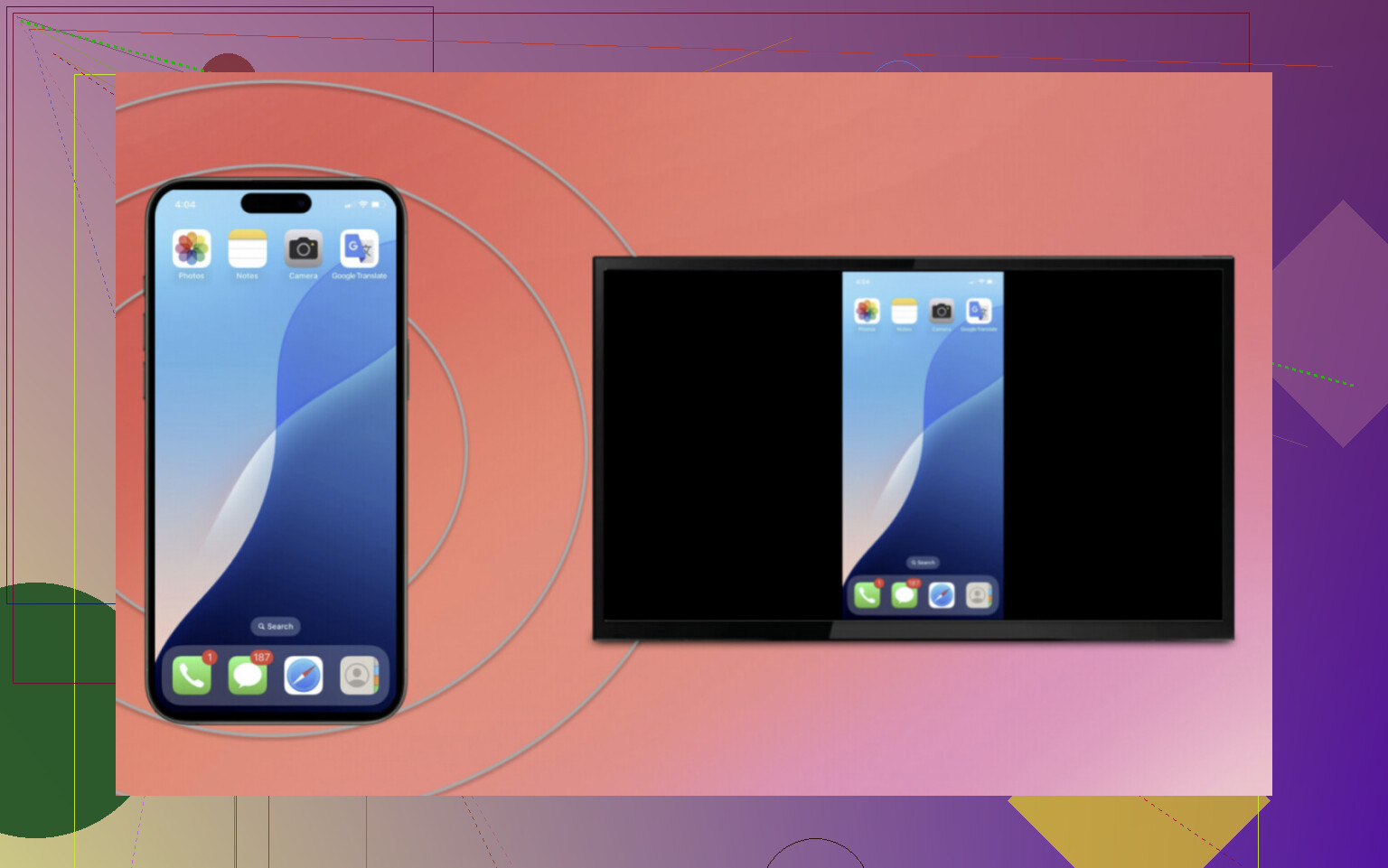
Some newer models, including certain Philips Roku TVs, support AirPlay 2. I’d check the TV settings for AirPlay and enable it if available. With the phone and TV on the same Wi-Fi network, the iPhone route is Control Center, Screen Mirroring, then the TV’s name and any code shown onscreen.
I wouldn’t treat a missing TV in that list as conclusive proof that AirPlay isn’t supported. I’d check the model’s support information before ruling it out.
The app route needs a closer look at the limits
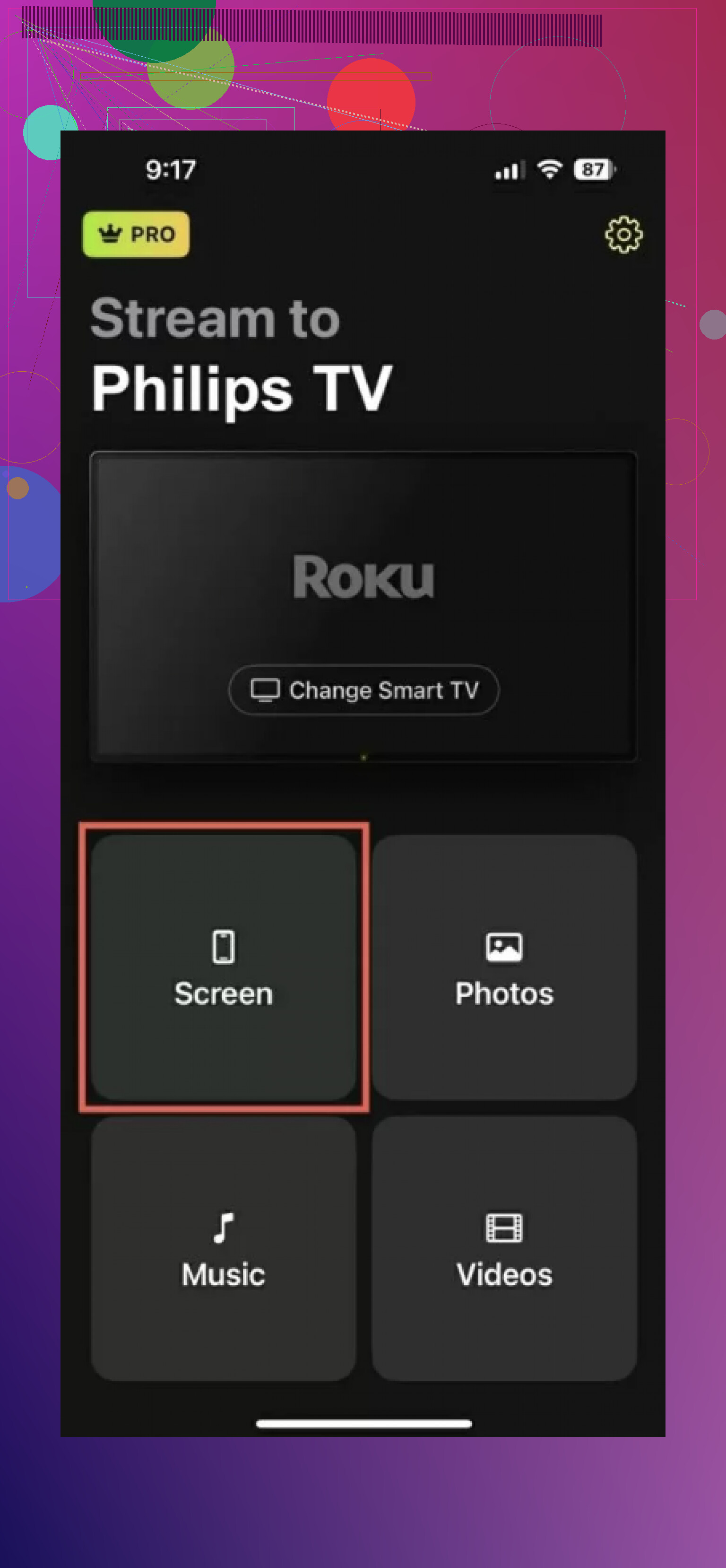
For a set without AirPlay, the DoCast app is another option. Its stated compatibility includes Chromecast-equipped Philips TVs, plus Roku, Fire TV, and DLNA smart TVs. I can’t verify that every Philips model running Google TV or Android TV will work, so I’d check the actual set rather than assume.
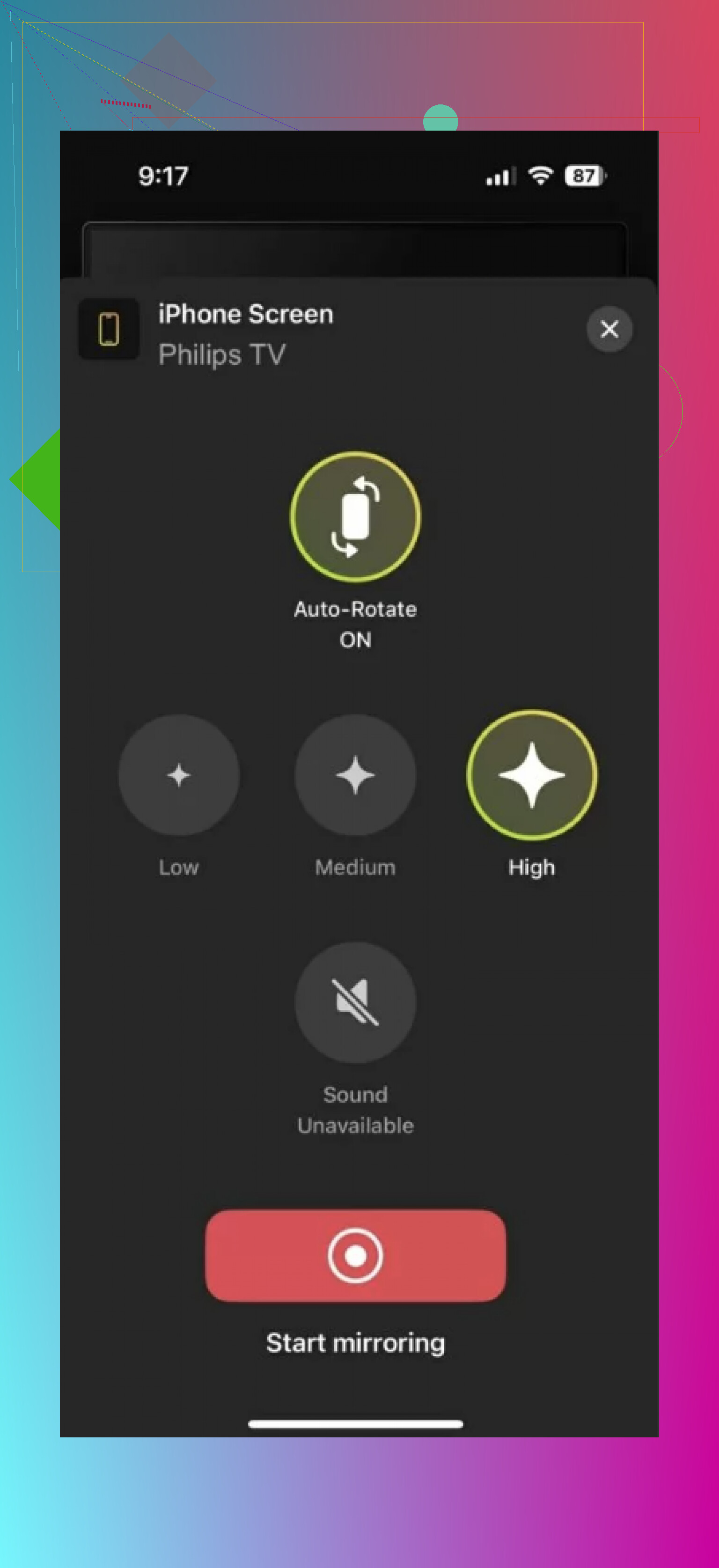
The described setup is straightforward: put both devices on the same Wi-Fi network, open the app, select the television, and choose screen mirroring or a video, photo, or song.
The payment distinction is what I’d examine before getting comfortable. Photo casting is described as free and unlimited, while full screen mirroring and longer video or music streaming require Premium. I’d compare those limits with the DoCast details; I can’t confirm that the same terms apply to every version.
An Apple TV or Roku stick is also presented as a way to add AirPlay, but I’d confirm support on the device before buying.
My verdict: I wouldn’t install or buy anything until I’d checked the TV’s exact capabilities. DoCast looks like an option, not an automatic first choice.