I’m limited to the iPad and Samsung TV already in our classroom, with no extra adapters available. I’m trying to set up screen mirroring for a class presentation. I expected the TV to appear as a target and stay connected, but it either does not show up or briefly connects before returning to the iPad screen. Are other people seeing the same behavior, and what steps should I check to screen mirror the iPad to the Samsung TV reliably?
A friend ran into trouble mirroring an iPad to a Samsung TV, so I checked whether another app was actually necessary. The answer depends heavily on the model, and I would verify that before paying for anything.
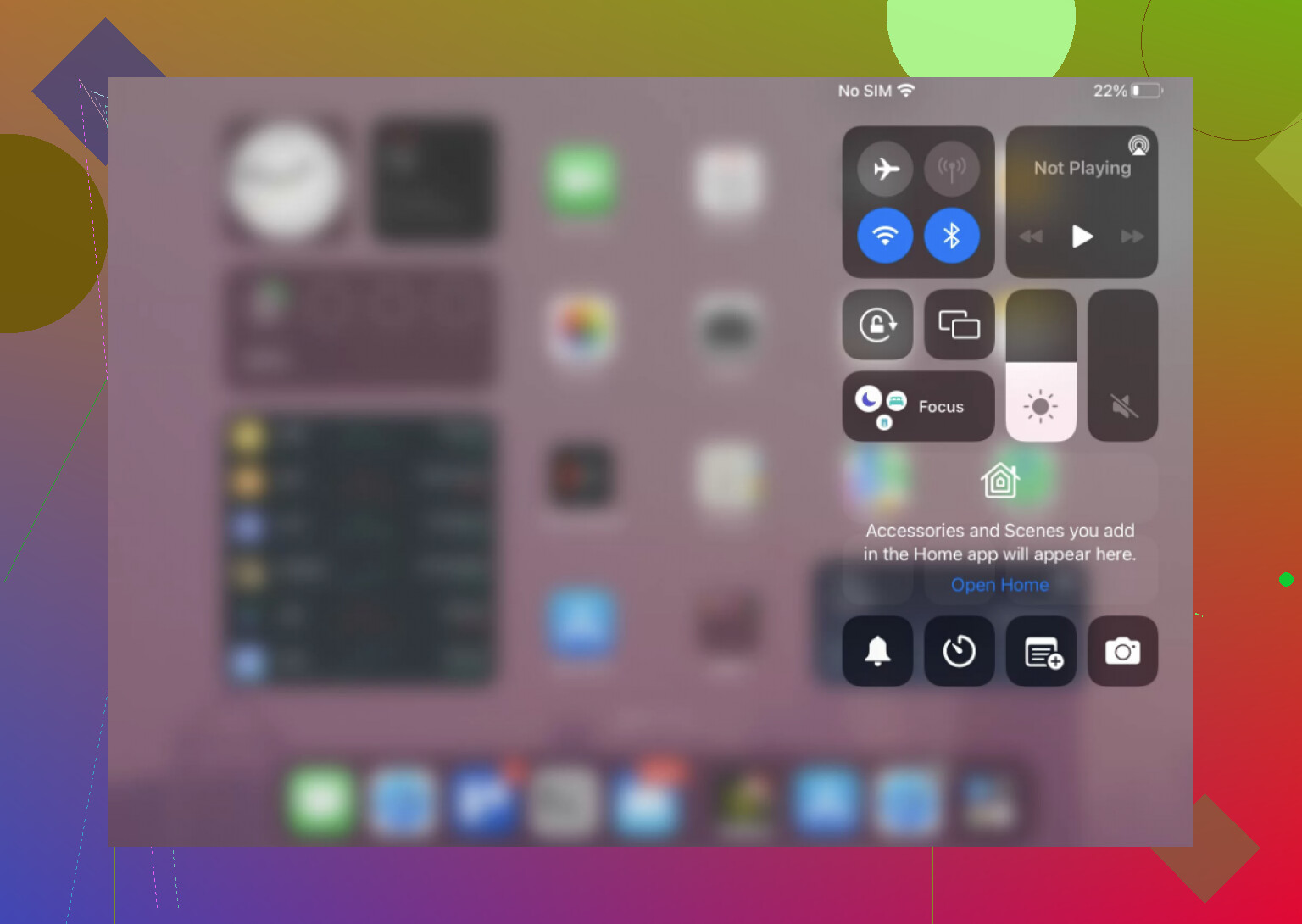
Samsung TVs from 2018 onward are generally said to include AirPlay 2, though “almost all” is doing some work there. Check Settings > General > External Device Manager, or look for AirPlay under Source or Apps, since the location varies by model year. Put the TV and iPad on the same Wi-Fi, open Control Center, tap Screen Mirroring, select the TV, and enter the displayed code if prompted.
For an older-than-2018 set, especially a lower-end or non-smart model, AirPlay may simply be absent. If it exists but disconnects, try Settings > Support > Software Update first. Samsung reportedly releases AirPlay-related fixes fairly regularly, although I could not verify how often or whether firmware solves “a lot” of cases.
The fallback is a third-party tool supporting Chromecast, Fire TV, Roku, Samsung, and most DLNA TVs. It is described as minimal and free of the ad clutter common in similar apps, but I would confirm the current pricing and ad policy before assuming either claim still holds: DoCast mirroring app.
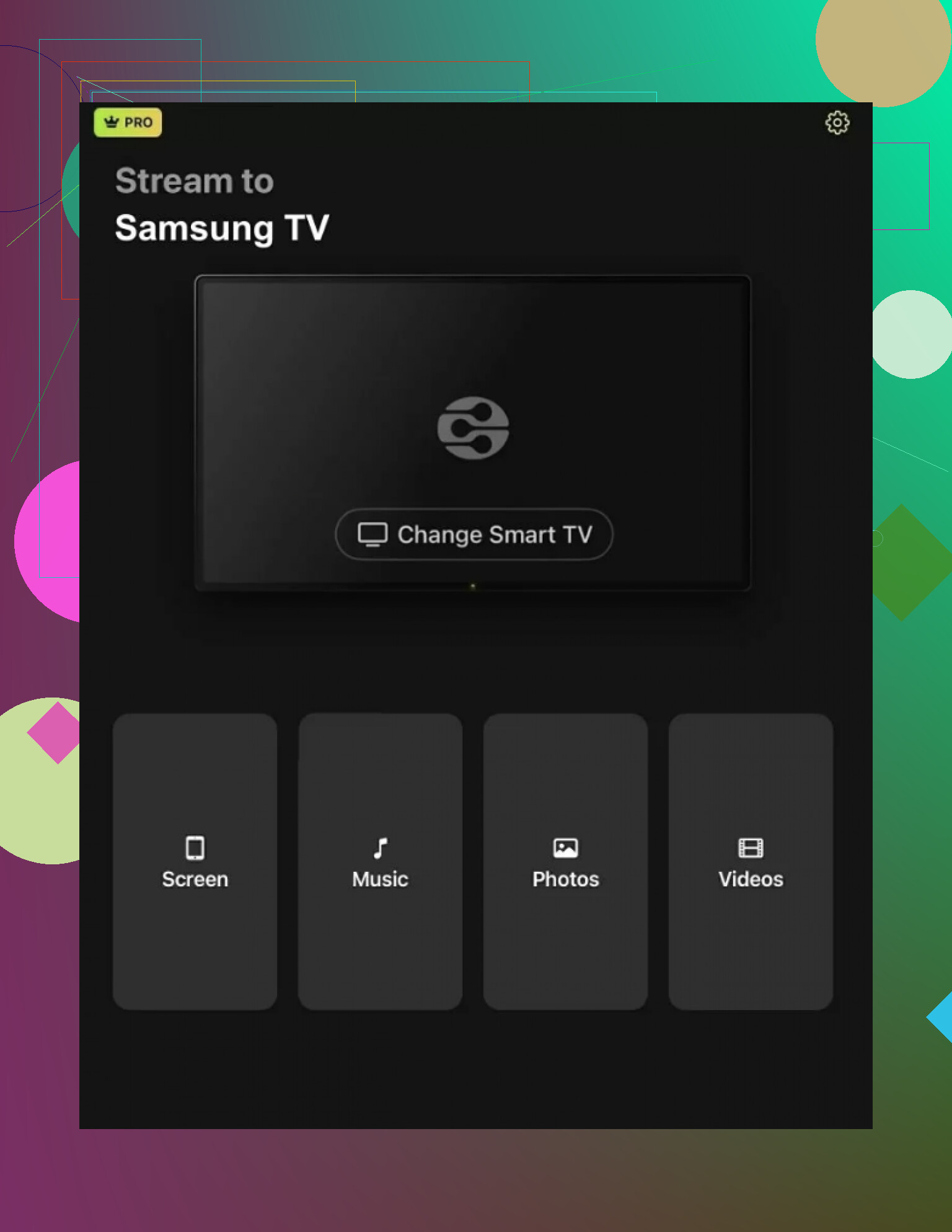
The setup has five steps: 1) install the app, 2) tap Choose Smart TV, 3) select the Samsung TV on the same Wi-Fi, 4) tap Screen, and 5) adjust settings, press the red Start Mirroring button, then choose Start Broadcast. Start with Download DoCast.
If discovery fails, check the router for AP isolation or client isolation. Netflix, Prime Video, and Disney+ may produce a black screen because they block screen capture, so use their built-in cast controls. I would try AirPlay before paying for DoCast, and I would not rely on the loose “past 5-6 years” rule without checking the exact model. Evidence that current firmware still drops AirPlay while DoCast works reliably on the same network would change my mind.
Don’t install a mirroring app until you know the classroom Wi-Fi allows devices to see each other. School networks often isolate clients, so the iPad and TV can both have internet access while AirPlay discovery is blocked. A third-party app usually cannot bypass that restriction either.
The model check @brightexplorerhq suggested is useful. Confirm AirPlay is enabled on the TV, then verify both devices show the exact same Wi-Fi network name. Restart the TV rather than merely turning the screen off, reconnect the iPad to Wi-Fi, and try Screen Mirroring again. If the TV never appears, the likely causes are missing AirPlay support, network isolation, or an iPad management policy. Wi-Fi Direct and Samsung’s phone-mirroring features are not substitutes for AirPlay on an iPad.
With no adapter or separate hotspot available, there may be no dependable workaround if the network blocks it. For the presentation, the safer fallback is opening a shared slide deck or exported PDF directly in the Samsung TV’s web browser. It is less convenient, but it avoids discovering and maintaining a mirroring connection during class.
If the TV never appears, that points to network discovery; if it appears and then drops, check the TV’s saved AirPlay permissions. In the Samsung AirPlay settings, reset paired devices, set the code requirement to “First Time Only,” then reconnect from the iPad. Classroom users sometimes dismiss the approval prompt once, and the TV remembers that choice. If it still vanishes, @just_socket is likely right that the school network or iPad management is blocking a dependable connection.
A TV connected by Ethernet and an iPad connected by Wi-Fi can both reach the internet yet still be unable to find each other. Even matching Wi-Fi names do not guarantee they are on the same classroom network segment. If the Samsung has a network cable attached, try disconnecting it and joining the TV to the same wireless network as the iPad. If that is impossible, IT may need to allow Bonjour/mDNS discovery and device-to-device traffic.
@just_socket is right that another app will not fix network isolation. Once the TV appears and AirPlay connects, temporarily set the iPad’s Auto-Lock to Never for the presentation. A managed iPad may lock itself after a fixed interval, which can interrupt or blank the mirrored display. Restore the normal setting afterward. I would test the actual slide deck for several minutes before class, since merely seeing the TV in Screen Mirroring does not prove the connection will remain stable.
External Device Manager is not the right place to start on many Samsung sets. Use the remote and look under All Settings > Connection > Apple AirPlay Settings, or under General on some menus. Make sure AirPlay itself is switched on. If that menu is completely missing, the TV may not support AirPlay, may not have finished its Smart Hub setup, or may be a commercial classroom display rather than a normal consumer TV. The model year alone does not settle that.
Test the connection in small steps. First return the TV to its Home screen instead of leaving a streaming app open. Next, open one ordinary photo on the iPad and select Screen Mirroring from Control Center. Leave that photo displayed for several minutes. If it stays connected, try the slide deck. This tells you whether AirPlay is failing or whether the presentation app, an embedded video, or protected media is causing the interruption.
If the TV appears briefly and disappears, check whether the iPad has a school VPN or filtering profile running. That can block local traffic even when both devices show the same network name. You may not be allowed to disable it, but that gives IT a much more specific issue to check than “AirPlay is broken.” A third-party mirroring app would face the same restriction, and it may additionally need Local Network permission on the iPad.
Avoid resetting Smart Hub or changing the classroom TV’s account settings without permission. That can sign the school out of installed apps and create a bigger problem. The useful dividing line is simple: if a photo cannot remain mirrored, focus on the TV model, network, or device management. If a photo works but the presentation drops, troubleshoot the presentation app and its media instead.
Do not factory-reset the TV to fix this. On a managed classroom network, that can erase enrollment or network settings without solving the actual problem.
The fact that the Samsung appears as a target and then drops is useful evidence. AirPlay discovery is working at least briefly, but the network may be blocking or timing out the direct traffic used after discovery. School Wi-Fi often has separate rules for internet access, multicast discovery, and device-to-device communication. That explains why both devices can be online while mirroring remains unstable.
Since you cannot add hardware, collect details that IT can act on: the TV’s model number, its IP and MAC addresses, the iPad’s IP address, the Wi-Fi network name, and the approximate time of a failed connection. Ask whether the classroom has a dedicated casting network or whether the TV needs to be registered. “Please check mDNS/Bonjour forwarding and client-to-client traffic between these two devices” will get further than reporting that AirPlay does not work.
For the presentation itself, enable Focus mode so messages do not appear on the TV, close any school VPN you are permitted to close, and keep the iPad plugged into power if possible. Start mirroring while the TV is sitting at its Home screen, then open the presentation. If the connection still dies after IT confirms local traffic is allowed, the next suspect is the TV firmware or a management restriction on the iPad, not a missing mirroring app.
Have an offline copy of the presentation ready before you walk into that room. Betting a full class period on a live mirror over locked-down school Wi-Fi is asking for a stall in front of thirty kids, and everyone above is basically describing why that connection can die at the worst moment.
Here’s the thing nobody’s brought up: check whether that Samsung has a USB port. Most consumer sets do, and the built-in media player will happily open photos and often PDFs straight off a flash drive. Export your slides as a PDF or as image files, drop them on a cheap USB stick, plug it in, and you’ve sidestepped AirPlay, mDNS, client isolation, VPN profiles, and the whole managed-iPad question in one move. No adapter, no app, no IT ticket. You lose live annotation and anything animated, but for a slide deck that’s usually fine, and it will not drop mid-sentence.
I mostly agree with @datadev about gathering IP and MAC details for IT instead of just saying ‘AirPlay is broken,’ that’s the right move if you want a real fix long term. Where I’d push back a little is the assumption that mirroring is worth fighting for at all in a shared classroom. If the display is a commercial signage panel like @greengeekpoint hinted, you may never get AirPlay no matter what IT unblocks, so I wouldn’t sink your prep time into it.
The photo-test trick is genuinely the smartest tip in this thread. One extra thing that catches people: if your deck has embedded video, mirroring often desyncs the audio or drops frames even when the connection holds. For anything with sound or motion, play it from the TV side or a USB file rather than pushing it over the mirror.
So my order would be: put the PDF or images on a USB stick as your guaranteed backup, then try AirPlay with a plain photo for a few minutes as your nice-to-have. If AirPlay holds, great. If it doesn’t, you already have a working presentation and you’re not troubleshooting while the class watches.
A TV that never appears suggests support or network trouble; a TV that appears under a generic name and immediately drops may be a different Samsung display nearby. Schools often leave several sets named something vague like “Samsung TV,” so confirm the pairing code appears on the screen in your classroom, not just on the iPad. If permitted, give the TV a unique device name in its network or device settings, then retry AirPlay. That will not cure client isolation, but it can prevent you from chasing a connection problem that is really a wrong-room problem.
Honestly, plan for this to work maybe half the time on a school network, and don’t schedule your lesson around it holding for a full period. Even if you get AirPlay up during a quiet afternoon, a classroom TV gets touched by other people, and the paired-device list or Smart Hub state can be different by the time your class starts.
@redwizard’s USB idea is the one I’d lean on hardest, but one warning: Samsung’s built-in media player is hit or miss with PDFs. Some models open them fine, plenty just ignore the file or render it badly. Export your slides as plain JPGs or PNGs instead, numbered in order, and the media player will flip through them like a photo gallery every time. Less pretty than a PDF, but it never argues with you.
So my real expectation would be: images on the stick as the thing you actually present from, and treat AirPlay as a bonus you test with a single photo beforehand. If it holds, use it. If not, you already lost nothing.