I accidentally deleted important files on my Mac and emptied the Trash before realizing I still needed them. Some were work documents and personal photos I don’t have backed up anywhere else. I’m looking for the best way to recover deleted files on Mac after emptying Trash and want to know which recovery methods or tools actually work.
I’ve done this more than once, and yeah, the second you realize you emptied Trash with something important in it, your stomach drops. First thing, stop using the Mac. Don’t keep browsing, don’t install stuff, don’t copy files around. Even background tasks can write new data to the drive. If your deleted file gets overwritten, recovery usually falls apart fast.
What I’d do, in order, from easy stuff to the ugly options:
1. Start with the obvious stuff
If the delete happened a minute ago, try Command+Z. I’ve seen it reverse a move to Trash when I caught it right away and hadn’t touched much else.
Also, open Trash again and look slowly. If the file came from a USB drive, external SSD, or SD card, keep in mind those devices often keep their own hidden trash folder. You only see it when the device is connected. If your file shows up, right-click it and choose Put Back.
2. Check backups before you do anything fancy
If you use Time Machine, you’re in decent shape. Go to the folder where the file used to live, open Time Machine from the menu bar, then browse backward until you find the version you need. Hit Restore.
If Time Machine isn’t part of your setup, look at iCloud.com. With Desktop and Documents sync turned on, iCloud often keeps deleted items for 30 days in Recently Deleted. I’ve pulled files back from there when I thought they were gone for good.
3. Recovery software, if backups failed
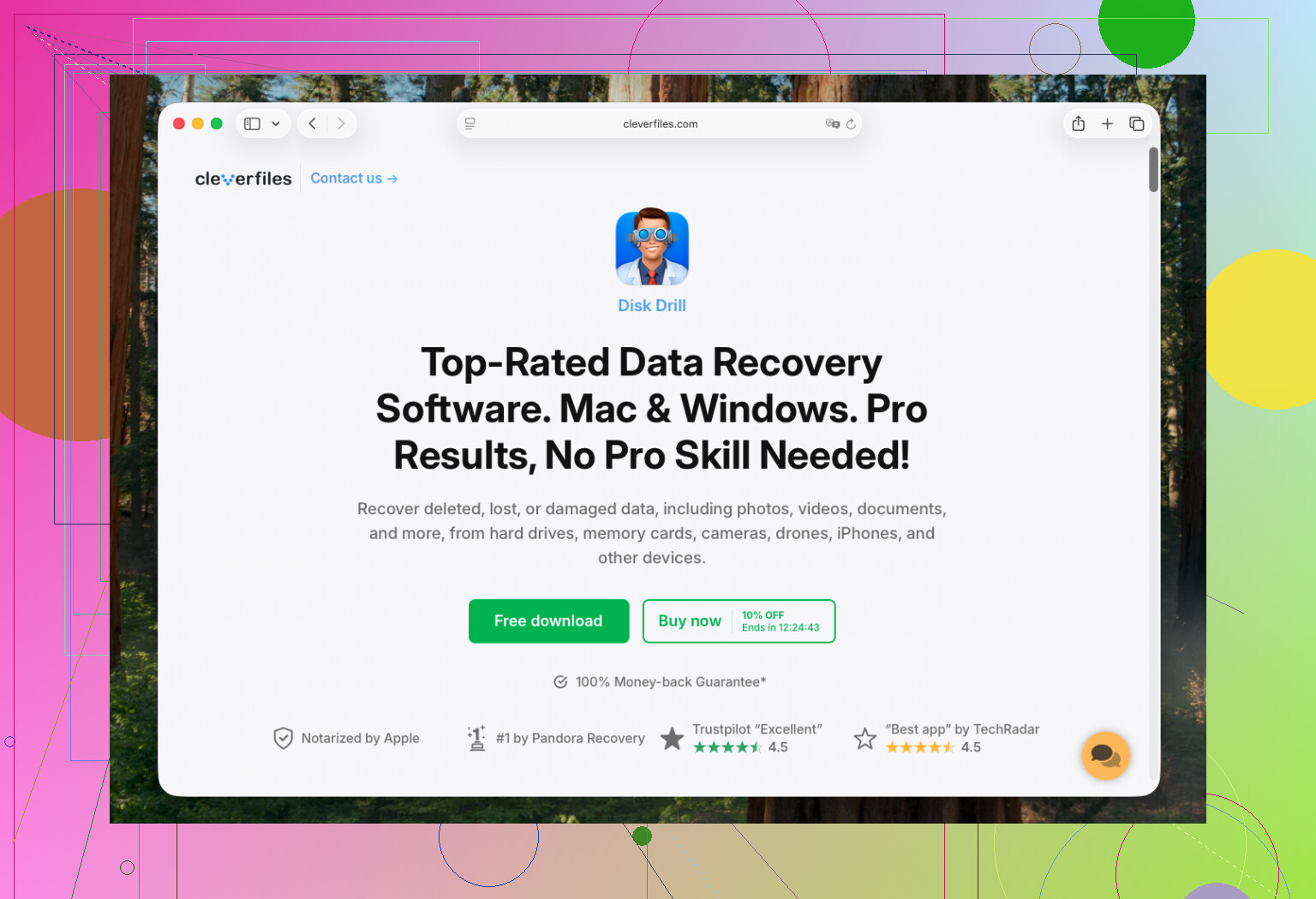
If no backup exists, this is where most people land. The tool I’d look at first is Disk Drill. From what I’ve seen, it handles current Macs better than a lot of older recovery apps. It stays current with newer macOS releases and runs fine on Apple Silicon systems, including M-series machines.
Newer Macs complicate recovery. T2-equipped Intel Macs and Apple Silicon models lean hard on encryption and system protections. A lot of older recovery tools feel like they were built for a different era and don’t cope well. This one uses a system extension so it can read the drive in a deeper way. Setup is simple enough. Pick the drive, scan it, then check the preview. The preview matters because you get a look at whether the file is readable before spending time or money.
If you’re comfortable with rough tools and don’t care about polish, PhotoRec is still around. It’s free, open source, and ugly. I mean old terminal ugly. It also strips away original filenames, so what you get back often looks like a giant pile of renamed files such as f12345.jpg, f12346.mov, and so on. If you’re sorting through thousands of hits, it gets old fast.
4. Look for APFS snapshots
This part gets missed a lot. Even without a full Time Machine habit, macOS sometimes creates local snapshots through APFS, often around updates or system events. Open Disk Utility, select your Data volume, and check for Show APFS Snapshots. If there’s one from before the deletion, you might be able to mount it and pull your file out manually.
One thing people underestimate is how SSDs behave. Modern Macs use SSD storage, and SSDs use TRIM. TRIM helps keep the drive fast by cleaning up deleted blocks sooner. On older spinning drives, deleted data sometimes sat around for a while. On a newer MacBook SSD, your recovery window can shrink a lot. I wouldn’t wait.
If it were my machine, I’d check iCloud and Time Machine first. If both come up empty, I’d run recovery software next. Better yet, run the recovery process from an external drive so you’re not writing more data onto the same internal disk you’re trying to recover from.
Hope you catch it in time.
If Trash is empty, I’d split this into two paths. Backup recovery, then raw recovery.
First, check app-level history. Word, Pages, Preview, Photoshop, even Notes sometimes keep auto-saved versions. Open the app you used, then look for Open Recent, Browse All Versions, or AutoRecovery folders. For Office on Mac, auto-save files often sit in the user Library containers. I’ve recovered docs there when Finder showed nothing.
Second, check cloud apps you forgot were syncing. Google Drive, Dropbox, OneDrive, Adobe Cloud. Their web dashboards often keep deleted files for 30 days, sometimes longer on paid plans. Photos are a big one. iCloud Photos, Google Photos, and Dropbox all have separate deleted areas. This gets missed a lot.
I slightly disagree with @mikeappsreviewer on Command+Z as a serious option after you already emptied Trash. If Finder has moved on, it rarely helps. Worth 2 seconds, sure, but I would not spend time there.
If no backup or cloud copy exists, use Disk Drill on an external drive, not your internal one. Scan first, preview files, then recover to a different disk. If your Mac uses SSD storage, speed matters becuse deleted blocks get cleared fast.
One more place to look. Email attachments. Work docs and photos often exist in sent mail, Slack, Teams, or Messages.
If you want a visual walkthrough, this Mac deleted file recovery tutorial after emptying Trash covers the process pretty well.

I’d add one thing neither @mikeappsreviewer nor @viajantedoceu really stressed enough: check for temporary/exported copies before going full recovery mode.
A lot of “deleted” Mac files still exist in weird places:
- Downloads folder if you opened an email attachment and saved it once
- Recents in Finder, which can reveal the original app/location
- app temp folders for Pages, Word, Excel, Photoshop, Preview
- ~/Library/Containers/ and ~/Library/Autosave Information/
- photo editors that keep imported originals in their own library/package
For photos specifically, look inside the Photos app package only if you know what you’re doing. Sometimes the original image is still inside the library even when you think you trashed the exported version. Same with Lightroom catalogs.
Also, if this is a work Mac, ask IT before trying too much. A lot of company Macs have silent backup policies users dont even know about.
If none of that turns up anything, then yeah, recovery software is the next real move. I agree with them there. Disk Drill for Mac deleted file recovery after emptying Trash is usually the practical option because it lets you preview what’s actually recoverable, which saves a ton of time. Just recover to an external drive, not back onto the Mac’s internal disk.
One small disagreement: APFS snapshots are great in theory, but for average users they’re often a dead end unless you’re comfortable poking around system volumes. Worth checking, just not where I’d send someone first.
Also useful: Mac data recovery software tips and recovery discussion
One angle missing from @viajantedoceu, @himmelsjager, and @mikeappsreviewer: check whether the file was ever actually moved instead of deleted.
Use Finder search with:
- file name
- file type
- kind:PDF / kind:JPEG
- date modified filters
Then sort by “Date Last Opened.” I’ve seen “deleted” files turn up in an app sandbox, a renamed folder, or another user account on the same Mac.
Also check:
/Users/Shared/- another Desktop/Documents folder if multiple macOS users exist
- external drives you recently used
- Finder tags if you tagged the file before
Small disagreement with the usual advice about APFS snapshots: for most people, Terminal checks are more practical than digging around Disk Utility. tmutil listlocalsnapshots / can at least tell you if snapshots exist.
About Disk Drill: good practical choice if normal searching and backups fail.
Pros
- easy preview before recovery
- supports modern macOS well
- simple UI
- can recover many file types
Cons
- best features are paid
- deep scans can take ages
- recovered filenames/folders are not always intact
- SSD TRIM can still make results poor
If you use it, install and recover to an external drive only. If the files are business-critical, I’d actually stop DIY after the first pass and consider a recovery lab. Sometimes experimenting too much is what kills the last chance.