I’ve been trying to mirror my iPhone to my Hisense TV, but I can’t get it to work. I’ve tried using AirPlay and different apps, but nothing seems to connect properly. Do I need to adjust any settings on my TV or iPhone? Any help or step-by-step instructions would be greatly appreciated.
Have you enabled screen mirroring on your Hisense TV’s settings? Sometimes, certain Hisense models don’t support AirPlay directly, but you can still mirror your iPhone using third-party apps. Double-check that both your TV and iPhone are on the same Wi-Fi network, too.
You might wanna give the DoCast app a shot. It’s designed specifically to make mirroring iPhones to smart TVs smoother, including Hisense models. Download DoCast from the App Store, connect both devices to the same wireless network, and follow the in-app instructions to mirror your screen.
In case you still face issues, some users have had success by updating their TV’s firmware or even doing a factory reset. Also, ensure your iOS is updated to the latest version.
Keep us posted on what works for you. Good luck!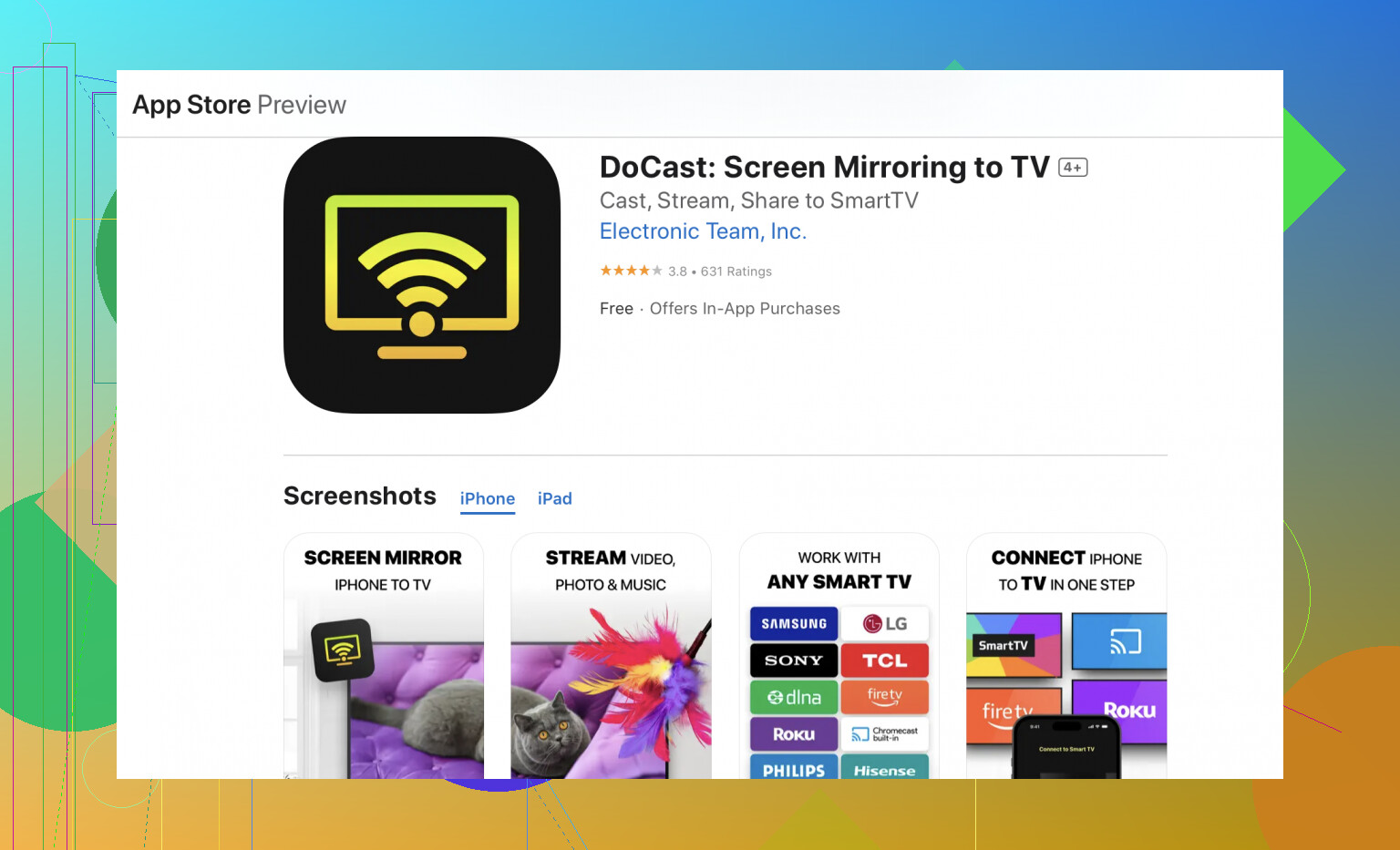
Hey there, just to add to @sonhadordobosque’s excellent suggestions:
Sometimes, it’s not about the apps or the Wi-Fi. Have you considered HDMI adapters? They seem a bit old-school, but plugging your iPhone directly into your Hisense TV using a Lightning-to-HDMI adapter could be a game-changer.
Also, if you’re already using apps to try to connect, make sure there are no interfering background processes or other connected devices that could be causing a conflict. Turning off Bluetooth on both the TV and the iPhone has surprisingly solved connectivity issues for some users.
Regarding your Hisense TV settings, another thing to check is if it’s set to allow device connections. Sometimes these settings can be buried deep in the menu.
Since the DoCast app has been mentioned, I’d say it’s worth revisiting if you haven’t given it a fair shot yet. Always ensure both your TV and iPhone are synced up to the same Wi-Fi network to minimize hiccups.
Lastly, updating is crucial. Make sure both your devices have the latest firmware or OS versions. Sometimes these updates address mirroring bugs directly.
For a step-by-step guide and more methods, consider checking out this comprehensive article: mirror your iPhone to Hisense TV. Solved a lot of my mirroring woes!
Hope one of these tips does the trick for ya!
If you mainly want to play videos, skip full screen mirroring. Open YouTube, Netflix, or another supported app on your iPhone. Tap the Cast icon, then select your Hisense TV. This sends the video straight to the TV and avoids AirPlay connection issues. Keep both devices on the same Wi-Fi, then restart the app if your TV doesnt appear. This method works well for streaming, though it won’t show your entire iPhone screen.
Which Hisense model you have decides most of this before you touch any app. The Roku-based Hisense sets and the Google/Android TV ones behave completely differently, and only certain years got native AirPlay 2. If yours is a Roku Hisense, there’s no real AirPlay, so all the ‘enable screen mirroring in settings’ advice only gets you so far. Check the OS on the TV first, then you’ll know whether you’re fighting a settings problem or a hardware limitation.
The Cast tip from @cloudworks8444 is honestly the most underrated one here. If you just want Netflix or YouTube on the big screen, casting from inside the app skips the whole mirroring headache and usually holds a steadier connection. Mirroring the full screen is heavier and drops out more often, especially on crowded Wi-Fi.
On DoCast, it’s a fair fallback when the TV won’t do AirPlay natively, but go in knowing the free version is limited and full mirroring over an app can lag depending on your router. I’d treat it as a workaround, not a fix. And I’ll gently disagree with the HDMI adapter suggestion being ‘old-school but reliable’ only in the sense that cheap Lightning-to-HDMI clones often refuse to pass protected video, so if you buy one, get the genuine Apple adapter or don’t bother.