I’m trying to mirror my iPhone screen onto my Sharp TV but can’t get it to work. I’ve tried connecting through Wi-Fi and using various apps, but nothing seems to be working. Can anyone guide me on how to do this properly? Need to share some photos at a family gathering. Thanks!
Gah, tech woes are the absolute WORST. Been there, done that, practically got the t-shirt!! If you’re struggling to mirror your iPhone to a Sharp TV, it’s usually one of a few things: Wi-Fi issues, incompatible devices, or the occasional “why even bother” vibe. Here’s a quick rundown for you:
-
Check your Wi-Fi: Both devices need to be on the SAME Wi-Fi network for this to work. It sounds basic, but you’d be surprised how often this trips people up.
-
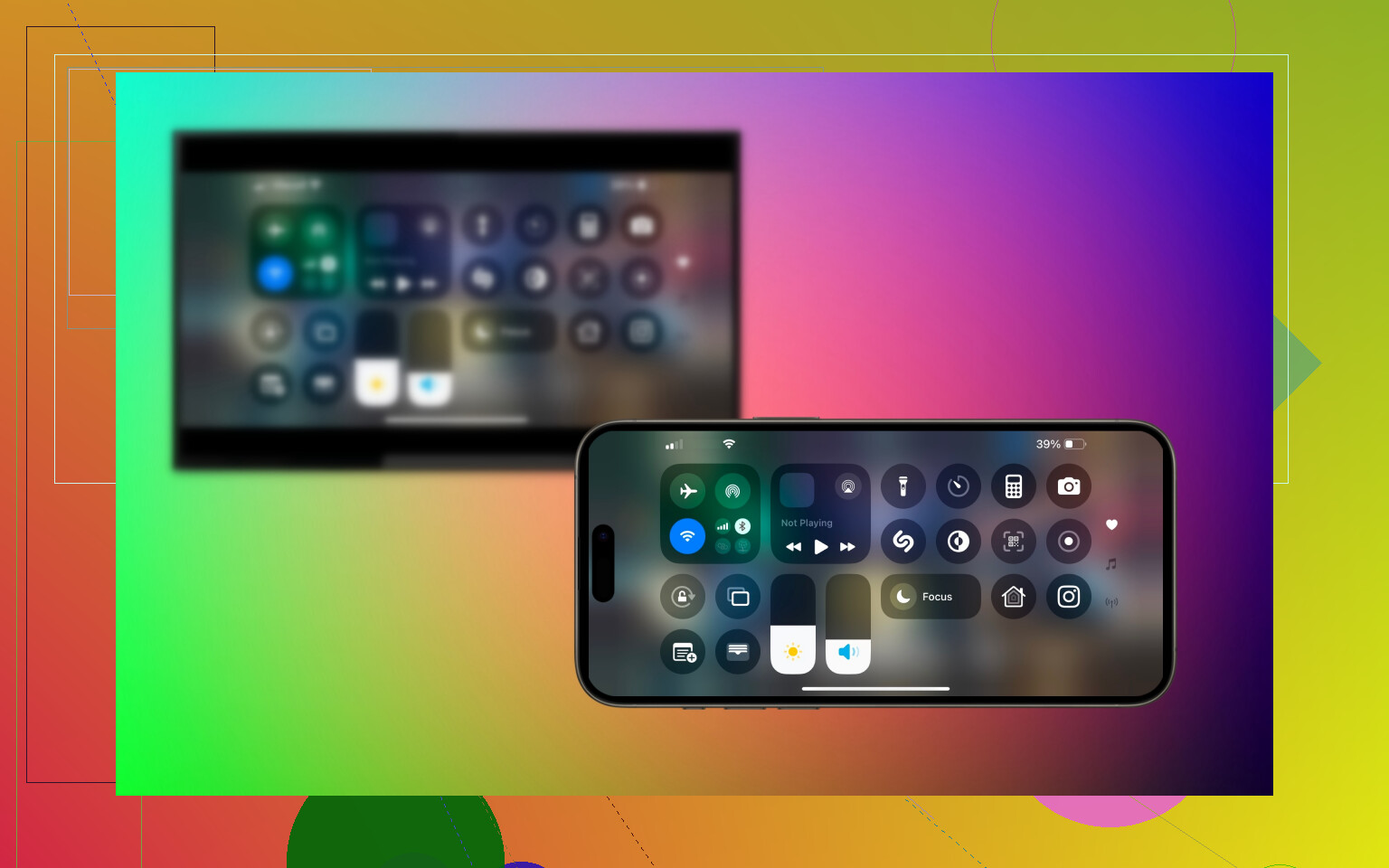
Apple TV or AirPlay Devices: The seamless way to mirror is if your Sharp TV supports AirPlay 2. If it does, just swipe down from the top right of your iPhone screen to open Control Center, tap Screen Mirroring, and select your TV from the list.
-
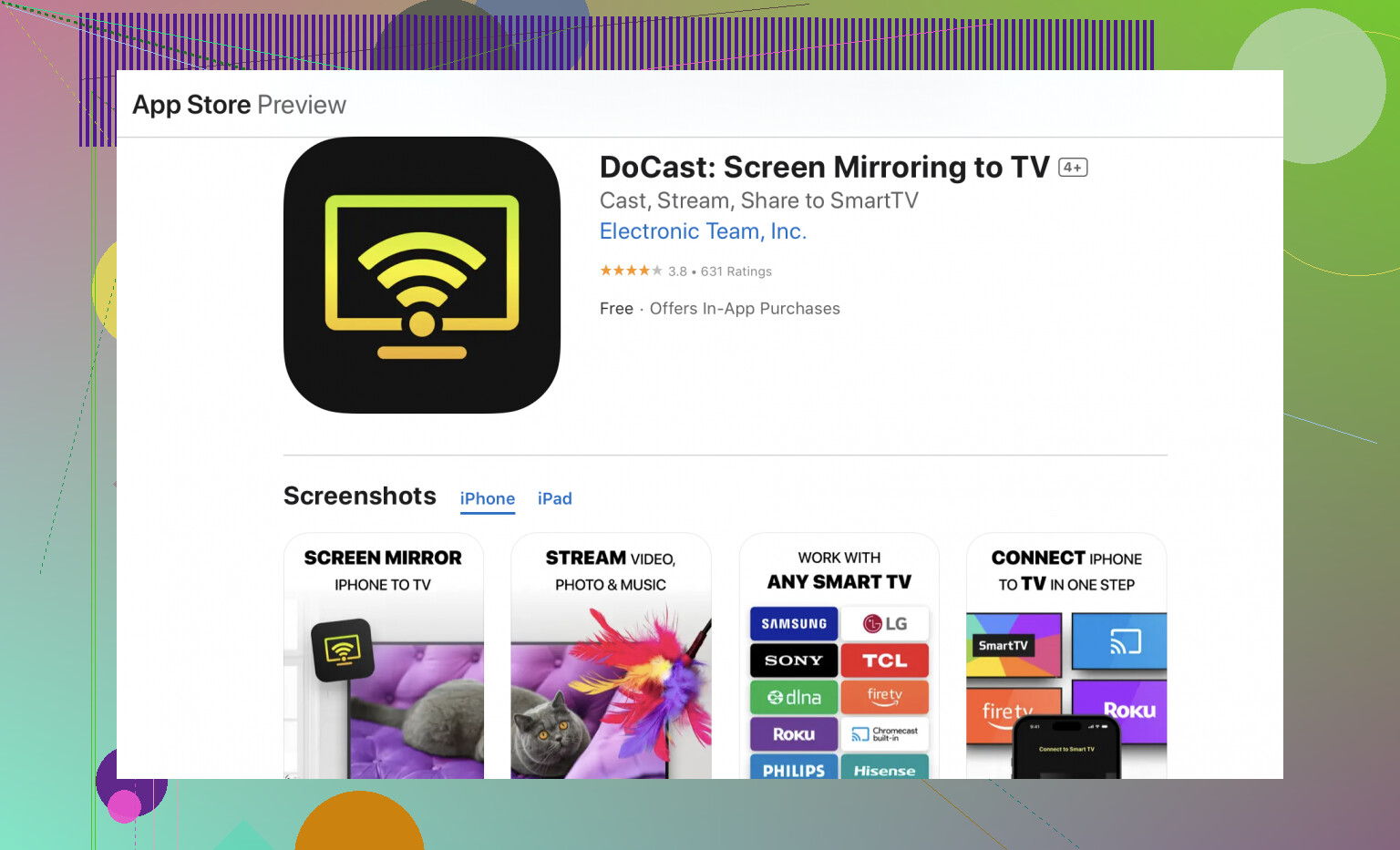
Apps Galore: There’s an app called DoCast Screen Mirroring App, which is a lifesaver. Download it on your iPhone, follow the steps to connect to your Sharp TV, and boom – you’re set.
-
HDMI Cable & Adapter: When all else fails, go old school. Get yourself a Lightning Digital AV Adapter and an HDMI cable. Plug the adapter into your iPhone and the HDMI into your TV. Select the right HDMI input, and you should see your screen mirrored on the TV.
-
Restart Everything: Sometimes tech just needs a kick in the pants. Restart your TV, iPhone, router, your sanity… kidding. Maybe.
If you’ve done all this and still nada, your TV might need a firmware update. Or, let’s face it, modern tech sometimes just doesn’t care about our feelings.
Good luck out there tech warrior  ! I’m rooting for you from my own pile of wires and despair.
Alright, sounds like you’ve already been through a lot, but let’s cut to the chase with a couple more things you might not have tackled yet. I’ll try to keep it straightforward to save your sanity.
Check Your TV’s Capabilities: Sometimes Sharp TVs might not support Apple’s AirPlay directly. If your TV isn’t in the AirPlay compatible list, go the HDMI route or use an intermediary device like Roku or Amazon Fire Stick, if you have one lying around.
2nd Gen Apple TV: If your Sharp TV isn’t playing nice with AirPlay, grabbing a last-gen but fairly affordable Apple TV is the sure-fire way to get things working smoothly.
Check Network Configuration: Even though both the TV and the iPhone are on the same network, they might not recognize each other if there are guest networks, dual-band routers with separate SSIDs, or VPNs at play. Ensure no network-level firewalls or privacy settings are blocking the connection.
Update TV Firmware: Drive down the manufacturer’s website and make sure your TV firmware is up to date. Sometimes outdated software can be the unexpected culprit in these scenarios.
So, yeah, you might have tried the DoCast app as some others mentioned, which is usually reliable. But if you missed it by any chance, give it another shot.
Quick Setup with Another Device: If you have another iPhone or iPad, try mirroring it. This would help determine if the problem is with your first device or the TV.
Factory Reset: If you’re really desperate, a factory reset on the TV can sometimes resolve weird glitches, but be warned, you’ll lose customized settings.
Finally, if you want a comprehensive guide on making this as painless as possible, check out this article on getting your iPhone to mirror on a Sharp TV. It’s got pretty much every trick in the book.
These are the additional angles you can try. Tech can be exasperatingly unpredictable sometimes.
Use a Mac as the middle device. Connect your iPhone to the Mac with a USB cable. Open QuickTime Player, select File, then New Movie Recording. Click the arrow beside the record button and choose your iPhone as the camera source.
Next, connect the Mac to your Sharp TV with an HDMI cable. Select the matching HDMI input on the TV. Your iPhone screen should appear with little setup. No TV apps or Wi-Fi pairing needed. Keep the iPhone unlocked and tap Trust if promted.
Half of this depends on which Sharp you actually own, and nobody asked. A lot of Sharp sets sold in the US are Roku TVs, and some newer ones run Google TV. That changes everything. Roku TVs got AirPlay 2 built in a while back, so if that’s what you have, you don’t need an app, an Apple TV, or a Mac. Check Settings then Apple AirPlay and HomeKit on the TV, turn it on, then use Screen Mirroring from Control Center. If that menu exists on your TV, you’re basically done.
So before anyone drops money, find the model number on the back and look up what platform it runs. That one detail decides whether this is a two minute job or a hardware hunt.
The @alphapulse1128 QuickTime trick genuinely works, but it’s a weird amount of gear for something that might already be baked into your TV. You need the Mac, a USB cable, an HDMI cable, and you have to keep the phone unlocked and trusted. Audio through that route can get flaky too. Fine as a last resort, overkill as a first move.
On the DoCast suggestion, it’s a reasonable fallback if your Sharp is one of the older dumb ones with no AirPlay at all. Just know that app-based mirroring over WiFi tends to lag and drop quality, which is fine for photos and slideshows but rough for anything with fast motion. If you mainly want to watch video, a cheap wired Lightning to HDMI adapter is honestly more reliable than any app.
The thing people keep skipping is the router. Dual band routers that split 2.4 and 5 GHz into separate names will hide your TV from your phone even though both say they’re on WiFi. Get both devices on the same band first, then troubleshoot the rest.