My iPhone storage keeps filling up because the Documents and Data section gets bigger over time, even after I delete apps, photos, and files. I’m not sure what is causing it or which apps are storing so much hidden data. I need help figuring out how to clear Documents and Data on my iPhone and stop it from coming back because I’m running out of storage fast.
I hit this same mess on my iPhone, and the part which got me was seeing apps listed at a few hundred MB while “Documents and Data” had ballooned into double digits. Feels fake at first. It isn’t.
“Documents and Data” is the pile each app leaves behind after you use it. Not the app itself, the extra stuff. Saved logins, site data, cookies, watched video chunks, image cache, message attachments, downloaded temp files. Social apps are awful for this. You scroll for 15 minutes, and your phone keeps bits of what you saw so it loads faster if you go back. Do that for weeks, storage gets chewed up.
Apple never made this easy. There’s no universal clear-cache switch for most apps, so you end up poking around in different places.
For Safari, go to Settings, then Safari, then Clear History and Website Data.
For apps like Facebook, check the app’s own settings. In some versions you’ll find a Browser section where you can clear cookies and cached data from inside the app.
From what I saw, the cleanest fix for bloated social or streaming apps is still delete, then reinstall. Annoying, yes. It works. Offload App does not fix this, because offloading removes the app binary and keeps the documents and data. If Facebook is sitting on 5GB of junk, full deletion is the move.
Photos confuses people the most. You delete pictures, storage barely moves, and it looks broken. Usually the missing piece is Recently Deleted. iPhone hangs onto deleted photos for around 30 days so you can restore them. Until you empty that folder, the files are still on the phone. Shared albums and older sync features like Photo Stream have also caused local storage buildup for some people.
When my phone got near full, performance dropped fast. Camera opened slow. Apps paused for a beat before responding. Random storage warnings kept popping up. iOS needs free space for temp work in the background, and when you squeeze it too hard, the whole thing starts dragging.
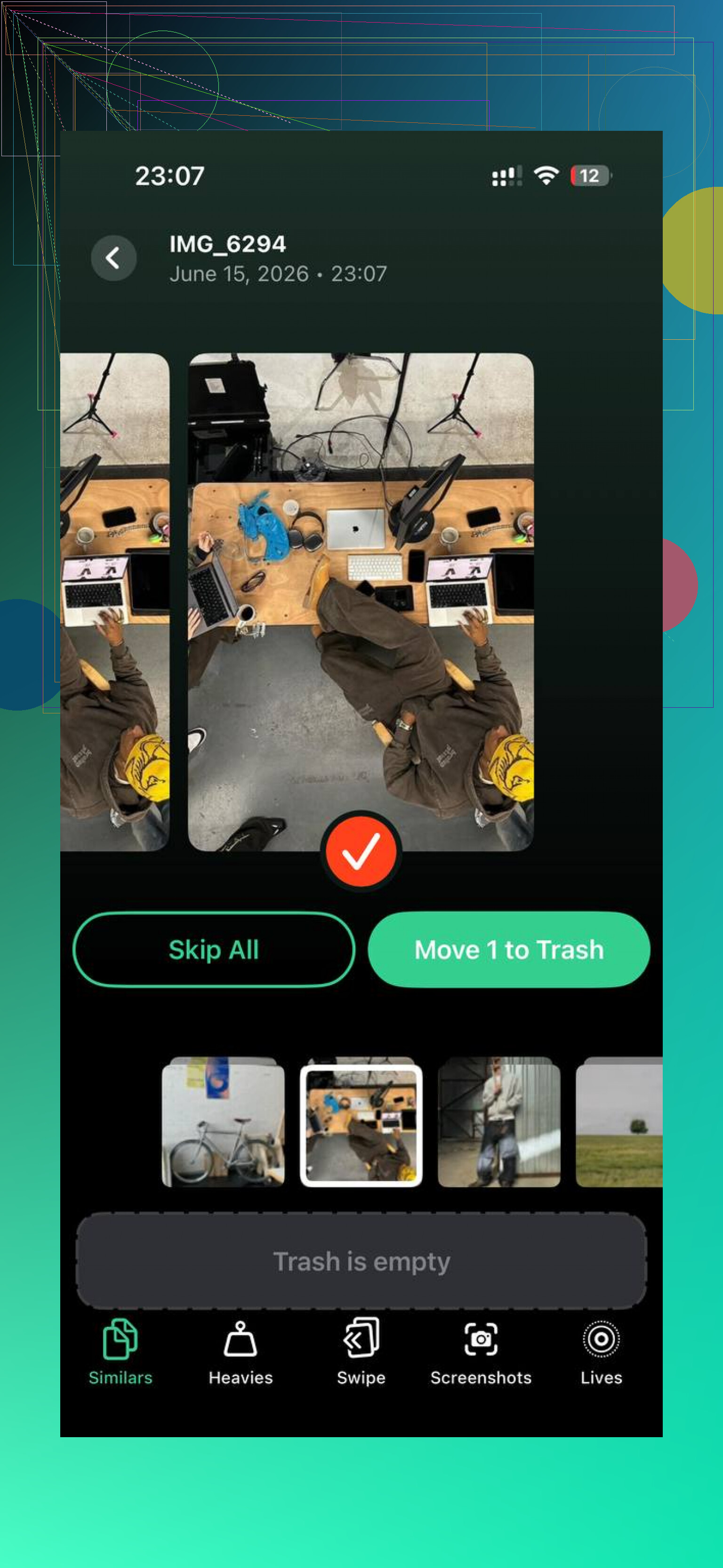
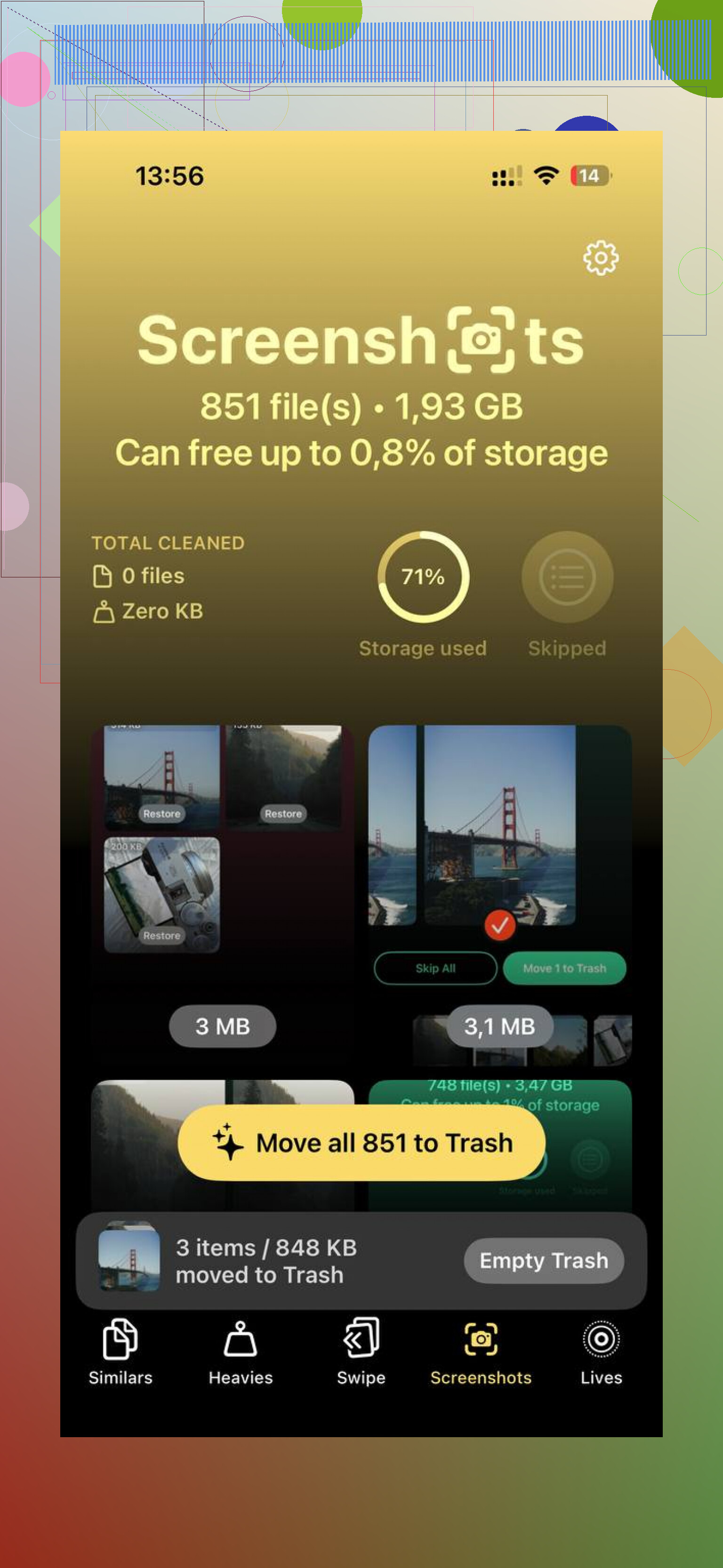
In my case, photos and videos were the biggest problem. I tried sorting it by hand once. Bad idea. Too many duplicates, too many screenshots, too many old videos I forgot existed. I ended up using Clever Cleaner because I wanted something which showed file sizes clearly instead of making me guess.
The part I kept using was the Heavies section. It surfaces the biggest files first, so you spot the useless 4K clips and giant screen recordings without digging. There’s also a Similars section for near-duplicate shots. Mine was full of repeat pet photos and five attempts at the same receipt scan. It shows the size for each item, which helps when you’re trying to free up a set amount and move on.
What I did like, and this mattered to me, was the on-device processing. My library stayed on the phone. No sending personal photos off somewhere else.
After I cleared around 10GB of large videos and duplicate images, the Photos storage number dropped, and the phone felt faster the same day. Not magic, still the same phone, but less laggy and less clogged up.
So yes, clearing this stuff is safe. You might need to sign back in to some apps. A site or app feed might load slower the first time after cleanup. Fine trade.
If you want the short version:
Delete and reinstall bloated social apps.
Clear Safari history and website data.
Check in-app browser or cache settings where available.
Empty Recently Deleted in Photos.
Check Recently Deleted in Files too.
Review large videos and duplicate photos first.
If your storage is nearly full, don’t wait. iPhones get cranky when free space gets too low, and the slowdown is not subtle.
What grows is often sync data, message attachments, failed downloads, and app databases. Not only cache. I slightly disagree with @mikeappsreviewer on one point, delete and reinstall is not always the first move. For some apps, the storage comes right back after login because the cloud re-syncs old junk.
Do this instead.
-
Check iPhone Storage and wait 30 to 60 seconds.
iOS needs time to calculate. You’ll often see Messages, Mail, Podcasts, Music, and Instagram jump after the scan finishes. -
Target Messages first.
Settings, General, iPhone Storage, Messages.
Review Photos, Videos, GIFs, Stickers, Top Conversations.
Message attachments often eat 5GB to 20GB by themself. Apple hides this prety well. -
Fix Mail.
If Mail shows several GB, remove the mail account from iPhone, restart, add it back.
Old attachments and broken indexes build up there. -
Look at downloaded media apps.
Netflix, Spotify, YouTube, Podcasts, Books.
Offline downloads stay even when you forgot they exist. Delete downloads from inside each app. -
Reset bloated system indexes.
Force restart. Then toggle these off and on one at a time if storage looks wrong, Siri indexing, Photos sync, Messages in iCloud. This helps when storage totals look bugged. -
For Files, check On My iPhone.
A lot of apps dump zip files, exports, PDFs, and video edits there. Also check Files, Recently Deleted. -
If “System Data” is the real hog, do an encrypted backup to a Mac or PC, erase iPhone, restore backup.
Annoying. Still the most reliable fix for corrupted storage reporting.
For photos, a cleaner app helps more than manual hunting. Clever Cleaner is decent for large videos, duplicates, and similar shots. If you want a plain-English overview, this Clever Cleaner for iPhone review and cleanup guide explains what it removes and why people use it.
If you want the fastest win, check Messages and Mail first. Those two get missed alot.
What finally fixed this for me was treating “Documents and Data” like a symptom, not the actual problem.
I mostly agree with @mikeappsreviewer and @jeff, but I’d push one extra angle: sometimes the storage growth is coming from app sync loops, not just cache. Apps like WhatsApp, Telegram, Notes, voice recorders, even editing apps can keep re-building local databases after every launch. So if you delete stuff and the number comes right back, that’s your clue.
A few things I’d check that they didn’t really lean on:
- WhatsApp/Telegram/Signal media management inside the app
- Notes app with lots of scans or attachments
- Voice Memos
- GarageBand, iMovie, CapCut, Lightroom, Canva, etc.
- Podcast apps other than Apple Podcasts
- cloud drive apps like Google Drive or Dropbox with offline files
Also, restart after big deletions. iPhone storage reporting is kinda goofy and sometimes doesnt update right away.
One thing I disagree with a little: deleting and reinstalling every big app can turn into busywork fast. I’d first look for apps that create files, not just apps you scroll in. Video editors and messaging apps are usualy worse than people think.
If Photos is still the main monster, Clever Cleaner is honestly one of the easier options because it surfaces large videos, duplicates, and similar shots without making you manually dig through 20,000 pics. If you want a more search-friendly phrase, think of it as a free iPhone cleaner app for removing duplicate photos and large files. This watch how to clean up iPhone storage faster also explains the general cleanup flow pretty well.
My short version:
- find apps storing offline/media files
- clear app-specific downloads
- check Files > On My iPhone
- restart phone
- only then start deleting/reinstalling apps
That hidden storage is usally app junk, sync residue, or downloaded media you forgot existed.
One angle I think @jeff, @voyageurdubois, and @mikeappsreviewer only partly touched: bad backups can keep re-inflating junk. If you restore from an old iCloud backup, some app data cruft comes right back. That’s why people “clean” storage and end up back at square one a week later.
A few extra checks:
- Settings > Apple ID > iCloud > Manage Account Storage
See which apps are backing up huge blobs you no longer need. - Delete old Messages backups in iCloud if you already removed the attachments locally.
- In Safari, check Downloads folder location. Sometimes it points to On My iPhone and quietly fills up.
- In Photos, look for imported media from editing apps. Those duplicate exports are sneaky.
- For music apps, remove “cache” by turning off Sync Library briefly only if you do not rely on local downloads.
Small disagreement with the reinstall crowd: if the app is a cloud-heavy app, reinstalling can just trigger a full re-download.
If photos are a big part of the mess, Clever Cleaner is useful for spotting duplicates and giant videos fast. Pros: simple, size-focused, easy to scan. Cons: won’t fix Mail, Messages databases, or buggy System Data. So it helps with media clutter, not everything.