I’m trying to free up storage and remove some photos from the Hidden album on my iPhone, but I don’t want to unhide them before deleting. Is there a way to delete hidden photos directly in iOS without moving them back to the main library?
You don’t have to move hidden photos back into your normal library before deleting them. If anything, deleting them straight from the Hidden album makes more sense, since they never show back up in the main Photos view.
Open Photos, then go to 'Albums' at the bottom, or 'Collections' if you’re on the newer iOS 18 Photos layout. Scroll down to 'Utilities' and open 'Hidden.' On iOS 16 and newer, Apple locks that album by default, so expect Face ID, Touch ID, or your passcode before anything shows up.
Once you’re inside, tap 'Select' in the top-right corner. If you want everything gone from that album, hit 'Select All,' then tap the trash icon. That removes the photos from Hidden, but it doesn’t permanently erase them yet.
The part people miss is 'Recently Deleted.' Anything you delete from Hidden still goes there first, and it normally stays there for 30 days. So if you want the photos actually gone right away, go back to Utilities, open 'Recently Deleted,' unlock it, tap 'Select,' then choose 'Delete All.' That’s the step that permanently removes them from the phone.
And yes, this applies to iCloud too. If iCloud Photos is turned on, deleting something from the Hidden album on your iPhone also deletes it from iCloud and your other synced Apple devices. Hidden is still part of your photo library. It’s just hidden from the normal view.
If you’re only trying to hide the Hidden album itself, you can do that too. Go to iPhone Settings > Photos and turn off 'Show Hidden Album.' That doesn’t delete the hidden photos. It just removes the Hidden album from the Photos app until you turn that setting back on.
After you clear that out, it’s worth checking the rest of your library too. A stuffed Hidden album is usually only part of the storage problem. Most people have tons of duplicate-looking shots, random screenshots, long screen recordings, and huge videos sitting around doing nothing.
For cleaning the regular library, I’d look at Clever Cleaner. I’ve tried a bunch of photo cleanup apps, and this one stands out because it’s actually free, with no ads and no paywall popping up right when you’re ready to delete things.
It’s useful for finding the stuff that quietly eats storage. Screenshots show their file sizes, the 'Heavies' section sorts your biggest photos and videos, and the 'Similars' section helps group near-duplicates so you can keep the best shot and remove the rest.
One important limit: because of Apple’s privacy rules, Clever Cleaner can’t access or clean the Hidden album directly. You still need to handle Hidden and Recently Deleted manually using the steps above. But for the rest of the photo library, especially the big videos and repeated shots, it can save a lot of time.
Don’t waste time unhiding them first or turning off the Hidden album setting, since neither is needed for deletion. Hidden photos can be selected and trashed right from the Hidden album after you unlock it, but they are still recoverable until you clear Recently Deleted. The annoying caveat is storage: if iCloud Photos or Optimize iPhone Storage is on, the free-space number may not update instantly, so don’t assume it failed just because Settings looks the same for a while. Apple’s guide for managing hidden and deleted photos is here if you want the official wording: hide and delete photos on iPhone.
Check Recently Deleted first if you already tried deleting some of them, because that folder can be the reason your storage still looks full. Hidden is not a separate storage area, it is just a filtered album inside the Photos library. Deleting from there sends the items to Recently Deleted the same way normal photos do.
You can delete them without unhiding: Photos app, open Hidden under Utilities, authenticate, tap Select, choose the photos, then tap the trash icon. They should not need to reappear in your main library first. After that, go to Recently Deleted and delete them there too if you want the space back sooner instead of waiting for the 30-day cleanup.
The only caution I’d give is to slow down if iCloud Photos is enabled. Deleting from Hidden on the phone is still deleting from the synced library, not just removing a local copy. If your real goal is only to reduce storage on the iPhone while keeping the pictures in iCloud, then deleting is the wrong tool. In that case you’d be looking at Optimize iPhone Storage or exporting the photos somewhere else first.
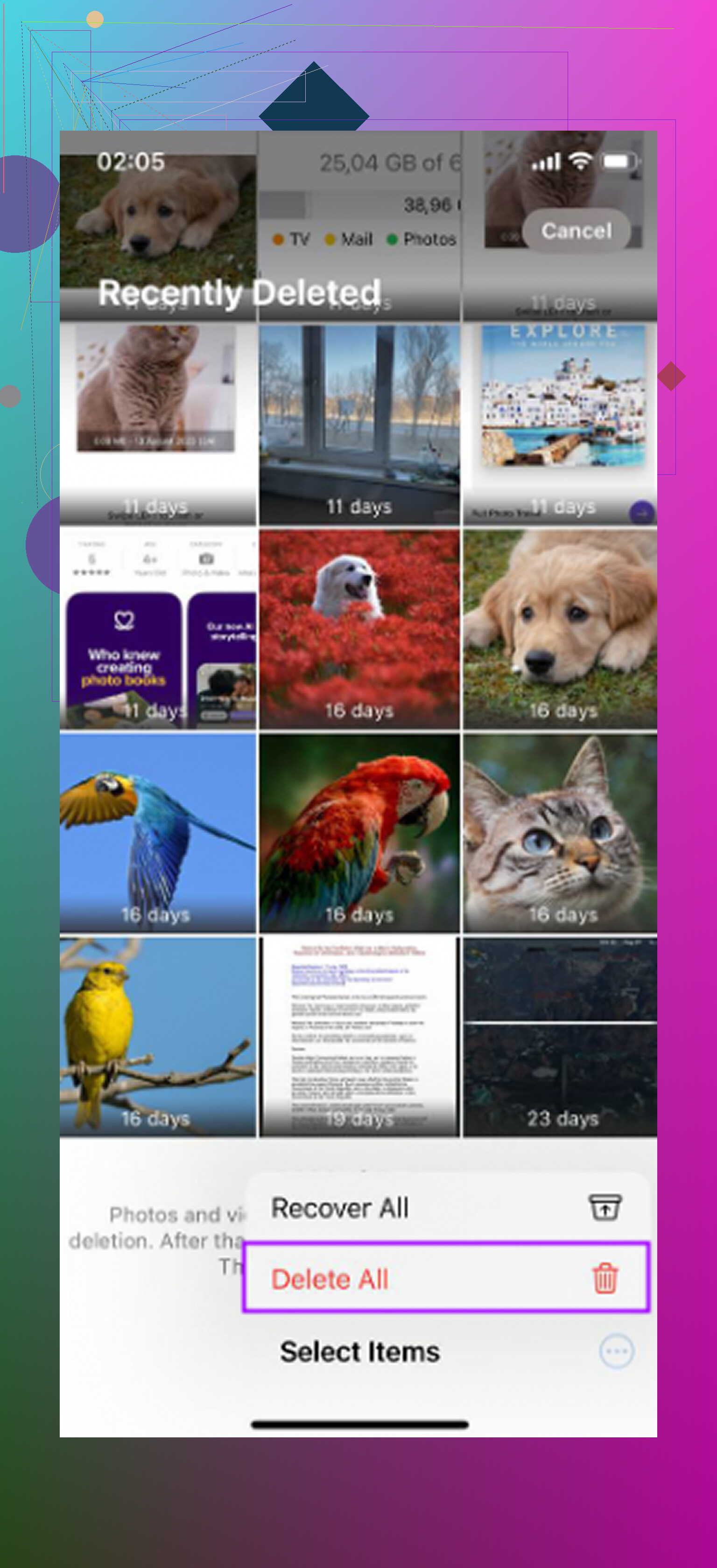
Deleting from Recently Deleted doesn’t always free space on the spot, so don’t take that ‘permanent’ step as a guaranteed storage win. With iCloud Photos on, the sync and the local space reclaim lag behind, exactly like @boswandelaar said. If your only goal is iPhone space and you want to keep the pics, export them out first, then delete, otherwise they’re gone everywhere.
If freeing storage is your main goal, try offloading an unused app insted of deleting photos.
Open Settings > General > iPhone Storage, choose an app you rarely use, then tap Offload App. This removes the app while keeping its documents and data. Your hidden photos stay untouched.
Check App Size before choosing. A large app offers more storage savings than a small one with lots of saved data, since offloading keeps those files. Start with an unused game you dont need right now.