My iPhone storage is almost full, and apps are taking up way more space than I expected. I want to clear app storage and reduce iPhone storage usage without deleting important app data, photos, settings, or saved progress. I’m not sure which options are safe, like offloading apps or clearing cache, and I need help figuring out the best way to free up space without losing anything important.
I ran into the same thing on my iPhone, and yeah, the ‘Applications’ section is confusing the first time you look at it.
‘Applications’ is not only the app you installed. It rolls together a few different chunks:
- the app itself
- your saved app data, like settings, logins, local files
- cache and temp files
- files stored in ‘On My iPhone’ in Files
- Safari downloads and some website data
So if the number looks huge, it does not always mean you installed too many apps. A lot of it is buildup from using the phone normally.
Mine got bloated from Instagram, Safari, a couple streaming apps, and one game I barely even played. Those apps keep local media and cache so stuff loads faster later. Nice for speed, bad for storage. After a while, the phone starts feeling off. I saw camera delays, random app reloads, and weird lag once free space got low.
From what I saw, iPhones need some empty space to stay smooth. I try to leave around 6 GB free. Below that, things got messy for me fast.
If you want to shrink ‘Applications’ without wiping your stuff, the best built-in option is Offload App.
Go here:
Settings > General > iPhone Storage > pick an app > Offload App
Offloading removes the app package but keeps your documents and data. It does not wipe your account info or saved progress. When you reinstall it, you pick up where you left off. Deleting is the one that removes everything.
A few things I do:
What helped on my phone
1. Offload apps I barely touch
Stuff like airline apps, store apps, old games, conference apps. I do not need them sitting there full time.
2. Check Safari storage
Safari was holding more junk than I expected.
Go to Safari in storage settings and remove website data. I got back a few hundred MB doing this. Once it was close to 1 GB, which felt dumb.
3. Look at large media files
A lot of ‘my phone is slow’ ended up being photo and video clutter, not only apps.
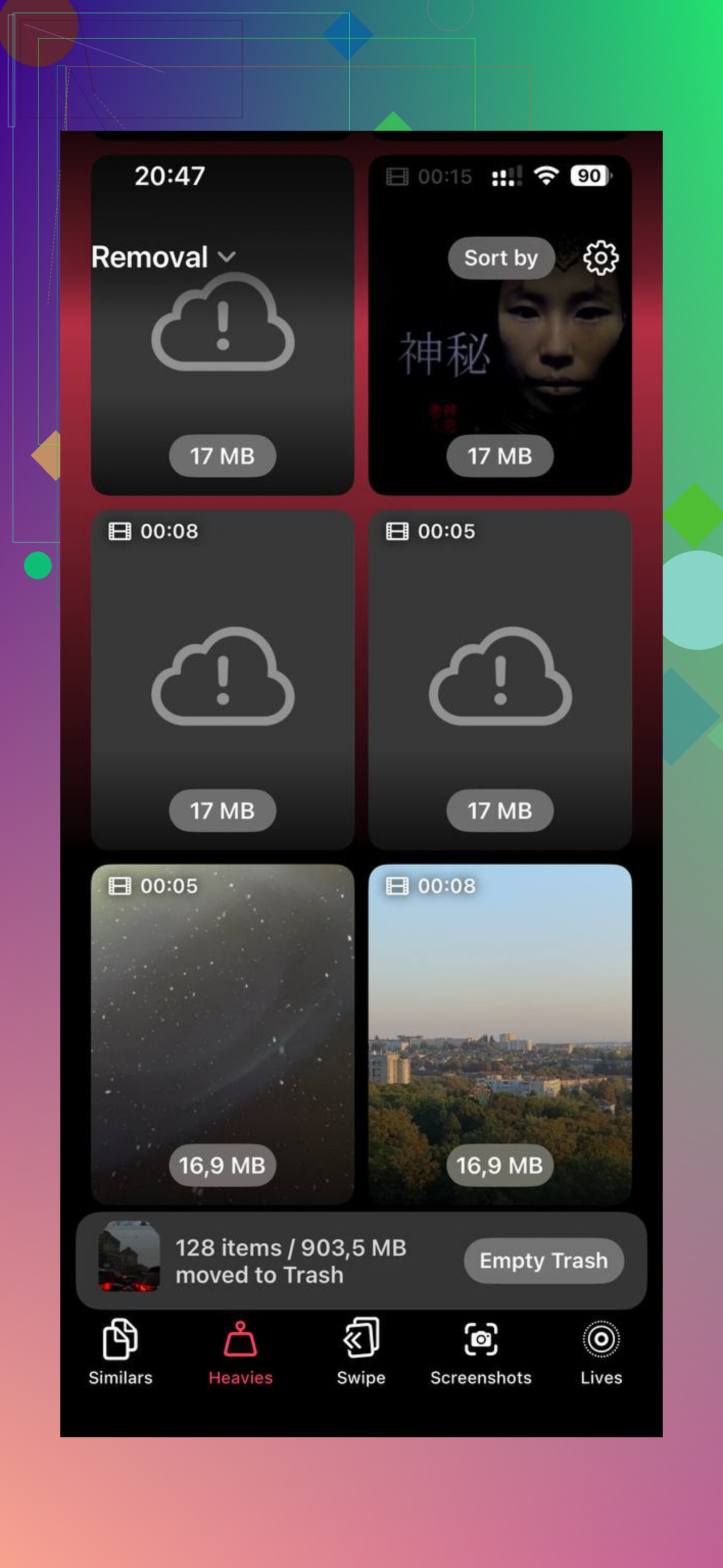
I used Clever Cleaner for this after the built-in tools stopped being enough. What kept me using it was simple stuff, no paywall popped up halfway through, no ad spam, no weird pressure screens. I mostly used the Heavies section to sort photos and videos by size, then cut old screen recordings and giant duplicate clips. The Similars part helped too, since my camera roll had way too many near-identical shots.
What I liked most, and this mattered to me, was it did the analysis on the phone itself. I did not want my library sent off somewhere.
Short version
If ‘Applications’ is huge, it usually means:
- app files
- app data
- cache
- local downloads
- Files app storage
If your phone feels slow, check free space first. Then:
- offload unused apps
- clear Safari website data
- remove large photo and video junk
- keep a few GB free at all times
I started checking storage once a month and it stopped turning into a crisis. Small habit, big differece.
3 Likes
A big Applications number often comes from app Documents and Data, not the app file itself. That part is what grows.
I agree with @mikeappsreviewer on offloading, but I would not rely on it too much for daily-use apps. Some apps rebuild their cache fast, so you free 2 GB today and lose it again next week.
What works better for me:
- Open Settings, General, iPhone Storage, then sort by biggest apps.
- Tap apps like Messages, Music, Podcasts, Netflix, Spotify, TikTok, Instagram.
- Look for app-specific download options inside the app. Remove offline videos, saved episodes, downloaded playlists, old chats with lots of attachments.
- In Messages, delete large attachments from big convos. This alone freed 3 GB on my phone.
- In WhatsApp or Telegram, use their Storage tools. Those apps hoard media like crazy.
- For cloud apps, turn off local copies and keep files online-only.
- Restart after cleanup. iOS sometimes reports storage weirdly untill after a reboot.
One thing people miss, app updates need working room. If your phone sits under 5 to 8 GB free, storage pressure gets annoying fast.
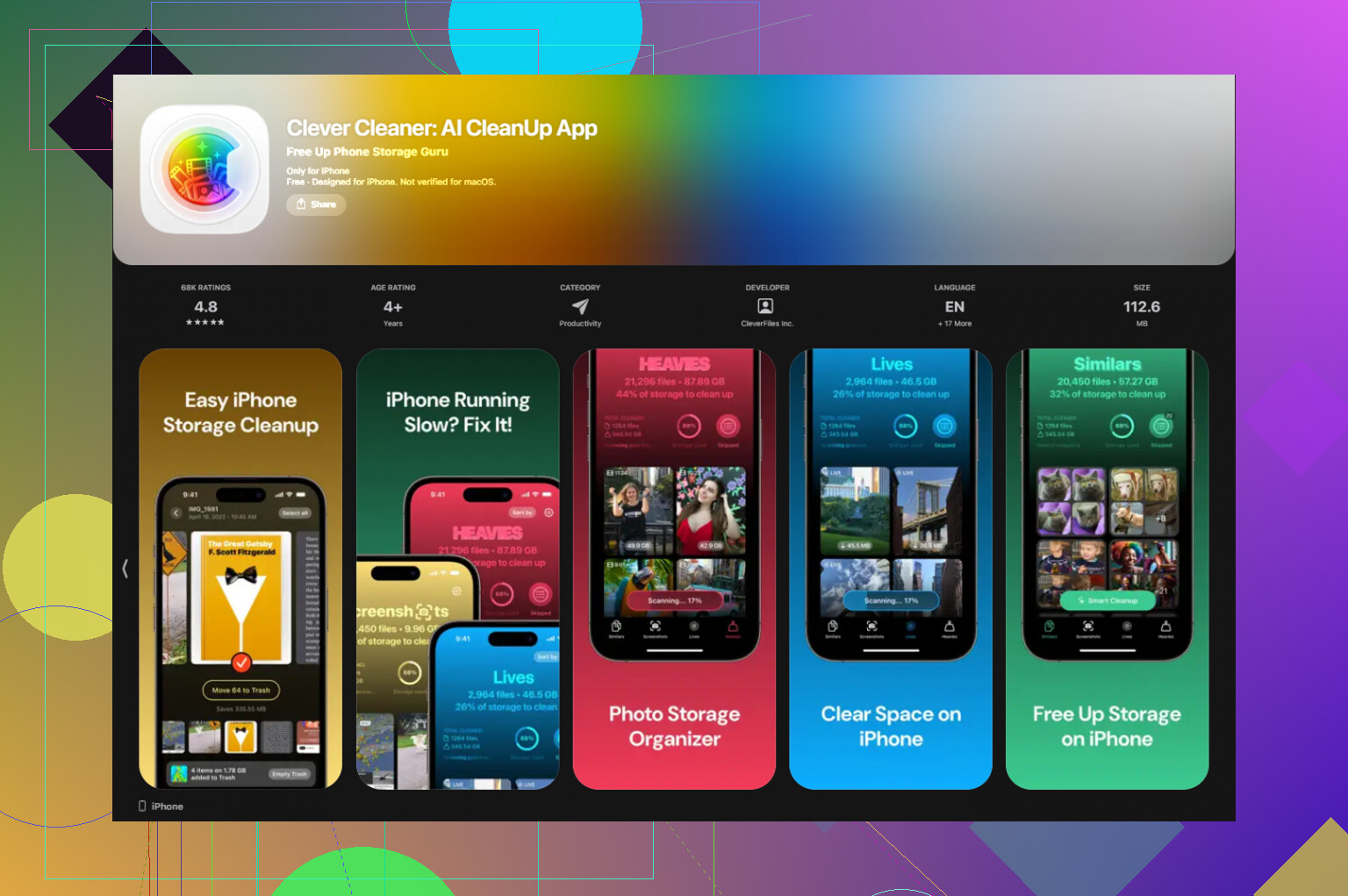
If photos are part of the mess, Clever Cleaner is worth a look for large videos and duplicate shots. I also found this useful if you want a simple breakdown before trying it: see this Clever Cleaner iPhone cleanup review.
So, target downloads and attachments first. That is where the hidden bloat is, not the app icon itself.
One thing I’d add to what @mikeappsreviewer and @cacadordeestrelas said: sometimes the fix is not removing stuff, it’s stopping apps from re-inflating themselves every few days.
A few less-mentioned things that helped me:
- Turn on Optimize iPhone Storage for Photos if you use iCloud Photos. That can cut local storage hard without deleting pics.
- Check Files app under Browse > On My iPhone. Random PDFs, ZIPs, video exports, and downloads hide there forever.
- Look at voice memos, GarageBand, iMovie, CapCut, Lightroom type apps. Creative apps quietly store giant project files.
- For social apps, logging out and back in sometimes trims junk better than just waiting for cache to clear. Annoying, but it works.
- I kinda disagree with relying on “keep 6 to 8 GB free” as a magic number. More free space is better, sure, but the real issue is which apps are bloating and whether they store media locally.
If you want to reduce storage without losing data, I’d prioritize this order:
- Cloud optimization
- Local downloads in apps
- Files app cleanup
- Offload rarely used apps
- Photo/video cleanup
Also, if your library is part of the problem, Clever Cleaner is actually useful for spotting large videos, duplicates, and similar shots without making the cleanup process feel like a scammy mess. That’s where I freed the most space, tbh.
If you want a solid video walkthrough, this is easier to follow than most: best iPhone storage cleanup tips in this full video review.
Biggest thing: don’t delete apps blindly. Check whether the size is the app itself, downloaded content, or buried files first. That’s where people nuke data by acident.