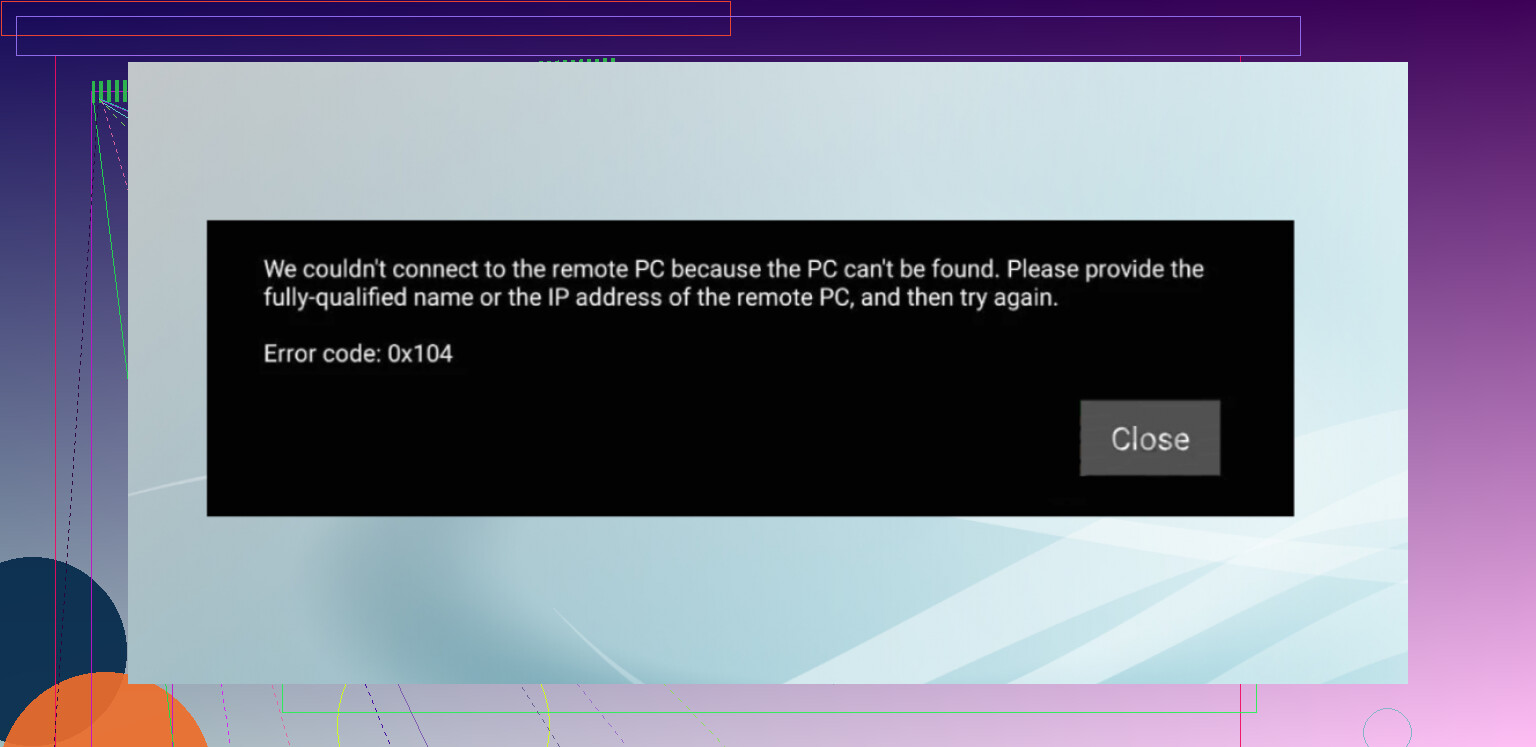
How do I fix Remote Desktop error code 0x104 on Windows?

I keep running into Remote Desktop error code 0x104 when trying to connect to my Windows PC on my home network, and I can’t figure out what’s causing it. I’ve checked basic settings like RDP being enabled and the PC being on the same network, but the connection keeps failing with this same error. Can someone explain what typically triggers error 0x104 in Remote Desktop and walk me through reliable steps to troubleshoot and fix it?

Error 0x104 in RDP is Windows telling you “I’m not even seeing that machine on the network”, not “your password is wrong”.

When I hit this the first time, I wasted half an hour resetting passwords for no reason. Turned out the machine was not reachable at all.

Here is what has fixed it for me and for coworkers most of the time:

  1. Use the IP address, not the PC name

    • In the RDP client, type something like 192.168.1.23 instead of OFFICEPC01.
    • If IP works and the hostname does not, you are dealing with DNS.
  2. Check if the machine responds at all

    • Open Command Prompt on your PC.
    • Run: ping 192.168.1.23 (replace with the target IP).
    • If you get timeouts, RDP will not work until you fix basic connectivity.
  3. Confirm Remote Desktop is enabled on the target

    • On the remote PC:
      • Settings → System → Remote Desktop.
      • Turn on “Remote Desktop”.
    • Also check “User accounts that can connect” and make sure your user is allowed.
  4. Look at the firewall on the remote machine

    • Windows Defender Firewall → Advanced settings.
    • Under Inbound Rules, make sure “Remote Desktop” rules are enabled.
    • Port to allow: TCP 3389.
  5. Check if you are on the same network

    • If both PCs are on the same local network, life is easier.
    • If you are at home trying to reach a PC at the office, you need a VPN into that network or some port forwarding on the router to 3389.
    • A lot of people see 0x104 when they try to connect straight over the internet without VPN or proper routing.
  6. Turn on Network Discovery on the remote PC

    • Control Panel → Network and Sharing Center → Advanced sharing settings.
    • Enable “Turn on network discovery” and “Turn on file and printer sharing”.
    • This does not “enable” RDP itself, but tends to fix weird visibility issues.
  7. Double check the PC name

    • I have seen it fail because someone typed WORKSTATION-1 instead of WORKSTATION1.
    • If you rely on the computer name, check it on the target:
      • Right-click Start → System → “Device name”.

There is a longer walkthrough with screenshots and all the edge cases here:

Short version: when you see 0x104, think “network or firewall or name resolution first”, not “username and password”.

1 Like

Error 0x104 almost always means “RDP cannot reach that machine at all”. I agree with @mikeappsreviewer on the network angle, but there are a few extra things to check that often get missed on a home network.

Try these in order:

  1. Confirm the PC is awake and not hibernating
    • On the target PC, go to Power & sleep settings.
    • Set Sleep to “Never” for a quick test.
    • Disable “Allow the computer to turn off this device to save power” on the network adapter.
    Right click Start → Device Manager → Network adapters → your adapter → Power Management.

    Error 0x104 often shows up when the PC is “on” but the NIC is sleeping.

  2. Check if you are using the correct IP version
    • In your RDP client, hit Show options → Advanced → Settings under “Connect from anywhere”.
    • If you are forcing IPv6 or using a proxy there, set it to “Do not use an RD Gateway” for local LAN.
    • On the client PC run:
    ping -4
    • If IPv6 answers but IPv4 fails or vice versa, RDP to the specific IP family that works.

  3. Disable VPNs and security suites on the client for testing
    • Disconnect from any VPN on your laptop or phone.
    • Temporarily turn off third party firewall or “internet security” tools on the client only.
    Some of these intercept RDP and break local routing, which gives you 0x104 even when the host is fine.

  4. Check for double NAT or guest Wi Fi
    On home networks this bites a lot of people.
    • Make sure both devices are on the same SSID, not one on “Guest” and the other on “Main”. Guest isolation blocks LAN traffic.
    • If you have a router from your ISP plus your own router, you might be on a different subnet.
    Example:
    Router 1 LAN: 192.168.0.x
    Router 2 LAN: 192.168.1.x
    Devices on 192.168.0.x will fail to reach 192.168.1.x without routing rules. That yields 0x104.

  5. Check port listening on the target PC
    On the remote PC, run in Command Prompt:
    netstat -an | find ‘3389’
    You want to see something like:
    TCP 0.0.0.0:3389 0.0.0.0:0 LISTENING
    If there is no listener on 3389, RDP service is not working even if the toggle is “On”.
    Then run:
    services.msc
    Make sure “Remote Desktop Services” is running and set to Automatic. Restart it.

  6. Look for profile or user‑level issues
    Sometimes RDP works to the machine for one user but fails for another.
    • Add your account to the “Remote Desktop Users” group explicitly.
    Run:
    lusrmgr.msc → Groups → Remote Desktop Users → Add.
    • Test with a different local admin account.
    If a second account connects and yours fails with 0x104 from some clients, your profile or permissions might be messed up.

  7. Test from another client device
    Try from a phone with the Microsoft Remote Desktop app while connected to the same Wi Fi.
    • If phone works and your PC does not, you have a client machine issue.
    • If nothing works, it is host or network.

  8. Check router settings for client isolation
    Some routers have “AP isolation”, “Wireless isolation” or “Block LAN access” options per SSID.
    If this is on, devices on Wi Fi cannot talk to each other, so RDP fails with 0x104 even though internet works.

If you want a complete click by click guide with screenshots, this page from @mikeappsreviewer is solid:
detailed fixes for Remote Desktop 0x104 issues

Short version for your home setup.
Make sure the PC is awake, on the same subnet and SSID, listening on port 3389, and not blocked by router isolation or VPN software. Once ping and netstat look good, 0x104 usually disappears.

How to Resolve Remote Desktop Error Code 0x104
Fix Remote Desktop error 0x104 on Windows by checking network connectivity, firewall rules, and RDP service status. Learn how to use the correct IP address, verify port 3389 is listening, avoid guest Wi Fi isolation, and adjust router or VPN settings so your Windows PC accepts incoming Remote Desktop connections on your home network.

0x104 is one of those errors that looks like an RDP problem but is really “Windows can’t see that box at all.” @mikeappsreviewer and @hoshikuzu already nailed most of the obvious network / firewall / sleep / router stuff, so I’ll skip repeating their steps and add the less-obvious junk that bites people on home networks.


1. Check for different network profiles on each PC

Windows behaves very differently on “Public” vs “Private” networks.

On both machines:

  1. Settings → Network & Internet → Status → Properties (on your active connection)
  2. Look for “Network profile”:
    • If one is “Public” and the other is “Private”, change both to Private for testing.
  3. Then in “Settings → Network & Internet → Wi Fi → Manage known networks”, make sure you did not set your Wi Fi as Public accidentally.

Public profile can silently block inbound stuff in ways that still give you internet but kill RDP with 0x104.


2. Turn off “Random hardware addresses” / MAC privacy on Wi Fi

Some adapters rotate their MAC address per network or over time. Routers sometimes freak out and treat it as a “new device” or isolate it.

On the client and host (if Wi Fi):

  1. Settings → Network & Internet → Wi Fi → Manage known networks → click your SSID
  2. “Random hardware addresses” / “Use random hardware addresses for this network” → set to Off.
  3. Reconnect and check if the router now shows both devices normally.

I’ve seen 0x104 disappear instantly after doing this on laptops that kept flipping MACs.


3. Kill IPv6 only as a test (when name resolution is weird)

I slightly disagree with the “just go by IP and forget name resolution” approach. Long term, you probably want proper name resolution.

Sometimes Windows picks an IPv6 address that your router does not actually route correctly, so RDP dies even though ping might partially work.

On both machines:

  1. Control Panel → Network and Internet → Network and Sharing Center
  2. Change adapter settings
  3. Right click your active adapter → Properties
  4. Uncheck “Internet Protocol Version 6 (TCP/IPv6)”
  5. OK, disconnect and reconnect.

If RDP suddenly starts working by hostname, you know the problem was broken IPv6 on your LAN. Then you can decide if you want to fix IPv6 properly or just leave it off.


4. Disable “SMB over QUIC” / VPN-like features in some security tools

This is more niche, but a few “secure home” suites now install proxy-like features or “secure DNS / secure Wi Fi” that silently tunnel or isolate traffic.

Check on both:

  • Any “secure DNS”, “browser protection”, “Wi Fi protection”, “network shield” in antivirus or “internet security” tools
  • Temporarily turn those modules off instead of the whole AV

Yes, @hoshikuzu mentioned VPNs, but some of these tools behave like a local VPN without showing as a VPN connection. They can sink RDP traffic and still leave browsing fine.


5. Check router for per-device access controls

Beyond guest network / AP isolation, a lot of modern routers have:

  • “Parental controls”
  • “Access control”
  • “Device blocking / profile-based blocking”

Log in to your router:

  1. Find the page that lists all devices and see if either PC has a special profile (kid / restricted / IoT).
  2. If you see toggles like “Block from local network” or “Only allow internet access,” that can kill RDP while leaving browsing OK.
  3. Turn those off for both devices, at least for testing.

0x104 can easily be “router silently blocking LAN to LAN.”


6. IPv4 address conflicts & lease issues

If you’ve been plugging / unplugging or changing routers, you might have two devices fighting over the same IP, which causes lovely intermittent 0x104.

On the target PC:

  • In Command Prompt:
    • ipconfig /all
  • In your router’s DHCP client list:
    • Make sure no other device has that same IP.

If things look sus:

  1. On the target PC:
    • ipconfig /release
    • ipconfig /renew
  2. Or in the adapter’s TCP/IPv4 properties, set a manual IP outside your DHCP pool but same subnet, then test RDP.

Conflicting IPs can let ping work one moment and fail the next, making 0x104 really inconsistent.


7. Check RDP listener binding (multi NIC or VPN adapters)

If the machine has:

  • Virtual adapters (VirtualBox, VMware, Docker, Hyper-V)
  • Old VPN adapters
  • Multiple NICs

Sometimes the RDP listener ends up bound in a weird way.

On the host:

  1. Command Prompt (admin):
    • netsh interface ipv4 show ipaddresses
    • Confirm which IP is the one you want to RDP into.
  2. Then:
    • reg query 'HKLM\SYSTEM\CurrentControlSet\Control\Terminal Server\WinStations\RDP-Tcp' /v PortNumber
      Make sure port is 3389 and not some random number.
  3. If you’ve ever changed the listening IP via GPO / registry, reset it to “all interfaces” and restart “Remote Desktop Services”.

Not common on a simple home setup, but once you’ve installed a few VPNs and hypervisors, it shows up.


8. RDP settings on the client side

Sometimes the client is misconfigured even though the host is fine.

On the client:

  1. Open Remote Desktop Connection → Show Options
  2. On the “Advanced” tab:
    • Under “Connect from anywhere,” set it to Do not use an RD Gateway for local home connections.
  3. In the “General” tab:
    • Try unchecking “Allow me to save credentials,” then reconnect and manually type creds.
  4. In “Experience”:
    • Temporarily set to a lower speed and uncheck extra features (fairly rare, but I’ve seen crazy DPI / compression hooks in some screen-recording tools affect RDP).

I’ve run into a broken saved profile where a corrupted .rdp file kept throwing 0x104 until I deleted it and re-created from scratch.


9. Try different RDP client software or platform

You already tried “basic settings,” but one more simple sanity check:

  • If you are using Windows built-in RDP client, also try:
    • The Microsoft Remote Desktop app from the Store
    • Or from an Android/iOS device on the same Wi Fi

If phone connects fine but your Windows client throws 0x104, your host and network are good; the problem lives entirely on that client machine.


10. Clear the ARP cache & local resolver cache

Sometimes the client still has stale MAC or DNS entries from before you changed routers or NICs.

On the client (admin CMD):

arp -d *
ipconfig /flushdns

Then retry by IP again. If it suddenly starts working, you probably had old ARP / DNS entries pointing at the wrong device.


More detailed walkthrough

If you want a more structured step-by-step with screenshots that ties together what @mikeappsreviewer, @hoshikuzu and others have said, plus some of this extra stuff, this guide is pretty useful:
fixing Windows Remote Desktop error 0x104 on your home network

In practical terms: for 0x104, keep your focus on LAN visibility and routing, not your password. Once the machines see each other reliably on the same subnet, same SSID, proper profile, and the router is not isolating them, RDP usually just starts working and that annoying code vanishes.

Skip the basic stuff already covered by @hoshikuzu, @suenodelbosque and @mikeappsreviewer. If you still see 0x104 after their network, firewall, sleep and router checks, you are probably hitting something more subtle.

1. Check for corrupted RDP client profile

Sometimes the client, not the host, is the problem.

  • Close Remote Desktop Connection.
  • Go to your Desktop / Documents and delete any old .rdp files you are using.
  • Open mstsc fresh, type the IP, do not save credentials, and try again.
  • If it works, rebuild your saved connection from scratch.

2. Verify that NLA is not blocking you silently

Network Level Authentication can give you connection failures that look like “can’t reach host”.

On the host:

  1. System Properties → Remote tab.
  2. Temporarily uncheck “Allow connections only from computers running Remote Desktop with Network Level Authentication”.
  3. Try again from client.
  4. If it suddenly works, your problem is NLA + credentials / domain trust, not pure networking.

I slightly disagree with always leaving NLA on in home setups; for testing, turning it off can quickly separate “network dead” from “auth / crypto issue”.

3. Group Policy & hardening leftovers

If this PC was ever joined to a domain or hardened, RDP might be effectively disabled even though the GUI toggle says it is on.

Run gpedit.msc on the host:

  • Computer Configuration → Administrative Templates → Windows Components → Remote Desktop Services → Remote Desktop Session Host → Connections.
  • Check:
    • “Allow users to connect remotely using Remote Desktop Services” is Not configured or Enabled.
    • “Allow remote connections only from computers running Remote Desktop with Network Level Authentication” matches your test setting above.

After changes, run:

gpupdate /force

Then restart “Remote Desktop Services”.

4. Test with a non default port to dodge weird ISP / router filters

Occasionally ISPs or even home routers treat 3389 specially, even on LAN.

On the host:

  1. Change the port in the registry:

    • HKLM\SYSTEM\CurrentControlSet\Control\Terminal Server\WinStations\RDP-Tcp
    • PortNumber → set to something like 3390 (decimal).
  2. Reboot.

  3. From the client, connect to IP:3390 (example 192.168.1.23:3390).

If this works while 3389 never does, you have some kind of filtering or conflict on the default port.

5. Strip the host down to “bare minimum” services

To prove it is not some third party service:

  • On the host, do a clean boot:
    • msconfig → Services tab → Hide all Microsoft services → Disable all.
    • Startup tab → Open Task Manager → disable all startup items.
  • Reboot and try RDP again.

If 0x104 disappears in clean boot, re enable services in batches to find the offender. Security suites, traffic shapers, and parental control tools are usual suspects.

6. NIC driver & offload features

Old or buggy NIC drivers can keep the adapter up enough for internet but choke RDP.

On the host:

  1. Update the network adapter driver from the vendor, not just Windows Update.
  2. In Device Manager → your NIC → Advanced tab:
    • Temporarily disable features like “Large Send Offload”, “Checksum Offload”, “Energy Efficient Ethernet”.
  3. Test again.

If RDP stabilizes, one of the offload features was mangling packets.

7. Check for per app firewall rules on security software

Even after you allowed 3389 in Windows Firewall, third party suites sometimes block svchost.exe or Remote Desktop Services specifically.

In your antivirus / internet security:

  • Look for “Application control” or “Program control”.
  • Ensure Remote Desktop Services or “Remote Desktop” / svchost.exe is not in a blocked or restricted state.
  • Some tools classify it as “untrusted remote control” by default.

About the guide titled “How to Resolve Remote Desktop Error Code 0x104”

Pros:

  • Brings together network connectivity, firewall rules and RDP service checks in one place, which is useful if you want a single checklist.
  • Focuses on the practical fixes that usually matter for 0x104 on home networks, like correct IP, port 3389 listening and router isolation.

Cons:

  • Like most general guides, it can gloss over niche causes such as NLA issues, group policy remnants or NIC offload bugs that only show up after basic fixes are done.
  • Assumes a fairly standard home setup and may not fully address old domain joined machines, heavy hardening or exotic security software.

Compared with what @hoshikuzu, @suenodelbosque and @mikeappsreviewer already covered, use that article as a structured base, then layer on the extra tests above when the usual IP / ping / firewall / subnet steps still leave you stuck on 0x104.